Video Converter Ultimate
 100% Secure. No Ads.
100% Secure. No Ads.
Contents
In the world of high-definition displays, 4K monitors and 8K smart televisions seem to be the standard. Lower-resolution videos, even these 720p clips, can often look blurry or pixelated. Nowadays, mainstream streaming services provide HD, 4K, and even 8K content for direct viewing. However, not all content is available in crisp 4K. Most resources are still available in 1080p or lower resolution. To enhance quality in real-time, NVIDIA video upscaling comes into play.
This article gives you a basic introduction to NVIDIA RTX Video Super Resolution (VSR) and AI Upscaling. You can learn the related system requirements, supported browsers and apps, how to enable the upscaling function, and more.
Before you dive into the settings, ensure your PC supports NVIDIA video upscaling. RTX VSR is hardware-dependent and requires specialized processors inside the GPU.
Graphics Card: NVIDIA GeForce RTX 30, 40, or 50 Series, including desktop and laptop versions. Older GTX cards do not have the Tensor Cores for NVIDIA video upscaling.
Drivers: GeForce Game Ready Driver, NVIDIA Studio Driver version R530 or higher.
Display: A 4K monitor or television. The monitor’s native resolution should be higher than the source video you are watching.
Operating System: Windows 10 or Windows 11.
If your hardware can handle the AI upscaling, follow the steps below to enable it. You should know that this feature is not enabled within the browser or app. Instead, you need to turn it on in the NVIDIA Control Panel.
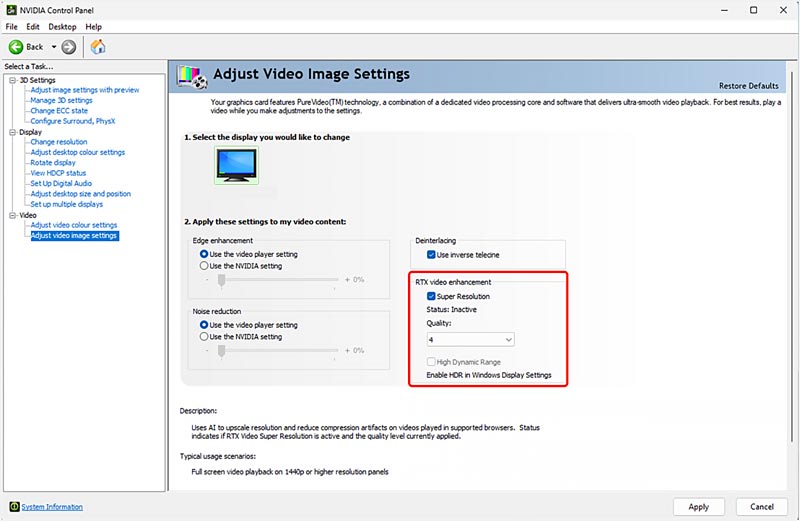
If you have an HDR monitor, you can choose to enable RTX Video HDR to transform standard videos into High Dynamic Range.
You should know that not all apps or browsers can be upscaled through NVIDIA VSR. But main desktop browsers and popular media players are supported, such as Google Chrome, Microsoft Edge, Mozilla Firefox, VLC Media Player, and more.
When you want to upscale a video on the web, you should ensure Hardware Acceleration is turned on first. If you need to use NVIDIA video upscaling within a player like VLC, you should ensure you download the right version that is RTX-compatible. After that, go to the settings to turn on specific hardware-accelerated decoding or video acceleration features.
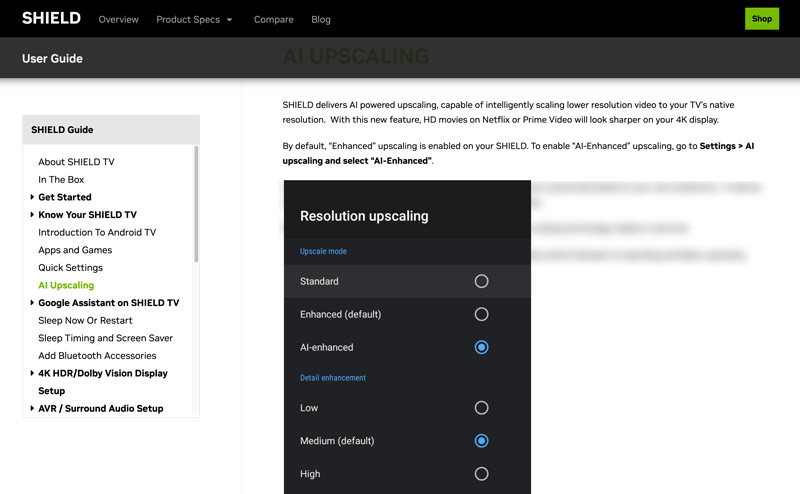
For living room upscaling, you can turn to the NVIDIA SHIELD TV. The 2019 or later model uses a custom Tegra X1+ processor to perform AI enhancement on Netflix, Disney+, Prime Video, and Apple TV+ in real time. NVIDIA SHIELD TV can upscale your 1080p or even 720p video to near 4K quality on your television.
Go to Settings via the SHIELD remote, choose AI Upscaling, and then select AI-Enhanced from Upscaling Mode. Switch the Detail enhancement among Low, Medium, or High.
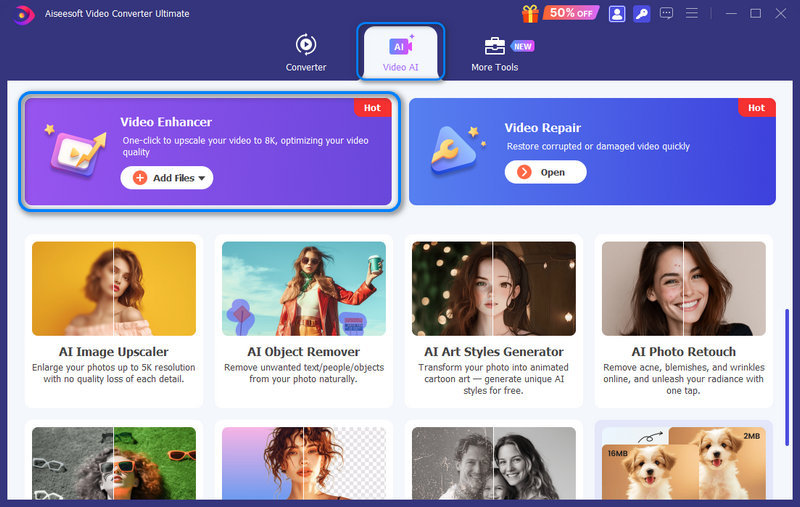
NVIDIA video upscaling is great for real-time streaming and web content. What if you want to upscale and enhance local video files? How do you deal with your own videos, such as downloaded movies, old low-resolution recordings, and other content? For that, you need a dedicated AI video upscaler like Aiseesoft Video Converter Ultimate.
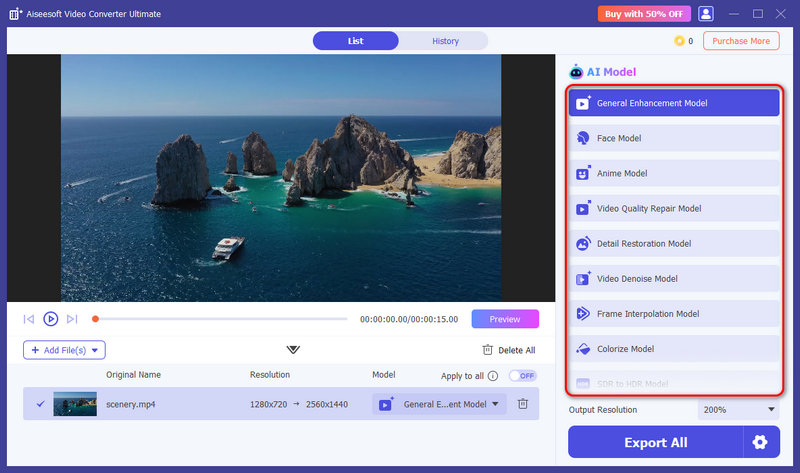
It has a built-in AI Enhancer to increase video resolution from 720p/1080p to 4K or higher with new details. Multiple AI models are available for different enhancement needs. The AI can analyze the source and perform suitable enhancements intelligently.
100% Secure. No Ads.
100% Secure. No Ads.
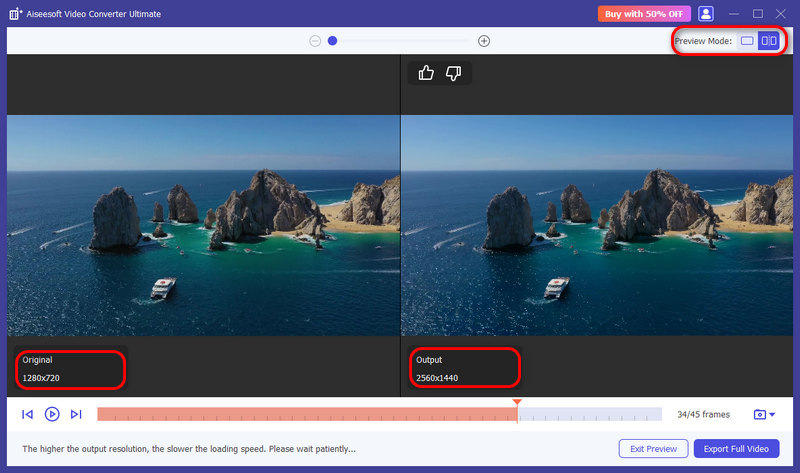
Compared to real-time upscalers like NVIDIA’s RTX Video Super Resolution, Aiseesoft’s AI Enhancer adopts multiple models for different enhancement cases. The AI takes its time to frame-by-frame reconstruct the image and often delivers the best possible quality. Moreover, Aiseesoft provides all the commonly used editing, creation, and conversion tools. It lets you handily upscale and enhance videos for saving or sharing.
Question 1. Does NVIDIA RTX video upscaling work on Macs?
No, NVIDIA RTX Video Super Resolution is not available on macOS. As mentioned, the real-time AI upscaling requires NVIDIA’s RTX cards (Tensor Cores), NVIDIA Control Panel, and Windows-only drivers to run. Modern Macs use Apple Silicon like M1, M2, M3, or M4. What’s more, the default browser app, Safari, on Macs does not have a built-in AI Upscale option for streaming video.
Question 2. Does NVIDIA have a dedicated AI video upscaler?
No, NVIDIA does not have a standalone video upscaling app. Instead, they have developed several dedicated technologies and utility apps to upscale streaming videos across different browsers and devices.
Question 3. Should I turn NVIDIA DLSS on or off?
For most players, you should turn NVIDIA DLSS (Deep Learning Super Sampling) ON. It can boost frame rates significantly with minimal visual loss. That often delivers better viewing quality than native resolution. Enabling NVIDIA DLSS is ideal for higher resolutions like 4K and demanding games.
Conclusion
If your computer already has an RTX card, you can follow the guide to enable NVIDIA video upscaling while streaming. It can significantly upscale and enhance old content or lower-resolution streams and make them look like 4K. Turn to the recommended Aiseesoft AI Enhancer if you need to handle local files.
 5 Top 4K AI Video Upscaler: Features, Pros, Cons, and More
There are 5 most frequently used 4K AI Video Upscalers. Does it fit everyone? We have everything you want to know about that. Let's check it out!
 GeForce Experience Recording - Record Gameplay with Best Experience
GeForce Experience not recording? How to record your gameplay or computer screen with GeForce Experience? This post will give you a detailed guide to make the GeForce Experience recording.
 How to Enhance Video Quality with 4 Different Solutions
How does Nvidia Video Super Resolution enhance streaming videos? How can I enhance video quality using AI? Read the complete guide to improving video quality.
Video Converter Ultimate is excellent video converter, editor and enhancer to convert, enhance and edit videos and music in 1000 formats and more.
100% Secure. No Ads.
100% Secure. No Ads.

*Required field
*Please enter a valid email

