
Video Converter Ultimate
 100% Secure. No Ads.
100% Secure. No Ads.
Frame interpolation is a method that can be really helpful if you want to improve the smoothness of your video, add slow-motion effects, or change a video from 30 FPS to 60 FPS. It works by generating new frames between the existing ones with AI, which is a better way of making the motion more fluid than just cloning the frames.
A great tool for this job is software called Topaz Video AI Frame Interpolation. It comes with different AI models tailored to different types of videos and conversion scenarios. In this post, I will tell you what each interpolation model is capable of, guide you through the process of frame interpolation step by step, and also suggest a different tool if you don't want to stick with this one only.
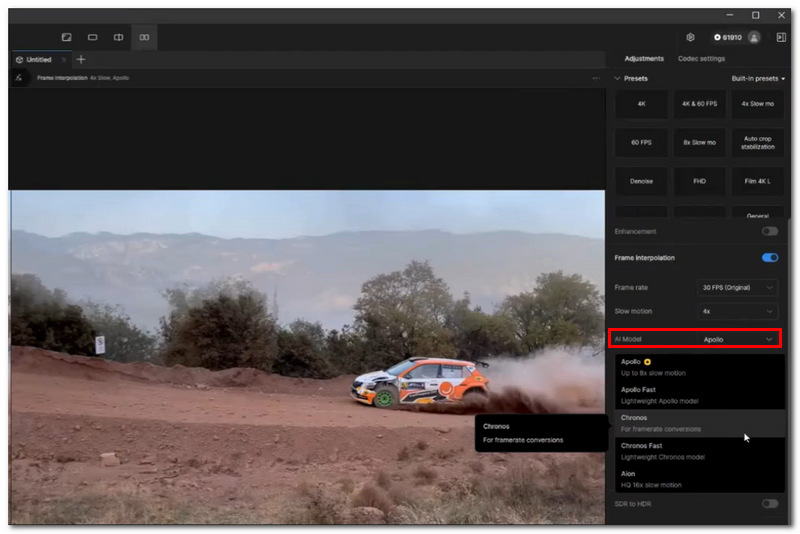
It is essential that you first get to know the various AI models that are included in Topaz Video AI before you proceed to change frame rates. Every model is built with a particular purpose in mind, like delivering the best quality results, working faster, or dealing with complex motion in a better way. By understanding when to apply these Topaz Video AI frame interpolation models, you will be able to make your videos look smoother and, at the same time, save yourself from performing excessive processing.
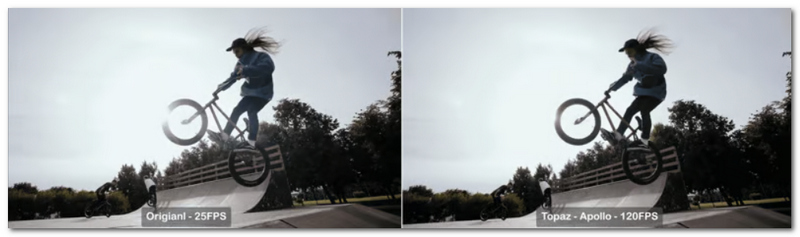
Apollo works very well with videos that have sudden and unruly movement, like the kind of footage you get in sports, action scenes, busy places, cars in motion, or subjects that keep changing the direction of their movement quite frequently. It looks at the movement going on between different frames and comes up with new frames that would be more visually pleasing in the kind of situations where the motion is so complex.
This particular model is a frequent go-to option in cases where other interpolation methods lead to the creation of artifacts or motion errors. If you are in the process of changing your Topaz Video AI frame interpolation sensitivity, Apollo might be your best bet to get smoother results in videos that have really difficult patterns of movement. Though keep in mind that it could take more processing time than some of the other models.
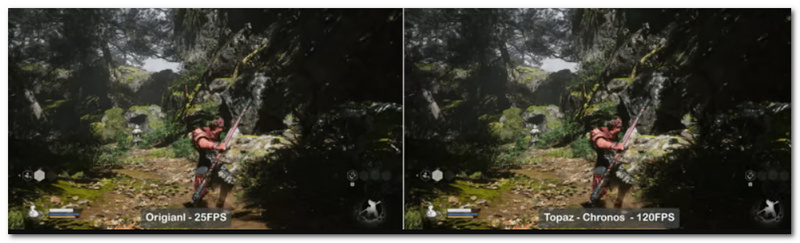
Chronos is the default frame interpolation model in Topaz Video AI, and it suits most frame rate conversion needs. For example, if you want to change a movie shot at 24 frames per second to 60 frames per second, or if you want to change a video shot at 30 frames per second to 60 frames per second, or if you want to create a video that is playing more smoothly, Chronos can be a good choice as it offers a nice compromise between quality and speed of processing.
For typical video types, such as a personal video, a travel video, or a general kind of video, Chronos more often than not produces results that look very natural, and it may not be necessary to make changes that would take a lot of time and effort. Besides this, it is one of the most frequently utilized models in Topaz Video Enhance AI frame interpolation processes due to its ability to support various content types and the quality of the results that it produces.
Chronos Fast is ideal for users who want faster processing time and don't mind compromising a bit on the quality for quicker results. It adopts a simplified interpolation method, and is Because of this great for trying out different settings, running large batches of videos, or just working on projects that don't require great depth.
Perhaps it won't match Apollo for motion handling, nor will it have the same level of detail as Chronos, but it will definitely bring down the time for rendering. For those users who want to have an efficient frame interpolation Topaz Video AI workflow, Chronos Fast seems to be a good compromise between speed and quality of output.
Topaz Video AI can be used in just a few steps to alter a video's frame rate or produce incredibly smooth slow-motion video:
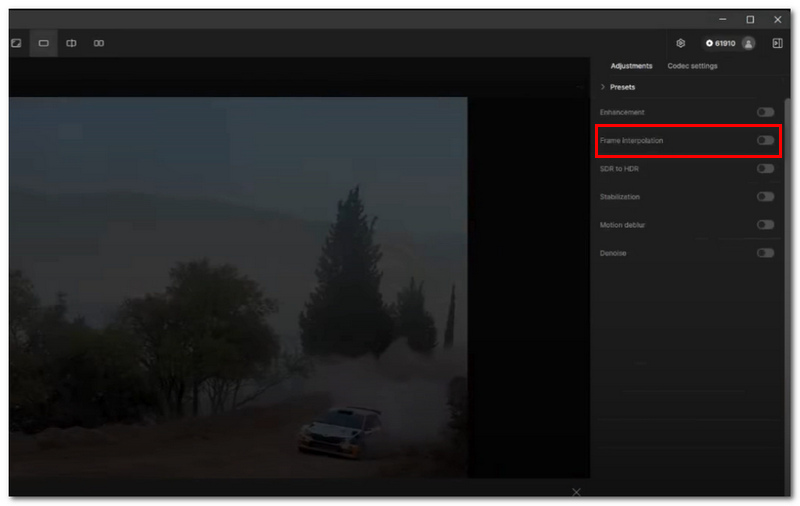
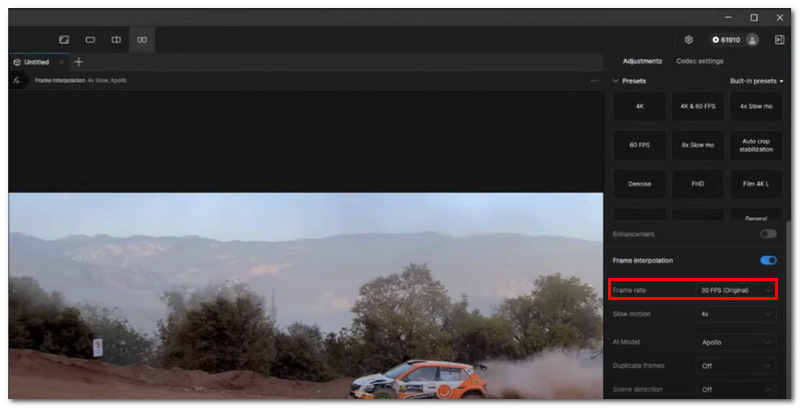
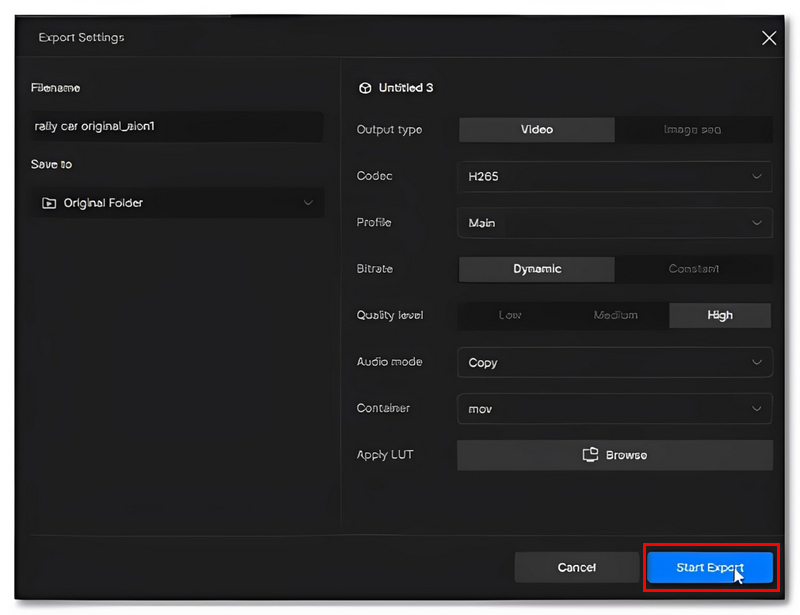
Consider getting Aiseesoft Video Converter Ultimate if you want an easier option than Topaz Video AI. Though it's mostly recognized as a video converter and enhancer, it's also equipped with AI-based video enhancement features that can enhance, upscale res, and professionally smooth video footage. What's more? It has a simple interface that will attract users who want fast results and don't want to deal with complicated AI parameters.

Downloads
100% Secure. No Ads.
100% Secure. No Ads.
How to Use Aiseesoft Video Converter Ultimate
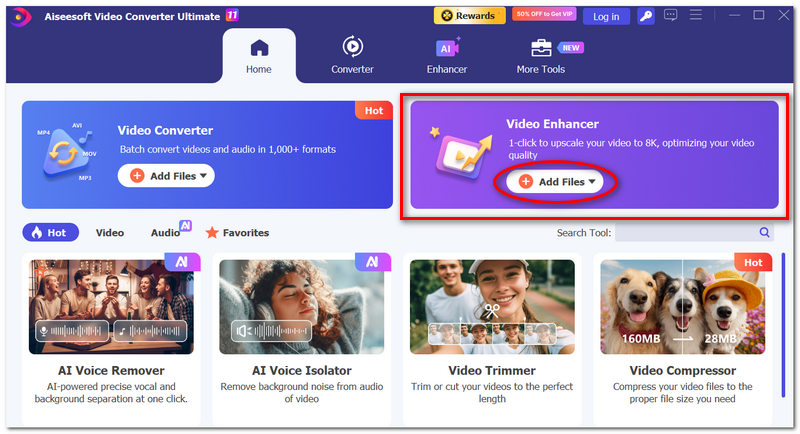
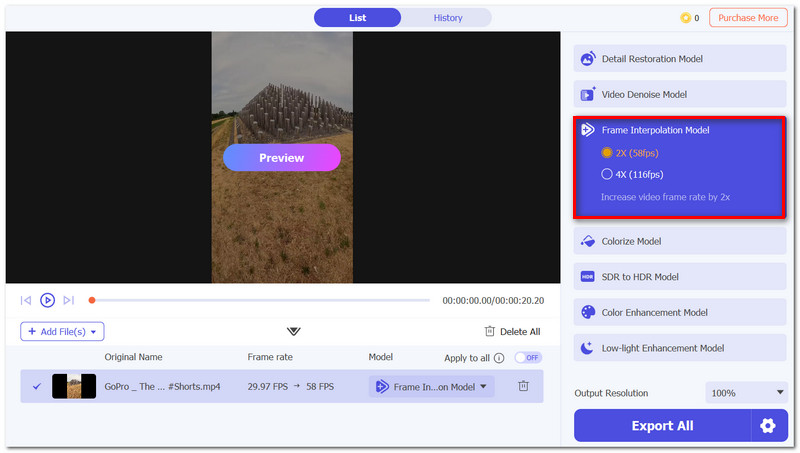
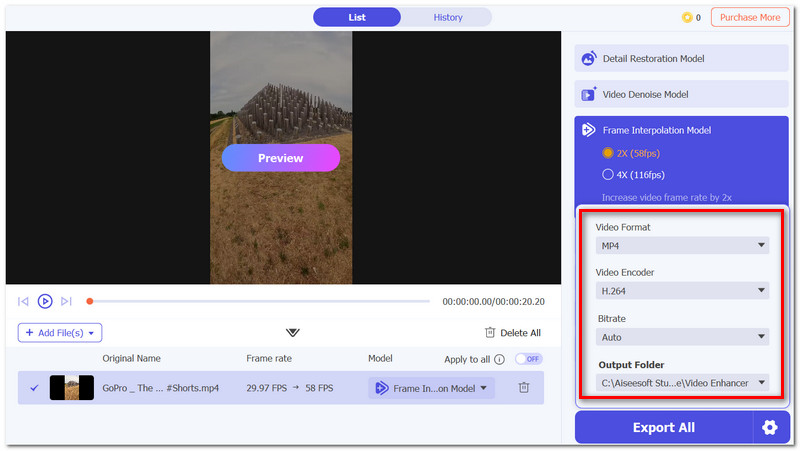
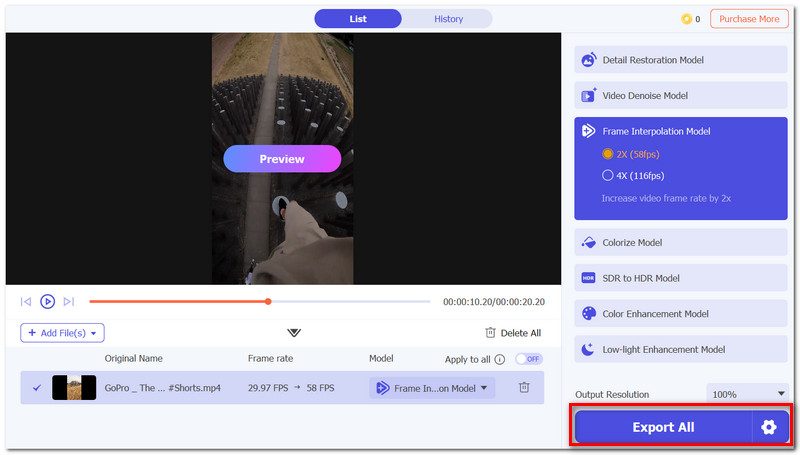
Why do some interpolated videos look unnaturally smooth?
When the output frame rate is far greater than the original frame rate, this occurrence, commonly referred to as the 'soap opera effect', may appear.
Is it possible for frame interpolation to render motions that were not originally filmed?
Using frame interpolation, it is possible to create the intermediate frames by estimating the motion using the existing ones, but it will not be able to add things that were never there in the first place.
Does frame interpolation extend a video?
In most cases, no. Frame interpolation only adds additional frames between the current ones and doesn't change the length of the video unless a slow-motion effect is applied.
Conclusion
Topaz Video AI can help you make your videos look smoother with very little effort through the use of frame interpolation technology powered by artificial intelligence. You can enhance motion quality, change frame rates, or make slow-motion videos by simply picking the right model and settings. Whether your mind is set on Apollo, Chronos, or prompt yourself, Topaz Video Enhance AI frame interpolation. Really, it is about finding the model that fittest your footage and workflow the most.
 How to Remove Duplicate Frames from Video with 4 Tools
Learn how to remove duplicate frames from video using Premiere Pro, FlowFrames, or FFmpeg, plus fix frame drops with AI for smoother playback.
 SVP Alternatives to Find the Best Frame Rate Conversion Tool
Does SVP work with VLC? What is the best alternative to SmoothVideo Project? Review the frame interpolation capabilities of SVP and get three SVP alternatives.
 FlowFrames Frame Extraction Failed: Common Causes and Easy Fixes
FlowFrames frame extraction failed? Learn what causes this error and how to fix it with simple steps, GPU updates, format conversion, and alternatives.
 Leave your comment and join our discussion
Video Converter Ultimate is excellent video converter, editor and enhancer to convert, enhance and edit videos and music in 1000 formats and more.
100% Secure. No Ads.
100% Secure. No Ads.

*Required field
*Please enter a valid email

