
Aiseesoft Screen Recorder
 100% Secure. No Ads.
100% Secure. No Ads.
You often need to save valuable information through screenshots during a virtual meeting. Your video call often delivers countless important moments that pass across the screen. You may wonder how to capture high-quality images of video meetings, especially for them on Zoom, Teams, Webex, Google Meet, and FaceTime.
This guide shares three efficient methods to take video call screenshots. Whether you want to capture the image for keeping visual notes, preserving some complex content, or other reasons, you can find your desired screen capture tool.
You can easily take screenshots while using your phone or computer. The native system keyboard shortcuts are enough for daily capturing needs. However, in some cases, you want to take screenshots of video calls without disrupting the flow of the meeting or need to add annotations in real-time. A dedicated screen capture software is required. This section will share the three most effective approaches.
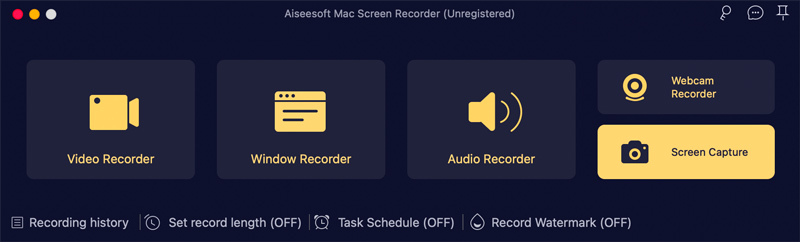
Aiseesoft Screen Recorder is an all-in-one solution for screenshots, video/audio recording, editing, and conversion. It gives you absolute control over your visual captures. It is highly renowned for its ability to capture high-quality video and audio. It also has a powerful, built-in snapshot tool for various screenshot tasks, including video call screenshots.
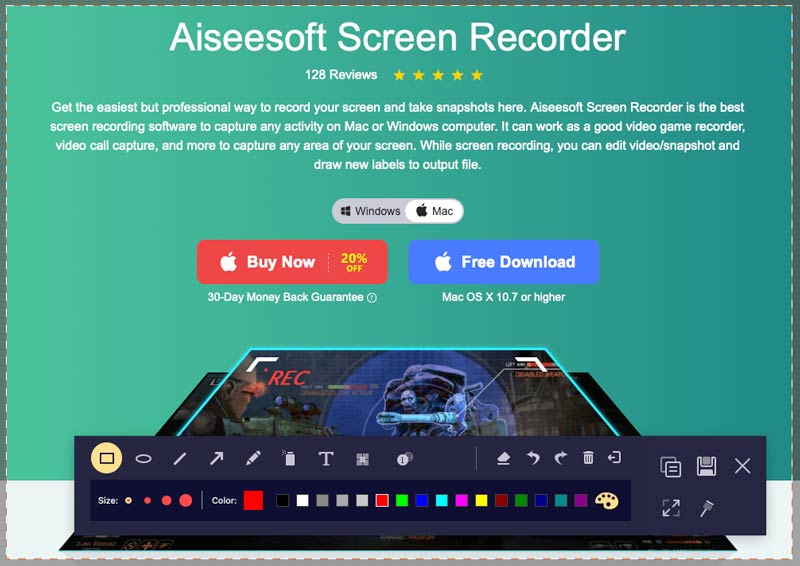
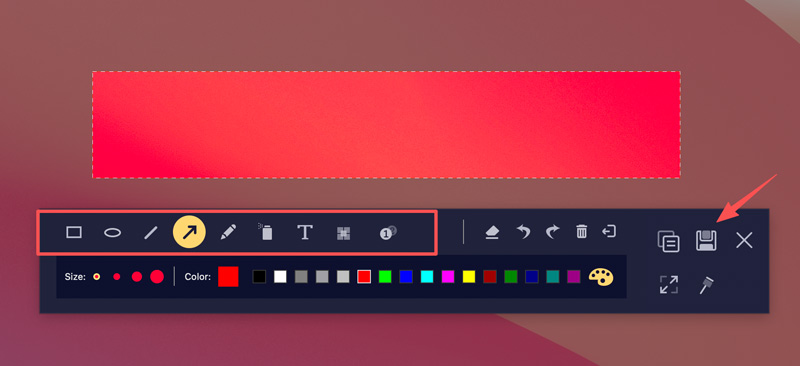
Unlike system capturing features or tools, it will make no loud system shutter sound or screen flash. It lets you securely take screenshots or record the whole video calls without them knowing. Moreover, it can save your screenshots in a desired format, such as JPG, PNG, or BMP. Furthermore, it offers immediate on-screen editing tools for you to add text, shapes, icons, etc., draw arrows, and blur sensitive information.
100% Secure. No Ads.
100% Secure. No Ads.
Besides the native system hotkeys, most popular video conferencing platforms have their native screenshot tools. For instance, Zoom offers a built-in keyboard shortcut for capture needs.
When you need to take a screenshot during a Zoom meeting, you can use the platform’s native tool. It allows you to capture just the meeting feed and bypass overlapping windows on your desktop. You can press Alt + Shift + T on Windows or Command + T on macOS to take a screenshot of your video call (within Team Chat).
For most daily capturing needs, system shortcuts are the fastest method. They work the same way whether you want to take video call screenshots on Teams, Google Meet, Skype, or Webex. This screenshot method requires no additional software and can perform well on every operating system.
To take screenshots on Windows 11 or 10, you can simply press the PrtScn (Print Screen) key. The entire screen content will be captured/copied to your clipboard. You need to paste it into Paint, Word, or an Paint, Word, image editor, or chat to save.
To capture an active window, you need to press Alt + PrtScn. To freely select the specific area of your video call, press Windows + Shift + S.
Besides, you can rely on the built-in Snipping Tool to take screenshots of your video call.
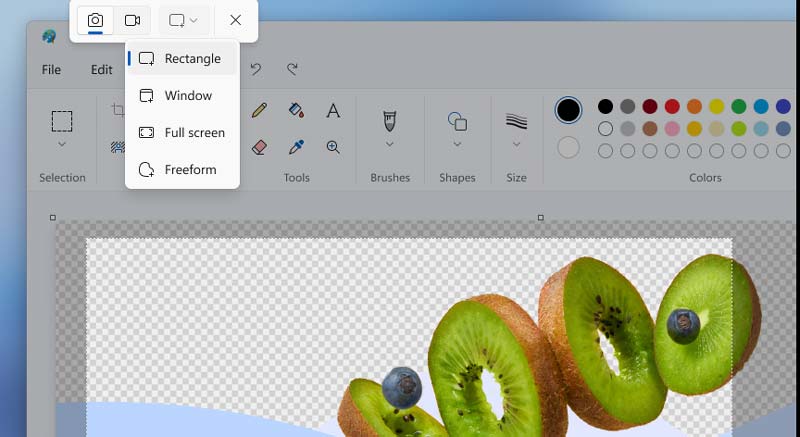
To capture video call screenshots on a Mac, you can press Command + Shift + 3/4. The screenshot image will be saved as a high-quality PNG file by default. If you need to customize more settings, press Command + Shift + 5 to display the toolbar.
Question 1. Where are my video call screenshots saved?
When you take video call screenshots on your computer, the destination of your saved image is often the Desktop or the Screenshots folder. You can first check there to find your screenshot images. Surely, the destination of your captured pictures depends entirely on the method you utilize. If you use a dedicated software like Aiseesoft, you can check the destination folder or select a custom output folder in its settings menu.
Question 2. Does capturing a WhatsApp video call screenshot trigger a notification?
In most cases, your screenshot action won’t notify the other person on a video call. For instance, you can freely take screenshots in most platforms (desktop environments), such as Zoom, Microsoft Teams, Google Meet, and WhatsApp. Whether you use the native system shortcuts or a third-party tool like Aiseesoft, your screenshots won’t notify the other participants.
Question 3. Is it legal to screenshot a video call?
It is generally considered legal to take screenshots in a video call, especially for personal use. You can take private notes or save some funny/meaningful moments. However, capturing images of other people without their consent may violate personal privacy norms. You should ask for permission before capturing someone’s image. Also, you should get permission to screenshot business presentation content.
Conclusion
You can learn three methods to take video call screenshots from this guide. For daily capture needs, you can start with the native shortcut. If you prefer the quiet, high-quality screen captures, turn to a dedicated program like Aiseesoft Screen Recorder. It provides necessary editing options for quick annotations.
 How to Share Screen on Zoom on Laptops and Mobile Phones
Can I share screen on Zoom with audio? How do you allow others to share screen on Zoom? This post tells how to share your screen on Zoom on different devices.
 Top 5 Snipping Tools for macOS in 2026 [Easy & Fast]
Looking for snipping tools for Mac? Learn about the macOS built-in snipping tool and professional alternatives to capture, edit, and share high-quality snips easily in 2026.
 Why Screenshot on Mac Not Working and Learn 5 Ways to Fix It
How do you enable screenshots on a Mac? Why is my screenshot not working on Mac? Figure out why you can’t take screenshots on your Mac and get 5 quick fixes.
 Leave your comment and join our discussion
Aiseesoft Screen Recorder is the best screen recording software to capture any activity like online videos, webcam calls, game on Windows/Mac.
100% Secure. No Ads.
100% Secure. No Ads.

*Required field
*Please enter a valid email

