 FoneEase
Seamlessly Transfer, Manage, and Backup iPhone/Android

30-Day Money Back GuaranteeIf there is a quality problem within 30 days after purchasing, we can promise you a refund.
Windows 11, 10, 8, 7 Supported
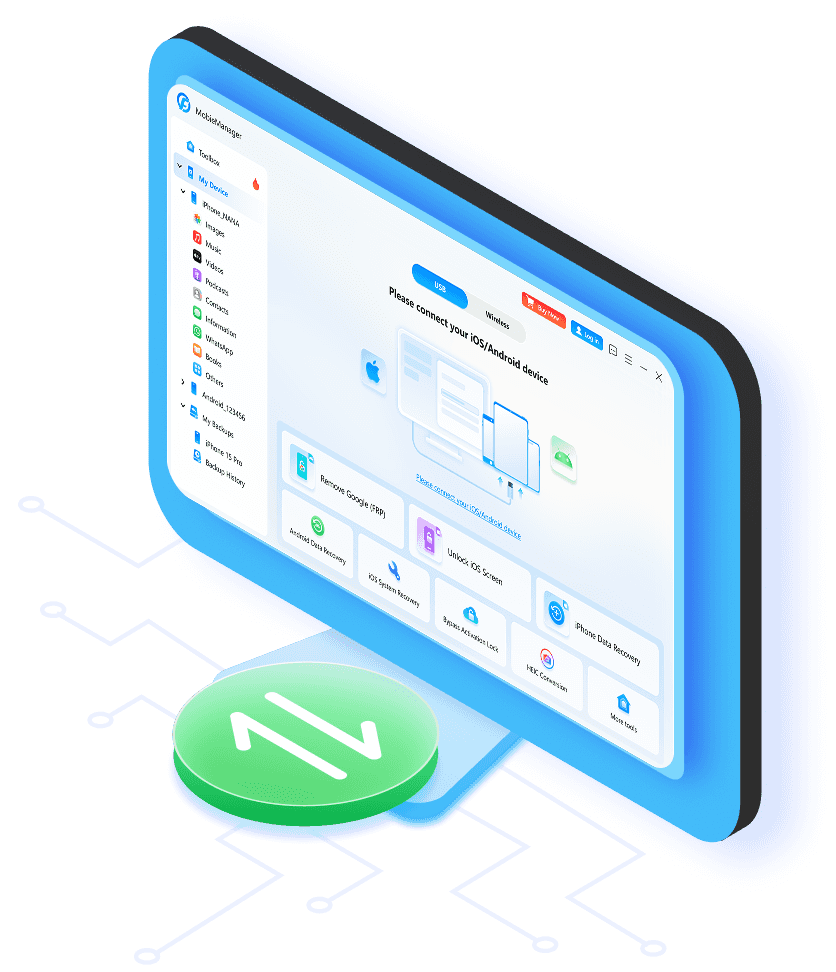








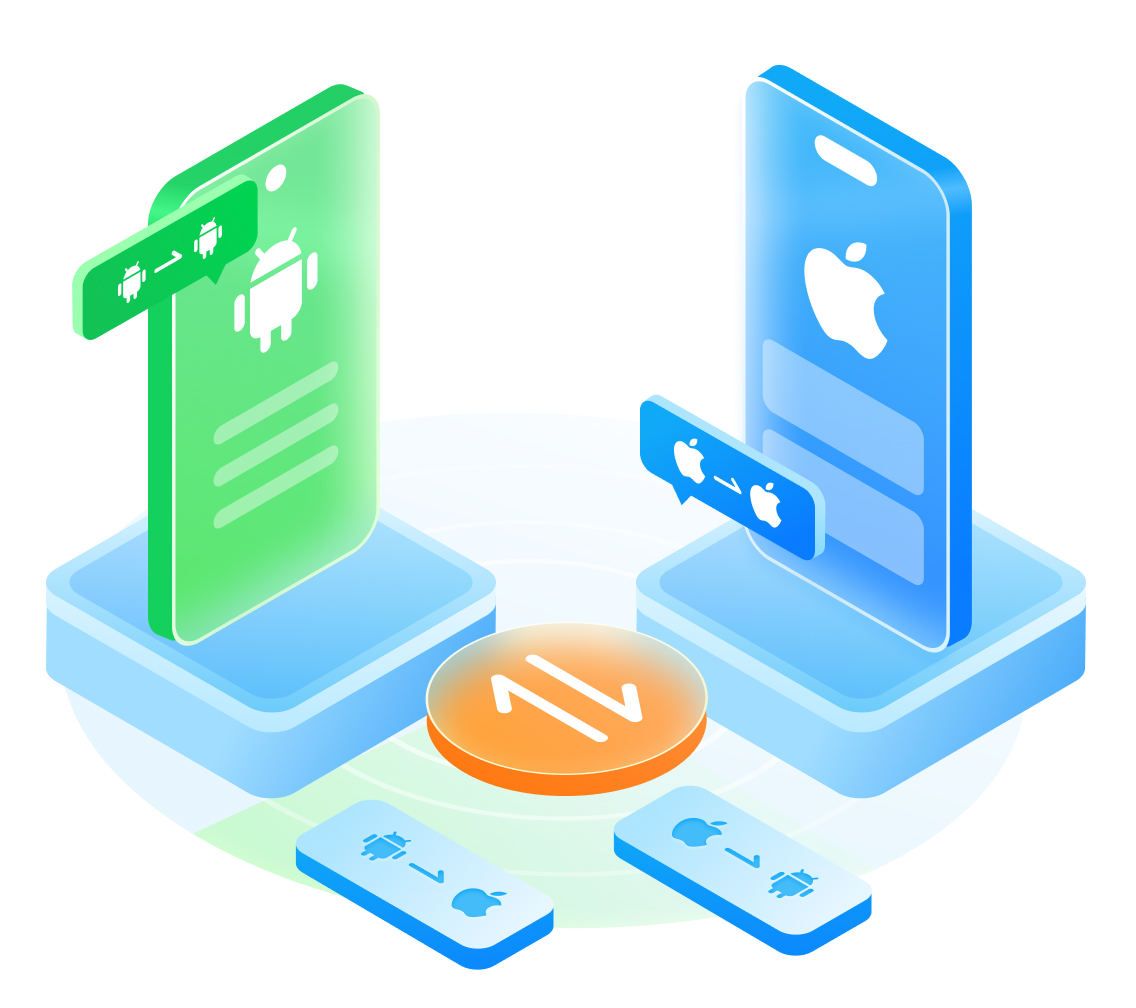





FoneEase enables seamless file transfer between iOS and Android devices. Whether you're switching from iPhone to Android or moving from Android to iPhone, it effortlessly moves your essential data, including photos, videos, contacts, messages, music, and more.
Upgrading to a new phone? FoneEase makes it simple. Transfer data from iPhone to iPhone, Android to Android, or any combination across platforms. Quickly move what you need from your old device to your new one and start right where you left off.
With cross-platform transfer between mobile devices and computers, this powerful Android/iPhone data transfer - FoneEase - lets you deliver and manage your data without limitations. It supports transferring photos, music, videos, contacts, and messages from your iPhone or Android to computers, ensuring the effortless transfer of both media and work files across devices. Plus, you can transfer music from a PC to an iPhone even without iTunes.
Whether you want to transfer your essential documents, enjoy your favorite songs and movies on various platforms, or back up precious photos, FoneEase delivers a fast and reliable transfer experience.
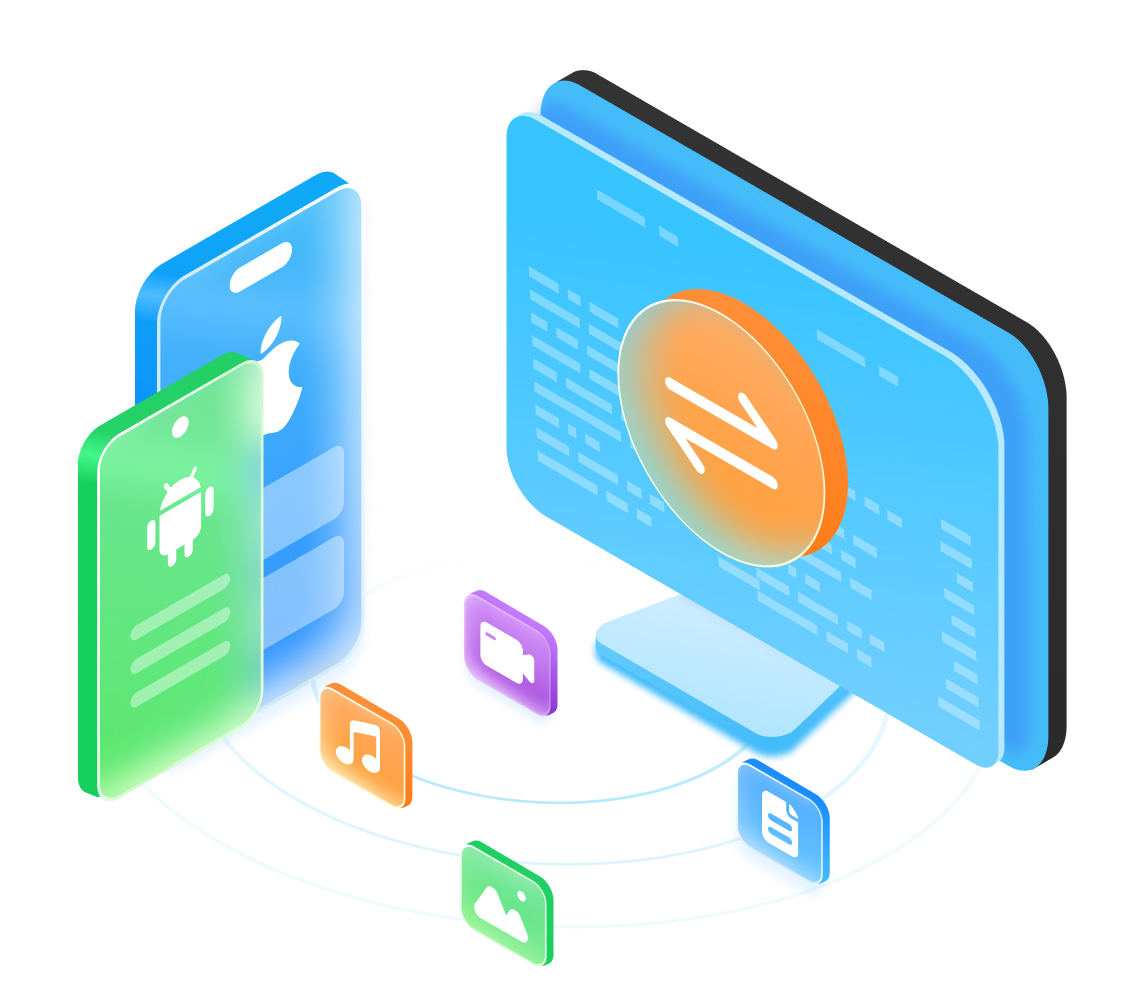














In addition to the various file transfers between mobile devices and computers, FoneEase can also enable flawless transfers between iOS devices and iTunes.
With this thoughtful feature, managing your iPhone or iPad media library becomes effortless. You can easily share songs, movies, or podcasts between your iPhone/iPad/iPod and iTunes without worrying about compatibility concerns. With just a few clicks, FoneEase makes the entire process smooth, fast, and efficient.
30-Day Money Back GuaranteeIf there is a quality problem within 30 days after purchasing, we can promise you a refund.
Windows 11, 10, 8, 7 Supported
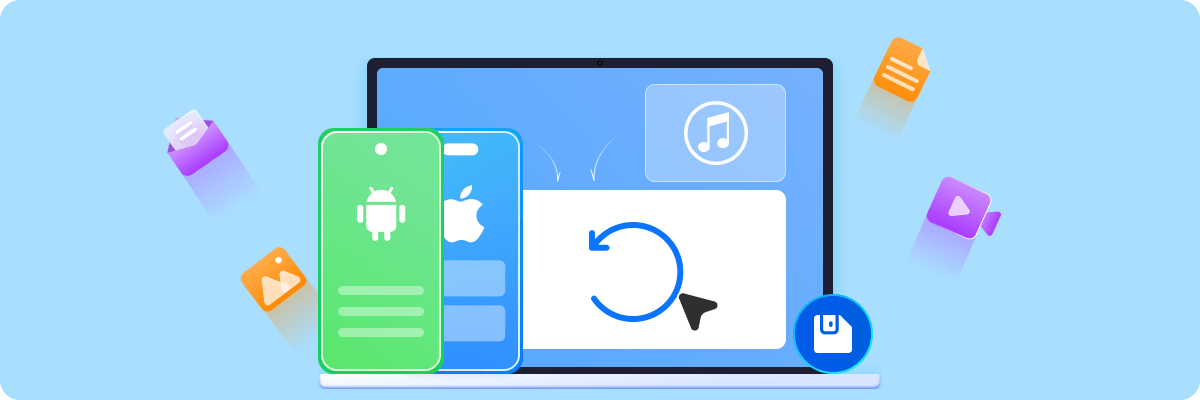
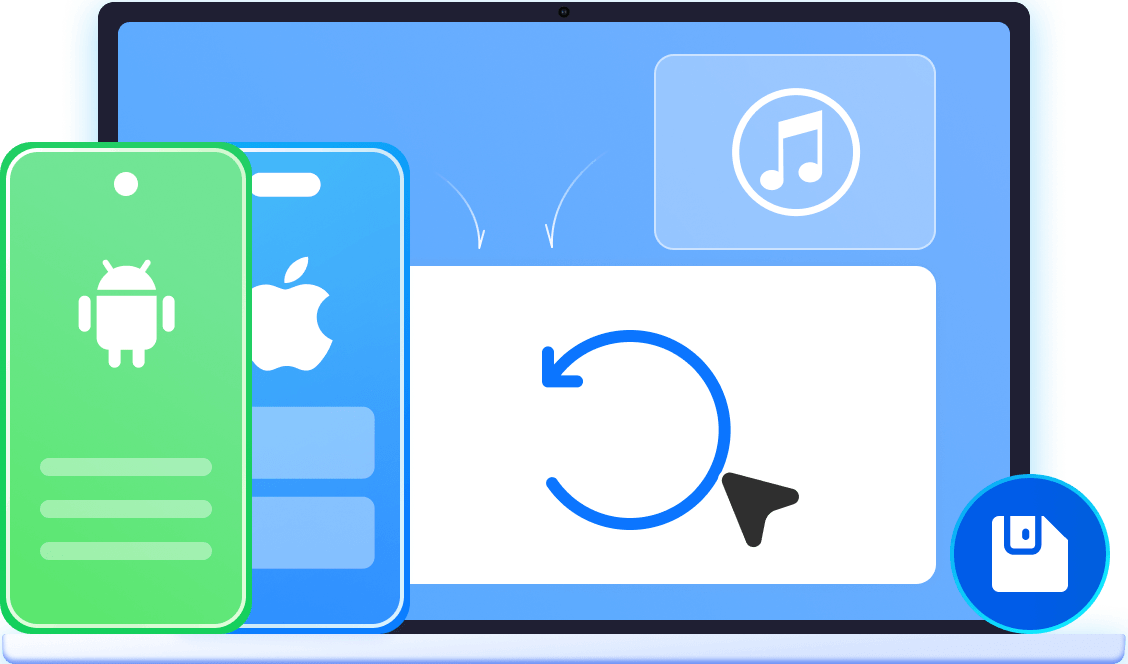
More convenient, FoneEase has reliable backup and restore features. It can back up your valuable data from iPhones/iPads/Androids/Tablets on your computer. This function allows you to create secure backups of your photos, music, videos, and documents in a few steps. When needed, backed-up files are easily accessible at all times, and you can find and restore them quickly to any device.




Create a new file instantly to store your content.
Quickly locate specific files on your computer.
Check the file, like photo details, in advance with a bigger screen.
Easily move files between folders or devices with one click.
Conveniently remove unwanted music, videos, and photos from your phone.
30-Day Money Back GuaranteeIf there is a quality problem within 30 days after purchasing, we can promise you a refund.
Windows 11, 10, 8, 7 Supported
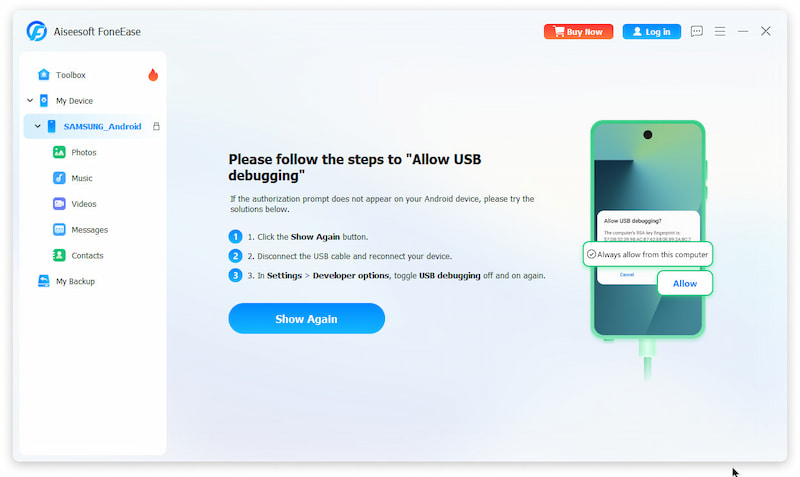
Step 1. Connect your phone to your computer via USB cables or wireless Internet. (If you want to use the wireless connection, click My Device > Wireless to see the guide.)
Whether the way you choose is, after connecting, your phone will remind you to authorize the connection.
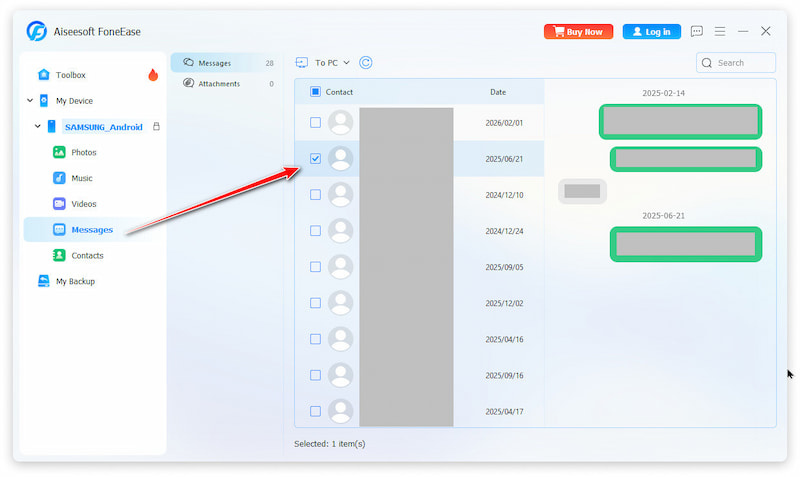
Step 2. In the left panel, click the source phone to expand all supported apps and data types. Click the App from which you want to transfer files, and select the specific or all files.
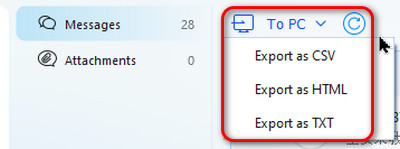
Step 3. Finally, click the To PC downlist button in the top menu and choose the desired location. After a while, the transfer process will be finished successfully!
Step 1. Connect your phone to your computer via USB cables or wireless Internet. (If you want to use the wireless connection, click My Device > Wireless to see the guide.)
Whether the way you choose is, after connecting, your phone will remind you to authorize the connection.
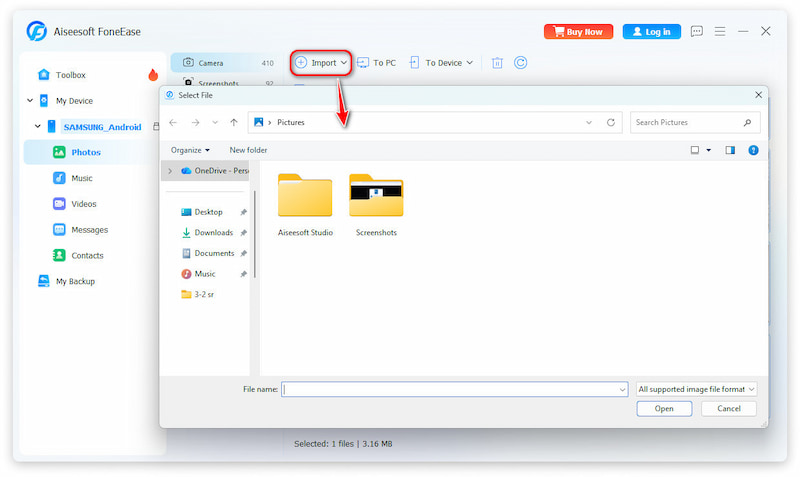
Step 2. Click the Import button on the top, and you can skim all files on your computer. Select the files you want to move to your phone.
Step 3. Click Export to PC or Export to iTunes.
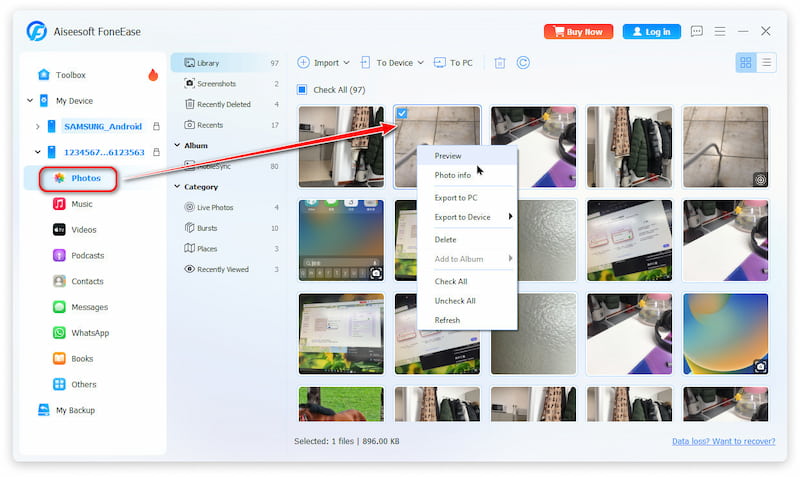
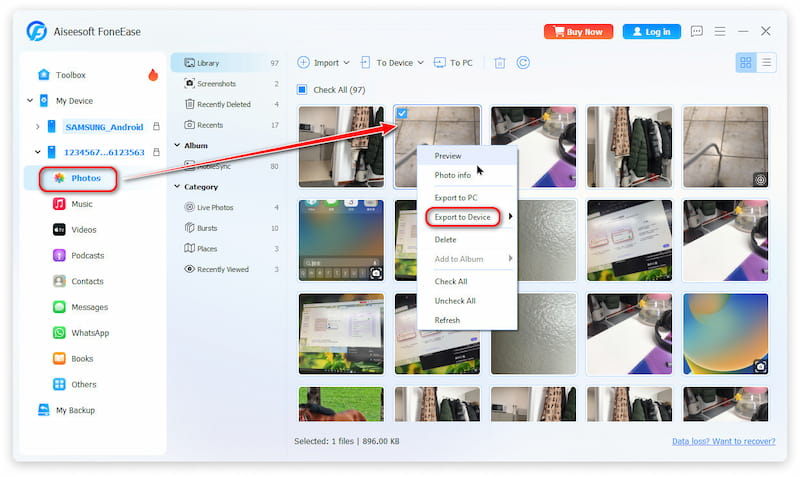
Step 1. Connect two phones to your computer via USB cables or wireless Internet. (If you want to use the wireless connection, click My Device > Wireless to see the guide.)
Whether the way you choose is, after connecting, your phone will remind you to authorize the connection.
Step 2. In the left panel, click the source phone to expand all supported apps and data types. Click the App from which you want to transfer files, and select the specific file.
Step 3. Finally, right-click on the file, choose the Export to Device > the definition phone. Instantly, the transfer process will be finished successfully!
System Requirements
Supported OS:
Windows 11, Windows 10, Windows 8.1, Windows 8, Windows 7
Supported iOS:
iOS 6.0 and higher versions (iOS 26 included)
Supported iPadOS:
iPadOS 26/18/17/16/15/14/13
Supported Android:
Android 5.0 and above
CPU:
1GHz Intel/AMD CPU or above
RAM:
1 GB RAM or more
iTunes:
10.7 and above
 FoneLab
Recover over 20 types of deleted and lost files from iPhone/iPad/iPod directly, iTunes and iCloud backup.
 MobieSync
Manage and transfer photos, music, videos, contacts, messages, etc., for Android and iPhone.
 iPhone Unlocker
Get into the locked iPhone by wiping iPhone passcode, removing Apple ID and Screen Time restrictions.

Congratulations!
You have successfully subscribed to our newsletter. The exclusive 40% off for subscribers is AISEFOKS . Now, you can copy it and use it to enjoy more benefits!
Copied successfully!
*Required field
*Please enter a valid email

