Anycoord Location Changer – Fake GPS on Android & iOS
 100% Secure. No Ads.
100% Secure. No Ads.
Feeling fed up with your MacBook Pro’s location settings, or just want to switch them up for privacy or other reasons? This easy-to-follow guide is here to help you change your MacBook Pro’s location settings like a pro.
We’ll cover everything on how to change MacBook Pro location from the built-in ways, like turning on and off, to tweaking it and using a third-party app like ExpressVPN, giving you choices to pick from. By sticking to this guide, you will learn everything you need to know to easily manage your MacBook Pro’s location, making your experience smoother and more tailored to your needs.
Want to change the privacy settings or location options on your MacBook Pro for any reason? From this section, we will walk you through how to change the location on a MacBook from your system preferences. Follow these steps and switch your location to a different city, state, or country. This way, you can customize your experience and get access to content specific to that area. Let’s dive in!
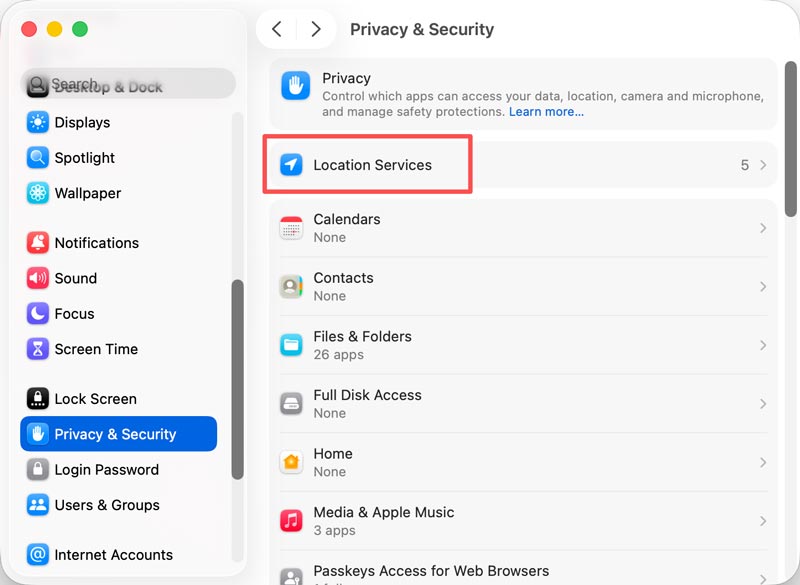
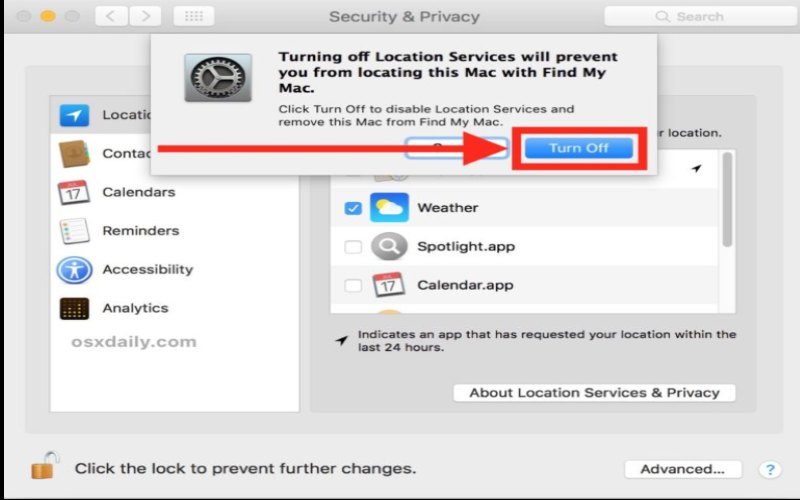
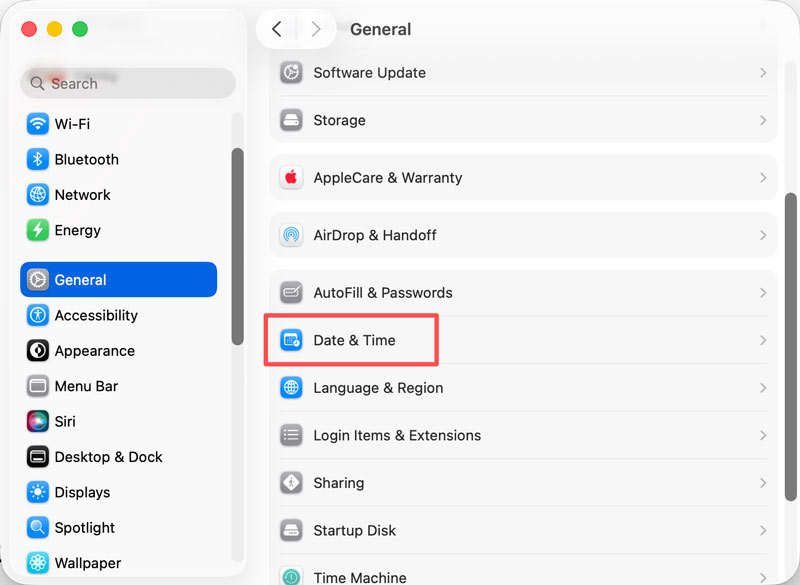
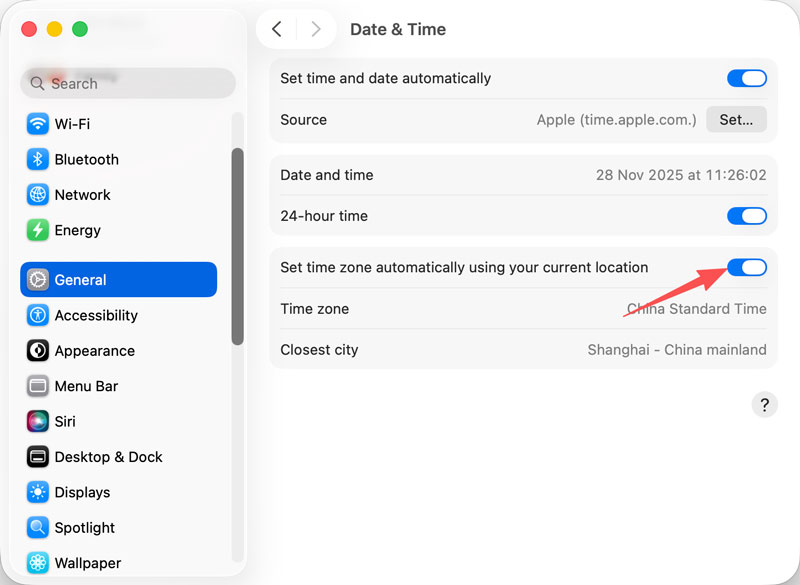
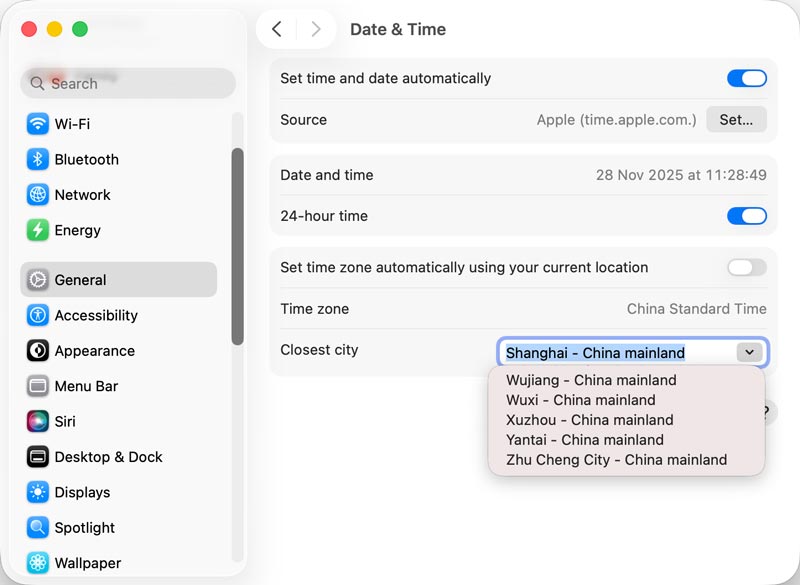
Apple’s built-in location settings give you the basics, but you can make your location experience even better by using apps from other places.
These apps usually have cool extras and are great for specific situations. Let’s check out a popular choice on how to change the weather location on MacBook Pro: VPN tools.
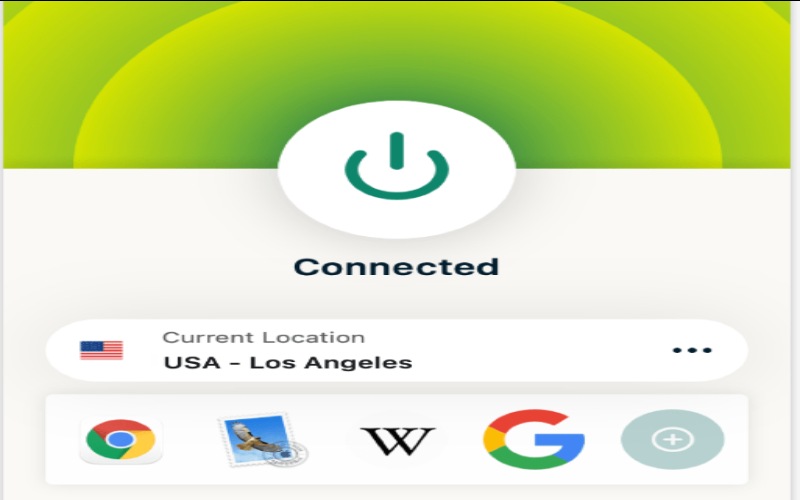
ExpressVPN is a top VPN. It has fast speeds, a reliable network, and strong security. With its easy-to-use app and vast server network, it’s a good way to change your IP address.
Main Features
• It has a super-fast network that won’t slow down your web surfing.
• With servers in more than 94 countries, you have many choices when changing your IP address.
• It uses the best encryption to keep your online stuff safe and private.
• It has apps for various gadgets, like Macs, iPhones, Androids, and Windows.
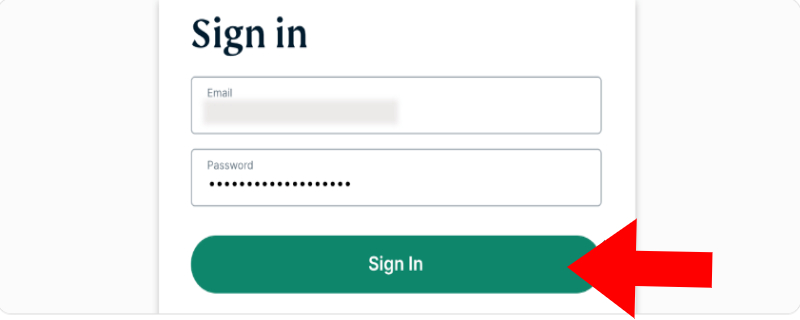
How to change location on MacBook Air using ExpressVPN

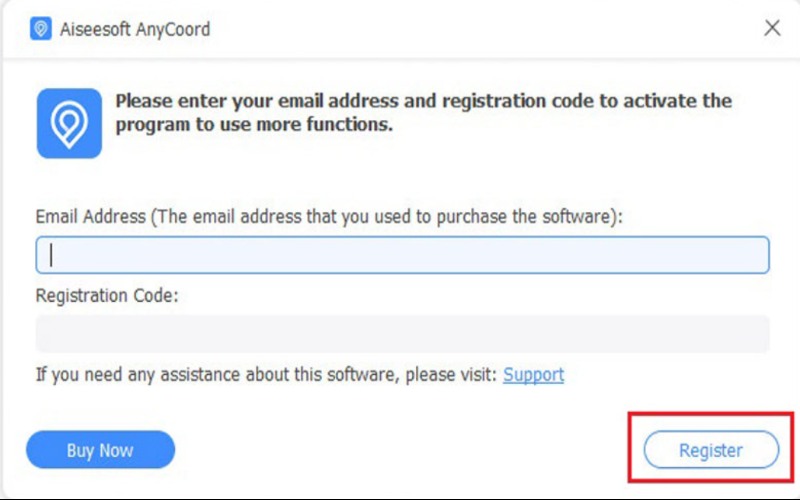
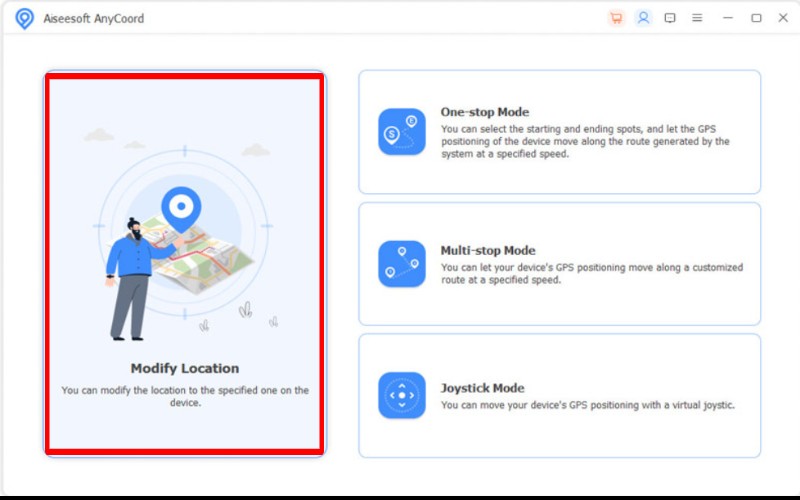
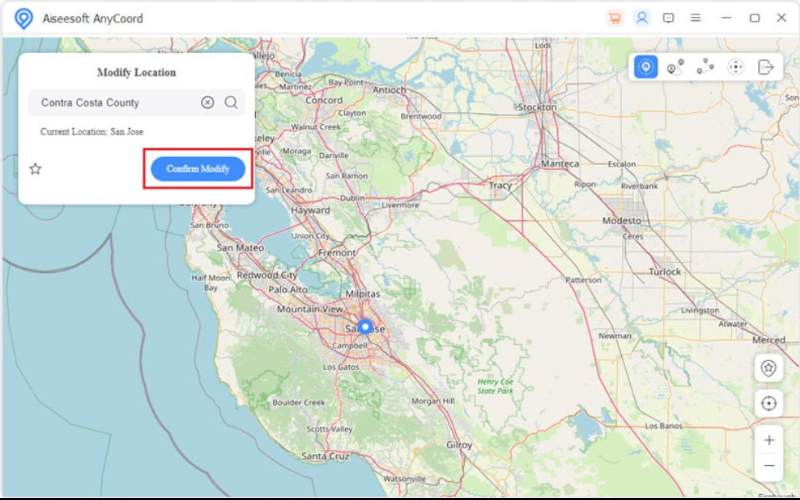
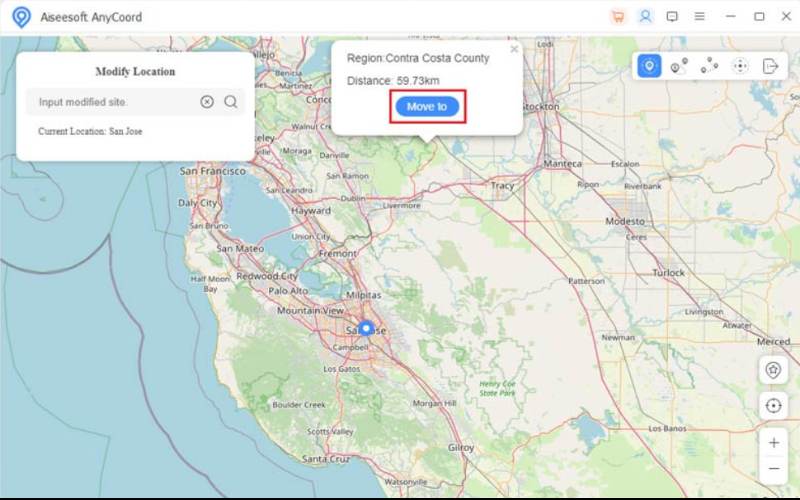
Aiseesoft AnyCoord Location Changer is a reputable location changer app that lets you switch your GPS location across devices, such as your iPhone and iPad. It is perfect for folks who want to change where they look on their screens for reasons like getting into content that’s only for specific places, keeping their location private, playing games that need you to be in a particular spot, or checking out apps and services that require your GPS to work.
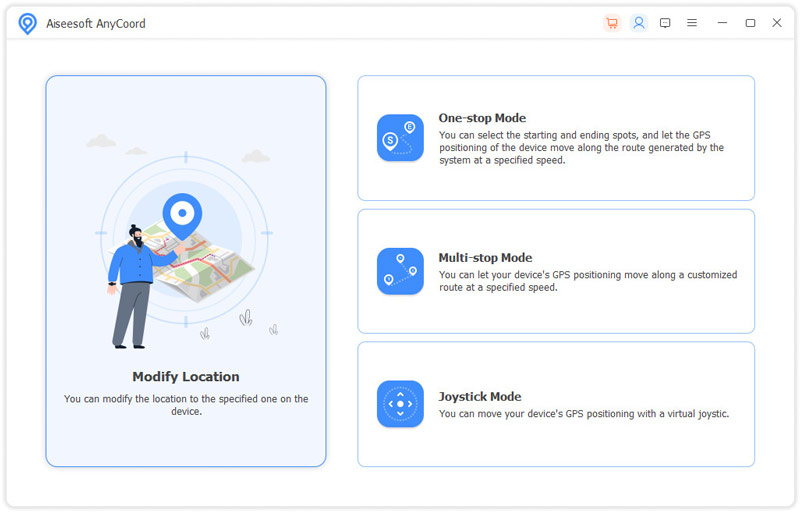
AnyCoord lets you freely change your real-time locations without jailbreaking or complicated setups. It is also equipped with various advanced features. They make it look like you are moving and change your speed to make it feel more real.
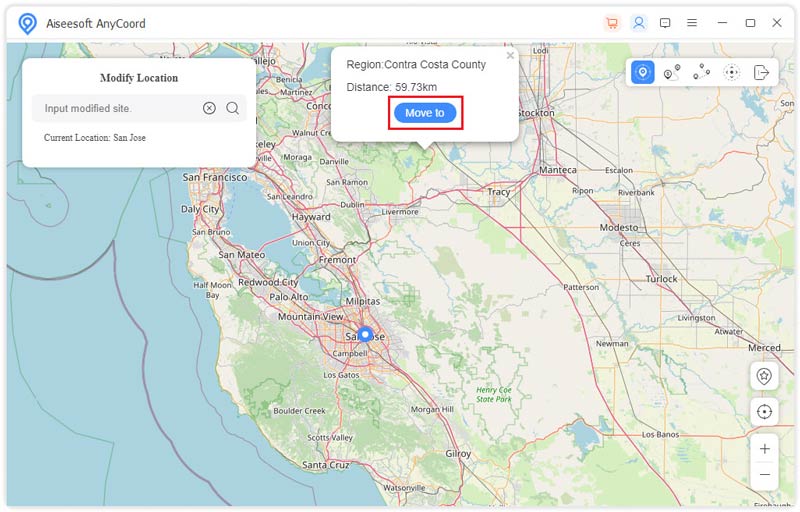
Main Features
• Change your GPS to any spot you want around the globe in seconds.
• Get spot-on location info for your apps and stuff.
• Pick between using GPS, Wi-Fi, or cellular to change your location.
• Easy-peasy-peasy design with a straightforward map to pick your spots.
• It is excellent for different macOS versions and can work with many location apps.
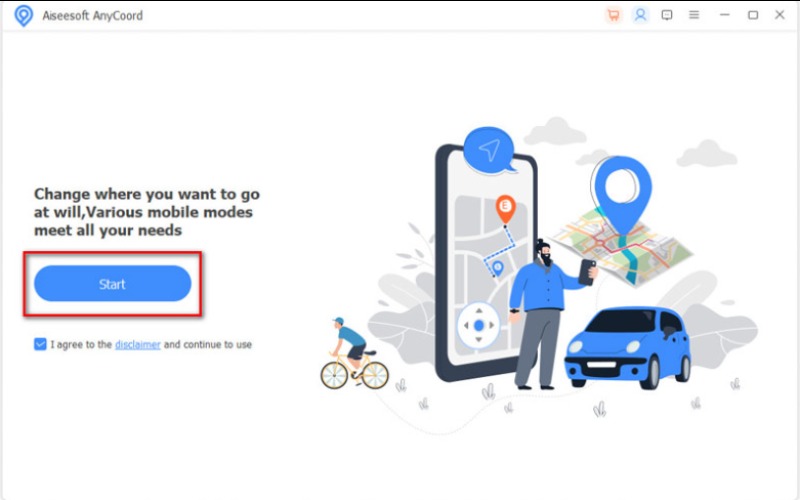
Reminder: A little box will pop up once you connect the USB cable to your MacBook Pro and your computer. Just click on Trust.
Is your MacBook Pro having trouble figuring out where you are? This section will help you find and fix problems that can stop your device from updating its location. We will look at some troubleshooting steps and give you related fixes to get your location services working again. Let’s jump right in and get your MacBook Pro’s location working. Here are some usual reasons and steps to fix the problem:
1. Weak GPS Signal
Reason: Your phone could be in a spot where it’s hard to get a good GPS signal, like inside buildings, tunnels, or places with really tall stuff around.
Solution: Head outside to a place where you can see the sky, like a park or a big open space. This way, your phone can get a strong signal from the GPS satellites. Also, ensure your phone can see the sky without obstructions for better GPS results.
2. Location Services Disabled
Reason: Your device might have turned off location services, so apps can't update where you are.
Solution: If you're using a Mac, Head to System Settings, find Privacy & Security, select Location Services, and ensure the box next to Location Services is checked. If you're using an iPhone or iPad MacBook, Tap into Settings, then Privacy, choose Location Services, and make sure it's on.
3. Bugs or Glitches in Software
Reason: Your phone or tablet's system or app could have a glitch or bug messing with your location updates.
Solution: Try restarting your device to give its system a fresh start. Also, see if there are any updates for your phone or app. Updates usually fix bugs, so that might solve the problem.
4. Wrong Time Zone Settings
Reason: If your time zone settings are off, your device might get mixed up with where it thinks you are, especially if you picked them out yourself.
Solution: Check your Time Zone settings and make sure they're either set to update automatically or you've manually set them to the right time zone.
5. Problems with the App
Reason: The app you're using might be unable to see where you are, or it could have a problem inside.
Solution: Check your device's Privacy Settings to ensure the app can use your location. Then, try deleting and then reinstalling the app to fix any issues that might be specific to it.
6. VPN Interference
Reason: If you've got a VPN on, it could interfere with your device's ability to determine or update your actual location.
Solution: Give your VPN a break and see if your location settings work better.
7. Saving Battery
Reason: In battery-saving or low-power mode, it might stop some background stuff from running, like updates on where you are, to save power.
Solution: Turn off the Low Power Mode or Battery Saver in your device's settings so your location services can work properly.
Can I move my MacBook Pro's location without needing any extra apps?
You can change your location settings from your MacBook Pro's System Preferences. You can change your time zone and decide which apps can use your location.
Will changing my location affect my internet connection or speed?
A VPN can slow your internet connection. Your data must travel through another server, but good VPN tools and third-party apps try to keep your speed as low as possible.
What's the next step if my MacBook Pro needs to update its location properly?
First, turn on the location services, and your app has the right to access your location. Make sure your internet connection is solid and working well. Try to reset your location settings or reinstall the app. If the problem still doesn't go away, reach out to Apple Support for more help.
Conclusion
Now, we know how to change location on MacBook conveniently. You can easily control where your MacBook Pro is located using the built-in features or a VPN app like ExpressVPN. If you have problems, easy fixes are available to restore your MacBook. They work no matter where you are.
 Browser Extension to Change Your Geographic Location on Chrome
Looking for a reliable Browser Extension to Change Your Geographic Location on Chrome? Discover the top tools and tips to change your browser location.
 How to Change Location in Firefox: 4 Easy Methods Explained
Discover smart ways for Firefox change location using Firefox with proxy, extensions, or GPS spoofing tools, with no complicated setup required.
 Verified Solutions to Fix Cannot Change App Store Country on iPhone
Why you cannot change App Store country on your iPhone? This article will answer this question and show you how to resolve this problem quickly.
 Leave your comment and join our discussion
Aiseesoft AnyCoord can help you hide, fake, or change your GPS location to any other place with ease. You can even plan a moving route if needed.
100% Secure. No Ads.
100% Secure. No Ads.

*Required field
*Please enter a valid email

