Video Converter Ultimate
 100% Secure. No Ads.
100% Secure. No Ads.
Have a video on your mobile that you'd love to have as a Live Photo, or perhaps you have a video clip you'd like to set as a wallpaper, keep as a Live Photo, or it's simply in a file format that you want to keep? Don't bother recording it again with your phone. You have everything you need already on your mobile! If you're interested in converting video to a Live Photo, here are a few ways that you can do it using your mobile or other available software. In this guide, we will cover the various options available and what you should do to get your video ready, giving you an opportunity to choose what works for your phone.
Before converting the video, it may be useful to find out what a Live Photo really is. A Live Photo isn't just video footage stored in another format. On an iPhone, it also consists of one still image, a brief part of video, and an accompanying sound recording. So, the source video should be fairly short and in a suitable format.
Duration
For best results, it should be a short clip, anywhere from 2- 5 seconds long. If your video is too long, first cut it to the section you would like to turn into a Live Photo. Keep it short, as it will be easier for it to work with and less likely to experience speed issues.
Format
It doesn't actually have to be in a particular format if the conversion app supports widely used formats like MP4 and MOV. It is essential that the app you choose can import your video and convert it into the Live Photo format.
Keep the Original Video
Remember to save the original video while you're at it. You'll want to have a copy of the full-length video, since the Live Photo version is supposed to be more like the remix- slimmed and trimmed.
As a precursor to settling on a conversion technique, there is no harm in cleaning the video up a bit. An abbreviated video is more straightforward to convert and also allows you to choose exactly which frame will be your Live Photo.
If your video is a few minutes long, you would be better off choosing the relevant tiny segment you want to focus on and reducing it to anything between 2 to 5 seconds.
The length of the video clips can also be cut down by using the editor created within your phone or using the conversion tool you are about to use. When you're happy with a brief clip, move on to the conversion methods below.
This simple preparation step makes the whole process of converting video to a live photo very simple, mainly when you want to convert a longer video.
If you wish to edit the video first and then migrate it to your iPhone, Aiseesoft Video Converter Ultimate would be a handy tool. It allows you to cut the video clip, fine-tune output parameters, and transcode the video to a versatile format. Supported formats include MP4 and MOV, and it supports hardware acceleration.
Downloads
Aiseesoft Video Converter Ultimate
100% Secure. No Ads.
100% Secure. No Ads.
How to Prepare Your Video with Aiseesoft Video Converter Ultimate
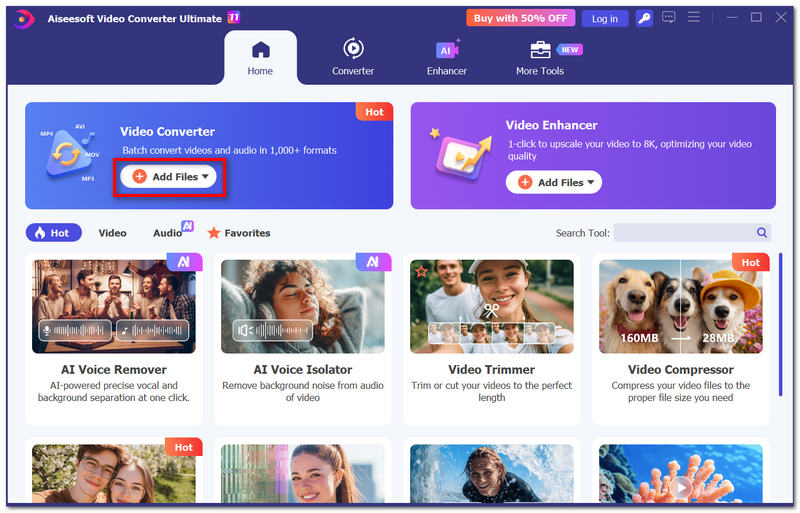
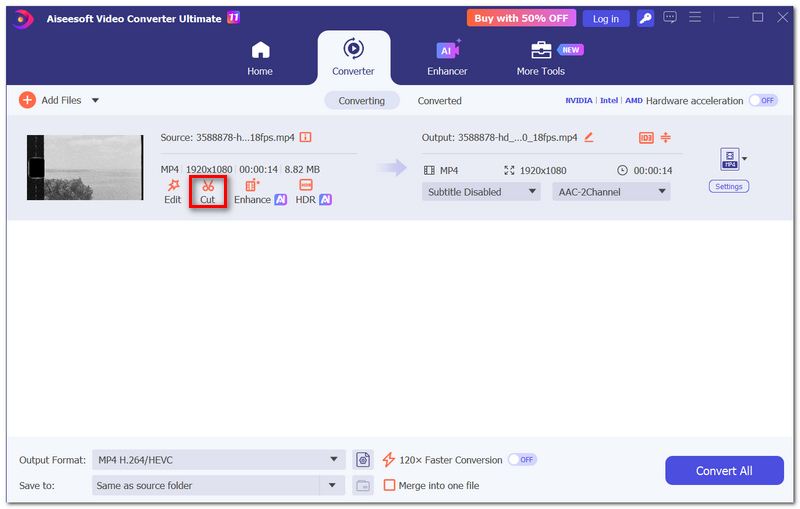
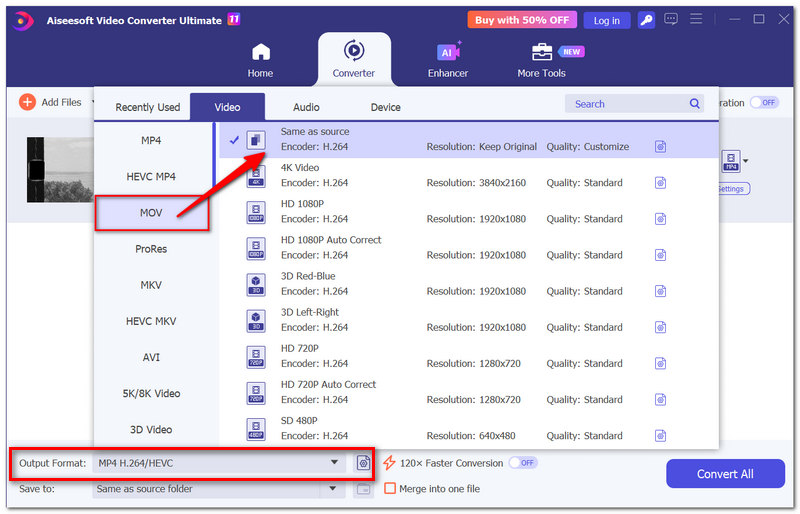
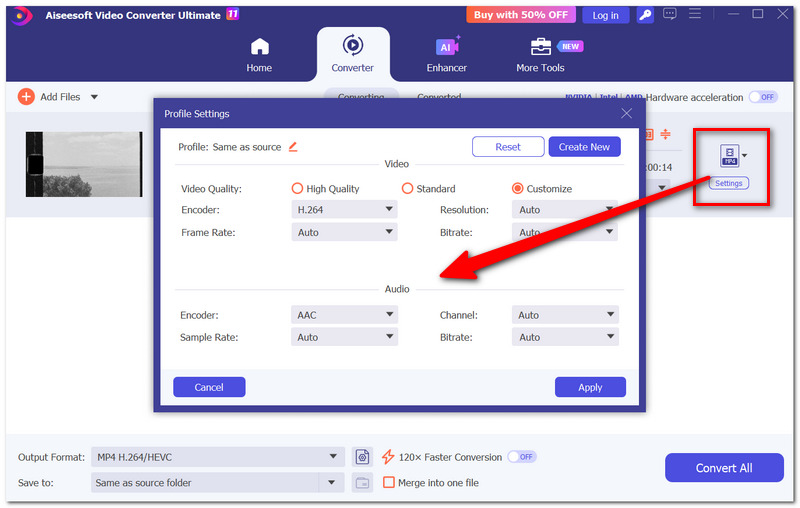
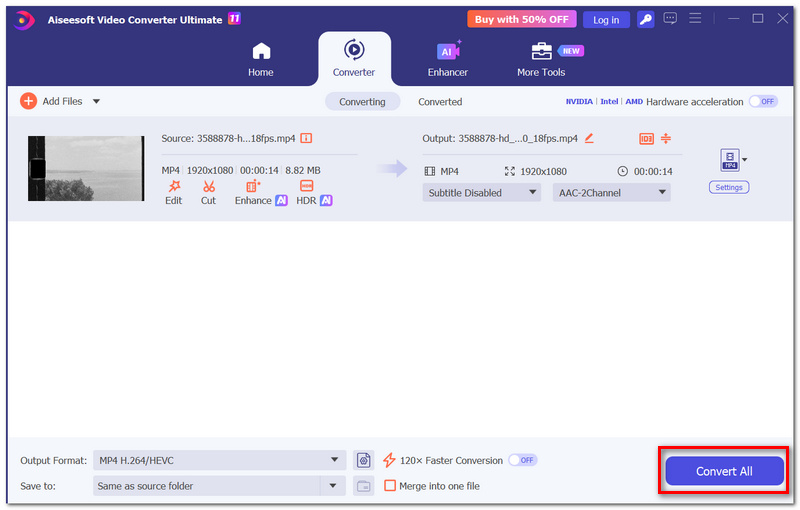
Furthermore, you can also use this tool to convert live photo to still images by conversion.
All you need to do if you already have an iPhone is to use Live, which is a very simple and straightforward way to turn a video into a Live Photo without having to transfer the photo to PC. You just need to import your video, do some editing tweaks, and then save it as a Live Photo. It works with iOS 15 and above.
How to Convert a Video to a Live Photo with intoLive
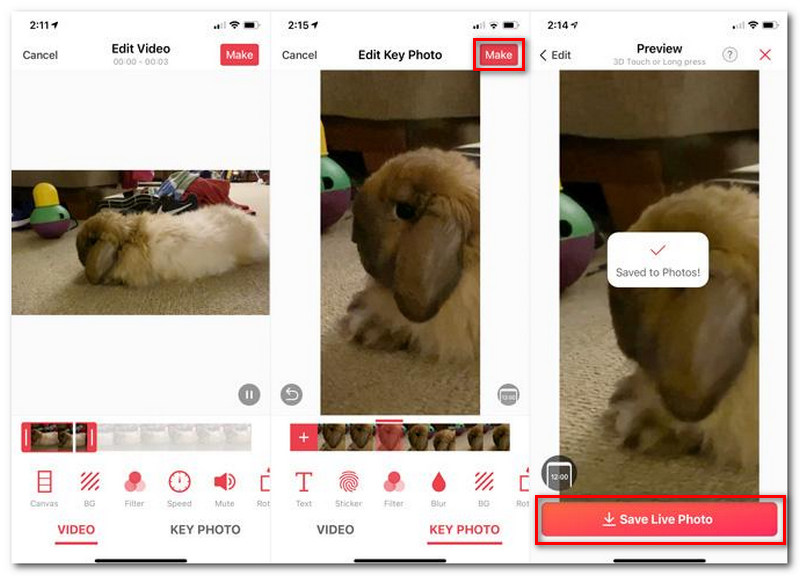
If you are looking for a straightforward method to convert a video to a Live Photo on iPhone, then intoLive would be a suitable choice since the whole process can be done directly on the device.
Android does not adopt Apple's Live Photo format quite like an iPhone would. TurnLive acts as a workaround by converting a short video into an animated live wallpaper.
How to Use TurnLive
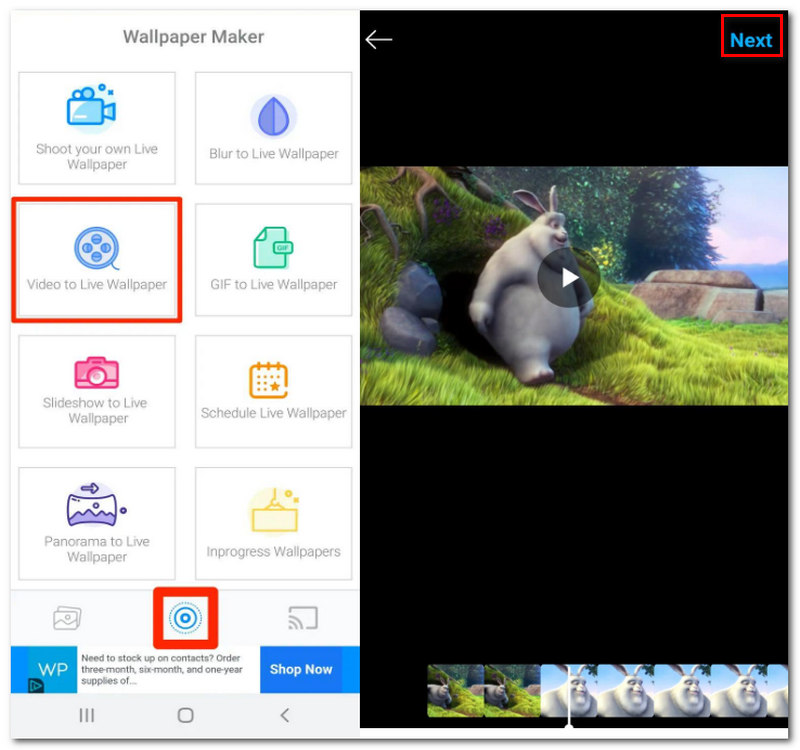
Note: TurnLive is a similar, older Android app; it may or may not be available on Google Play depending on where you are. It may not be available on your device if it is not. This isn't a native, "official" Apple Live Photo, but instead a live wallpaper.
Making a Live Photo out of a video is quite straightforward, but a couple of tiny errors can throw it off. These are a few things you may want to look at before saving:
Will sending my Live Photo through a messaging app keep it as a Live Photo?
Not always. Some messaging and social apps can strip the information that links the still image and motion clip together, causing it to arrive as an ordinary photo or video instead.
Why does my Live Photo work in Photos but not as a wallpaper?
Live Photo playback and Live Photo wallpaper support aren't exactly the same thing. A converted file can work normally in Photos while still having limitations when used as a wallpaper, depending on the iOS version and the way the Live Photo was created.
Can I use a video with music or background audio to create a Live Photo?
Yes. The audio can remain part of the Live Photo's motion content when the converter supports audio preservation. Keep in mind that some uses of Live Photos, such as wallpaper playback, may not play that audio.
Conclusion
Once you have explored the various methods, what is important to keep in mind is that creating a Live Photo from a video is simple if you have a short, high-quality video and the right tool for your device. Now that you know how to convert a video to a Live Photo, you can effortlessly convert favorite moments from videos to Live Photos.
 Ways to Create & Use Loop Wallpaper for A Livelier Wallpaper Easily
Loop wallpaper creates a visual appeal compared to a still image. Read this if you want to take the wallpaper game to the next level!
 How to Loop a Video on iPhone with Viable and Reliable Ways
Learn how to make a video loop on iPhone in a few clicks. Here is a perfect tutorial to guide you on making your iPhone video loops.
 The Ultimate Guide to Make GIF Wallpapers for Different Platforms
It is the ultimate guide for GIF wallpaper, in which you can learn the method to make a GIF wallpaper, set it up for different platforms, and useful tips.
 Leave your comment and join our discussion
Video Converter Ultimate is excellent video converter, editor and enhancer to convert, enhance and edit videos and music in 1000 formats and more.
100% Secure. No Ads.
100% Secure. No Ads.

*Required field
*Please enter a valid email

