Video Converter Ultimate
 100% Secure. No Ads.
M4A files are common; however, you can't use them when a platform or video editing software requires an MP4 file. Because M4A includes only audio while MP4 includes audio and video, converting from M4A to MP4 requires changing the container or adding a visual track, like a video or an image.
Luckily, several ways to convert M4A to MP4 exist. An online converter suits you if you don't want to install additional software, and desktop converters give you more control over output options. If you work on your smartphone, a mobile video editor can do the job too.
An online converter is the best choice if you require conversion of only a few files. Online converters do not require you to download any software on your computer because they operate in a web browser. But if you have sensitive files, using online converters may not be safe. Also, online M4A-to-MP4 conversion performance depends on your internet connection. So it may be not stable.
CloudConvert is an online file conversion service that supports a wide range of media formats. It can convert M4A files to MP4 in a browser and offers options to adjust output settings.
How to convert M4A to MP4 with CloudConvert
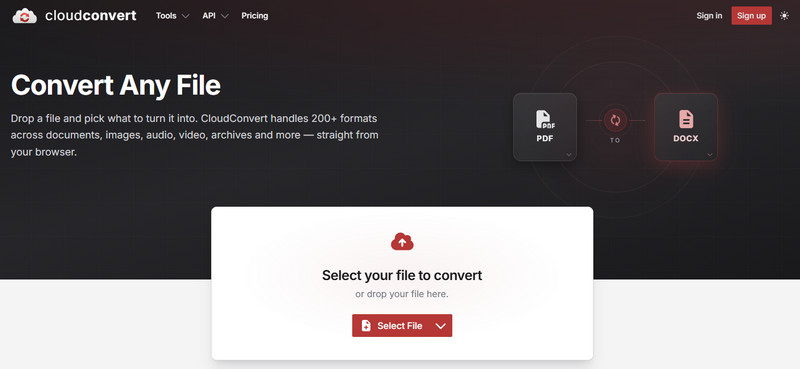
CloudConvert requires you to upload the document to its server. It also has conversion limits for free users, which can make it more inconvenient.
Convertio is another online converter designed for people who want to convert files without extra software. The website is fairly user-friendly and supports many media formats, including M4A files to MP4 files.
How to convert M4A to MP4 with Convertio
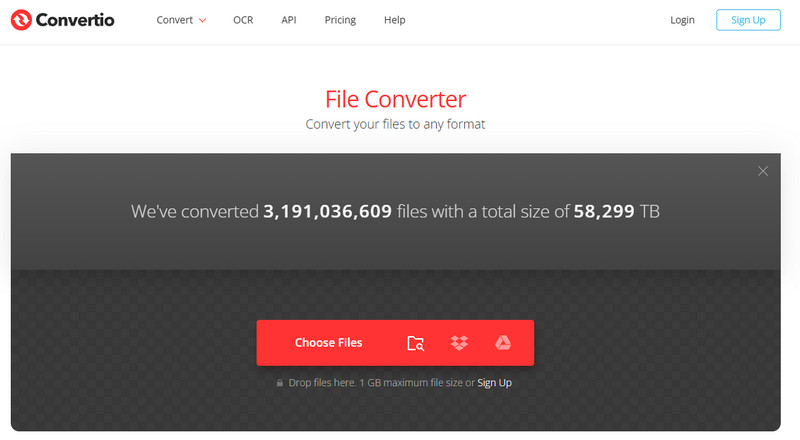
On the one hand, free online tools usually limit the size of files you can convert, so converting large M4A files to MP4 inline may have hurdles. On the other hand, because you will need to upload your file, a web-based converter isn't an option for private recordings. In those cases, switch to desktop conversion tools.
Desktop M4A-to-MP4 converters are usually more reliable for processing. They tend to offer greater control over output settings and offline conversion. The following three methods cover both beginner-friendly software and command-line conversion.
Aiseesoft Video Converter Ultimate is a desktop multimedia program. It supports video and audio conversion. It is designed for users who prefer a graphical interface rather than command-line tools. It can also be useful when you want to add visual content to an audio file before exporting it as MP4.
100% Secure. No Ads.
100% Secure. No Ads.
How to convert M4A to MP4 with Aiseesoft Video Converter Ultimate:
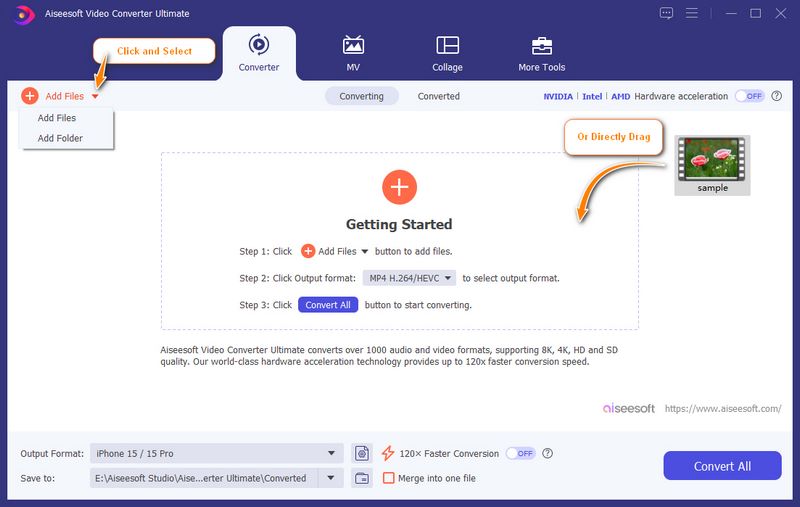
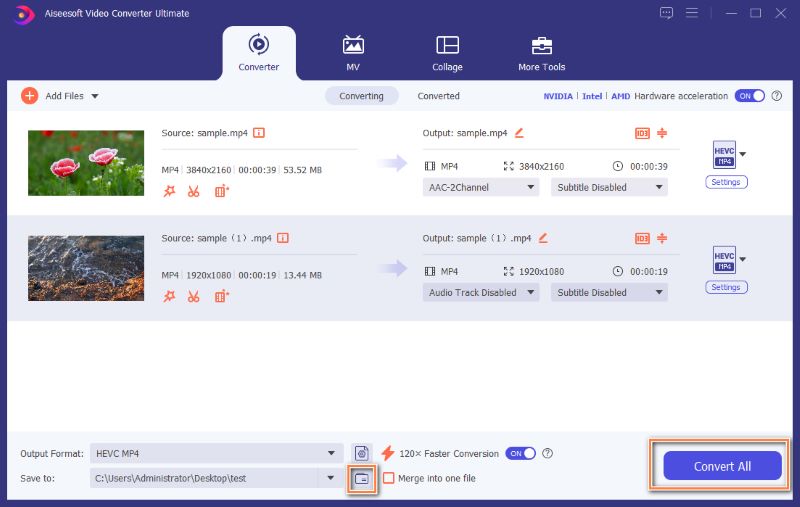
Except for conversion, Aiseesoft Video Converter Ultimate is also a powerful editor and enhancer. You can trim, crop, rotate, and flip your M4A files before converting. It also supports improving video resolution, FPS, and face details in this one-stop video processor.
FFmpeg is a free, open-source multimedia framework used for converting, processing, and manipulating audio and video files. It is particularly useful for advanced users and batch-processing workflows. FFmpeg can help you convert M4A to MP4, and it can also extract audio from videos.
For a basic conversion, you can use:
ffmpeg -i input.m4a output.mp4
If you want to create an MP4 video with a static image as the visual track, you can use:
ffmpeg -loop 1 -i cover.jpg -i input.m4a -c:v libx264 -c:a aac -shortest output.mp4
How to convert M4A to MP4 with FFmpeg:
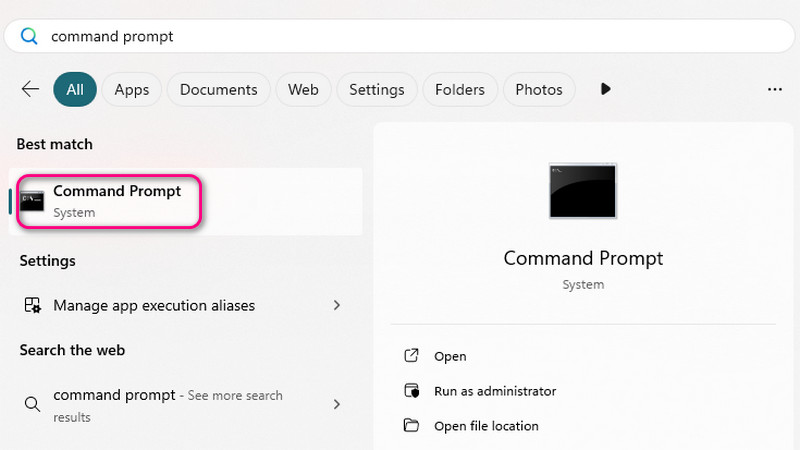
However, FFmpeg does not provide a traditional graphical interface. Beginners may find its commands difficult to understand, especially when adding images, controlling codecs, or processing multiple files.
If you want an offline solution but prefer buttons and menus rather than commands, VLC is another option.
VLC Media Player is primarily known as a free media player, but it also includes conversion functions. It can process many common audio and video formats without requiring a separate converter.
How to convert M4A to MP4 with VLC:
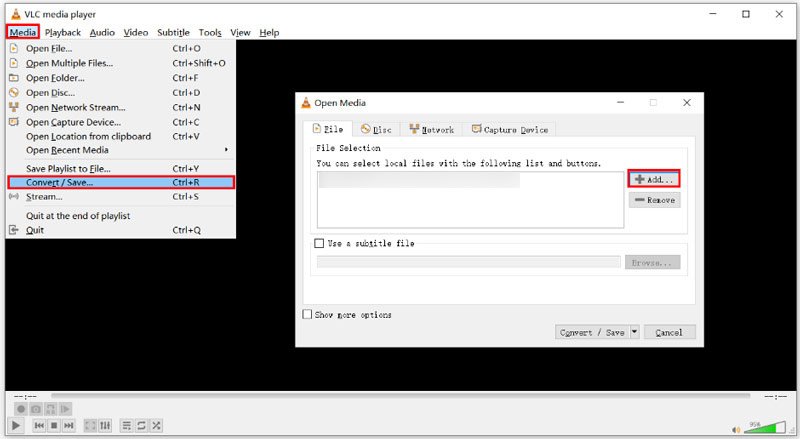
However, the conversion window in VLC is not as user-friendly as that of specialized converter applications. The output MP4 will depend on the chosen profile and will have either a visual track only or an audio track only.
The desktop approach remedies most problems of online converters; however, this method necessitates a personal computer. In case your M4A files are located on your phone, a mobile editor will be handier.
CapCut is a video editing application that is designed to use your phone to add audio and images together. The files can be exported as MP4. Therefore, it is ideal to convert M4A to MP4 with visual editing features.
How to convert M4A to MP4 with CapCut:
CapCut is more of a video editor than an audio converter. Normally, you would need to include a visual component to make an MP4 video. Some things could be different on various devices and versions of the app.
If your goal is simply to change a file format, an online or desktop converter may require fewer steps. However, if you want a music video, podcast video, or an audio file with a cover image, CapCut provides more editing flexibility.
Can I convert M4A to MP4 without losing quality?
By picking proper output options, you can reduce the loss of quality. Should your audio require re-encoding, some loss of quality is expected. If you only require changing the container type, a compatible stream copy method ensures that no audio encoding is necessary. For retaining original quality, you can try Aiseesoft Video Converter Ultimate, which supports up to 120 bitrates.
Can I simply rename M4A to MP4?
No. Renaming the file does not change its format; it just changes the file extension. The new file might not be recognized properly by media player software.
Does M4A to MP4 conversion add video?
Not necessarily. M4A is an audio format, while MP4 can contain audio and video. Some conversion methods can create an MP4 containing only audio, while tools such as CapCut can combine the M4A audio with an image or video to create a conventional video file.
What is the easiest way to convert M4A to MP4?
That need not be the case, however. The M4A is an audio file whereas MP4 could carry both audio and video content. Some conversion techniques can generate an MP4 file that carries audio content alone, while applications like CapCut allow for the creation of a normal video from M4A and image/video content.
Conclusion
Converting M4A to MP4 is straightforward, and the best method depends on what you need. Online tools such as CloudConvert and Convertio are convenient for quick conversions without installing software. For offline processing, Aiseesoft Video Converter Ultimate, FFmpeg, and VLC offer different levels of control and flexibility. If you want to turn an M4A file into a video with a picture or video background, CapCut is a practical mobile option.
For occasional conversions, an online converter is usually the quickest choice. For frequent or large-file conversions, desktop software can provide a more stable workflow. If you need a customized MP4 video rather than an audio-only file, a video editor is the better option.
 What is M4A? How to Convert and Play M4A
What is M4A? How to convert M4A to MP3? Read this guide to convert M4A to MP3/WAV/M4R and more with M4A to MP3 Converter, also know about video/audio to M4A and play M4A file.
 How to Convert M4A to MP3 Losslessly with 5 Tools [Solved]
The detailed guide will tell you how to convert M4A to MP3 online and on a computer. You can follow the 5 methods to make your M4A to MP3 conversion here.
 How to Convert MP3 to MP4 (Online and Desktop)
The article shows how to convert MP3 to MP4, the comparison between online MP3 Converters and Aiseesoft MP4 Converter.
 Leave your comment and join our discussion
Convert/Download/Edit SWF
1.1 SWF 1.2 SWF to MP4 1.3 SWF to GIF 1.4 SWF to MOV 1.5 SWF to HTML5 1.6 SWF to AVI 1.7 SWF to WMV 1.8 SWF to 3GP 1.9 SWF to DVD 1.10 SWF Converter Mac 1.11 Edit SWF
Video Converter Ultimate is excellent video converter, editor and enhancer to convert, enhance and edit videos and music in 1000 formats and more.
100% Secure. No Ads.
100% Secure. No Ads.

*Required field
*Please enter a valid email