
Best For:Professionals and most general users who often need to save screenshots as PDFs, and anyone who wants an all‑in‑one screen capture, annotation, editing, and conversion tool.

Aiseesoft Screen Recorder
 100% Secure. No Ads.
100% Secure. No Ads.
It is a common and necessary need to take screenshots on your computer. Your captured image will be saved as a standard PNG or JPEG file by default. What if you want to directly save your capture as a PDF?
Compared with standard image formats like JPG and PNG, PDF can better preserve layout and deliver a level of formality (standardization and security). It is the universal standard for business documents.
Surely you don’t want to capture a PNG/JPG screenshot and then convert it to PDF. This guide shares several efficient methods for you to save a screenshot as a PDF.
Yes. Whether you take a screenshot on a Windows PC or Mac, you can save it as a PDF file. One thing that should be clear is that your computer does not natively take screenshots as PDFs. What’s more, you’d better not directly “rename” a .png or .jpg to .pdf for the conversion.
Your computer (both Windows and macOS) has built-in functions to transform any image into a PDF without extra software. More importantly, the process will retain the original image quality. Keep reading to find reliable native methods below.
When you use the built-in keyboard shortcuts to take a screenshot on Windows or Mac, the operating system saves your screen capture as an image file, like PNG (Windows) or JPG (macOS). As mentioned, you cannot directly capture PDF files. Instead, you can use the default photo viewing apps to convert them.
Preview is pre-installed on every Mac as the default image and PDF viewer. It can handle basic image conversions.
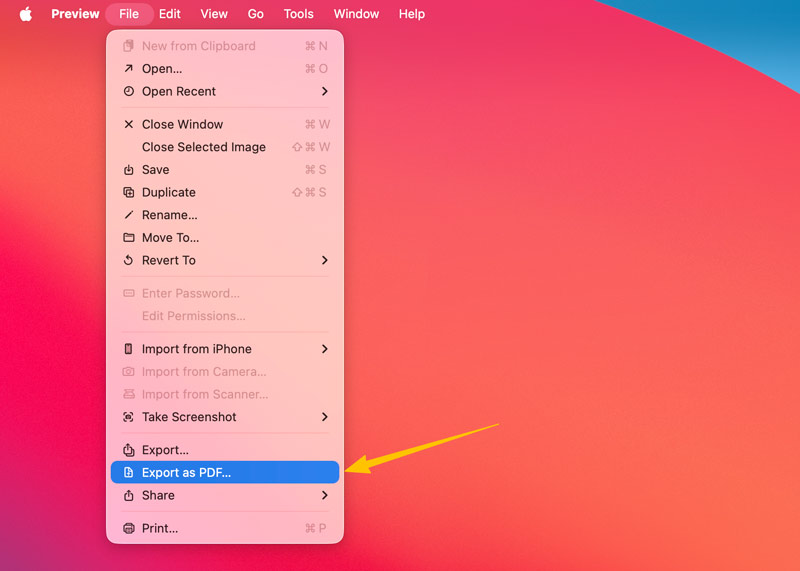
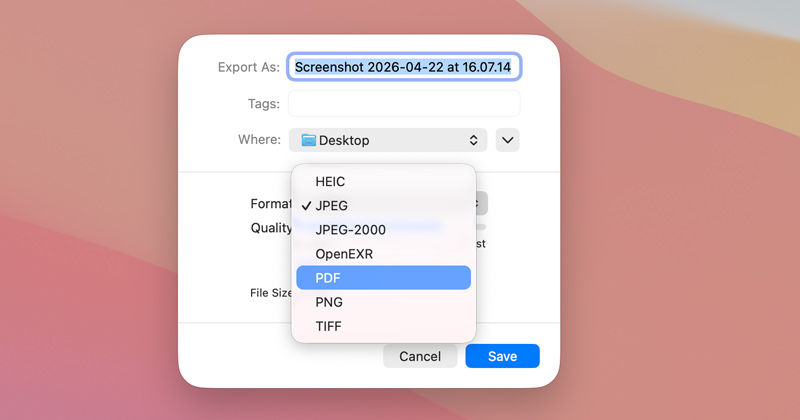
In some macOS versions, you need to choose Export and then select PDF as the output format from the Format dropdown.
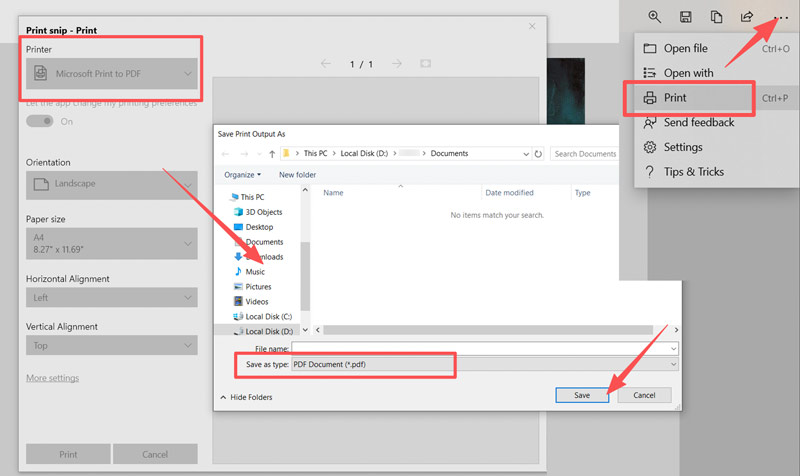
Windows has a virtual printer called Microsoft Print to PDF. It can help you turn any printable content, such as a screenshot, into a PDF for printing.
While the native screenshot tool on your computer is quite enough for occasional use, frequent screenshots, especially for the PDF outputs, demand a dedicated tool.
Aiseesoft Screen Recorder is a reputable screen capture tool for both Windows and macOS users. It can be a versatile solution that goes beyond simple screenshots. After taking a capture, you can edit it (draw and add arrows, text, shapes, etc.) and save it in a desired format.
100% Secure. No Ads.
100% Secure. No Ads.
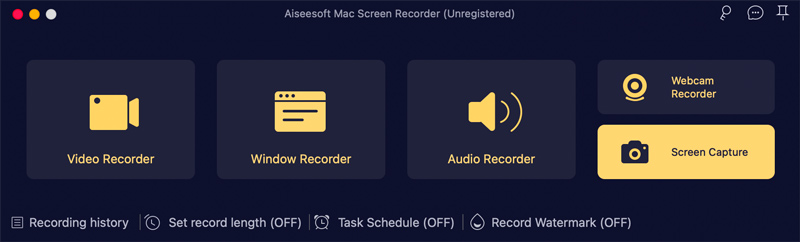
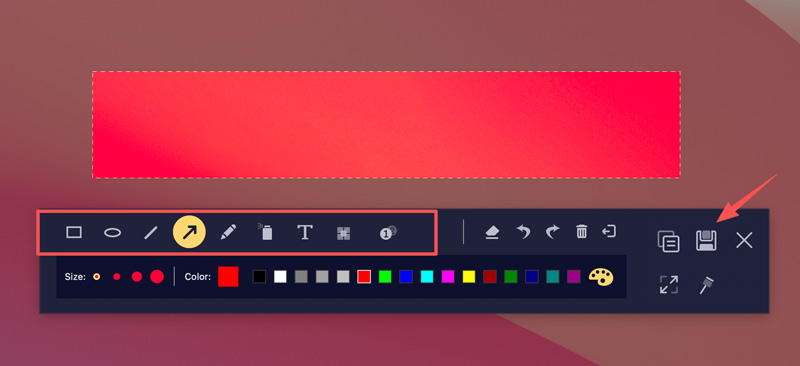
Best For:Professionals and most general users who often need to save screenshots as PDFs, and anyone who wants an all‑in‑one screen capture, annotation, editing, and conversion tool.
Question 1. Can I save a screenshot as a PDF on my iPhone?
Yes. You can turn your iPhone screenshot into a PDF within the Photos app. When you find and open the target picture in the app, tap the “Share” icon, choose “Print”, tap the “Share” icon again, and then select the “Save to Files” option and save the screenshot as a PDF file.
Question 2. Does converting a JPG or PNG screenshot to PDF reduce image quality?
No. The screenshot to PDF conversion won’t shrink the source image quality if you use the methods above. You can use the “Export as PDF” on Mac or the “Print to PDF” on Windows to preserve the original resolution. Also, you can use the Aiseesoft screenshot tool to directly capture PDF files.
Question 3. How do you save a screenshot as a PDF on an Android phone?
As an Android user, you can open the screenshot image in Google Photos, tap the three dots, choose “Print,” and then change the destination to “Save as PDF.” You can use the built-in function to easily turn your screenshots into PDFs.
Conclusion
This post has mainly talked about how to save a screenshot as a PDF on Windows and Mac. Whether you are sending official records or compiling research, converting your screenshots to a standardized document format like PDF is an essential skill. Moreover, you can handily do that using the methods above with no extra software. For power users who need annotations and advanced functions, Aiseesoft Screen Recorder is a worthwhile upgrade.
 [Solved] How to Screenshot Without a Print Screen Button
How to screenshot your computer without a PrintScreen button? You can solve this problem using several options we have listed below.
 How to Take High-Quality Screenshots (2026 Guide: Tools, Settings & Tips)
Learn how to take high-quality screenshots on Windows and Mac using free/pro tools. Improve clarity with PNG format, DPI settings, and AI upscaling.
 Top 5 Snipping Tool Alternatives for Taking Screenshots
Do you need to take snapshots on Windows and the Snipping Tool can’t meet your needs? Let's see 5 best but different screen capture tools. Read and pick one.
 Leave your comment and join our discussion
Aiseesoft Screen Recorder is the best screen recording software to capture any activity like online videos, webcam calls, game on Windows/Mac.
100% Secure. No Ads.
100% Secure. No Ads.

*Required field
*Please enter a valid email
