Making GIFs appears simple until you get a GIF that looks jerky or jumbled. A smooth animated GIF is not only about the appearance. It helps your visuals look cleaner, more polished, and often more pleasurable to watch. Smoother motion always makes a bigger impression. In this guide, we will go over everything you need to know to make your GIFs better. You’ll discover some of the best sites to find ready-made smooth GIFs, learn the common reasons why your own animations might look choppy, and explore practical ways to fix them. We’ll also introduce an AI-powered solution that can automatically boost frame rates and enhance fluidity, giving your GIFs a more professional finish. You’ll know exactly how to make your animations look seamless, natural, and visually stunning. Let’s get started!
If you are looking for an anime smooth transition GIF, several sites offer fantastic, smooth animations to use. These sites feature smooth, animated GIFs for nearly every mood or style. Some sites even let you customize or download GIFs in different resolution sizes so that you can use them for social media posts, editing, or on any of your personal projects. Here are some of the best websites where you can explore and download smooth, visually pleasing GIFs at any time.
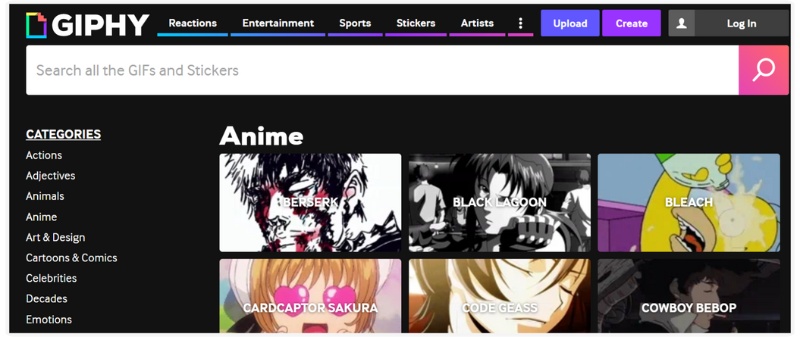
1. GIPHY – One of the most popular GIF platforms, where you can find millions of smooth and high-resolution animated GIFs. It also has a wide collection of anime loops and transitions.
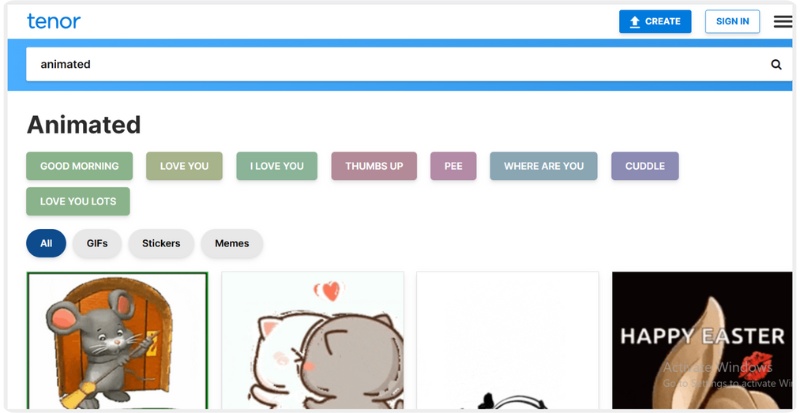
2. Tenor – Perfect for sharing and downloading trending GIFs, including smooth anime GIFs. The site offers categories for reactions, aesthetics, and motion-based anime GIFs.
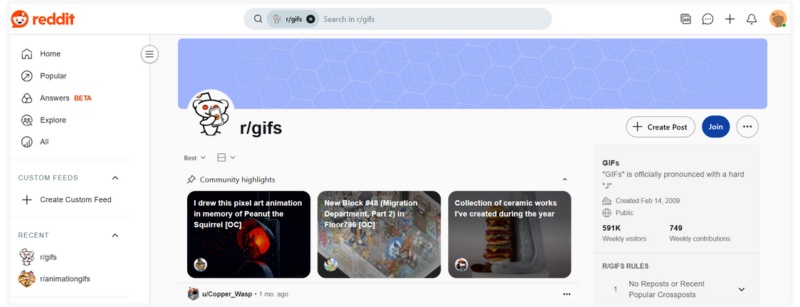
3. Reddit – For smooth, user-made animation GIFs shared by anime fans worldwide, subreddits such as r/AnimeGIF and r/HighQualityGifs are excellent resources.
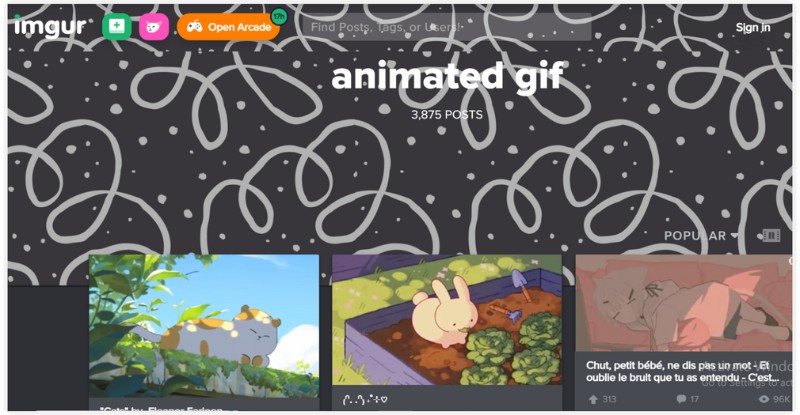
4. Imgur – Imgur is well-known for hosting imaginative GIFs and provides a wide range of user-uploaded animated, looping, and fluid anime clips.
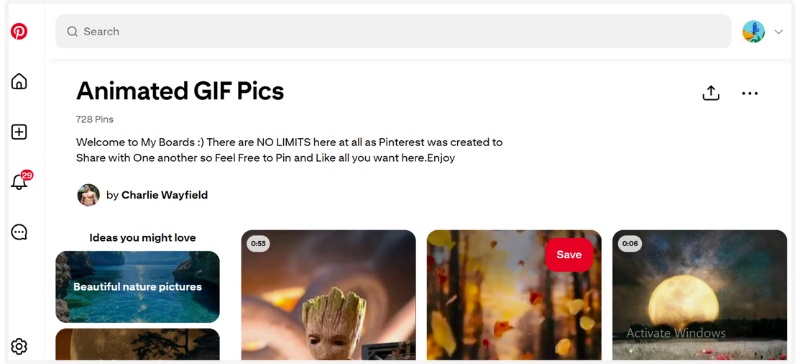
5. Pinterest – For visual inspiration, you can find smooth anime GIFs, particularly those with soft transitions or flowing animation styles.
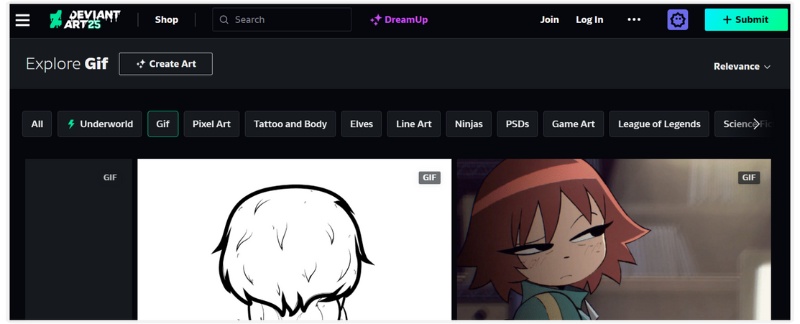
6. DeviantArt – An artistic community for creators who post unique, fluid, and gorgeously animated GIFs with effects and transitions.
7. Tumblr – Tumblr is still a secret treasure trove of smooth anime GIFs created by fans, frequently with original edits, color schemes, and transitions that aren't seen anywhere else.
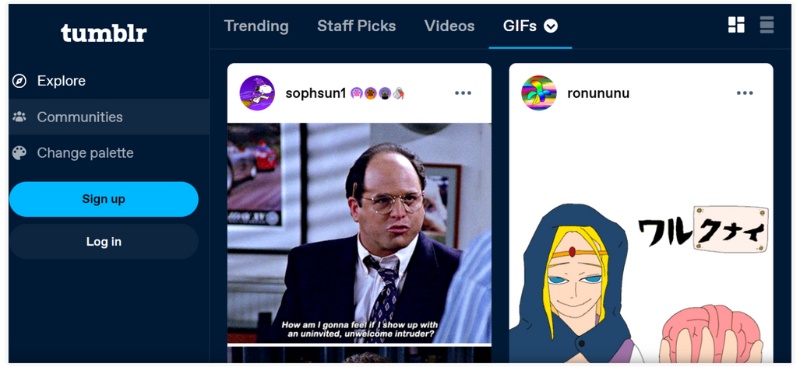
A wide variety of smooth animated GIFs are available on each of these platforms, which are ideal for adding life to your digital content or elegantly expressing emotions.
Have you ever questioned why your GIF is not as clean or smooth as a GIF you may have seen online? A smooth transition anime transition GIF is all about uniformity and balance. Each frame should seamlessly transition into the next without a jolt. If it doesn't, it's due to one of the common things listed here, which are the most common reasons the animated GIF you created may look choppy:
1. Low Frame Rate (FPS)
The most common cause of a laggy or uneven GIF is a low frame rate. A GIF with fewer frames per second will look jerky because there isn’t enough visual information between transitions. Aim for at least 24 FPS to achieve that natural, fluid motion seen in smooth transition anime GIFs.
2. Dropped or Missing Frames
If frames are deleted or skipped during export, your GIF might stutter or freeze mid-motion. It often occurs when the file size is compressed excessively or when exporting from editing software with limited settings.
3. Incorrect Playback Speed
Sometimes, the animation appears too fast or too slow due to mismatched playback speed settings. Adjusting the delay between frames can help balance the motion and make it look smoother.
4. Overcompression or Quality Loss
Compressing your GIF too heavily to reduce GIF size can strip away smooth transitions and fine details. It’s best to find a balance between size and quality — large enough to keep details, but not so big that it lags on web playback.
5. Poor Source Footage
If the original video or animation you’re converting already has low FPS or motion blur, the resulting GIF will naturally look uneven. Always start with a clean, high-quality clip before converting it.
A choppy GIF doesn’t mean your animation is beyond saving. It just needs the right adjustments. Later in this guide, we’ll show you how to use AI tools to fix uneven motion and turn your GIF into a smooth, polished, and professional-looking anime transition GIF.
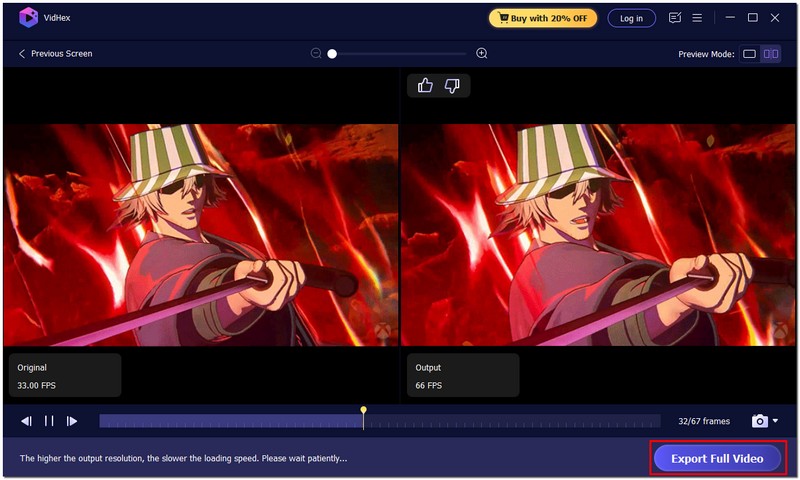
If your GIF appears jerky or glitched, you can enhance its quality to make it appear smoother using AI technology. Aiseesoft VidHex is an excellent option for this purpose, an advanced AI video enhancer that allows you to upgrade even rough or choppy animations to clean, professional-looking GIFs. It utilizes frame interpolation to intelligently insert extra frames between existing ones, resulting in every movement appearing more fluid and natural. Whether you’re fixing a low-FPS GIF or perfecting your smooth animated GIF, VidHex provides an easy and efficient way to get the job done.

117,882Downloads
 100% Secure. No Ads.
100% Secure. No Ads.
How to Smooth an Animated GIF Using Aiseesoft VidHex
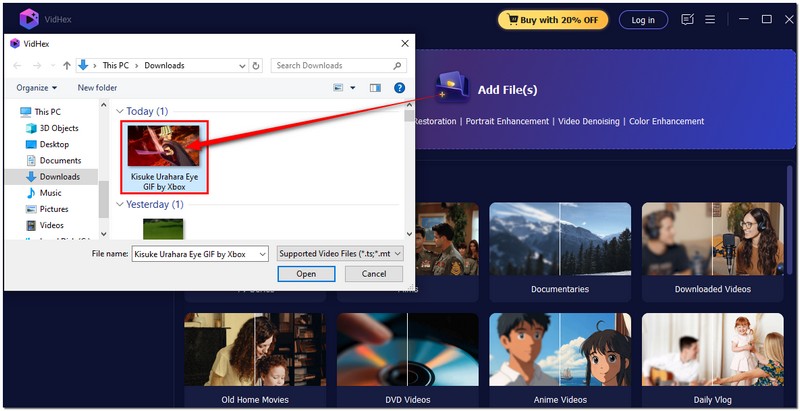
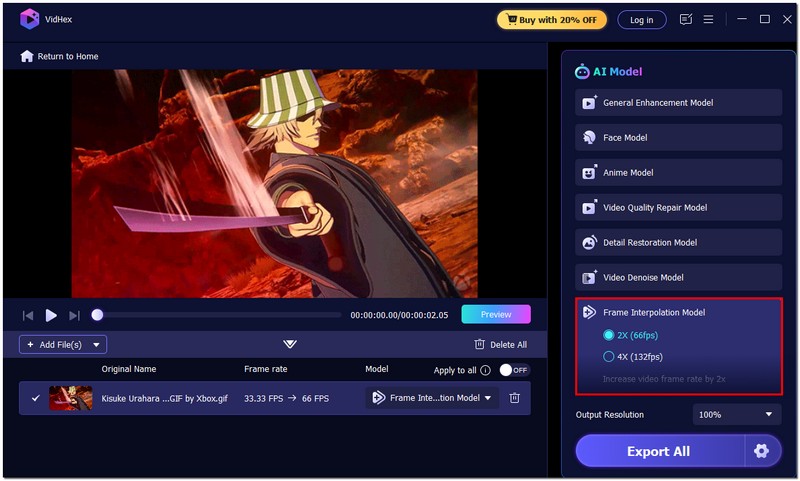
Note: If your GIF appears pixelated, use General Enhancement to enhance its clarity and sharpness.
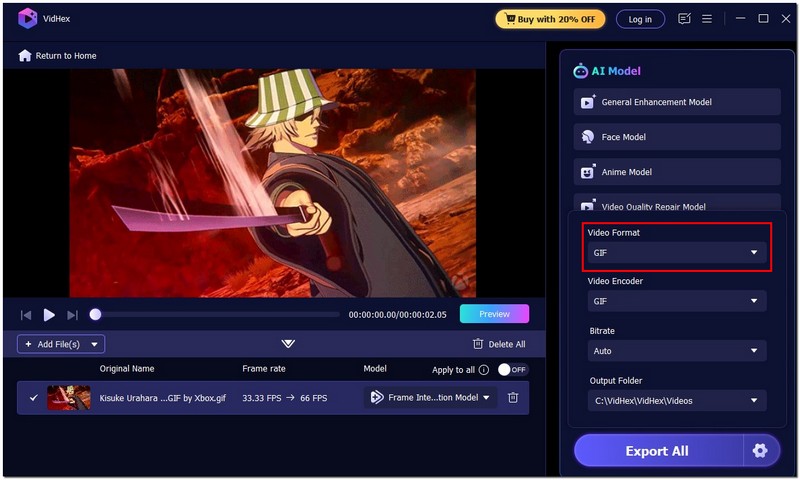
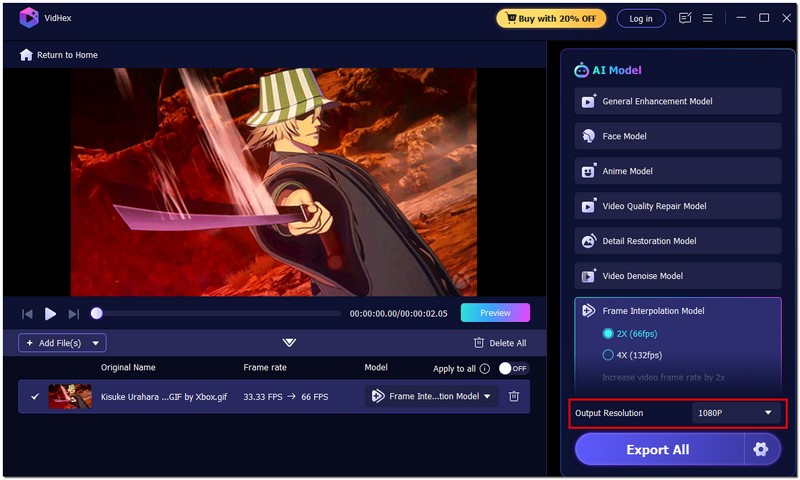
How to create smooth GIF animation in Photoshop?
To make a smooth GIF in Photoshop, import your frames or video clip, then open the Timeline panel. Set frame delays to a low value, such as 0.05 seconds, enable Tweening between keyframes for smoother transitions, and export using File > Export > Save for Web (GIF) with optimized settings.
What is the ideal frame rate for a smooth animated GIF?
Generally speaking, a frame rate of 24 to 30 frames per second creates a fluid and organic motion without increasing the file size.
Why does exporting cause my GIF to lose quality?
Usually, compression or the use of constrained color palettes is to blame. Try using AI tools that maintain visual quality, exporting at a higher resolution, or lowering compression.
Conclusion
You don’t have to make the process of creating flowing GIFs frustrating. By knowing where to look for quality source material, the reasons some animations will appear jittery, and what applications to use to help refine the motion, you can easily transform normal clips into professional-quality GIFs. Your primary goal should be to achieve a reliable frame rate, with motion that's smooth, whether you're building on your own work using AI or downloading pre-made loops. If you follow these steps, you will get a soft, polished result ready for social media, editing, or personal enjoyment. If you approach the task intentionally enough, anyone can construct an anime smooth transition GIF that looks sharp, natural, and visually appealing.
 10 Best GIF Screen Capture Tools to Record Screen to GIFs
Is there a free GIF creator that makes animated GIFs from screen capture? This post shares 10 GIF screen capture tools to record your screen and create GIFs.
 5 Best Animated GIF Cutters for Windows, Mac, and Online
Is there a free GIF duration cutter with no watermark? How can I cut animated GIFs online? This post recommends five web-based and desktop GIF trimmers for you.
 10 Effective Ways to Convert Video Clips to Animated GIFs
How do you make a GIF from a video? What is the best free GIF maker app? This post shares ten easy methods to transform your videos into GIFs with high quality.
 Leave your comment and join our discussion
VidHex is an AI-powered video enhancer that upscales, denoises, colorizes stabilizes, and improves video quality in 1 click.
100% Secure. No Ads.
100% Secure. No Ads.

*Required field
*Please enter a valid email

