How do I get my old Notes back on my new iPhone?
When you switch to a new iPhone, you need to transfer all your important data, such as notes, messages, contacts, photos, videos, and more, from your old device. This post mainly covers how to transfer notes from iPhone to iPhone.
Getting your old iPhone Notes over is not complicated, but the best method depends on how many notes you have, whether you use the same Apple ID, and whether you want to keep everything exactly as it was. Three reliable methods are available to help you transfer notes from your old iPhone to your new one.
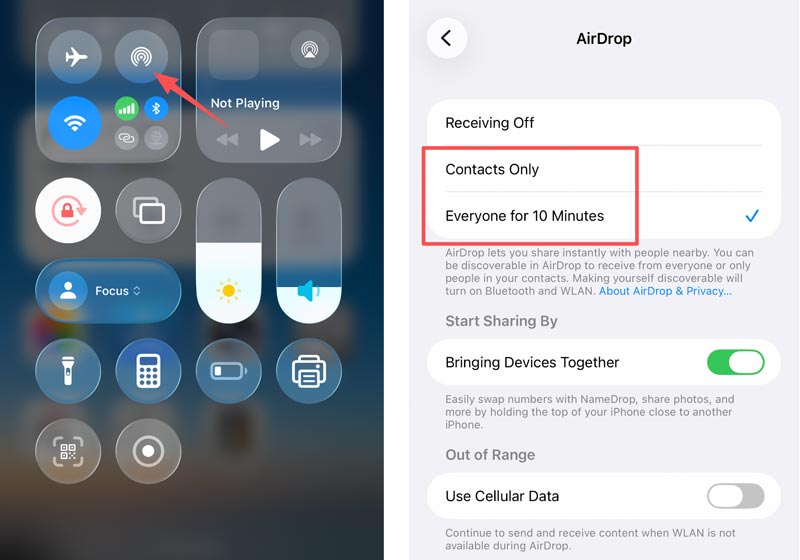
If you only have a few notes to move, AirDrop is the fastest way to transfer them from your old iPhone to the new device. This method requires no cables or cloud syncing. Instead, you need to turn on Bluetooth and Wi‑Fi on both iPhones. Your old iPhone should have AirDrop set to “Everyone” or “Contacts Only,” depending on whether the new iPhone is in your contacts.
Open the Notes app on your old iPhone and navigate to the note you want to transfer. Tap the Share icon in the top‑right corner of the note. Select AirDrop from the share sheet, then tap the name of your new iPhone when it appears.
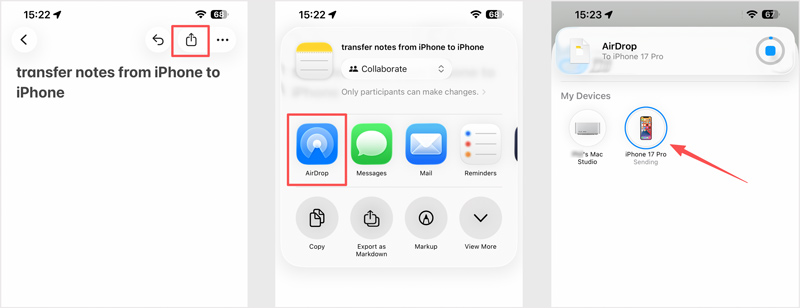
Accept the shared note on the new iPhone. It will open directly in the Notes app. AirDrop does not support batch transfers. You need to repeat this for other notes you want to move.
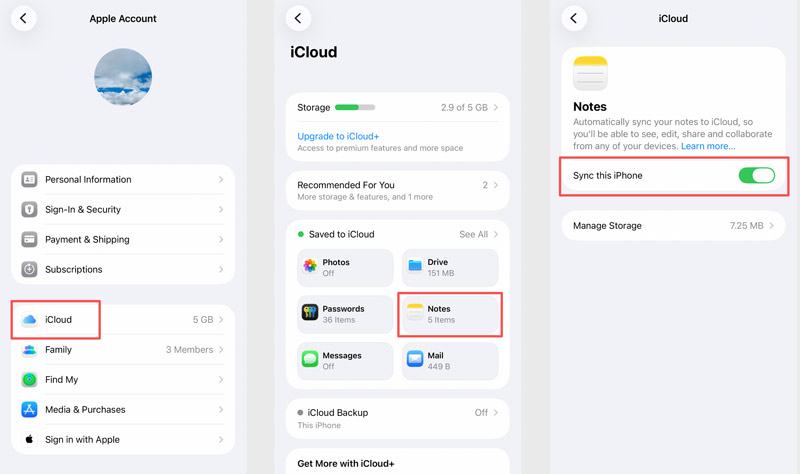
If your new iPhone has been set up and is signed in to the same Apple ID, you can transfer notes via iCloud sync. All your notes, including newly created ones on the old iPhone, will be automatically transferred to the new device. Once Notes in iCloud is enabled, any note you create, edit, or delete on one device will sync to the other.
Sometimes, you prefer a dedicated iOS data transfer to handle more than just notes. You need to manage messages, contacts, photos, videos, and other files. If you need a solution that does not depend on Apple ID, Wi‑Fi, or iCloud storage limits, third‑party tools like Aiseesoft FoneEase offer a powerful alternative.
 100% Secure. No Ads.
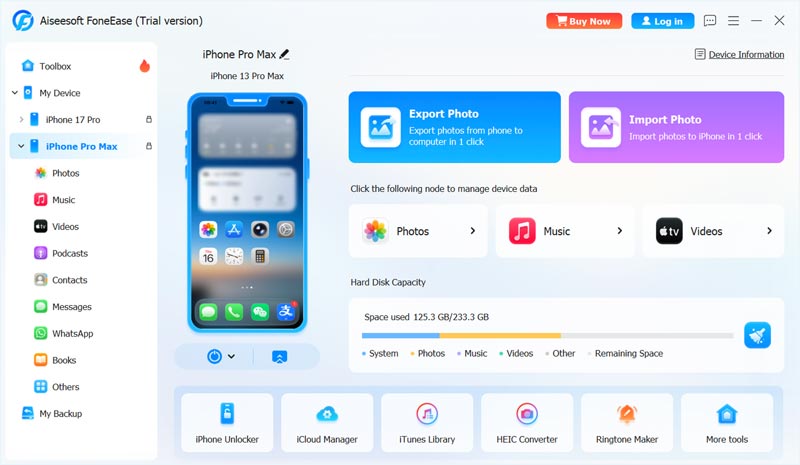
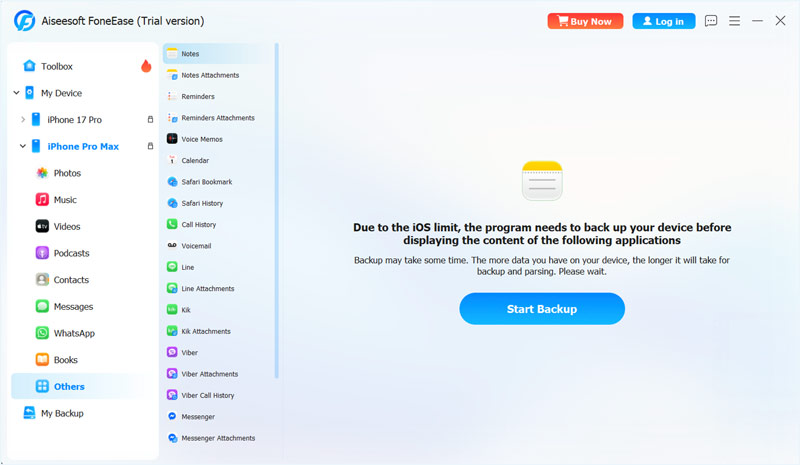
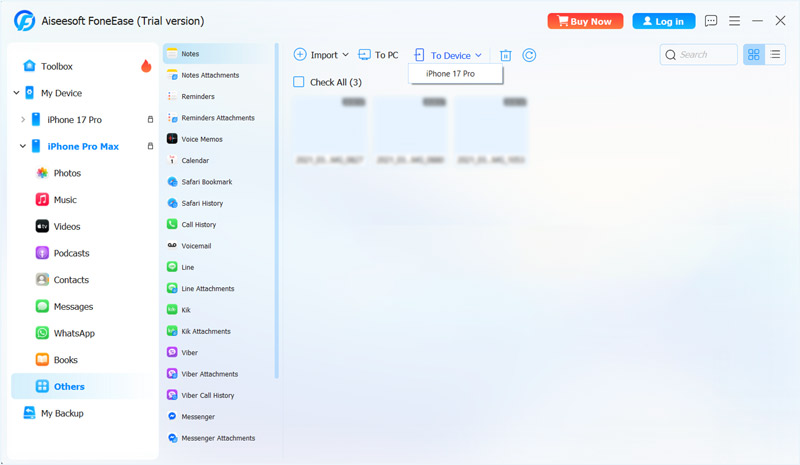
Can I transfer audio notes from iPhone to iPhone?
Yes. All three methods above can help you transfer audio notes from iPhone to iPhone. If you only want to handle a few voice memos, use AirDrop to transfer them easily. If you need to manage other iOS files and want full control over the transfer, give the introduced FoneEase a try.
Why won’t all my Notes transfer to my new iPhone?
There are several reasons why not all your iPhone notes were transferred. If you use iCloud to transfer iPhone notes, you should ensure iCloud sync is enabled on both devices. If “Sync this iPhone” is toggled on, try toggling it off and back on. If your iCloud storage is full, new notes won’t sync. In some cases, your notes won’t be transferred to the new device due to network or software issues. You can restart both iPhones and update to the latest iOS. If none of this work, a third‑party transfer tool like FoneEase can move notes without relying on iCloud.
What if my iPhones are on different Apple IDs?
AirDrop and FoneEase both work across different Apple IDs. iCloud will not sync notes between separate accounts.
Conclusion
Choosing the right method to transfer notes from iPhone to iPhone depends on your specific needs. If you only need to transfer a few notes quickly and both devices are nearby, use AirDrop. If both devices use the same Apple ID and you want your notes to stay automatically synchronized, ensure Notes in iCloud is turned on. Use FoneEase to transfer large batches of notes.
 How to Back Up iPhone Notes: 5 Methods on iPhone & Computer
Learn how to back up iPhone notes with 5 easy methods using iCloud, computer, Gmail, Google Drive, or iTunes/Finder.
 How to Recover Deleted Notes on iPhone (Step-by-Step Guide)
Accidentally deleted notes on iPhone? No worry! This blog has proven ways to recover deleted notes on the iPhone, covering official ways and third-party tools.
 How to Transfer Notes from iPhone to Android without Data Loss
This tutorial shows you top 5 methods to efficiently transfer notes from iPhone to Android smartphone or tablet along with other multimedia attachments.
 Leave your comment and join our discussion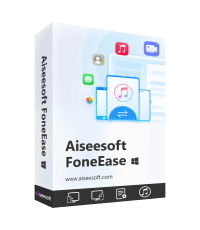
Aiseesoft FoneEase is a data transfer and management tool that lets you seamlessly move, back up, and manage various data between iOS, Android, and computers without resetting your phone or relying on iTunes.
100% Secure. No Ads.

*Required field
*Please enter a valid email

