iPhone Data Recovery
 100% Secure. No Ads.
100% Secure. No Ads.
Accidentally delete the Notes App or some important notes on your iPhone? Carelessness, system updates, or jailbreak failures can all lead to this situation, which can be very frustrating. So, how to recover deleted notes on iPhone? How to retrieve trashed notes on iPhone without iTunes/iCloud backup? Don’t panic. There are some solutions to help you. Continue reading to find the best answer.
| Situations | Ways |
| Deleted within 30 days | Via Recently Deleted Folder |
| Synchronization issues/Deleted within 30 days | Visiting iCloud.com |
| Have the habit of backing up notes | Restore backup using iTunes or Finder |
| Over 30 days & no backup | Professional third-party software |
How can you directly recover deleted notes on an iPhone? When you mistakenly delete a note on your iPhone, the Recently Deleted folder may give you a chance to get it back. The deleted note will not be permanently deleted from iPhone until you personally go to the Recently Deleted folder and delete all items. So, you can follow the next steps to recover them.
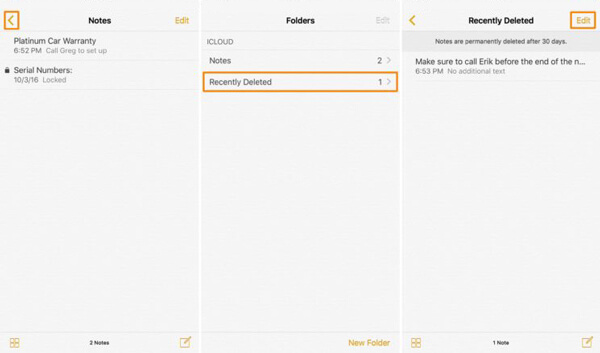
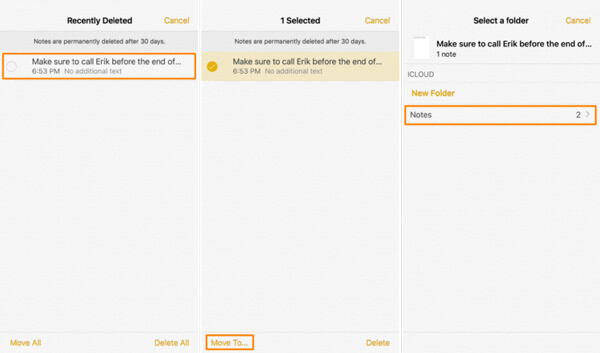
Deleted notes will be kept in this folder for 30 days. Notes that exceed 30 days or are manually permanently deleted will not be retrieved.
Sometimes, there are synchronization issues on the mobile devices. So, you can try finding lost notes by viewing cloud data on a computer. Or in another case, you accidentally trashed some notes. For notes that have been recently deleted within the last 30 days, Apple Support supports you in recovering these notes via iCloud.com as follows:
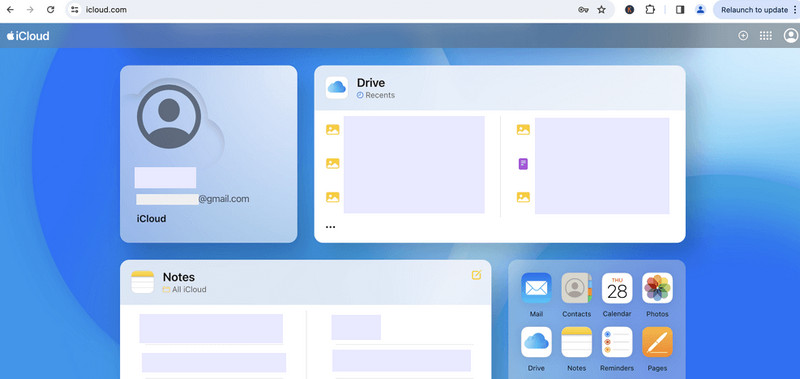
(If you don’t see Recently Deleted, you don’t have any recently deleted notes eligible for recovery.)
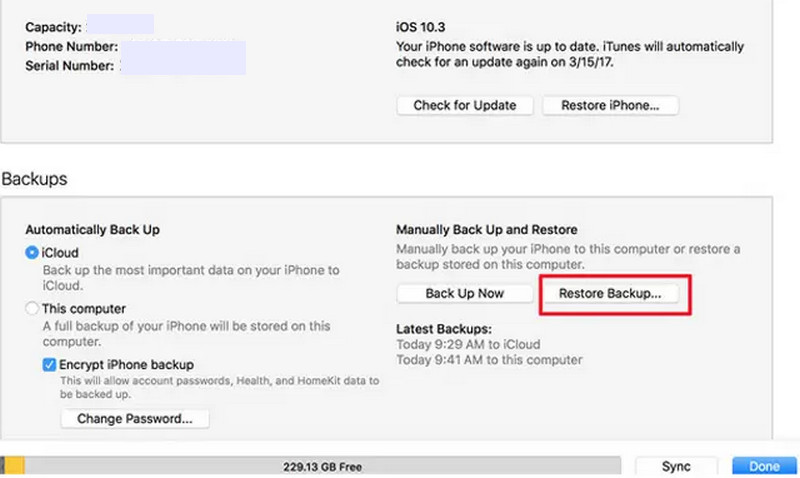
If you have the habit of backing up notes using iTunes or Finder, you can get back deleted notes with iTunes or Finder backup. But you should note that this method will restore the phone to its backup state and delete the latest data generated after your backup.
Here are the steps to retrieve trashed notes on an iPhone.
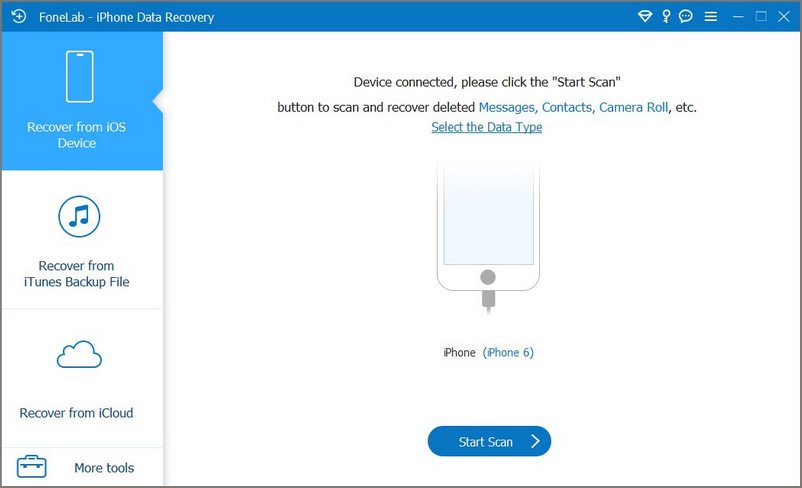
If the above official ways cannot work well, you can turn to this professional tool - Aiseesoft iPhone Data Recovery. It is specially designed to help you quickly recover lost or deleted data, like notes, from your iPhones and iPads. Additionally, the app can recover contacts, messages, photos, videos, call history, and other types of files.
It is a program that lets you quickly preview the data you can recover. With just a few steps, you can finish the recovery process without a learning curve.
100% Secure. No Ads.
100% Secure. No Ads.
How do you recover notes on an iPhone? Well, you can follow the steps we have added next.
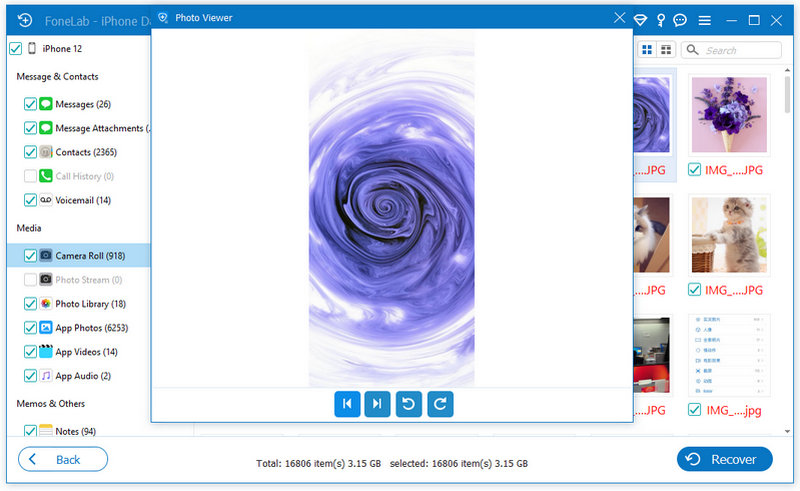
Finally, you can recover your lost notes. It is easy and fast, isn’t it? Aiseesoft iPhone Data Recovery can also recover deleted photos on your iPhone, or videos, messages, and more. It deserves trying!
Can I recover deleted notes on iPhone without a backup file?
Yes, you can check the Recently Deleted folder in the Notes app. Notes are usually stored there for up to 30 days before being permanently deleted.
Can I recover permanently deleted notes?
It can be difficult, but possible if you have an iTunes/Finder backup or use a reliable and safe third-party data recovery tool, like Aiseesoft iPhone Data Recovery.
How do I recover notes from iCloud?
If your notes were synced with iCloud, you can restore them by enabling Notes in iCloud settings or recovering from an iCloud backup.
Will restoring a backup overwrite my current data?
Yes, restoring from an iCloud or iTunes backup will replace your current data with the data from the backup.
Why did my notes disappear from my iPhone?
Notes may disappear due to iCloud sync issues, accidental deletion, software updates, or switching email accounts.
Conclusion
In this article, we offer 4 ways to recover your deleted notes on an iPhone. If you have just deleted your notes, you can find them in the Recently Deleted folder or iCloud.com. With iTunes or Finder backup files, you can also recover your notes. Finally, you can choose an ultimate tool, Aiseesoft iPhone Data Recovery, with no time limits and no backup. Quick actions should be taken before any permanent damage occurs.
 Recover Deleted Photos from iPhone in 2026 (Easy & Fast)
Accidentally deleted photos from your iPhone? Learn how to recover deleted photos from your iPhone with or without backup. Step-by-step solutions for all iPhone users.
 Find Deleted Messages on iPhone with 4 Easy Methods
Lost important text messages? Learn how to find deleted messages on iPhone using Recently Deleted, Spotlight, iCloud, and Aiseesoft iPhone Data Recovery.
 Top 9 iPhone Data Recovery Software Reviews [2026 Updated]
What is the best iPhone data recovery software? Here lists top 9 iPhone data recovery in 2026, and reviews the features, pros, and cons to help you recover deleted/lost iPhone data efficiently.
 Leave your comment and join our discussion
Recover Deleted Data from iPhone
Recover Deleted Photos from iPhone Recover Deleted SMS from iPhone Recover Deleted Call Logs from iPhone Recover Deleted Contacts from iPhone Recover Deleted Reminder from iPhone Recover Deleted Notes from iPhone Recover Deleted Calendar from iPhone Recover Deleted Voice Memo from iPhone Recover Deleted Music from iPhone
The best iPhone data recovery software ever, allowing users to safely recover lost iPhone/iPad/iPod data from iOS device, iTunes/iCloud backup.
100% Secure. No Ads.
100% Secure. No Ads.

*Required field
*Please enter a valid email

