Are you facing the situation where the video file copied from your computer to your iPhone won’t play?
You often need to transfer videos from a PC to an iPhone. However, moving large video files from your computer to an iOS device can be frustrating. What’s worse, some imported videos cannot play or have no sound.
This guide will walk you through everything you need to know to transfer videos from a PC to an iPhone. Three tested methods are offered to help you transfer videos from your PC to your iPhone.
Before you learn how to transfer videos from PC to iPhone, you need to ensure your files are in a compatible format. The Photos app prefers MP4 with H.264 compression.
As mentioned, the Photos app on your iPhone only supports specific video containers and codecs. Even though Apple claims that it natively plays MP4, MOV, and M4V files, the codec inside decides the final playback.
Your iPhone can support H.264 and H.265 (HEVC). Some older codecs like DivX, Xvid, or MPEG-2 are not supported. If you send a video from a PC to an iPhone that uses an unsupported container or codec, the file will not be played or will show playback errors.
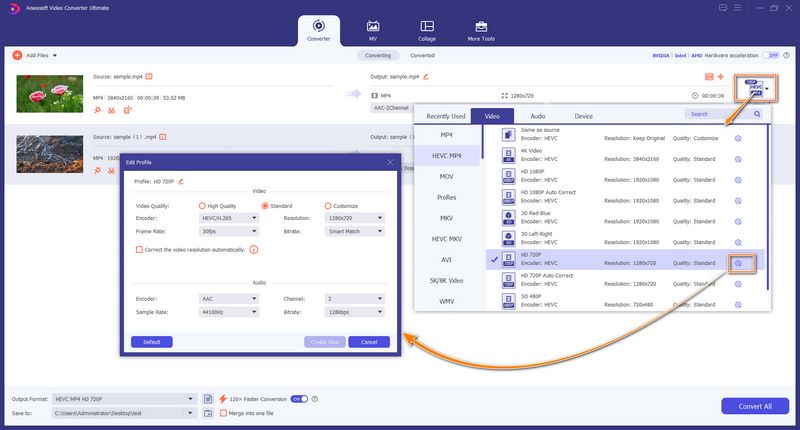
For unsupported video formats, you can use Aiseesoft Video Converter Ultimate to transcode them. It supports hundreds of video/audio formats and preserves original quality during the conversion. The software provides a dedicated iPhone category for you to quickly select a compatible output format. Moreover, it can leverage your graphics card (NVIDIA/AMD) for faster conversion speeds.
Once your videos are in the right format, the next step is getting them onto your iPhone. This section tells you three of the most effective ways to copy videos from a computer to an iPhone.
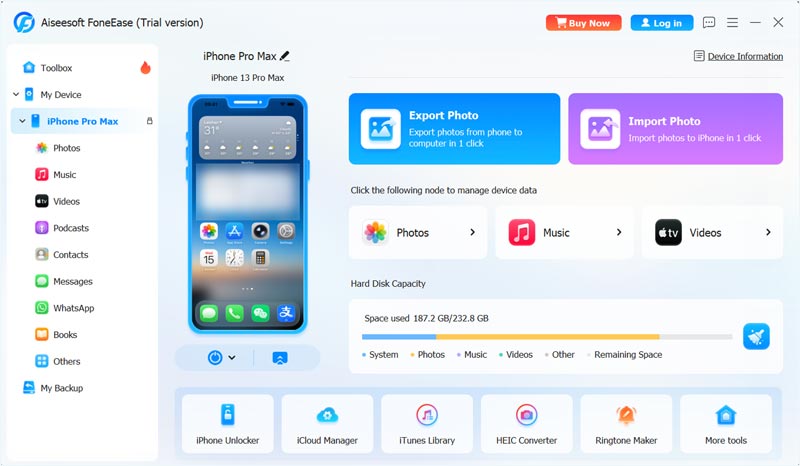
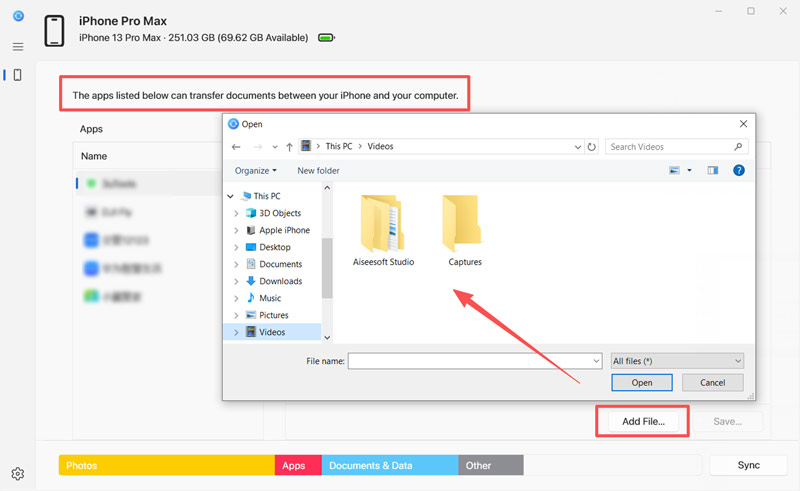
Aiseesoft FoneEase is a powerful data transferring and management tool that can transfer files between your PC and iPhone effortlessly. Unlike iTunes, it enables you to selectively transfer files. The software supports transferring videos, photos, audio, contacts, messages, and various app data. FoneEase can copy videos from your computer to your iPhone’s Photos app or a desired media player app you want. For instance, it lets you directly send videos from a computer to the VLC app on your iPhone.
 100% Secure. No Ads.
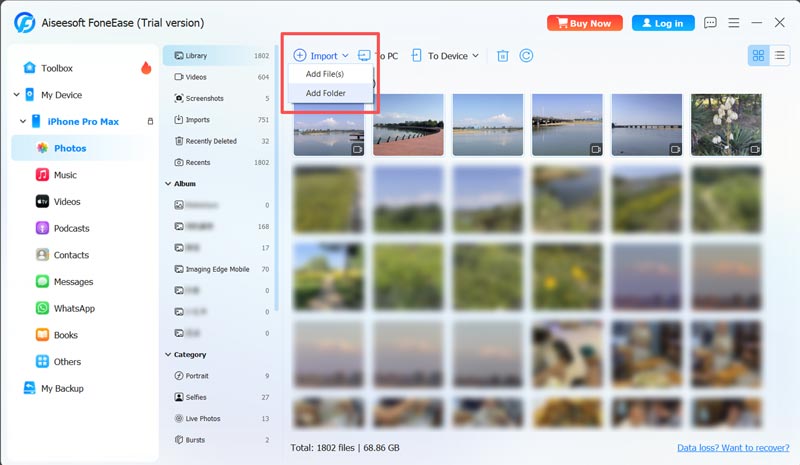
As mentioned, FoneEase allows you to directly transfer videos from a computer to the player app on your iPhone. This ensures smooth playback and helps avoid unsupported format/codec issues. If you are looking for a fast, all-in-one solution to copy files from PC to iPhone, start with the reliable FoneEase.
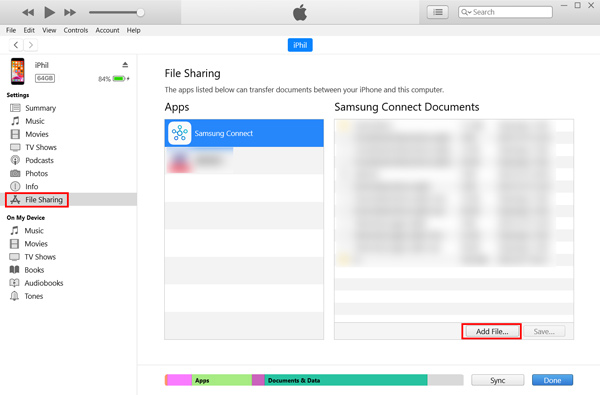
iTunes (or the newer Apple Devices app on Windows 11) offers a built‑in file‑sharing feature that enables you to copy videos from a PC to an iPhone.
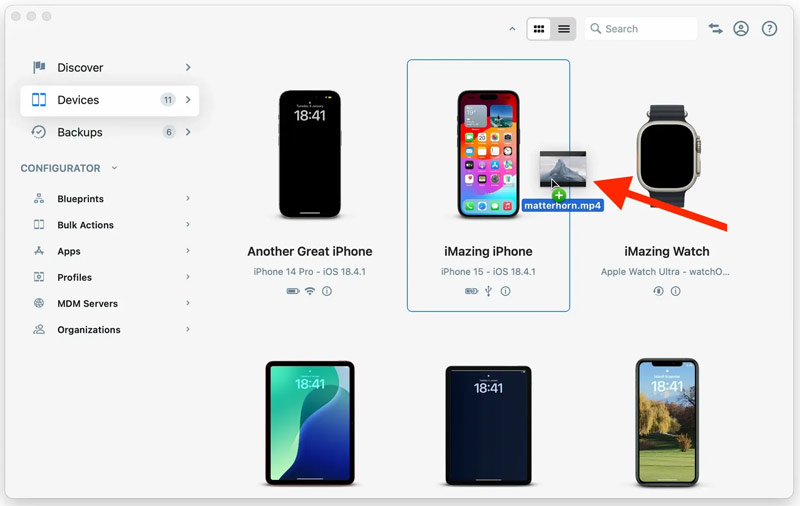
iMazing is another excellent data transfer tool that lets you copy videos from a computer to an iPhone. If you want a simple, drag-and-drop way to share videos, iMazing is an ideal choice. It lets you send videos from your computer to the Photos app or a third-party player app on your iPhone.
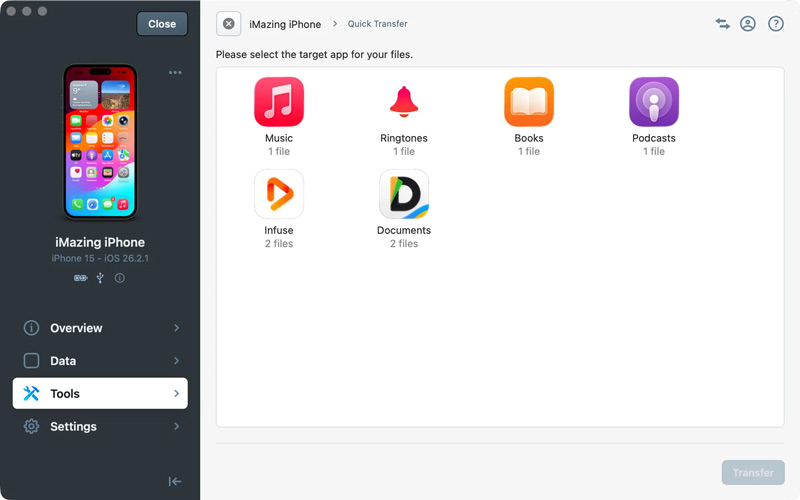
Like FoneEase, iMazing offers various backup and management features that make it a versatile tool for Apple users. When you want to transfer videos, photos, podcasts, and other files, you can give it a try.
Can I move videos from my PC to my iPhone wirelessly?
Yes. Both Aiseesoft FoneEase and iMazing support Wi-Fi transfers. You can select a preferred tool and use it to make the wireless transfer. Ensure your iPhone and PC are connected to the same network. Select the Wireless mode and connect your iPhone. After that, you can transfer files without a cable.
Do I need to convert videos if I use a third‑party player like VLC?
No, you often don’t need to convert your videos if you have VLC for iOS or a similar video player app on your iPhone. These players can support most video and audio formats. You can directly load your video files into the app for smooth playback.
Why won’t my video play after I transfer it to my iPhone?
The playback issue may be due to different reasons. The most common one is format incompatibility. If you use your iPhone’s Photos app to play the transferred video, the required format should be an MP4 container with an H.264 or HEVC video codec. If your imported video won’t play on your iPhone or has no sound, you need to convert it to MP4/H.264 before transferring.
Conclusion
It’s a common need to transfer videos from PC to iPhone. This guide shares three standard methods for you to do that. You can select a preferred transfer method to copy video files to your iOS device. If you frequently send videos from your computer to your iPhone, investing in a dedicated transfer tool like FoneEase or iMazing is advised.
 8 Best iPhone Backup Apps and Software to Store Your Files
Want to back up your iPhone data but don't know how to choose the tool? We'll introduce you to 7 iPhone backup apps and one of the best software to help you.
 Top 6 iPad Transferring Tools for Windows and Mac Computers
What is the best iPad transferring software? This article identifies and shares you top 6 best tools to help you transfer iPad data from and to computer easily.
 How to Convert Video Files to MP4 Using VLC Media Player
Can VLC convert video formats to MP4? How do you convert VOB to MP4 on VLC Media Player? This post talks about VLC convert to MP4 and gives a detailed guide.
 Leave your comment and join our discussion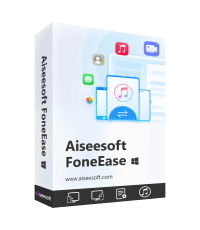
Aiseesoft FoneEase is a data transfer and management tool that lets you seamlessly move, back up, and manage various data between iOS, Android, and computers without resetting your phone or relying on iTunes.
100% Secure. No Ads.

*Required field
*Please enter a valid email

