Aiseesoft Anock - Android Unlocker
 100% Secure. No Ads.
Contents
Can't remember your BLU phone screen lock? Forgetting the pattern, PIN, or password on your BLU cell phone screen lock is quite easy to do, especially if you recently set a new one or haven't used a specific pattern recently. You recall the last combination, but the latest one escapes your memory. Before choosing to factory reset the device or exploit third-party tools, you should consider what BLU device recovery options are available. This article will walk you through how to unlock a BLU cell phone using Google Find Hub, Recovery Mode, and other alternatives. We'll give an overview of each method, what you need, and what restrictions there are, like whether you can regain access to your device without losing your stored data.
Prepare to unlock your BLU phone once you gather all of the required information. To unlock your device, you will need the following, depending on the unlock method.
Note: Some unlocking procedures require a factory reset. This will permanently delete information stored on your device. Be sure you are comfortable with this before you proceed.
Find My Device (Google Find Hub) can help you remotely reset your BLU phone connected to your Google account. This is an option for unlocking a BLU cell phone if you want to unlock Android phone if forgot PIN, but it erases local data and must be used with a factory reset.
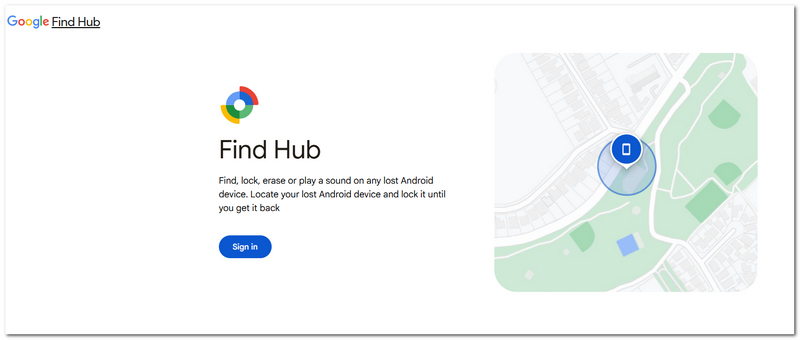
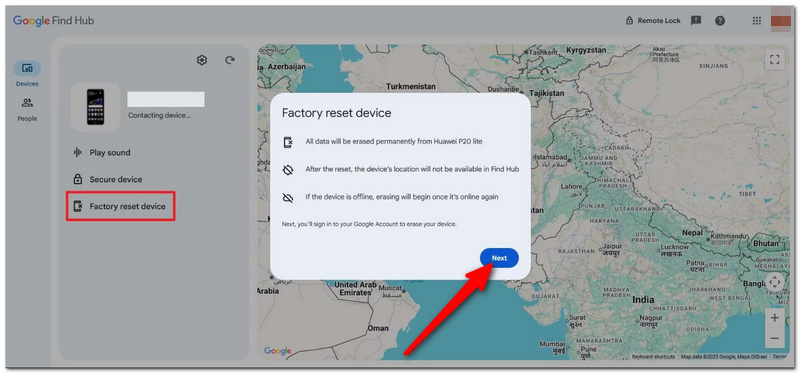
Note: Your BLU device must meet the requirements set by Google, such as being turned on, connected to the internet, having a Google Account, and having Find Hub turned on. You may need the Google Account that you previously synced with your device to complete setup after a reset due to Factory Reset Protection (FRP).
If you want to unlock a BLU cell phone, the second method to reset your device is by using Android Recovery Mode. It will restore the device to the default factory settings and remove the lock screen. Keep in mind that your local data will also be deleted, so use this method only if you're okay with losing data.
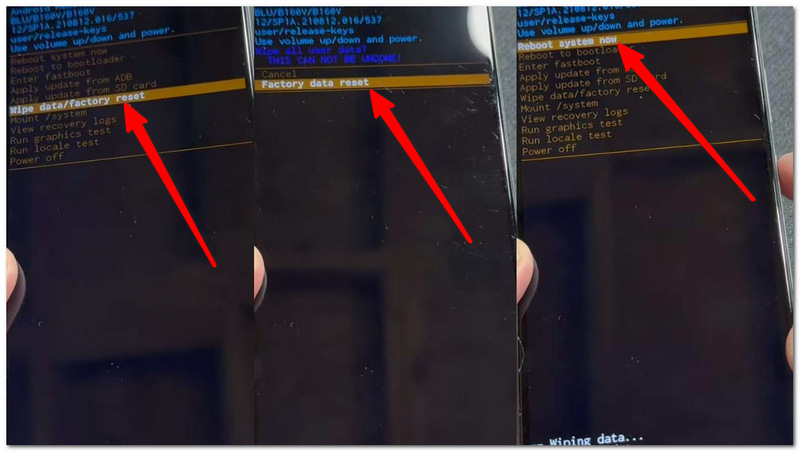
Note: Button combos are different for different BLU models. BLU phones may need a different combo, and you may need an extra step to enter Recovery Mode. Carrying out a factory reset on the phone won't necessarily remove the Google FRP lock, so you may need the Google account details that were previously used on the device.
On older BLU phones, a Forgot pattern option might provide a recovery route to your Google account. But the Forgot pattern? The link only appears on an Android device that has been upgraded to version 4.4 or lower. You may not see that option if your BLU phone is on Android 5.0 to 7.1.
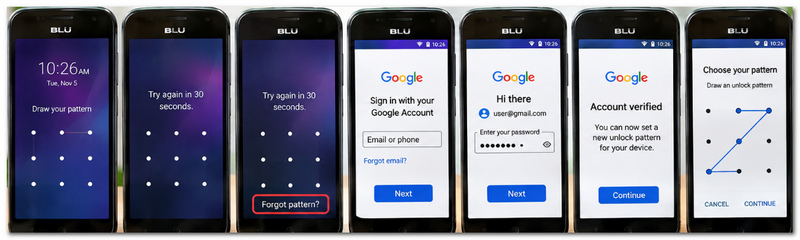
Before you begin with pattern lock (not a forgotten PIN or password), make sure your device has a working internet connection. If you have Android 5.07.1 and you don't see the “Forgot pattern? " option, try a different method.
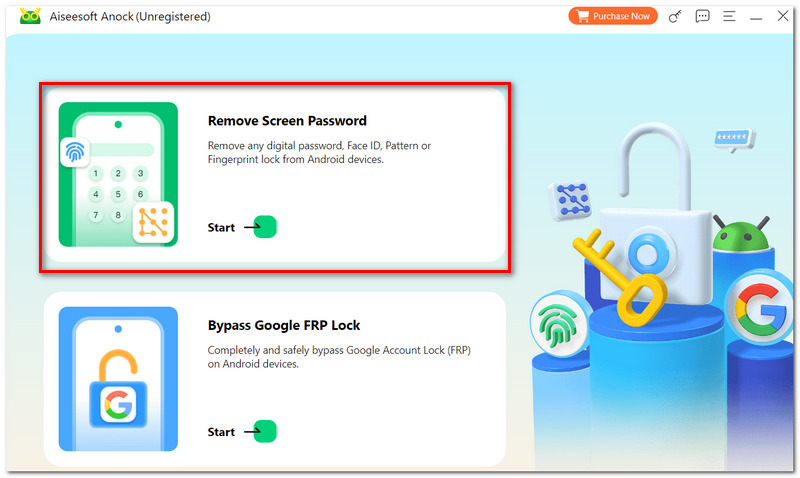
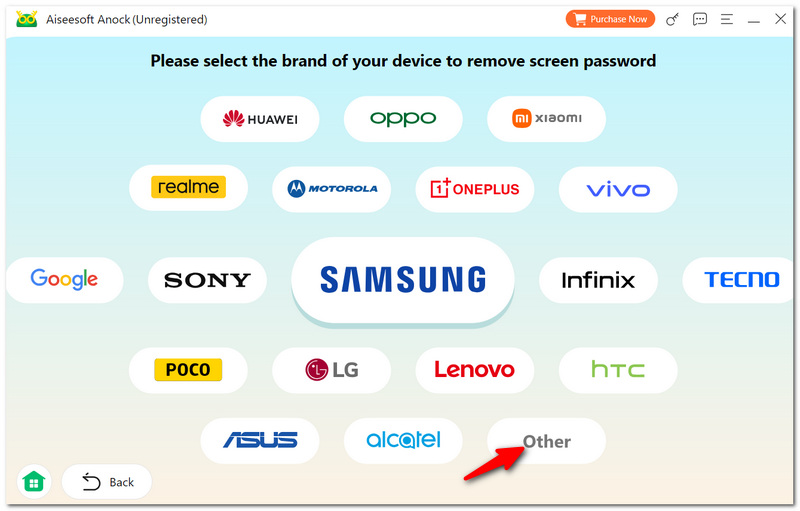
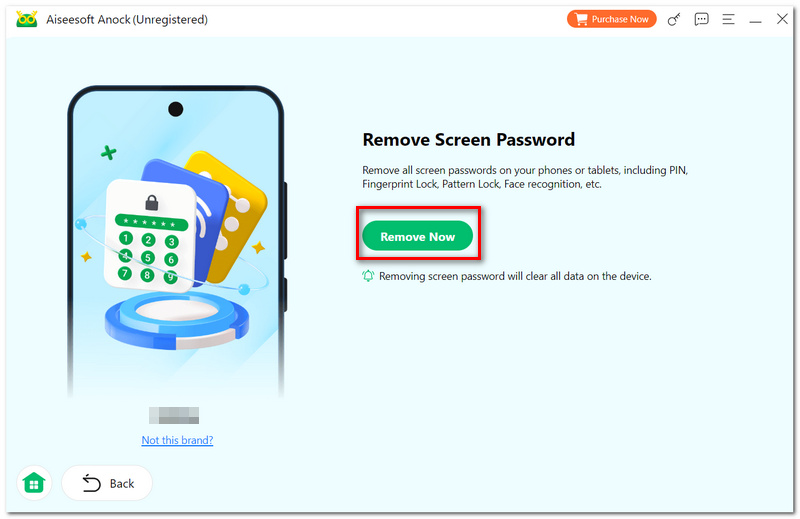
And if the Google options are not accessible on your BLU device, you may also want to see if Aiseesoft Anock - Android Unlocker can do the trick. This program can unlock all types of Android locks- PINs, patterns, and passwords but can also break out of the other category. You may find the latter if you pick a different manufacturer when starting the program.
Downloads
100% Secure. No Ads.
100% Secure. No Ads.
How to Use Aiseesoft Android Unlocker to Unlock a BLU Cell Phone
Can I Still Receive Calls on a Screen-Locked BLU Phone?
Yes, usually this is correct. A lock screen does not turn off or otherwise prevent incoming calls from ringing or being answered by you with the lock-screen controls.
Why Does My BLU Phone Say "Device Locked by Administrator"?
You may see this message if your device is supervised by a company, school, or mobile device management system. The administrator may have enabled security restrictions. Contact the organization that manages the device to request access. A standard factory reset might not erase these restrictions.
Can I Unlock a BLU Phone With a Broken Volume Button?
This can be challenging in some BLU models that rely on Volume up/down buttons to access Recovery Mode. If your volume button is unresponsive, have it replaced by a licensed technician instead of trying to press it forcefully or repeatedly alternate between button commands.
Conclusion
Things to consider when unlocking a BLU cell phone are to try the recovery options that don't involve a hard reset before you proceed with the other unlocking options. If no other options work, a hard reset or unlocking software are some options worth trying. When doing the unlocking, ensure that you confirm the model of your phone and the kind of data loss you expect.
 Android Device Manager –Locate/Find Your Phone Location
What is Android Device Manager app? How to use it to track or find your Android phone location? How to ring/lock/unlock/erase the lost phone. Here are the answers.
 Best Free Texting Apps for Android (SMS & Messaging Apps)
Explore the best free texting apps for Android, including SMS apps, private messaging, and apps with phone numbers for easy communication.
 App Keeps Crashing on Android: Causes, Fixes & Recovery Tips
An app keeps crashing on Android? Learn why it occurs, test workable solutions, and discover how to retrieve crucial app data that is lost.
 Leave your comment and join our discussion
Compatible with all Android OS versions, this unlocker provides a secure and easy way to remove screen lock of any kind and bypass FRP quickly.
100% Secure. No Ads.
100% Secure. No Ads.

*Required field
*Please enter a valid email