Aiseesoft Anock - Android Unlocker
 100% Secure. No Ads.
Contents
When you are accidentally locked out of your Samsung Galaxy S25 or want to access your stored data, you are probably disappointed because you are not able to get into your device. Whether you have forgotten your screen lock, forgotten the password after you changed it, or are having difficulty signing in, we have listed some options you can use to unlock your Samsung S25. How to unlock your device depends on whether you have access to your Samsung or Google account, or if you are unable to access them. This includes third-party unlocking software and a factory reset as the last option, with a little bit of knowledge about what each method has to offer.
It might be possible to keep your data when unlocking your Galaxy S25, but it depends on the lock and what recovery options you have. If you still have access to a Samsung or Google account, then try account recovery first.
Remember that most techniques to remove the lock screen might make you lose data that was stored on your device. For example, when you perform a factory reset, you will wipe all local files that were not already saved in the cloud. If you are trying to unlock a Samsung Galaxy S25, consider available recovery options before doing a factory reset.
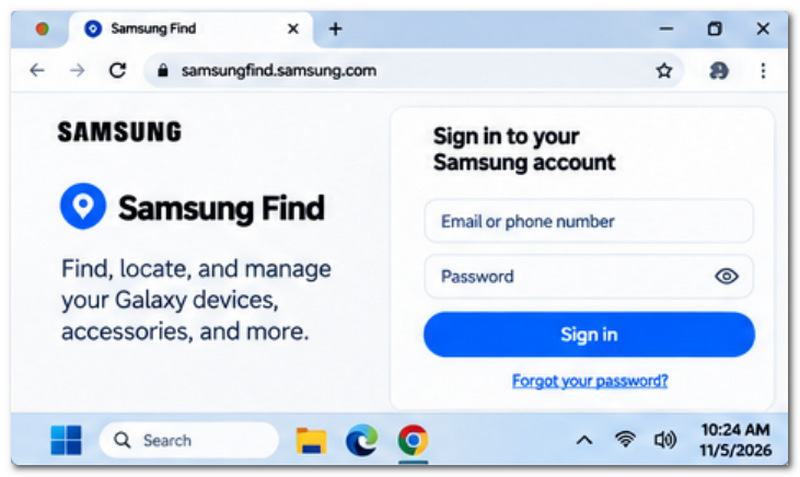
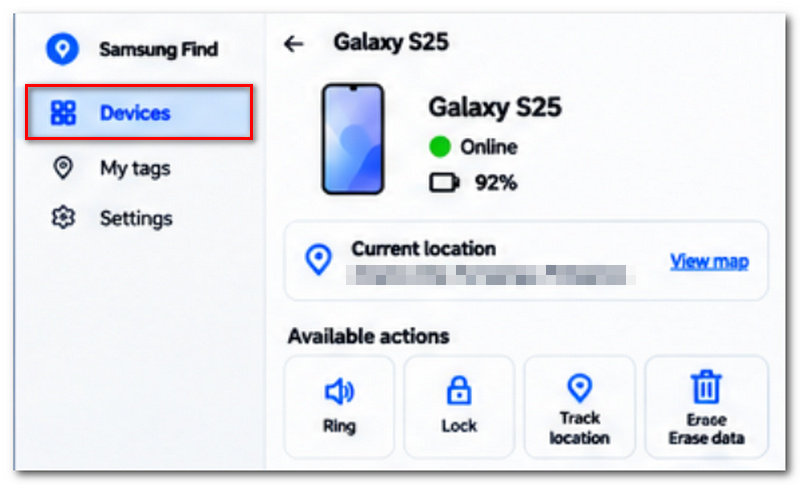
If your Samsung Galaxy S25 is linked to a Samsung account, you can use Samsung Find to solve your problem when locked out of your Samsung phone. While Samsung has discontinued the Remote Unlock feature, the Erase Data option remains available as a last resort to delete the current screen lock. This method is one way to unlock the Samsung S25 Ultra, but keep in mind it involves performing a factory reset.
How to Use Samsung Find on Your Galaxy S25
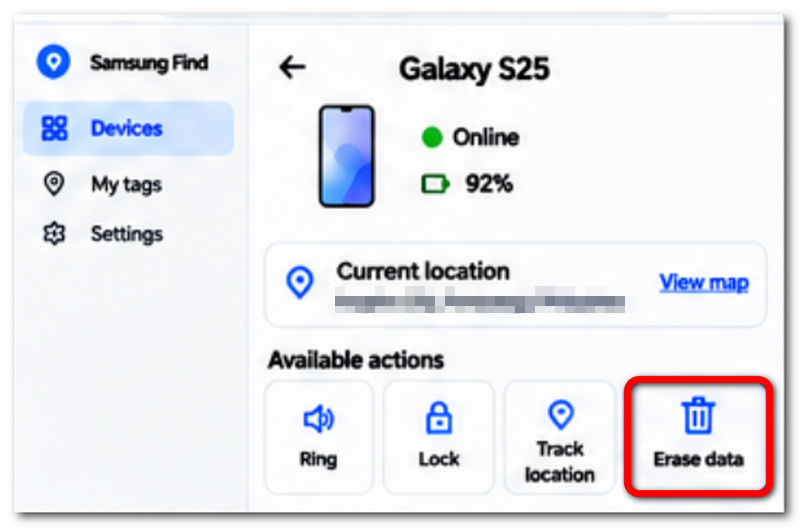
Important Things to Know
If your Galaxy S25 is linked to a Google account, Google Find Hub (which was previously known as Find My Device) can be used to erase your phone from a distance. Although it cannot recover a forgotten screen lock without a reset, it can give you another method to unlock your device when you are attempting to unlock a Samsung S25 Ultra.
How to Unlock Your Galaxy S25 Using Google Find Hub
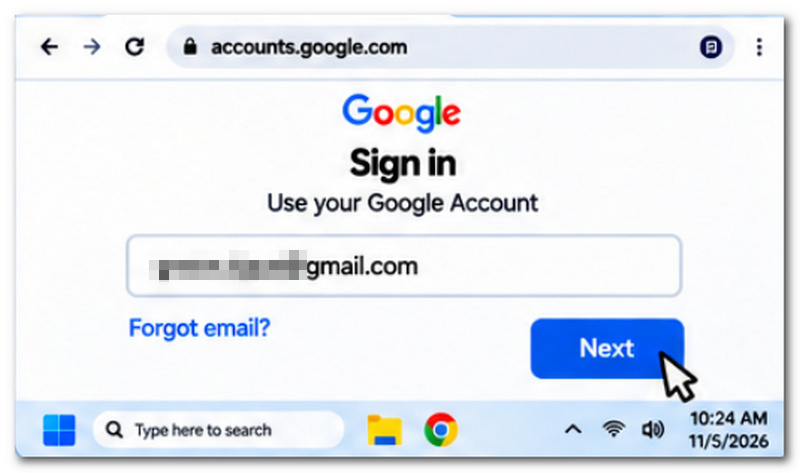
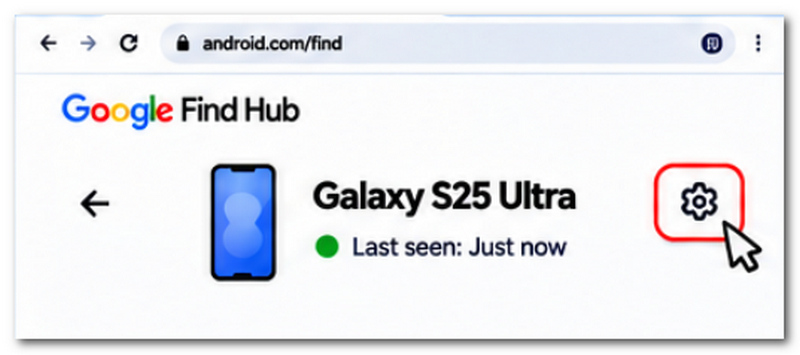
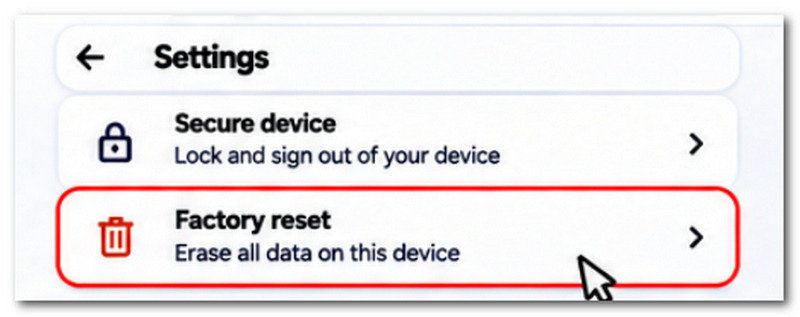
Important Things to Know
Keep in mind that Google Find Hub will help you find, lock, or delete your Galaxy S25 device, but it will not be able to unlock the Android screen if you forgot PIN without deleting your data.
Another way, if you cannot log in to your Samsung account or Google account, is to use a third-party tool such as Aiseesoft Anock. This is also a tool to unlock Android screens using a computer, so it is worth a try if you want to discover how to samsung galaxy s25 unlock.
Downloads
100% Secure. No Ads.
100% Secure. No Ads.
How to Use Aiseesoft Android Unlocker to Unlock Samsung S25
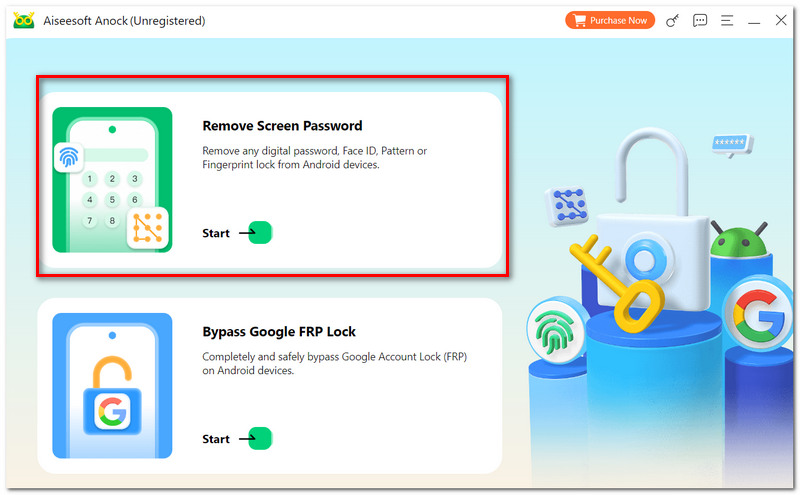
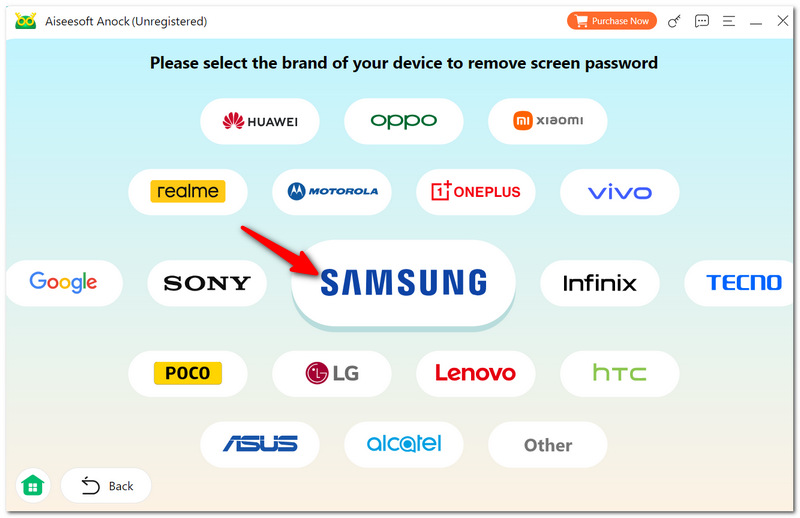
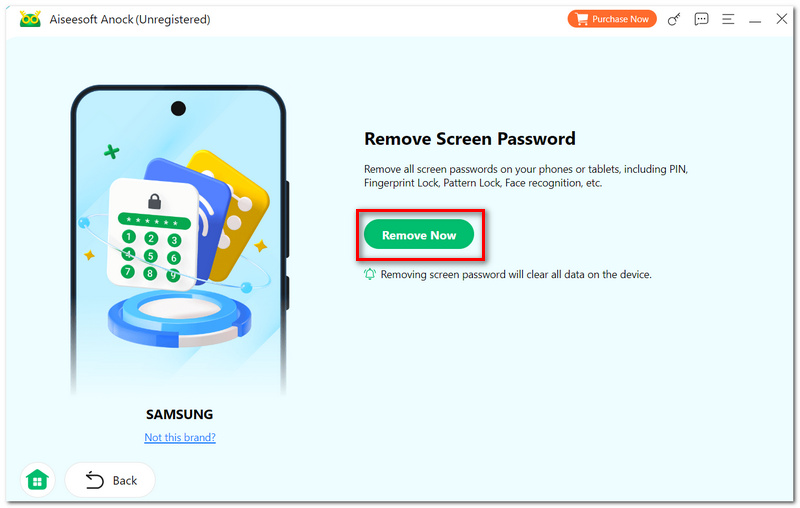
Important Things to Know
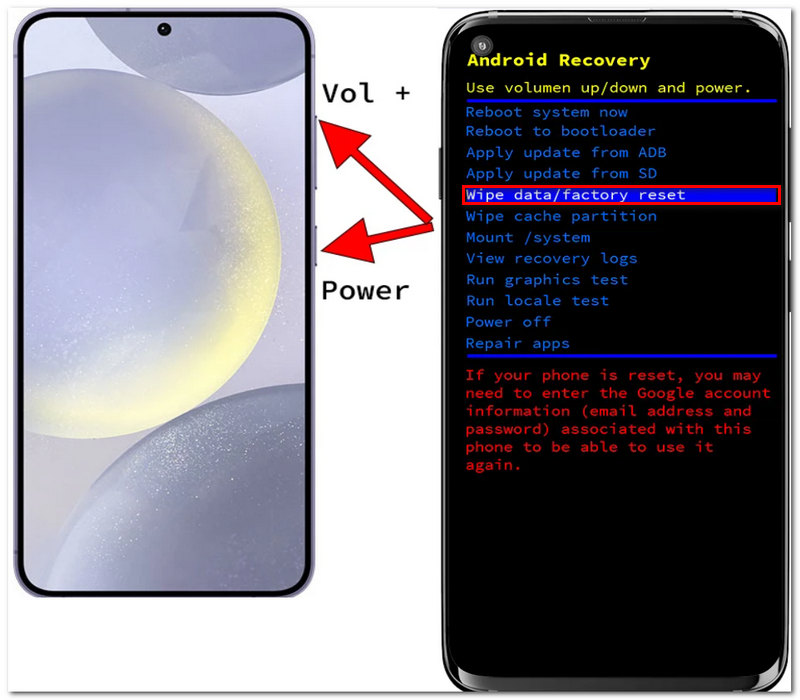
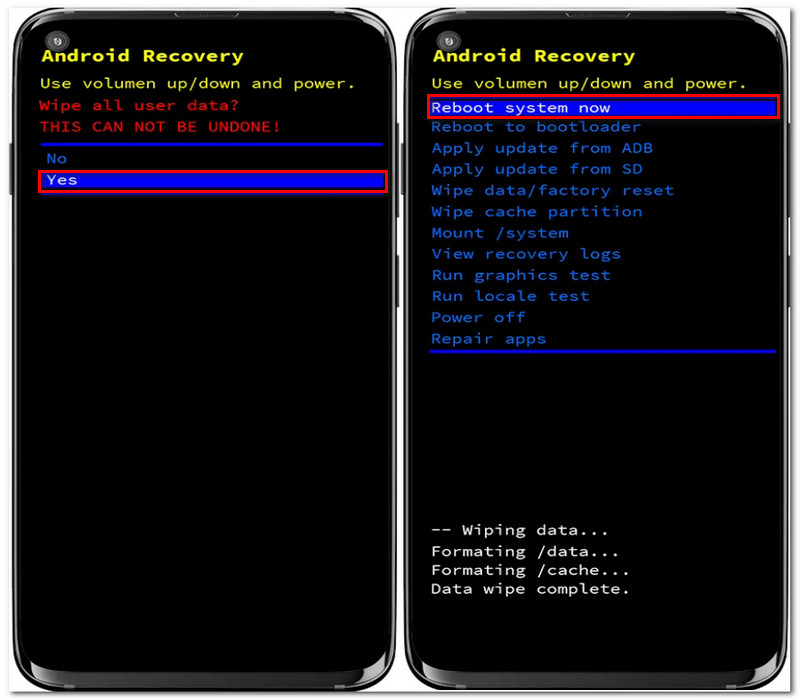
You can always use Recovery Mode if the other methods don't do the trick for you. To reset your Samsung Galaxy S25 using Recovery Mode, you won't need to have access to your Samsung and Google accounts. Still, you will lose everything that's stored locally on your device. This is another way to unlock the Samsung Galaxy S25 Ultra.
How to Unlock Galaxy S25 in Recovery Mode
Important Things to Know
When you get back to your Galaxy S25 or S25 Ultra, spend some time locking down your device and double-check whether it is working as expected.
1. New Lock Screen: Enter a new PIN, password, or pattern that is secure and memorable.
2. Register your Fingerprint or Face: Logging in has never been easier.
3. Check Your Google & Samsung Accounts: Make sure that you are logged into the right accounts and that you can access the recovery email and recovery phone numbers.
4. Restore Your Backup: Restore your files to the factory-reset phone, including your photos, contacts, messages, and a lot more.
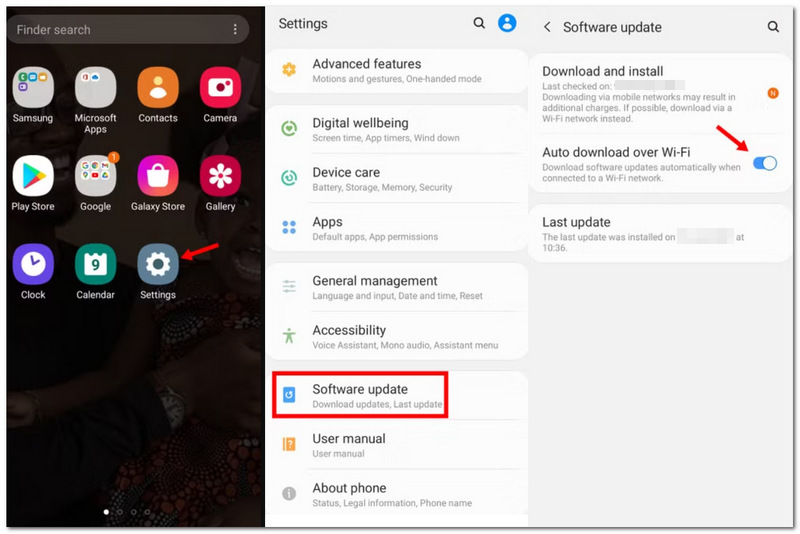
5. Update Your Phone: Go to Settings > Software update > Download and install to see if there are any updates.
6. Review Your Precautions: Confirm your display screen lock and home window lock, while also inspecting account safety.
7. Essential features of a test phone: Make test calls and texts, use Wi-Fi, mobile data, and the main apps to ensure everything works as normal.
8. Turn On Automatic Backups: Enable your Google or Samsung backup so you can recover your files in case you have to reset your phone again.
If you reset your device to factory conditions, apply the backup you created during the initial setup when offered. Certain files might not be recoverable if you haven't stored them in the backup.
Can I unlock my Galaxy S25 if the touchscreen is broken?
Yes, if you can see the display but the touch doesn't work. You can plug in a USB mouse using a USB-C to USB adapter and get to your Galaxy S25 with the mouse pointer so you can enter the PIN or password.
What is the distinction between a Safe Mobile S25 PIN and the lock display PIN?
The screen lock PIN prevents access to your phone, while the SIM PIN prevents use of the SIM card. If your Galaxy S25 requests your SIM PIN on restart, your device is not asking for your screen lock code. You will need to contact your network provider if you've forgotten this.
Does Samsung Knox prevent third-party tools from unlocking the Galaxy S25?
Samsung Knox delivers a hardware-based security feature that ensures secure data and device access credentials. Because of this, an unlocker may only support specific Samsung models and not all Galaxy S25 software versions.
Conclusion
Getting locked out of a Samsung S25 might be a hiccup, but you can recover access to your smartphone that isn't working. Whenever possible, try account recovery options before resetting your smartphone with a factory reset. If your goal is to unlock the Samsung S25 Ultra or the Galaxy S25 Ultra, make sure you use the right method for your phone and check your backups before doing anything to your device.
 Simple and Best Samsung MP3 Music Players for S8/S9/PC[Free/Paid]
This article will introduce 2021 top 5 Samsung MP3 music player apps and cross platform music players except Samsung default music player for Samsung users.
 How to Transfer Photos from Samsung to Samsung without Quality Loss
If you are looking for ways to transfer data, especially photos, from your old Samsung to the new Samsung device, you can find the step-by-step guide from this article.
 [Fixed] The Simplest Method to Fix Samsung Galaxy S4 won't Turn On
Samsung Galaxy S4 won't turn on? If you Samsung Galaxy S4 or other models like S3, S6, S7 or other cannot turn on or stuck on black screen of death, you can read this article.
 Leave your comment and join our discussion
Compatible with all Android OS versions, this unlocker provides a secure and easy way to remove screen lock of any kind and bypass FRP quickly.
100% Secure. No Ads.
100% Secure. No Ads.

*Required field
*Please enter a valid email