Apple introduces the iPhone recovery mode while they are updating or restoring your iPhone. In the normal update or restore process, users can hardly know their devices are in the recovery mode. But when there is an error or when jailbreaking, iPhone users will find their iPhone stuck in recovery mode with an iTunes connection logo.
This article offers 6 ways to fix iPhone stuck in recovery mode. You can try them one by one and get your iPhone out of recovery mode. Besides, there are also a good tool to help you regain the lost data when iPhone stuck in the recovery mode without backup.

There are many reasons that can cause your iPhone stuck in Recovery Mode:
• Incomplete iOS Update
• Corrupted Firmware
• Software Glitch
• Connection Issues
• Outdated iTunes/Finder
• Insufficient Storage
• Hardware Problems
The simplest solution to get iPhone out of Recovery mode is to force start iPhone. It sometimes happens that you don't need to take many efforts and give your iPhone for restoring. You just need to try a little harder to reset it. Press your Power and Home button together for a few seconds till the time you see the Apple logo on the screen. Till now, your iPhone is out of recovery mode.
Note: This method doesn't work well 100%, and there are chances taht you may lose data after you get out of iPhone Recovery mode.
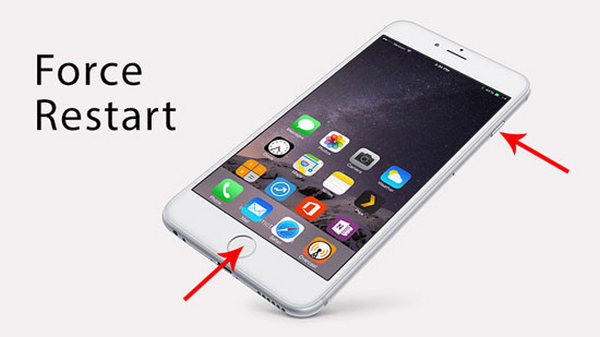
When you find your iPhone stuck in recovery mode, you can easily find restore your iPhone with iTunes and solve the problem of iPhone stuck in recovery mode. It is really easy to do that. This method can fix iPhone. Just follow the steps below.
Plug your iPhone to your computer and run iTunes. Your iTunes will detect your iPhone stuck in recovery mode. It will notice you that your iPhone is not in normal mode and you need to restore your iPhone to get your iPhone our of recovery mode.
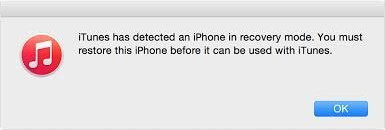
Click "OK" button. Use the restore option in iTunes to restore your iPhone and fix the problem.
You need to pay attention that when you restore your iPhone, if you set up your iPhone as a new iPhone, all the data on your iPhone will be wiped. If you choose restore iPhone from iTunes backup file, you will lose the data after you make the backup file on your iPhone. So Fix iPhone stuck in recovery mode with iTunes will more or less make you lose some data on your iPhone. If you don't want to lose data on your iPhone, try the second method.
If iPhoen stuck in Recovery Mode with iTunes fails, you could adopt another method that's more effcient - iOS System Recovery. This is the most professional tool that helps you to fix iPhone stuck in DFU mode, recovery mode, Apple logo, headphone mode, shuffle mode, etc. to normal state. Moreover, it supports all iOS devices like iPhone, iPad, iPod and more. The following is the step-by-step guide:
 100% Secure. No Ads.
100% Secure. No Ads.
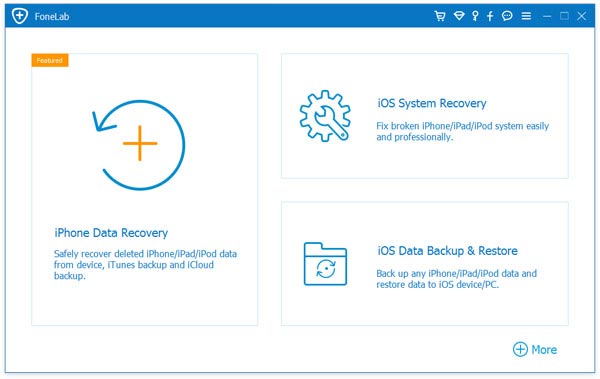
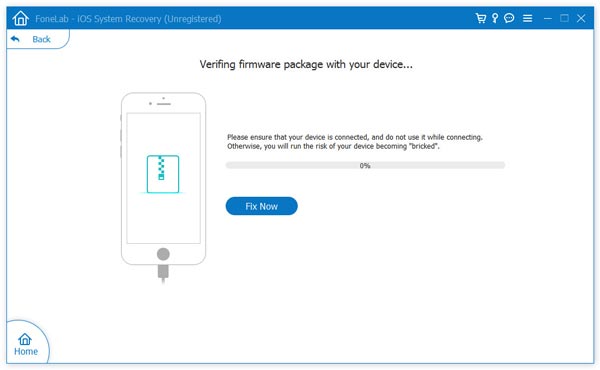
Launch this iPhone recovery mode fixing software on your computer. Connect your iPhone to it with USB cable. Click "More tools" on the left column and then choose the "iOS System Recovery" on the preview window.
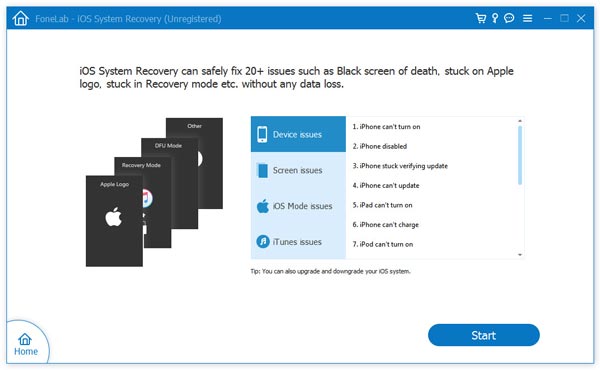
After that, click "Start" button to begin to fix iPhone red screen. iOS System Recovery will recognize the iPhone stuck in Recovery Mode situation automatically. When the results came out, click "Confirm" to find the solution to get out of Recovery Mode.
When your iPhone issue is detected, confirm iPhone information, then click "Repair" button to download the repaired plug-in and restore iPhone. Wait until it's finished, your iPhone will boot up. Then you will fix iPhone stuck in recovery mode successfully.
You can also employ Apple Devices on your computer to fix iPhone stuck in the Recovery Mode. Let us see how to operate.
You can regard DFU Mode as a more deeply recovery mode for iPhones, which can help your device restart and get out of the stuck state.
Learn more about entering and exiting DFU Mode.
In the end, contacting Apple Support is a direct method. You can contact the official via phone or website. Describe your problems in details and provide necessary information. The team will help you step by step.
If you are concerned about all your iPhone data and want to recover iPhone data after you fix iPhone stuck in Recovery Mode, we recommend you a third-party software to help you. iPhone Data Recovery can detect your iPhone in recovery mode and fix iPhone stuck in Recovery mode without Restoring iPhone easily.
100% Secure. No Ads.
100% Secure. No Ads.
Free download, install and launch the recovery software. You will see the following interface.
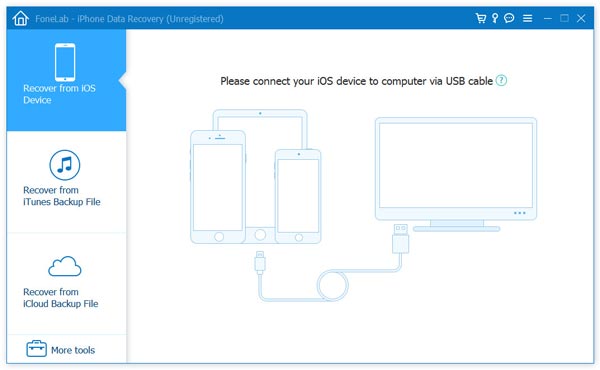
Connect your iPhone which is stuck in recovery mode to your computer. The software will recognize your iPhone and detect your iPhone stuck in recovery mode.
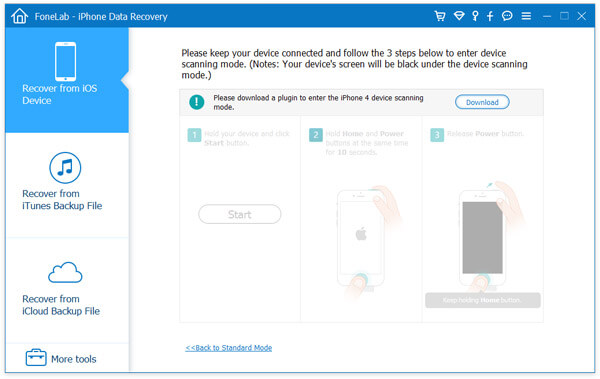
You can easily click "Restart" button. The software will reboot your iPhone and fix your iPhone stuck in recovery mode. After your iPhone reboot successfully, you will find your iPhone return to the normal mode and you can use it again.
Now you can go back to iPhone Data Recovery again, click the "Recover from iOS device" button and then follow the instructions to recover iPhone data such as texts, photos, contacts, etc.
You can learn the steps from the video below:


Check what to do if your iPhone stuck in zoom mode.
1. Recovery mode allows users to restore their iPhone to the factory settings with the latest version of iOS and firmware by using iTunes. It is used to solve iTunes doesn't recognize your iPhone, your iPhone is in recovery mode, connect logo with iTunes and Apple logo on screen without the process bar.
2. iPhone DFU mode (Device Firmware Update) allows users to get your iPhone into the interface with iTunes without loading the latest iOS and you can choose to install which iOS version. You need to use DFU mode to Jailbreak, unlock your SIM card.
So the next time your iPhone stuck in recovery mode, just take it easy and follow this article, you can easily fix the problem and give your iPhone back to you safely.
If you lost data after you get your iPhone out of recovery mode, you can easily retrieve lost data from your iPhone with iPhone Data Recovery software. It can scan your iPhone and find the lost data for you. So you can easily recover them. It can recover text messages, contacts, photos, call logs, whatsapp messages, notes, reminders and so on. It can also recover data from iTunes backup file and iCloud backup file.
Is Safe Mode the same as Recovery Mode?
No. Safe mode is designed to help you find problems with your apps. It disables parts of your device. Recovery mode lets iTunes to repair iPhone's operating system when there is something wrong.
Does Recovery Mode delete everything?
No. Many Android users are confused if Recovery Mode deletes everthing. The truth is that entering Android Recovery won't delete everything on your device.
Conclusion
So, we provide 6 practical ways in this guide. They can help you to get out of the state when your iPhone is stuck in Recovery Mode. Plus, there is also a good way to recover your data when the device is stuck but you don’t back up data. Try them to solve problem now!
 How to Backup iPhone to PC/iCloud/iTunes with Easy Steps | 2025
How to backup iPhone 15/14/13/12/11/XS/XR/X/8/7 securely? This article introduces you how to backup and restore iPhone to Mac/Windows PC, iTunes and iCloud.
 Troubleshooting Tips and Solutions for iPhone Won't Turn On
Why won't my iPhone 15 turn on? What to do if my iPhone won't power on and has stopped working? Learn why an iPhone won't turn on and seven ways to fix it.
 iPhone 7 Frozen? How to Fix A Frozen and Unresponsive iPhone in 6 Ways
iPhone (iPhone 15/15 Pro) freezes up and won't turn off? Your iPhone freezes on an app? This article will tell you 6 different ways to fix a frozen iPhone.
 Leave your comment and join our discussion
To fix iPhone screen locked, wiping password function can help you a lot. And you also can clear Apple ID or Screen Time password easily.
100% Secure. No Ads.
100% Secure. No Ads.

*Required field
*Please enter a valid email

