Contents
"My iPhone 16 is frozen and won't turn off—what do I do?" Whether you're using the latest iPhone 17 or an older model, a frozen screen is a major disruption. In 2026, with iOS handling more complex tasks than ever, system glitches - like being stuck on the Apple logo or a black screen - can still happen unexpectedly.
Don't panic. You don't need a trip to the Apple Store just yet. Most freezing issues are software-related and can be fixed at home in minutes. In this updated guide, we’ll show you the correct button combinations and recovery steps to fix your frozen iPhone and get it back up and running, no matter which model you own.

There are several common causes behind an iPhone becoming frozen or unresponsive. You can avoid the problem from recurring by being aware of these causes. These are a few of the primary reasons:
• Insufficient Storage Space: When your iPhone runs out of storage, it can slow down or freeze while performing basic tasks.
• Too Many Apps Running in the Background: Having multiple apps open at once can consume system resources and cause lag or freezing.
• Outdated iOS Version: Your device may encounter compatibility problems or software bugs if it is running an outdated version of iOS.
• App Crashes or Bugs: Some third-party apps may have coding issues that cause your phone to freeze when opened or running.
• System Overload or Overheating: Prolonged gaming, running demanding programs, or overheating can all result in momentary freezing.
• Corrupted System Files: Your iPhone may become unresponsive due to corrupted system data resulting from errors made during updates, file transfers, or improper shutdowns.
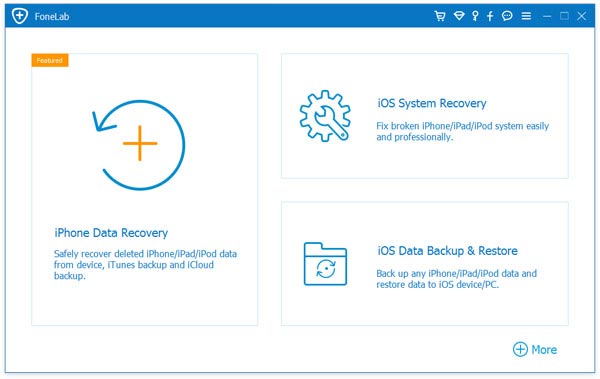
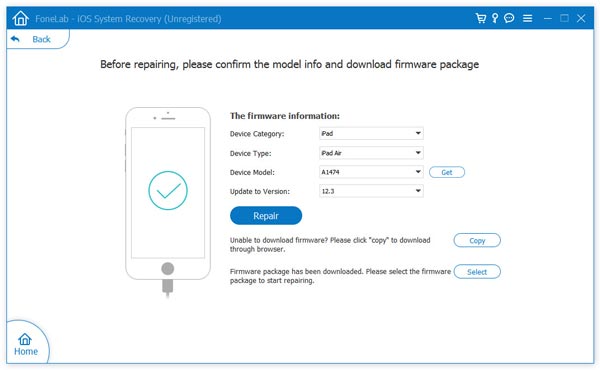
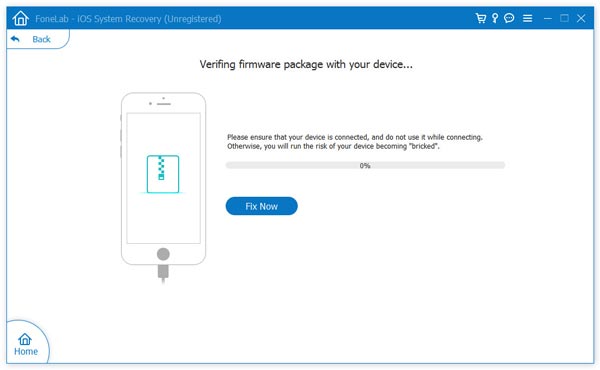
If you are already familiar with some basic methods for fixing a frozen iPhone, we will outline the best approach in the first part to help you resolve the issue. Want to fix an iPhone frozen directly? Here, we sincerely recommend the professional iOS System Recovery to help you resolve iPhone frozen issues. First, you can freely download and install it on your computer.
Main Features
Downloads
 100% Secure. No Ads.
100% Secure. No Ads.
If your iPhone becomes unresponsive while using a specific app, you can force it to close through the multitasking view. This simple method can help restore your device’s normal function before attempting more advanced fixes.
Here’s how to fix a frozen iPhone screen by closing the app
For iPhones with Face ID (iPhone X and newer): Swipe up from the bottom edge of the screen and pause in the middle.
For iPhones with a Home Button (iPhone SE/8/7): Double-click the “Home button”.
If the screen is completely frozen and does not respond to swiping, proceed to the next section to force restart your device.
If your screen is completely black, frozen, or unresponsive to button presses, you must perform a Force Restart. This action cuts power directly to the processor, refreshing the phone’s memory without erasing any of your data.
Because Apple changed the button combinations over the years, follow the instructions specific to your iPhone model.
These models do not have a clickable Home button.
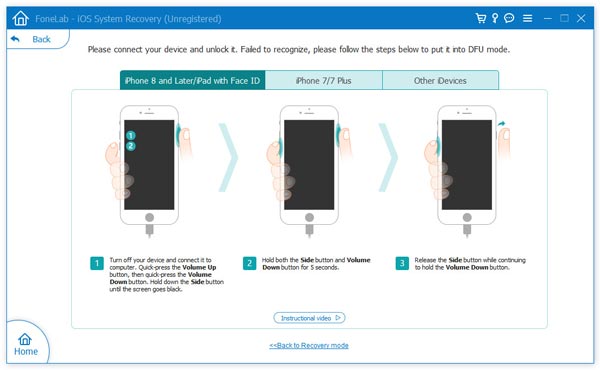
In some circumstances, such as when you've updated iPhone software but the iPhone/iPad screen freezes during/after the update, showing the Apple logo or leading into a reboot loop, that's when you need to consider iPhone Recovery Mode. Here are the specific steps:
Here’s how to exit Recovery mode to fix your stuck iPhone:
If "Update" fails, you may need to choose "Restore". Be aware that Restore will erase all data on your phone.
If nothing else works and you want a clean slate, restoring your iPhone to its factory settings will remove the software issue causing the freeze. Make sure to back up your data first. You’ll lose apps, photos, messages, and settings after the reset. If you need to save your files, back up iPhone data to a computer before proceeding.
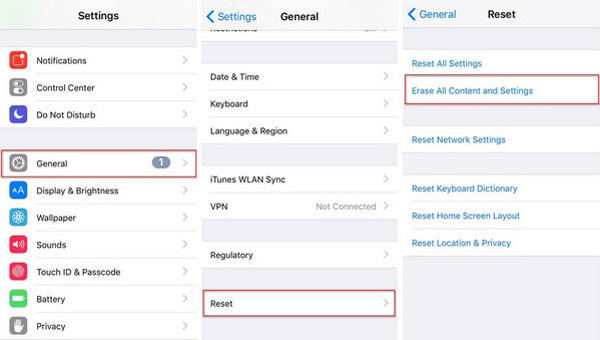
Reminder: Restoring to factory settings will delete all data on the device. Only proceed after you’ve completed backup iPhone data to computer or another backup method.
Don't miss: How to close a frozen app on your Mac
How does a hard reset differ from a soft reset?
A soft reset simply restarts your device without erasing any data. In contrast, a hard reset physically cuts the power to your iPhone, temporarily deleting memory before restarting, which can resolve issues that have resulted in an unresponsive screen.
What if my iPhone freezes during charging?
Perform a force restart immediately after unplugging your charger. If the issue occurs frequently, check your cable or power adapter for any problems.
Can a low battery cause freezing?
Yes. If your iPhone’s battery is below 10% or the battery health is degraded, performance may slow down and lead to freezing issues.
Conclusion
Dealing with a frozen iPhone is incredibly frustrating, but as we’ve covered, it is rarely a permanent issue. Whether you are using a brand-new iPhone 17 or holding onto a trusty iPhone 12, the solution almost always lies in a forced restart or a software update via your computer.
By understanding how to correctly close apps and perform a force restart specific to your model, you can resolve these glitches quickly and get back to your day without losing any data.
Is your iPhone still unresponsive after trying these steps? Let us know the model in the comments, and we'll help troubleshoot further!
 4 Ways to Clear (App & RAM) Cache on iPhone 16/15/14/13/12/11/XS/XR/X/8/7
How to clear app and system cache on iPhone? Here are 4 ways to help you clean cache from Facebook, Instagram, Safari, RAM, etc. on iPhone to free up space and protect privacy.
 Troubleshooting iOS 18/17/16/15/14/13 Update Problems on iPhone and iPad
This post lists the latest iOS update problems on iPhone/iPad/iPod while or after updating to iOS 18/17/16/15/14/13, including iOS update failure, message problems, Wi-Fi issues, etc.
 How to Recover Messages from Broken Android Phone
Your phone is broken? Fix your cracked phone and recover messages from Android phone for backup in this post.
 Leave your comment and join our discussion
Fix your iPhone/iPad/iPod back to normal on Windows and Mac.
100% Secure. No Ads.
100% Secure. No Ads.

*Required field
*Please enter a valid email

