If you have ever tried moving a massive folder of concert videos, 4K recordings, or school project files from a Samsung Galaxy or Google Pixel to a Mac, you probably know the frustration.
For years, Android File Transfer for Mac was the default solution. It was simple, free, and officially provided by Google. But recently, many users have noticed that. Android File Transfer is not working after macOS updates.
So, is Android File Transfer dead? Is Google replacing it with Quick Share? And what should Mac users use now? In this guide, we’ll explain the current status of Android File Transfer, test how it performs on modern devices, and compare the best alternatives for transferring files between Android and Mac.
How We Tested Android File Transfer Software
To review Android File Transfer and its alternatives, we tested them on modern devices and common file transfer scenarios.
Our test setup included:
We compared Android File Transfer, Quick Share, OpenMTP, MacDroid, and Aiseesoft MobieSync based on connection stability, transfer performance, supported features, and overall user experience
Let’s start with the basics. If you’re coming from a Windows background, you probably didn't even know Android File Transfer was a specific thing. On Windows, simply plug your phone in, and it appears as a thumb drive. But Macs? Macs are picky. They don't natively speak the language that Android phones use to share files (which is called MTP, or Media Transfer Protocol).
To bridge that gap, Google created the official Android File Transfer application. It was a bare-bones, no-frills app designed specifically for macOS. You’d install it, plug in your phone via USB, and a window would pop up showing your phone's internal folders. In this way, you can easily transfer data from one Android phone to another.
For years, Android File Transfer was Google's main solution for wired transfers between Android phones and Macs. However, Google's strategy has shifted toward wireless sharing.
Google merged Nearby Share with Samsung's sharing technology and introduced Quick Share as its main wireless Android file transfer solution.
Quick Share works well for Android-to-Android transfers, Android-to-Windows transfers, and quick wireless file sharing. However, Mac users are still in an awkward position. Unlike Windows, macOS does not have an official Quick Share desktop application that fully replaces Android File Transfer.
This means Mac users still often rely on USB Android File Transfer tools, third-party Android file transfer software, and cloud services such as Google Drive or Google Photos for transferring large videos or hundreds of photos, a wired connection is still usually faster and more reliable.
When searching for “Android File Transfer download,” you may also come across tools such as MacDroid.
A common misunderstanding is assuming MacDroid is Google's official Android File Transfer app. It is not.
MacDroid is a third-party Android file transfer application designed to provide additional features beyond Google's basic utility, including improved file management and broader compatibility.
While third-party tools can solve many problems caused by the aging Google app, users should always verify that they are downloading software from the official developer website.
This is the million-dollar question. If you ask a Google dev, they might say it’s in maintenance mode. If you ask a high schooler to try to finish a video edit, they’ll tell you it’s basically a zombie.
Technically, the Android File Transfer program still exists, but it hasn't undergone a major UI update in years. It feels like an app from 2012. On newer versions of macOS, such as Sonoma or Sequoia, many users report that Android File Transfer has stopped working entirely. You’ll encounter errors stating that the Mac can’t access the device, or the app will simply bounce in the dock and then disappear.
Google seems to be putting all its energy into wireless sharing and cloud backups (Google Drive, Google Photos). But let’s be real: sometimes you don’t have 20GB of cloud space or a fast Wi-Fi connection. You need a cable. Because Google is no longer prioritizing the wired Android File Transfer for Mac experience, the app has become buggy, unreliable, and frankly, a bit of a headache when trying to use it to backup Android to PC or Mac.
Here is where it gets spicy. If you go looking for the Android File Transfer download link today, you might find yourself going in circles.
In the past, there was a very specific landing page (android.com/filetransfer). Recently, Google has started redirecting many of these support pages toward their new Quick Share marketing materials. Although you can still occasionally find the direct download link hidden in a help article, Google has largely removed the prominent Download Now buttons from its main site.
Why? Because they want you to use the modern, wireless ecosystem. However, for us Mac users, Quick Share is not yet officially available as a standalone Mac app. This leaves us in a peculiar limbo, where the Android File Transfer application is difficult to locate, and the new features do not work on our MacBooks.
If you do manage to find a site claiming to have a cracked version of Android File Transfer for Mac, stay away! The original app was always free. Anyone offering a cracked version of a free app is likely trying to hand you a nice, shiny piece of malware. Always stick to official sources or reputable alternatives.
As we said above, Android File Transfer gets picky about downloading these days. Many users are eager to find an alternative to it. Here we compare some of the mainstream tools rated highly by most users and compare them in the table below for you to choose.
| Tool | Price | Platform | Best For | Limitations |
| Android File Transfer | Free | Mac | Basic USB file transfer | Limited features, compatibility issues |
| Quick Share | Free | Android / Windows | Wireless Android sharing | Limited Mac support |
| MacDroid | Free/Paid | Mac | Easier Android-Mac connection | Advanced features require payment |
| OpenMTP | Free | Mac | Open-source file transfer | No phone management features |
| MobieSync | Paid | Windows/Mac | Complete Android data management | More features than simple transfer apps |
If you only need to move a few files occasionally and your Mac and Android phone connect without issues, Android File Transfer may still be a suitable free option. For wireless transfers mainly between Android devices, Quick Share is a convenient choice. If you want a dedicated Android-to-Mac transfer tool with an experience similar to the original Android File Transfer, OpenMTP or MacDroid are worth considering. However, if you frequently transfer large amounts of data, need phone backup or phone-to-phone migration, or want more control over contacts, messages, photos, and videos, MobieSync provides more advanced management features.
After pulling my hair out because Android File Transfer wasn't working, the theme of my week was finding a professional alternative. That’s when I found Aiseesoft MobieSync.
Honestly, it was like moving from a bicycle to a Tesla. If you’re looking for a reliable PC-to-Android File Transfer software (that also works beautifully on Mac), this is the one.
The original Android File Transfer app only allows you to view files, not edit them. That’s it. MobieSync is a full-blown media manager. It doesn't just show folders; it organizes your life.
Key features of MobieSync:
Media converter: It can automatically convert HEIC photos or specific video formats so they actually play on your computer.
Data backup: You can back up your entire contact list or SMS history, which is something the basic Android File Transfer app could never do.
If you’re tired of receiving the 'Android File Transfer not working' notification, here is how to use MobieSync to get your files moving in under five minutes.
Download and install MobieSync on your computer.
 100% Secure. No Ads.
Launch the program and connect your Android phone using a USB cable.
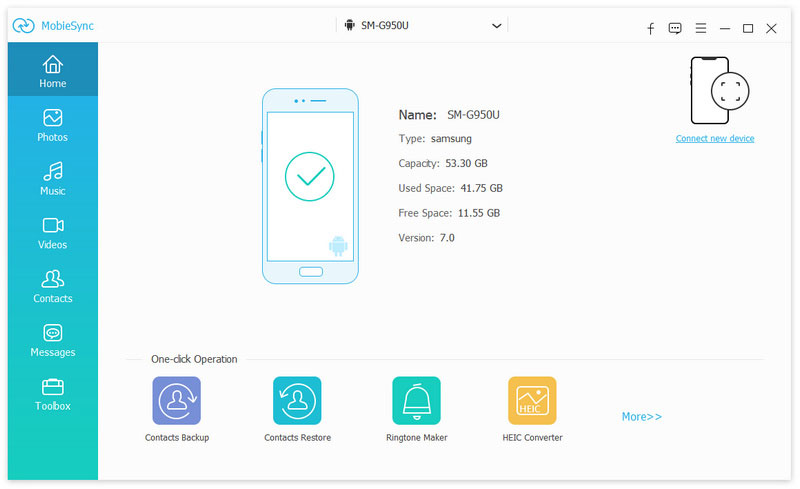
For any Android File Transfer software to function, your phone requires permission to communicate with the computer.
Go to Settings > About Phone and tap Build Number seven times (I know, it feels like a cheat code). Then, in Developer Options, toggle on USB Debugging.
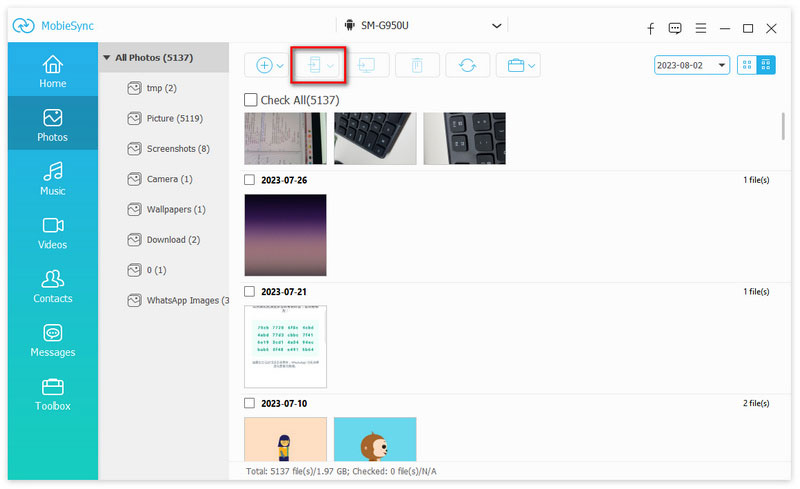
On the left-hand sidebar of MobieSync, you’ll see categories: Photos, Music, Videos, Contacts, and Messages. Click on Photos (or whatever you need).
Highlight the files you want, click the Export to Device/PC icon at the top, and select your destination folder.
Done! The progress bar actually moves (unlike the frozen ones on the old Google app), and your files are safe and sound on your hard drive.
Since I’ve spent way too much time troubleshooting Android file transfer, here are some human-to-human tips to save you some stress:
Not all USB-C cables are created equal. Some cables that come with cheap headphones are power only, meaning they can charge your phone but can't carry data. If your Android File Transfer program doesn't recognize your phone, try using the original cable that came with the box.
When you plug your phone in, it usually defaults to Charging Only mode. Swipe down your notification shade, tap the USB Preferences notification, and manually select File Transfer / Android Auto. This is the #1 reason why Android File Transfer for Mac fails.
If you have Photos, Image Capture, or Spotify open on your Mac, they may attempt to establish a connection to your phone, which can cause the Android File Transfer application to error out. Close all of them before starting your transfer.
Sometimes, if your phone locks during a transfer, the security settings will cut the data flow. Set your screen timeout to 5 minutes while you’re moving big files.
Q: Why is Android File Transfer so bad on Mac?
A: Because Apple and Google are rivals! Apple wants you to use iPhones and iCloud; Google wants you to use Android and Google Drive. Neither side is super motivated to make a USB cable connection between the two systems perfectly seamless.
Q: Does Android File Transfer work on Windows 11?
A: You actually don't need a specific Android File Transfer Windows app! Windows uses File Explorer to view Android phones natively. However, if you want a more organized experience (such as viewing your messages or managing contacts), that’s where a tool like MobieSync comes in handy.
Q: Is there a wireless way to do this?
A: Yes! You can use Google Drive or WeTransfer for small files. For larger folders, you can try Quick Share for Windows, but it’s still a bit hit-or-miss for Mac users.
Q: My Android File Transfer stopped working after a macOS update. What do I do?
A: This is super common. Apple updates its security protocols, and the old Google app can't keep up. Your best bet is to switch to a modern, frequently updated alternative, such as MobieSync or open-source tools like OpenMTP.
Q: Is Android File Transfer safe to download from third-party websites?
A: Yes, you should be careful when downloading Android File Transfer from third-party websites. The official Android File Transfer app was a free tool provided by Google, so there is usually no reason to download a “cracked” or modified version from unofficial sources. Third-party download sites may bundle unwanted programs, outdated installers, or potentially unsafe files.
Conclusion
At the end of the day, the official Android File Transfer app is like that old pair of sneakers you’ve had since middle school, and they were great for a while, but now they’re full of holes and falling apart. While it’s sad to see the official Android File Transfer download become so unreliable, it’s also an opportunity to upgrade to something better.
If you’re moving just one or two photos, a quick cloud upload is sufficient. However, if you’re serious about managing your media, avoiding the headaches that don't work, and having a pleasant experience, we highly recommend exploring Aiseesoft MobieSync. It resolved every issue we had with Android File Transfer lag and significantly improved my workflow for school projects.
 Top 3 Solutions to Transfer Android SMS to iPhone Easily
Don't know how to transfer your text messages from Android to iPhone after buying a new mobile phone? Read this article to find all possible solutions.
 How to Transfer Data from Android to iPhone Seamlessly
Bothered by not knowing how to transfer data from Android to iPhone? Don’t worry. This post offers various ways to move from Android to iPhone effortlessly.
 How to Backup WhatsApp on Android – Detailed Guide 2025
Backup WhatsApp on Android is important to avoid data loss after transferring WhatsApp to other devices. This post will show you how to do it.
 Leave your comment and join our discussion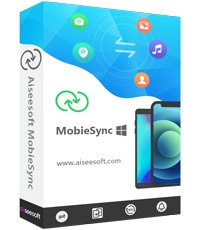
The professional iPhone/Android data manager and transfer to transfer various files between iOS/Android phone and computer and between two mobile phones in 1 click.
100% Secure. No Ads.

*Required field
*Please enter a valid email

