“Is it possible to sync my contacts and photos from my iPhone to my new iPad Pro? Does anyone know a way to sync all contents on iPhone to iPad without retyping them one by one?”
Someone posted a question on the Apple Discussion Board asking for an effective way to sync iPhone contacts and photos to a new iPad Pro. Many of us prefer to store our contact lists and capture important moments in life using our iPhones. While traveling, we may choose to bring an iPad for watching movies, staying in touch with friends, or sharing photos when needed.
How to sync iPhone to iPad?
For these reasons, it becomes essential to understand how to sync iPhone and iPad so that contacts, photos, and other important data remain up to date across both devices. By syncing your iPhone with your iPad, you can ensure a smoother and more convenient experience no matter which device you are using.
FoneTrans is a third-party iOS data transfer tool that helps you sync an iPhone to an iPad in a simple, selective, and efficient way. Using FoneTrans, it is possible to move phone book, photo, media, playlist, SMS, and book from an iPhone to an iPad without deleting the data that is already there on the device. In contrast to iCloud or iTunes, FoneTrans provides you with total control of the content you want to synchronise. You have the option to preview and select particular files before the transfer. Therefore, it is a great option for consumers who need a rapid and adaptable way to update their data across several devices.
Steps to Sync iPhone to iPad Using FoneTrans
 100% Secure. No Ads.
100% Secure. No Ads.
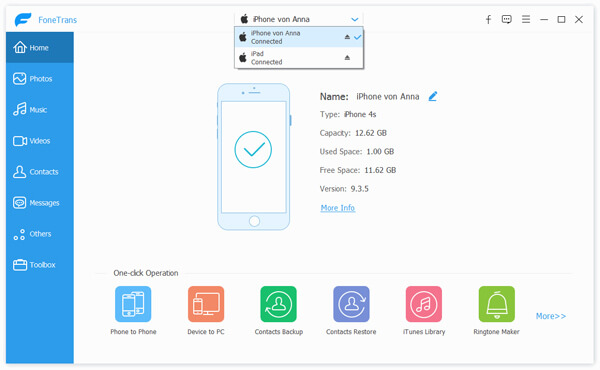
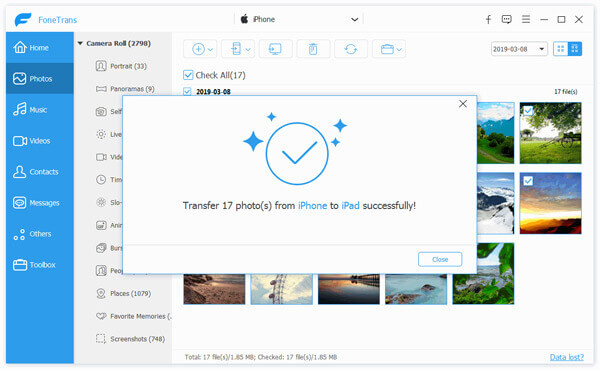
If you want to sync data from an iPad to an iPhone, simply select your iPad first, choose the category, and click Export to Device to transfer files back to your iPhone.
iTunes lets you sync information between your iPhone and iPad Apple devices using a computer connection. If you connect both devices to the same PC or Mac, you can securely transfer the selected content, such as contacts, photos, music, and backups, using both USB and Wi-Fi methods.
You must first download and install the iTunes software for Windows on your computer if you use one. After the installation, you can go through the steps below to find out how to sync an iPad and an iPhone with iTunes and have your data synchronised on both devices.
Sync iPhone Music to iPad with iTunes via USB

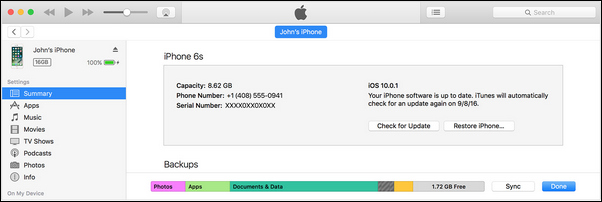

Sync iPhone to iPad with iTunes via Wi-Fi
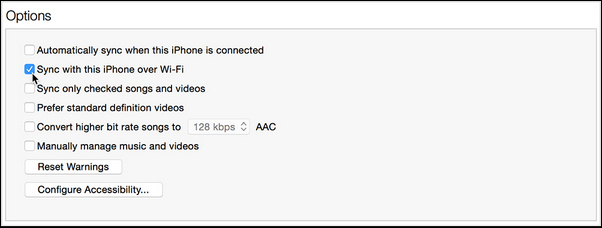
However, you are not allowed to sync your iPhone or iPad with more than one program with iTunes. And sometimes, it is a little confusing to look for folders you want to sync in the iTunes library. So, we recommend the next method to sync your iPhone with your iPad.
iCloud is Apple’s proprietary cloud-based platform that allows users to keep their data synchronised across different devices. In case an iPhone and an iPad are connected with the same Apple ID, iCloud will seamlessly update and sync the iPhone and iPad data, such as contacts, pictures, calendar events, notes, and so on. This is a very efficient way of updating one's data for those users who want to sync without using a cable or going to the trouble of connecting their devices to a computer.
For many users, iCloud is the easiest way to learn how to sync contacts from iPhone to iPad, as it updates information in real time and keeps both devices consistent as long as an internet connection is available.
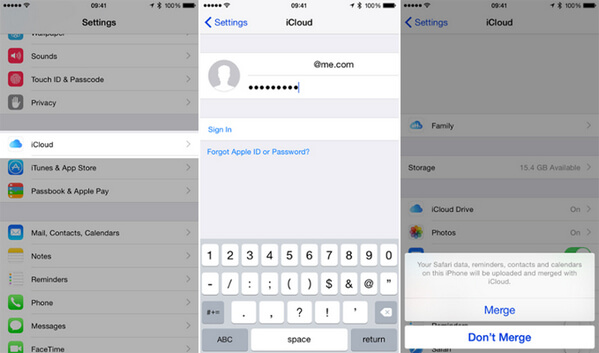
You have to use the same Apple ID to log into your iCloud during the process of syncing from iPhone to iPad or from iPad to iPhone. Plus, before syncing to the iPad, you are required to sync all of these things to iCloud first.
Bluetooth allows wireless connectivity between devices that are close to each other, and quite often, a good number of people ask themselves if the same technology can be used to sync the data between an iPhone and an iPad. It is true that Bluetooth can be used for device pairing as well as some sharing features, but when it comes to data synchronisation, the power of Bluetooth on iOS devices is rather limited.
You can also use Bluetooth to sync your iPhone and iPad easily. Check the steps below:
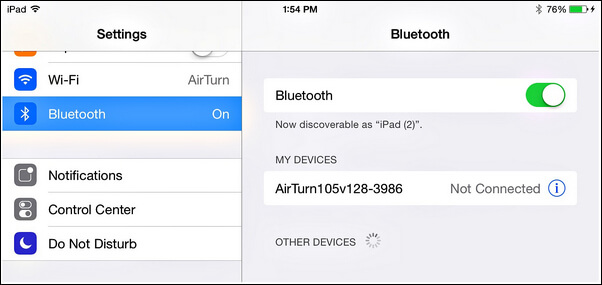
The above process enables you to sync various data (contacts, photos, videos, movies, etc.) from iPhone to iPad. But text messages, which you can not transfer. But you cannot transfer text messages. If you want to sync messages from iPhone to iPad, go to: Transfer Messages from iPhone to iPhone iPad.
Limitations of Syncing an iPhone to an iPad with Bluetooth
Because of these limitations, Bluetooth is not recommended as a primary method for syncing iPhone and iPad data. For reliable and complete syncing, iCloud, iTunes, or professional transfer tools are far more effective options.
Can I sync an iPhone and an iPad with different Apple IDs?
It is not possible as iCloud syncing only works if both devices have the same Apple ID. However, you can still do data transfer manually with the help of software like FoneTrans or with iTunes.
Will syncing an iPhone to an iPad also sync app settings or game progress?
No. iOS syncing generally refers to the syncing of contacts, media, messages, calendars, and notes. App settings and game progress may get synced only if the game or app uses iCloud backup or a cloud-based account.
Can I sync an iPhone to an iPad if one device is offline?
No. Methods like iCloud require an active internet connection on both devices. For offline syncing, you need a desktop app such as iTunes or FoneTrans.
Conclusion
After experimenting with various ways, I have concluded that with the proper tools, it is significantly simpler to keep my devices up to date. With the help of FoneTrans, I can handpick contacts, photos, and media for the transfer, whereas iCloud and iTunes work really well when you want to do a complete sync. Figuring out a tutorial on how to sync iPad and iphone or the other way around, definitely helps with organising data, making sure that everything I want is on both devices at the same time.
100% Secure. No Ads.
100% Secure. No Ads.
 How to Transfer Contacts from iPhone to iPhone
Want to transfer contacts from old iPhone to new iPhone? This article will show you how to export contacts from iPhone to another iPhone in 3 ways.
 How to Transfer Music from iPod to iPhone
How to download iPod music to iPhone? With iTunes? Yes. But you can also add music from iPod to iPhone SE/6s Plus/6s/6 Plus/6/5s/5c/5/4S/4/3GS without iTunes in this post.
 iPhone to Computer Transfer - 3 iOS Sync Tools Free Download
Want to transfer iPhone data to Windows PC or Mac? This post introduces you with 3 best iPhone to computer transfer tools for you to free download and use.
 Leave your comment and join our discussion
Sync iPhone
How to Sync iPhone How to Sync iPhone to iPad How to Sync iPhone to iTunes How to Sync iPhone to Computer
Transfer data from iPhone/iPad/iPod to your computer or reversely.
100% Secure. No Ads.
100% Secure. No Ads.

*Required field
*Please enter a valid email

