Best 8K Screen Recorder for PC
 100% Secure. No Ads.
100% Secure. No Ads.
Are you encountering the annoying notification issue that the Xbox Game Bar “Starting background recording” keeps popping up? Why does the “Starting background recording” pop-up keep appearing in Windows?
If you are annoyed by this persistent alert, you may wonder where you can turn off the pop-up notification itself or prohibit the Game Bar background recording feature entirely. In this guide, we will explain why the recording notification keeps appearing on your computer screen and provide three proven methods to resolve the issue.
Before troubleshooting the problem, we would like to talk about the main reasons behind it. If you are a PC gamer and often take screenshots or capture gaming clips, you should be familiar with the built-in Xbox Game Bar in Windows. It is a default gaming overlay in Windows 11/10 for enhancing your gaming experience.
Game Bar is designed with an advanced function called Background Recording. Once enabled, Windows will constantly record the last few minutes of your screen activity in the background. In that case, you can freely save the last 30 seconds of footage by pressing a shortcut key. You don’t need to open the software and click the Record button. Meanwhile, the system will notify you when this background recording is initiated.
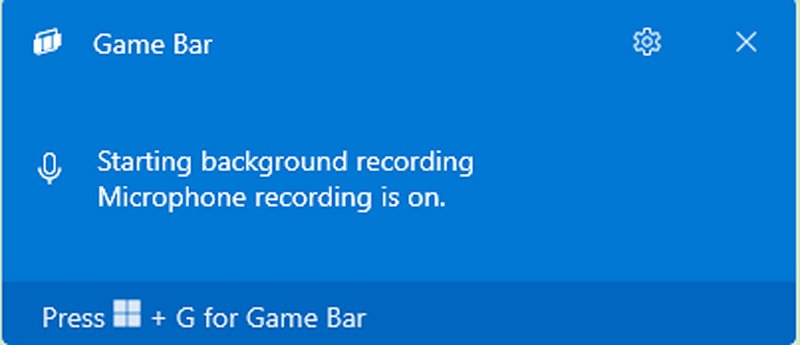
If the pop-up notification keeps appearing, there are a few common reasons:
Game Bar detects a game launch and begins recording. Sometimes, it may mistakenly identify other apps as games and start the recording.
What’s more, system glitches, such as incorrect settings in a recent Windows update or bugs in the Game Bar, may cause the notification to pop up repeatedly.
If you use some software to manage and save resources. The Game Bar may be paused and then restarted from time to time. The recording notification will trigger when the process restarts.
If the “Starting background recording” pop-up keeps appearing after clicking X, you can use the three helpful tips in this section to stop it.
If you don’t often need to record unexpected gaming moments, especially when you are not playing a game, you can choose to turn off the background recording feature. This will stop the pop-up notification with ease and free up your system resources.
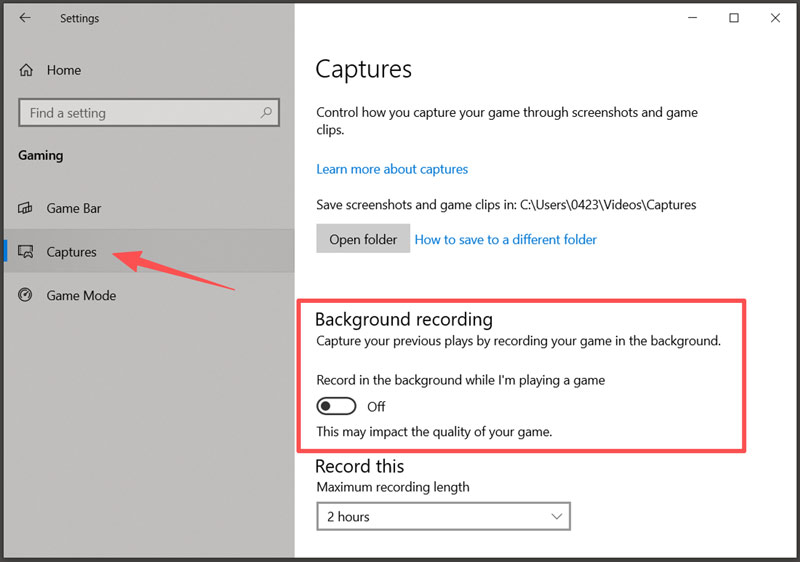
If you need the Game Bar background recording feature and often use it, but you still want to close the repetitive pop-up notifications, you can set the feature to run silently and only turn off Windows notifications for the Game Bar.
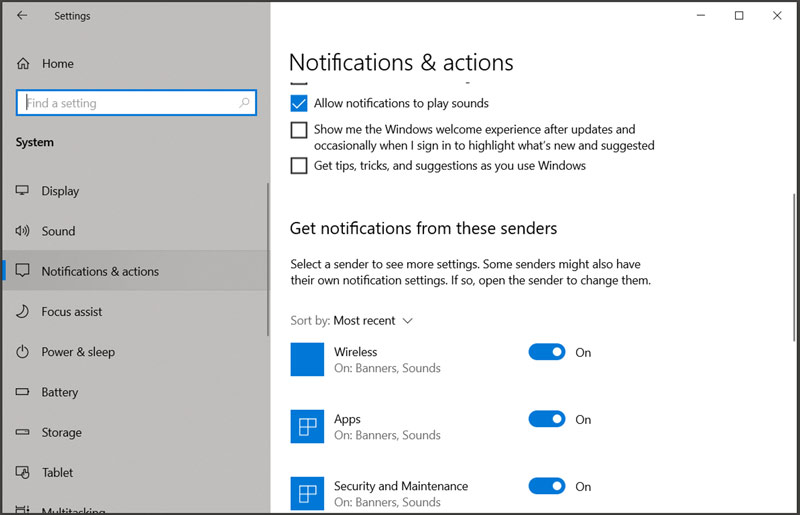
After that, the Game Bar will continue to quietly record in the background without constantly announcing it to you.
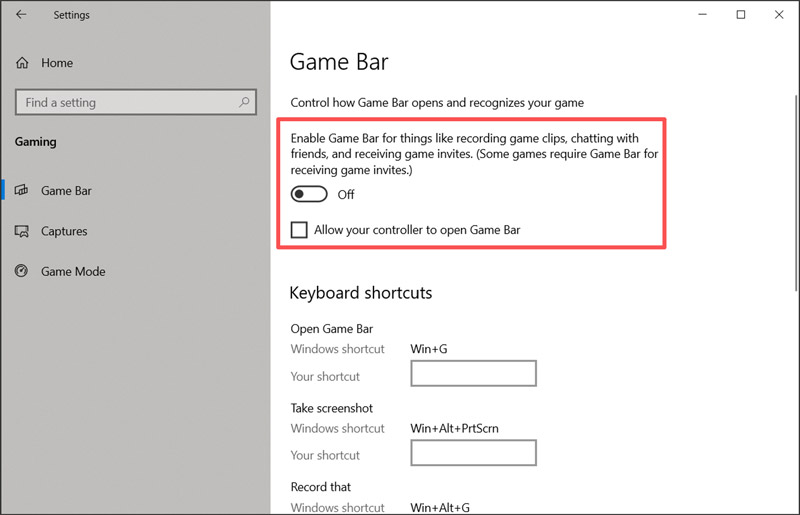
If you don’t use the Xbox Game Bar anymore and you are annoyed by the recording prompts, you can choose to completely disable or uninstall it.
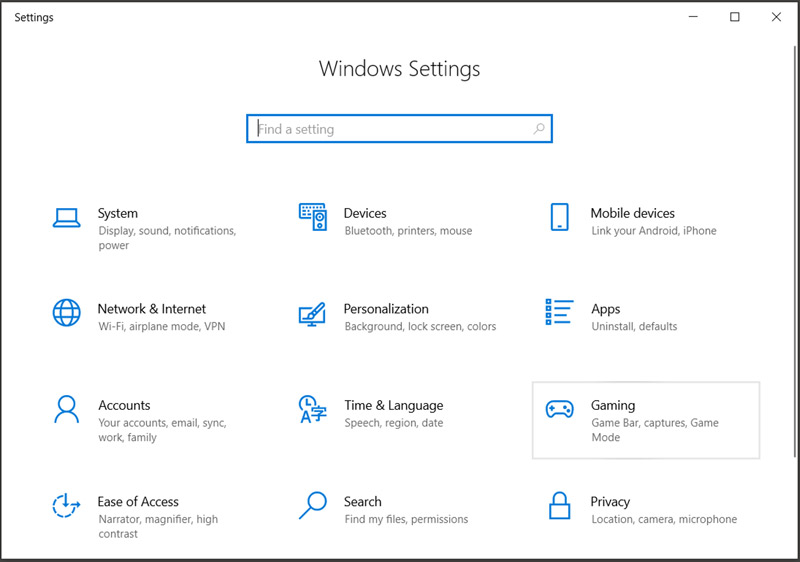
Go to Settings > Gaming > Game Bar.
Toggle off the switch that says “Enable Game Bar for things like recording game clips”. Moreover, you can untick the box of “Allow your controller to open Game Bar”.
If you only disabled the Game Bar because of the annoying recording notifications, but still need a reliable way to capture your gameplay, Aiseesoft Screen Recorder is a great alternative. It can instantly record your gaming moments with high resolution (4K/8K) and fps (120fps, 144fps, and higher). More importantly, all its recording operations won’t interrupt your other actions and apps on the computer. The software won’t cause system glitches or notification issues.
100% Secure. No Ads.
100% Secure. No Ads.
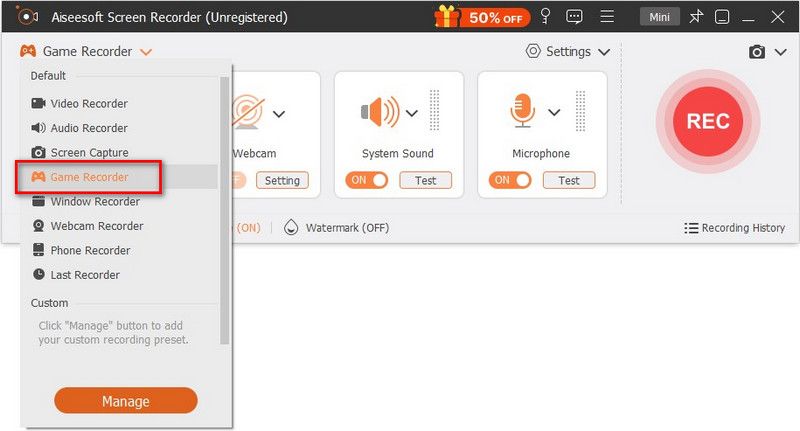
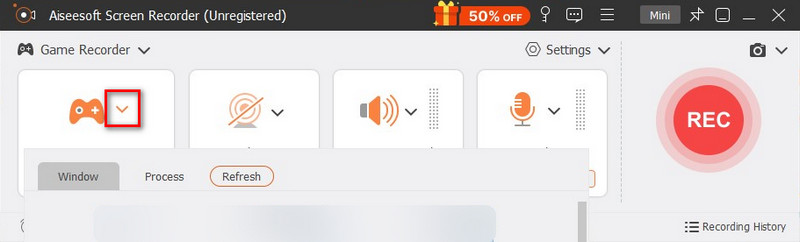
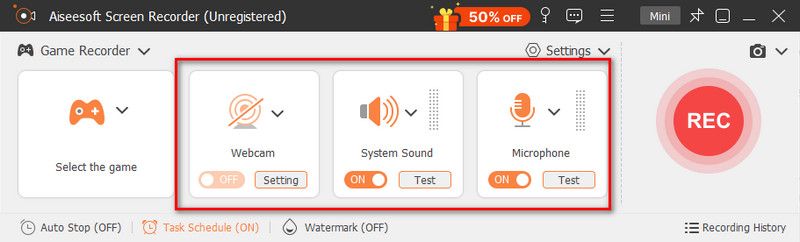
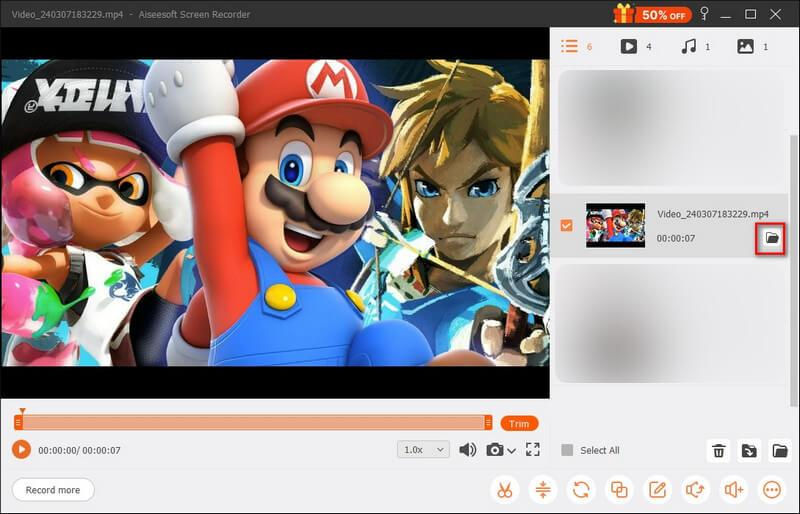
Unlike Game Bar, Aiseesoft won’t prompt you with any annoying alerts or notifications. Actually, it is ideal for capturing all types of activities, such as meetings, calls, and more, happening on your computer without others knowing. It can capture long gameplay up to 4K or higher resolution without lag. Moreover, you can easily overlay your Facecam and edit the recording as needed.
Related articles you may like:
Does Game Bar background recording lower my PC’s performance?
Yes. Xbox Game Bar background recording will affect your computer’s overall performance, especially if you are using an older device. It constantly uses a portion of your CPU, GPU, and disk drive. If you are playing a game at the same time, the recording will easily result in stuttering and lower frame rates. You need to improve the videos’ FPS afterwards.
Where are my Game Bar recordings saved?
By default, Windows 11/10 will save all your Game Bar captures in a dedicated “Captures” folder. You can locate it through C:\Users\[Your Username]\Videos\Captures.
Where to enable the automatic background recording feature?
Press Windows + G to display the Game Bar interface on your PC. Click the Settings icon and then go to Widgets from the left panel. Under the Capture section, you can check the box “Record in the background while I'm playing a game”.
Conclusion
Whether you are in the middle of a game or work, you will be interrupted by the persistent alert. Is there a way to stop this notification from popping up while still recording in the background? This post has mainly discussed why the Xbox Game Bar “Starting background recording” notification may pop up and shared five ways to remove the unwanted interruptions. You can select a preferred solution to regain control of your screen.
 How to Screen Record on Your Acer Laptop with 3 Recorders
How do you screen record on an Acer laptop? Learn three ways to screen record an Acer laptop, covering free built-in ways and an all-in-one third-party tool.
 How to Record Yourself Playing Video Games on PC, Console & Mobile
Learn how to record yourself playing video games with gameplay and facecam on PC, console, and mobile using simple step-by-step methods.
 Learn to Screen Record on Windows PCs Without Xbox Game Bar
How do I record screen on Windows 10 without Game Bar? Does Windows 11 have a recorder? Learn 3 methods to screen record on Windows 11/10 without Xbox Game Bar.
 Leave your comment and join our discussion
Aiseesoft Screen Recorder is the best screen recording software to capture any activity like online videos, webcam calls, game on Windows/Mac.
100% Secure. No Ads.
100% Secure. No Ads.

*Required field
*Please enter a valid email

