Aiseesoft iKnockin - iPhone Unlocker
 100% Secure. No Ads.
100% Secure. No Ads.
The iPhone Lock Screen protects your private information while allowing quick access to notifications, widgets, and important features. With iPhone Lock Screen settings, you can set a passcode, enable Face ID or Touch ID, customize your wallpaper, manage notifications, and control what appears when your device is locked.
However, you may sometimes face problems such as forgetting your iPhone passcode, being locked out of your device, or needing to remove the screen lock. In this iPhone Lock Screen guide, you will learn everything about iPhone screen lock settings, customization options, and how to unlock a locked iPhone.
Locking your iPhone screen helps protect your personal information and prevents unauthorized access. You can manually lock your iPhone or adjust iPhone Lock Screen settings to control when your device automatically locks.
The quickest way to lock your iPhone screen is by pressing the Side button.
After your iPhone screen is locked, you need Face ID, Touch ID, or your passcode to unlock it.
| Lock Screen Settings | Method Explanation | Steps to Set Up |
| Set Up Passcode for iPhone Screen Lock | A passcode is the basic security method for protecting your iPhone. You can create a 4-digit, 6-digit, or custom password for your Lock Screen. | 1. Open "Settings" on your iPhone. 2. Tap "Face ID & Passcode" or "Touch ID & Passcode". 3. Select "Turn Passcode On". 4. Enter your passcode and confirm it. |
| Use Face ID to Unlock iPhone Lock Screen | For iPhone models with Face ID, you can unlock your locked screen simply by looking at your device. | 1. Go to "Settings" > "Face ID & Passcode". 2. Tap "Set Up Face ID". 3. Follow the instructions to scan your face. |
| Use Touch ID as iPhone Screen Lock | For iPhone models with a Home button, Touch ID allows you to unlock your iPhone screen using your fingerprint. | 1. Go to "Settings" > "Touch ID & Passcode". 2. Tap "Add a Fingerprint". 3. Follow the instructions to register your fingerprint. |
| Enable Raise to Wake | Raise to Wake allows your iPhone screen to automatically turn on when you lift your device. | 1. Open "Settings". 2. Go to "Display & Brightness". 3. Turn "Raise to Wake" on or off. |
| Set Auto-Lock Time on iPhone | iPhone Auto-Lock automatically turns off your iPhone display and locks the screen after a period of inactivity. | 1. Open "Settings". 2. Tap "Display & Brightness". 3. Select "Auto-Lock". (Fix iPhone Auto-lock greyed out if you can’t click this button.) 4. Choose a time option, such as 30 seconds, 1 minute, 2 minutes, 3 minutes, 4 minutes, or 5 minutes. |
Besides the iPhone screen lock used for privacy protection, you may also want to lock your screen orientation to prevent your iPhone display from rotating automatically.
To enable screen rotation lock:
When enabled, your iPhone won’t rotate and the screen will stay in portrait mode even when you rotate your device.
The iPhone Lock Screen protects your privacy, but you can still allow certain features, such as notifications and widgets, to appear without unlocking your device.
By changing iPhone Lock Screen settings, you can quickly check important information without entering your passcode every time.
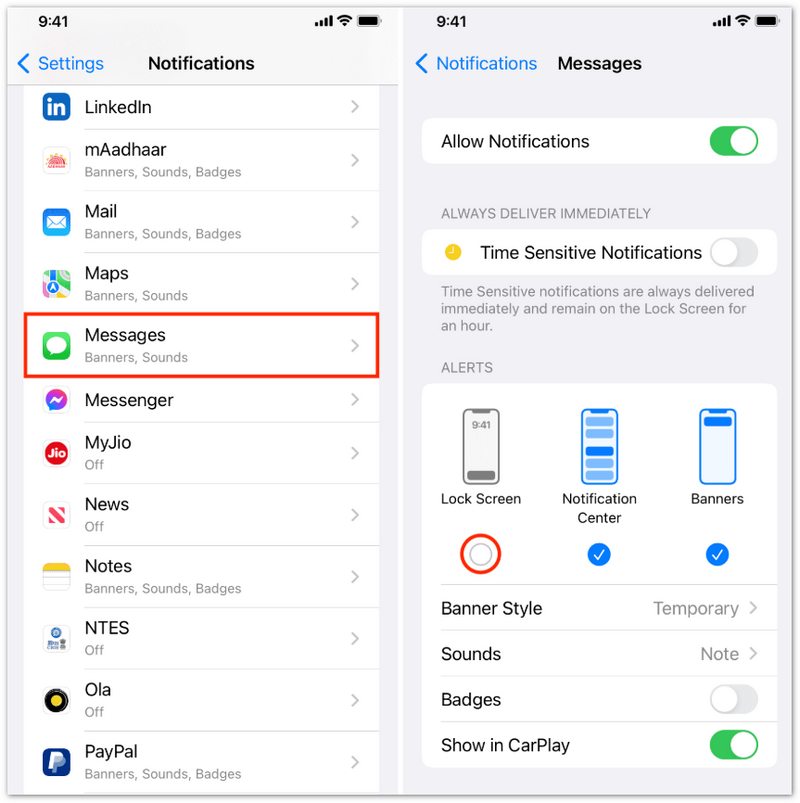
After setup, notifications from selected apps will appear on your iPhone Lock Screen. This can also help fix iPhone notification not working issue.
Today View Widgets allow you to quickly check information such as weather, calendar events, reminders, and more.
To access widgets:
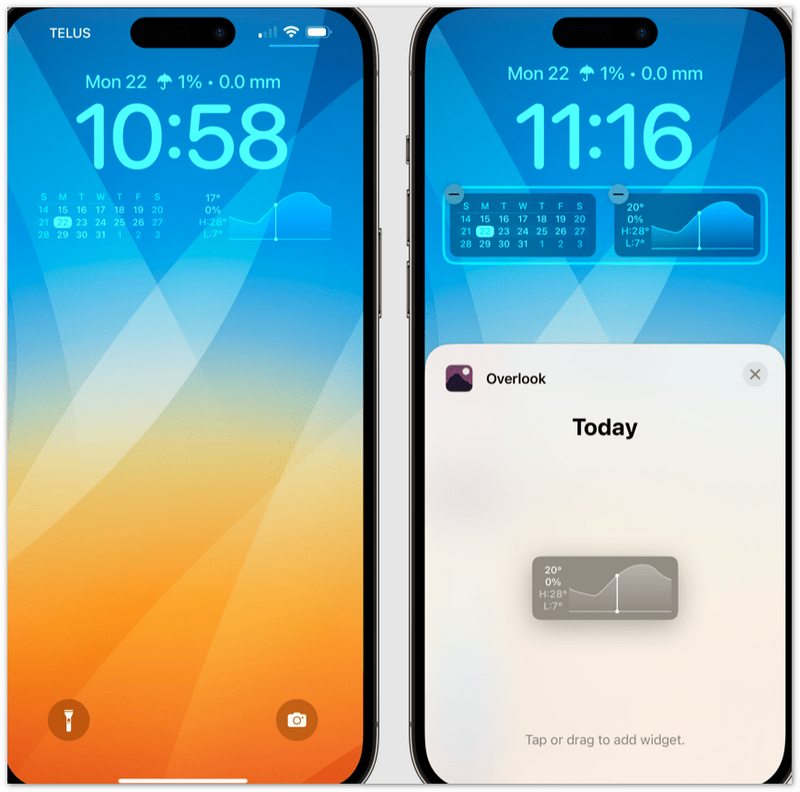
You can also customize widgets by going to the Today View page and tapping "Edit".
The iPhone Lock Screen wallpaper is one of the easiest ways to personalize your device. You can change the Lock Screen wallpaper, customize the clock style, and add widgets to create a more personalized experience.
You can change your iPhone Lock Screen wallpaper through the Wallpaper settings.
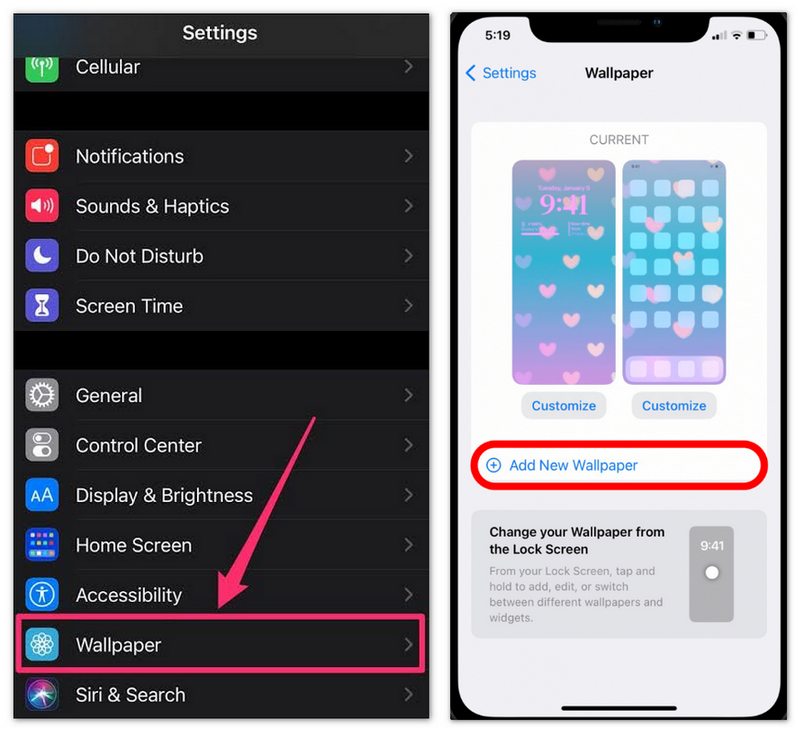
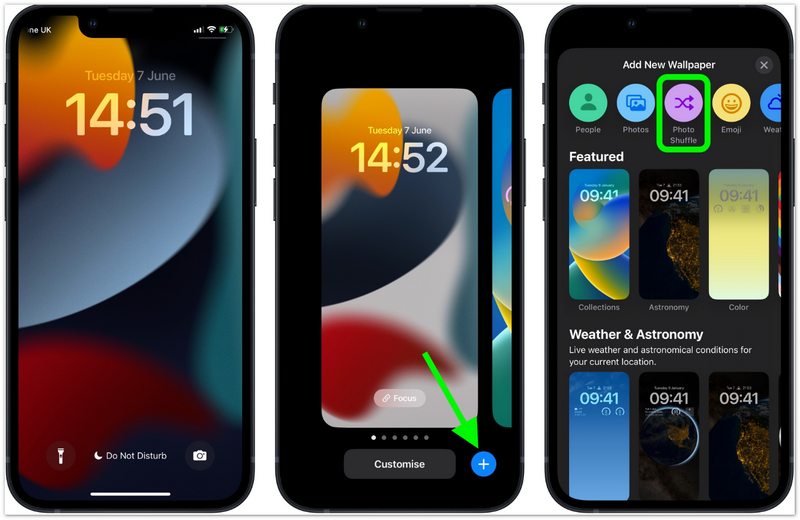
On iOS 16 and later, you can quickly customize your iPhone Lock Screen without opening Settings.
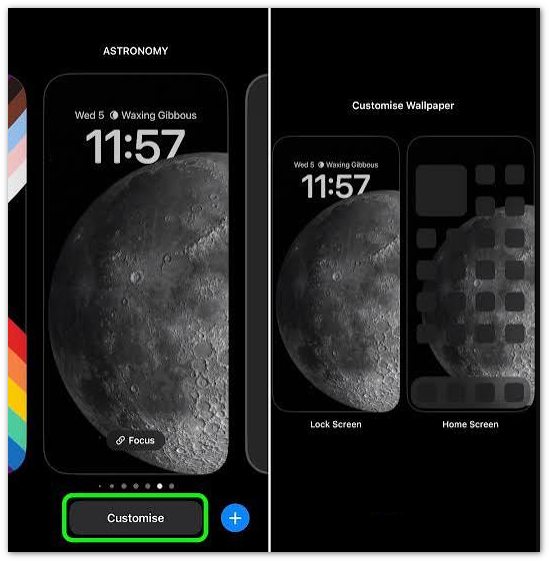
Starting with iOS 16, Apple introduced more customization options for the iPhone Lock Screen. You can add widgets, change the clock appearance, apply different wallpapers, and create multiple Lock Screen layouts.
Lock Screen widgets allow you to view useful information without unlocking your iPhone.
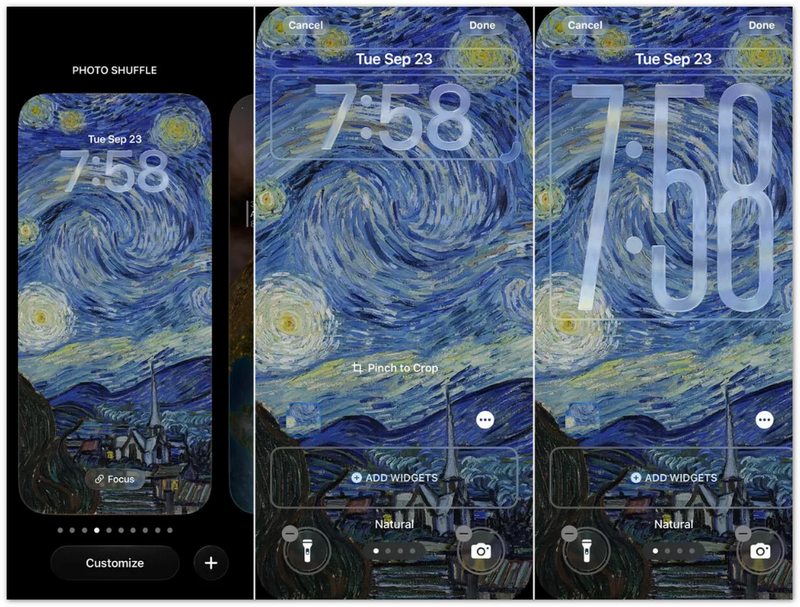
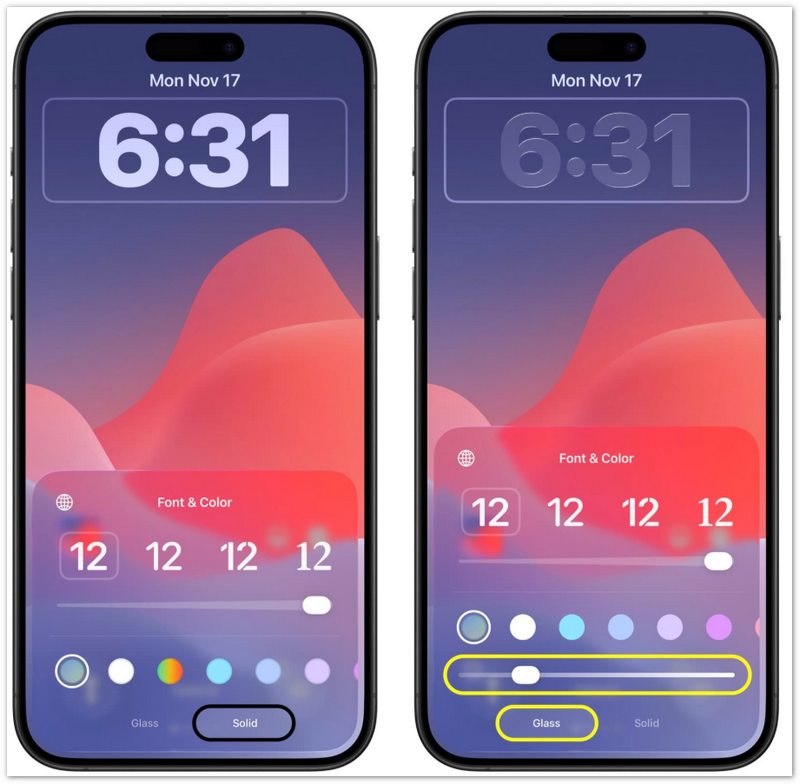
You can customize the appearance of the Lock Screen clock.
iOS also allows you to create multiple Lock Screens and switch between them.
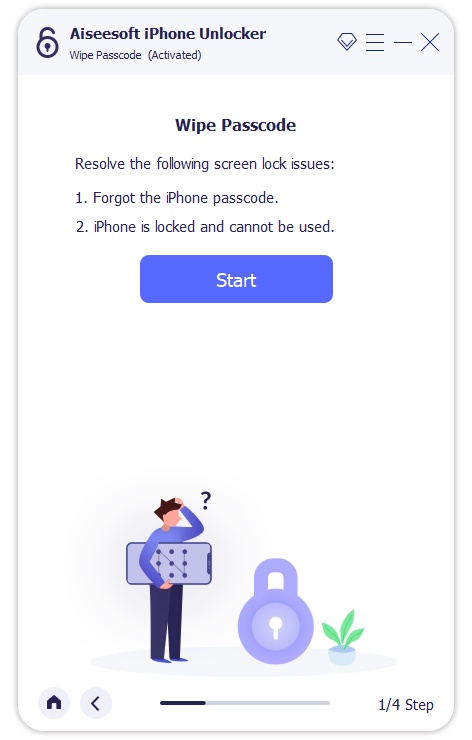
Your iPhone Lock Screen protects your personal data, but sometimes you may lose access to your device because you forgot the passcode, entered the wrong password too many times, or your iPhone becomes disabled.
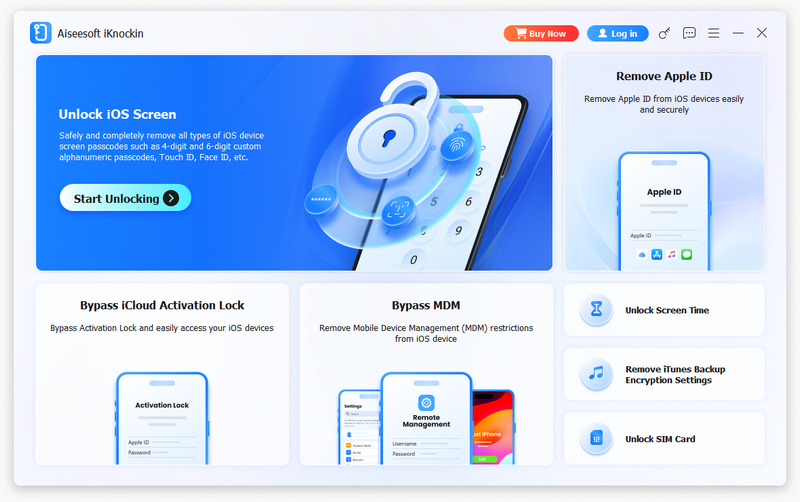
In these situations, you may need a professional iPhone unlock tool to remove the screen lock and regain access to your device. Aiseesoft iKnockin - iPhone Unlocker is designed to help users remove different types of iPhone locks, including forgotten passcodes, disabled iPhones, and unavailable screen locks. It can help remove 4-digit or 6-digit iPhone passcodes, Face ID lock, Touch ID lock, and disabled iPhone screen lock.
100% Secure. No Ads.
100% Secure. No Ads.
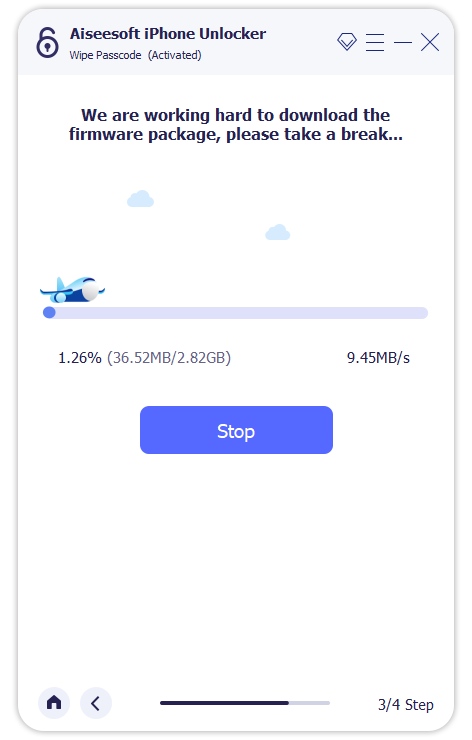
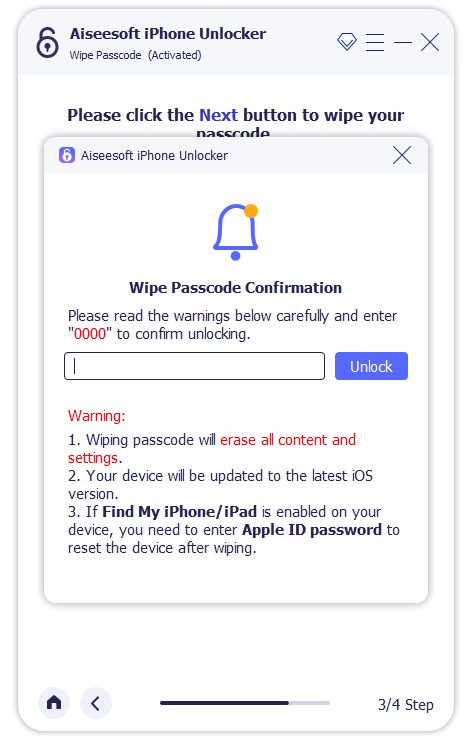
Then click "Confirm Again" to allow iKnockin to verify the firmware package.
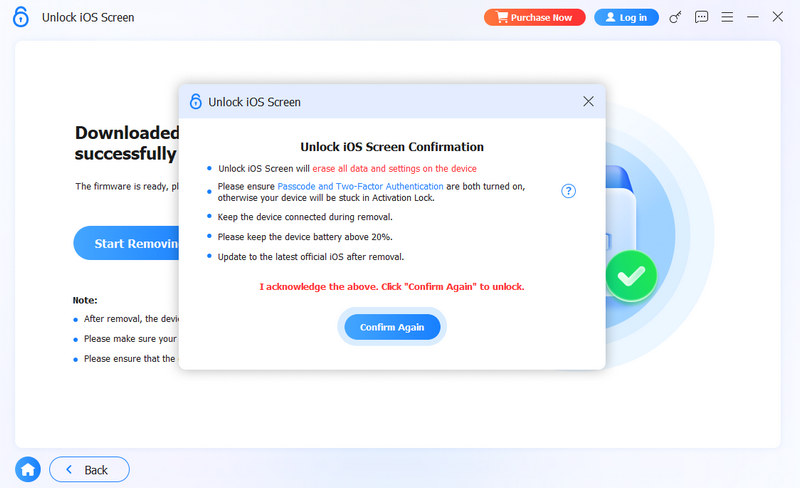
Wait until the firmware verification process is complete.
Why is my iPhone Lock Screen not responding?
If your iPhone is stuck on the Lock Screen and does not respond to taps or swipes, try pressing and releasing the volume buttons, then holding the Side button to restart your device. If the problem continues, your iPhone may require further troubleshooting.
How do I hide notification previews on my iPhone Lock Screen?
You can hide notification previews to protect your privacy while keeping notifications enabled. Just open ‘Settings’, tap ‘Notifications’, select ‘Show Previews’, choose ‘When Unlocked’ or ‘Never’. After changing this setting, notification details will not appear on your iPhone Lock Screen.
How do I remove the flashlight and camera buttons from iPhone Lock Screen?
The flashlight and camera shortcuts are built into the iPhone Lock Screen. On newer iOS versions, you can customize Lock Screen controls: Press and hold your Lock Screen > Tap ‘Customize’ > Select ‘Lock Screen’ > Tap the control buttons at the bottom > Replace or remove the available shortcuts.
Conclusion
The iPhone Lock Screen is more than just a security feature. With the right iPhone Lock Screen settings, you can protect your privacy, check notifications quickly, customize your wallpaper and widgets, and create a personalized experience.
If you forget your iPhone passcode or cannot access your device, Aiseesoft iPhone Unlocker provides a simple way to remove the screen lock and regain control of your iPhone.
By understanding these iPhone Lock Screen features and solutions, you can make better use of your iPhone while keeping your personal information secure.
 How to Fix a Cracked iPhone Screen and How Much Does It Cost
How to fix cracked iPhone screen? What to do with iPhone screen repair? This article offers great tips for iPhone 16/15/14/13/12/11/X/XS/XR/8/7/6s/6/5s/5c/5 screen repair.
 How to Display/View iPhone Screen on PC with Mirroring Easily
Want to mirror your iPhone screen to the computer? Apart from mirroring iPhone screen with Airplay, this article shows several iOS screen recorders/viewers for you.
 My iPhone Screen is Black? Here is The Fix
Run into iPhone 5/6/7/8/X/XS/XR/11/12 black screen or won't turn on? Check this post and learn why iPhone screen went black and how to fix iPhone black screen.
 Leave your comment and join our discussion
To fix iPhone screen locked, wiping password function can help you a lot. And you also can clear Apple ID or Screen Time password easily.
100% Secure. No Ads.
100% Secure. No Ads.

*Required field
*Please enter a valid email

