Best 8K Screen Recorder for PC
 100% Secure. No Ads.
100% Secure. No Ads.
Are you encountering an issue where the Voice Memos app on your iPhone/Mac is not recording, playing, saving, or sharing as normal?
The Voice Memos app on your iPhone provides a convenient way to quickly capture some important audio information, such as a brilliant idea, an important lecture or meeting, and more. In most cases, the built-in Dictaphone is incredibly handy.
However, many Apple users reported issues with Voice Memos not working. As mentioned, their voice memos are not saved, cannot be shared, won’t sync between Apple devices, and the app keeps crashing. This guide will help you diagnose and fix the issue.
There are several possible causes for the Voice Memos app not working issues.
In many cases, the culprit is the insufficient storage space. When your iPhone or Mac is running out of storage, Voice Memos may fail to capture new audio. The app needs enough space on your device’s internal storage or iCloud to save recordings.
Incorrect microphone settings or unauthorized permissions are the main reasons why the app won’t let you record a voice memo. If you just updated iOS or macOS, or reset all settings, you should check the permissions for the Voice Memos app to access your microphone.
If you have been using an outdated iOS or macOS for a long time, software glitches may cause the app to crash or freeze.
In rare cases, the Voice Memos not working problem is caused by hardware. A physically damaged microphone will lead to various recording and malfunction issues.
You may be frustrated by the Voice Memos not working. Whether the app is crashing unexpectedly, recording no audio, or won’t let you share recordings, you can follow the three proven methods below to resolve it.
Restarting is always the first solution to troubleshoot various issues, including the Voice Memos app not working. You can perform a quick reset to clear out temporary background errors.
Force quit and then reopen the app on your Apple device, and check if you can take voice notes as normal. You can also restart your iPhone or Mac to achieve the same result.
If the Voice Memos app can capture audio but the recording is silent or muffled, you can try cleaning the microphone ports.
You can easily locate the microphones at the bottom of an iPhone. On a Mac, you can find and clean the microphones according to your model. It can often be found near the top of the display.
You can use a soft toothbrush or a dry microfiber cloth to clean your microphones. Avoid using liquid cleaners or compressed air. They may damage the internal components.
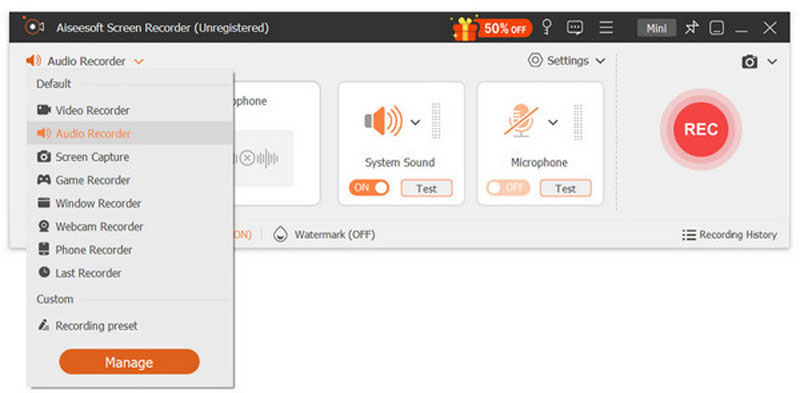
If the app continuously fails or you prefer a dedicated voice recorder for more serious recordings, Aiseesoft Screen Recorder is a powerful alternative. It is specially designed to handle all types of image and sound recording tasks. It has an individual Audio Recorder mode for capturing high-quality voice memos on your Mac and a Phone Recorder for recording various activities on your iPhone.
100% Secure. No Ads.
100% Secure. No Ads.
Aiseesoft can record both microphone sound and system audio simultaneously or separately. You are provided with full control over the audio recording.
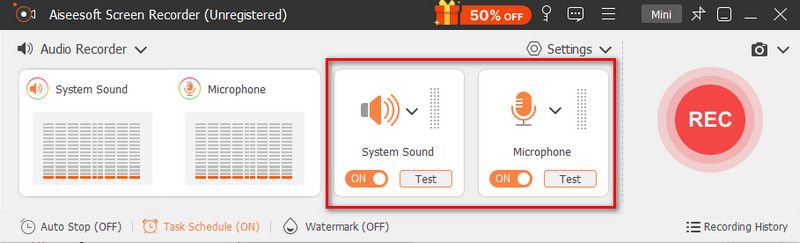
Moreover, the software is designed with advanced microphone noise cancellation and microphone enhancement functions. That can automatically filter out background noise and ensure high-quality voice recordings.
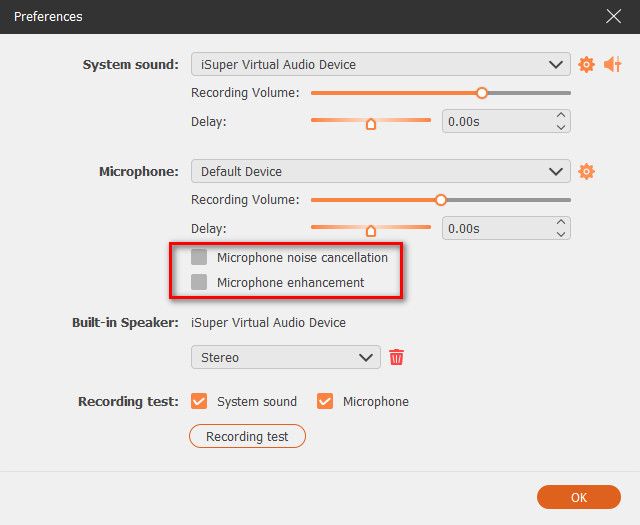
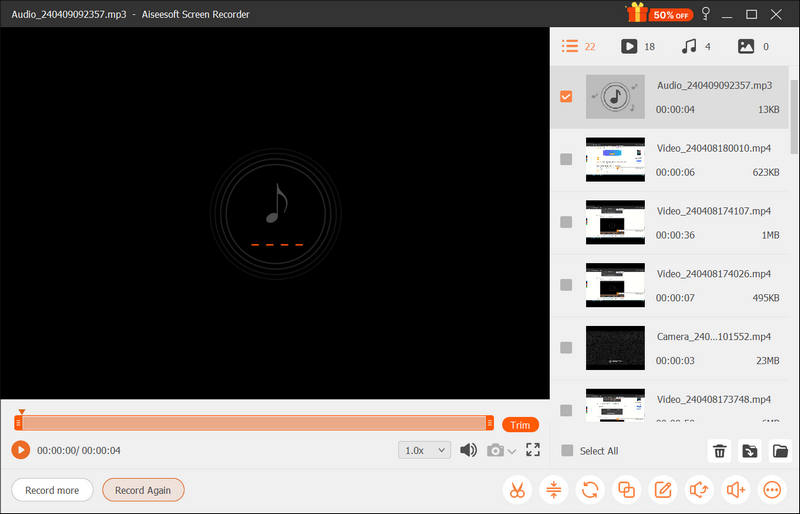
As a great voice recorder alternative to Voice Memos, it allows you to directly edit your recording file and export it with your desired format, such as MP3, M4A, AAC, WAV, or FLAC. Whether you use it to capture voices and other audio sources, you can get a stable recording experience.
Where are Voice Memos saved on my iPhone?
All your captured voice memos on an iPhone are stored within the app. Moreover, these recordings will be backed up to iCloud. You can open the app to play, edit, and share your recordings.
Can I recover a deleted voice memo?
Yes. If you mistakenly delete a recording within the app, you can go to the Recently Deleted folder to find it again. When you locate the memo you want to retrieve, tap to choose it, and then tap Recover. For recently deleted voice memos, you can restore them from the folder. If your recordings are deleted for over 30 days, you need dedicated audio recovery software to rescue them.
Why aren’t my voice memos syncing between my iPhone and Mac?
First, you should check and confirm that both devices are signed in with the same Apple account. Then, you need to ensure they are connected to a good and stable network. Moreover, turn off Low Power Mode on both devices. For newly captured voice memos, the sync may take some time to complete. Finally, go to your iCloud settings on both devices and make sure the Voice Memos is toggled to ON.
Conclusion
Can’t record audio using the Voice Memos app on your iPhone or Mac? Is the app not recording, crashing, or not syncing? This post explains common reasons why Voice Memos is not working and shares three proven solutions to quickly fix it. You can also update iOS or macOS to get it working again.
 Easy Step-by-Step to Upload Voice Memo from Your iPhone
You want to send a voice recording to a friend, explaining something important. Learn how to send a Voice Memo from your iPhone to other iOS and non-iOS users.
 What to Do When Voice Memo Microphone is Not Working
Can’t record audio because the iPhone Voice Memo is not working? There are many ways to solve this. Just click here to repair the Voice Memo app.
 How to Edit Voice Memos on iPhone Using Built-in & Third-party Apps
This article consists of guides on how to edit Voice Memos on iPhone. Carefully read the information that is added here to edit it effectively.
 Leave your comment and join our discussion
Aiseesoft Screen Recorder is the best screen recording software to capture any activity like online videos, webcam calls, game on Windows/Mac.
100% Secure. No Ads.
100% Secure. No Ads.

*Required field
*Please enter a valid email

