
Video Converter Ultimate
 100% Secure. No Ads.
100% Secure. No Ads.
If you have ever made an attempt to edit a video and still got the feeling the quality was lacking in sharpness, I have even experienced it myself, particularly when using older videos or low-quality footage that requires enhancement. This is when programs such as Wondershare Filmora become very handy, as they present features to easily upgrade video quality, even if you have no prior experience in video editing.
Here I am going to tell you how I use Filmora upscale video features in my projects, and also give you some great tips to get great results. Further, you will get to know if Filmora is up to the task of upscaling or if one should resort to a top-notch tool, so it is you who decides what suits you the most.
If you use Filmora, upscaling a video is extremely easy. It is not a very technical process, and you can enhance your video quality in merely a few steps by using the built-in enhancement features. These are the steps I most often follow.
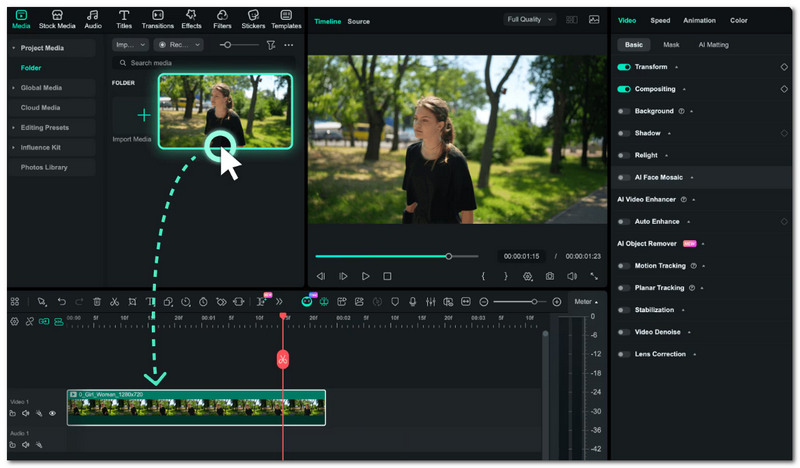
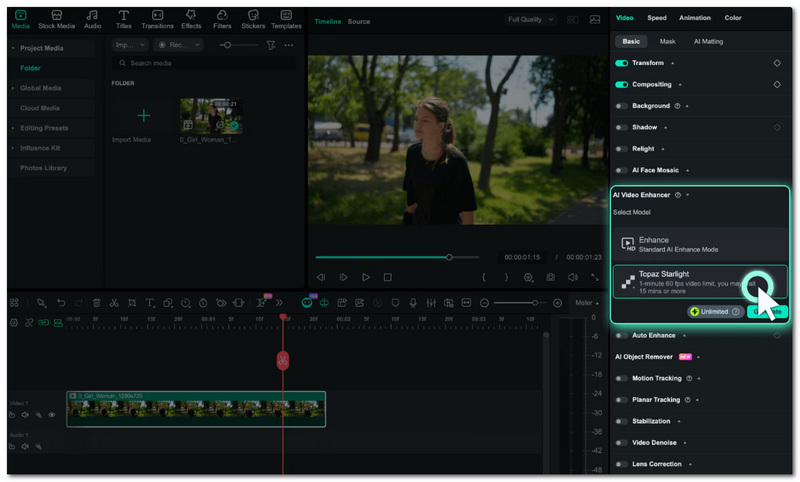
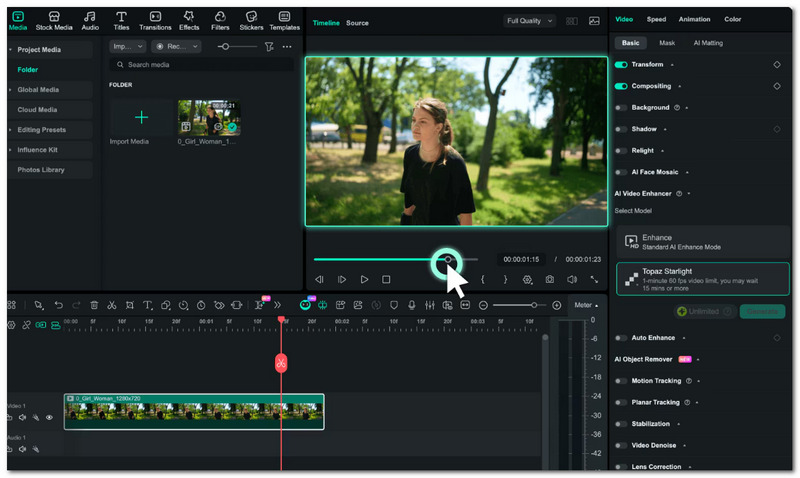
You don't just click export if the goal is to get the best possible results through upscaling. To get the most out of enhancing video quality in Filmora, you will have to make a few adjustments. Some simple changes are worth a try because they have a great impact.
Helpful Tips
• Start with the highest quality source file possible
The better the quality of the original material, the better your final output will be. Try to avoid using very compressed video files.
• Don't go overboard with upscaling
It will look quite wrong if you convert a video to a 4K all at once. Better to increase scale step by step.
• Make proper use of AI enhancement
Turn on the AI Video Enhancer, but don't over-sharpen because this will give the video a noisy look.
• Change brightness and contrast
A little change in the lighting will help make the video clearer and show more details.
• Get rid of noise before exporting
Filmora has noise reduction features which you can use to improve footage that is grainy.
• Set the export parameters correctly
Exporting with a higher bitrate and resolution (1080p or 4K) is the way to go for keeping the quality.
• Do a preview before the final export
Have a look at the preview first to confirm that the settings give a natural look and are not over-processed.
It might seem like these are very basic tips, but in fact, they almost always help a lot when you are working with Filmora and come to the final output.
In case you are wondering if Filmora is still sufficient for video upscaling, the answer is really what your necessities are. Filmora is excellent for doing the job with quick improvements and is very easy to use, even for beginners in editing, but, on the other hand, special AI upscalers are meant for accomplishing higher-quality results and are capable of advanced processing.
Here’s a simple comparison to help you decide:
| Category | Wondershare Filmora | Topaz Video AI | CapCut Desktop | Adobe Premiere Pro |
| Method | Built-in AI enhancer + export scaling | Advanced AI video processing | AI enhancement + editing | Manual + plugins + AI tools |
| Processing Time | Fast | Slower (heavy AI processing) | Fast | Medium to slow |
| Quality Gain | ⭐⭐ Moderate improvement | ⭐⭐⭐⭐ High-quality enhancement | ⭐⭐⭐ Good for casual use | ⭐⭐⭐ High with proper setup |
| Cost | Affordable (subscription) | Expensive (premium tool) | Free/low cost | Expensive (subscription) |
Is Filmora Good Enough?
Most importantly, I think Filmora offers an excellent way of improving your video simply and quickly if you do not want to get into complex procedures. It is perfect for casual users, content creators, or beginners who want good results fast.
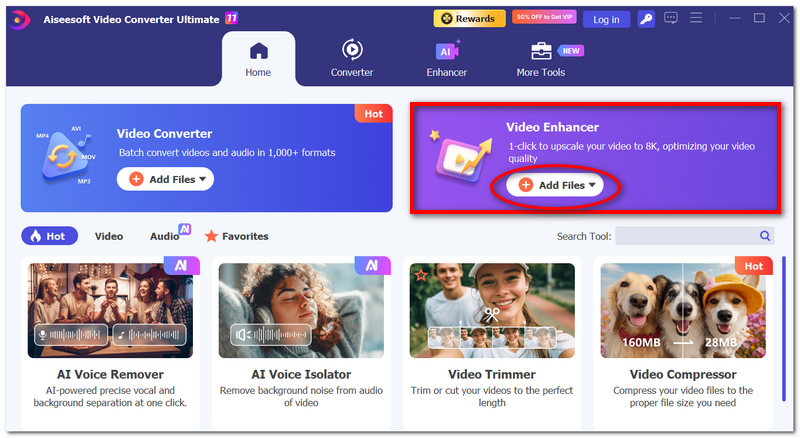
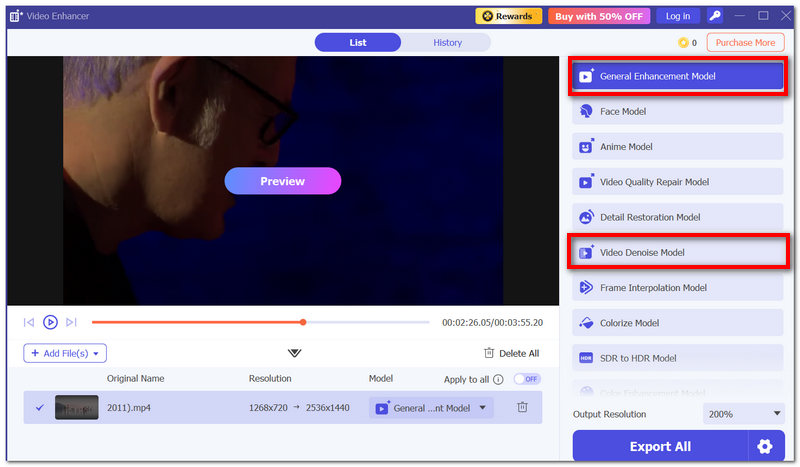
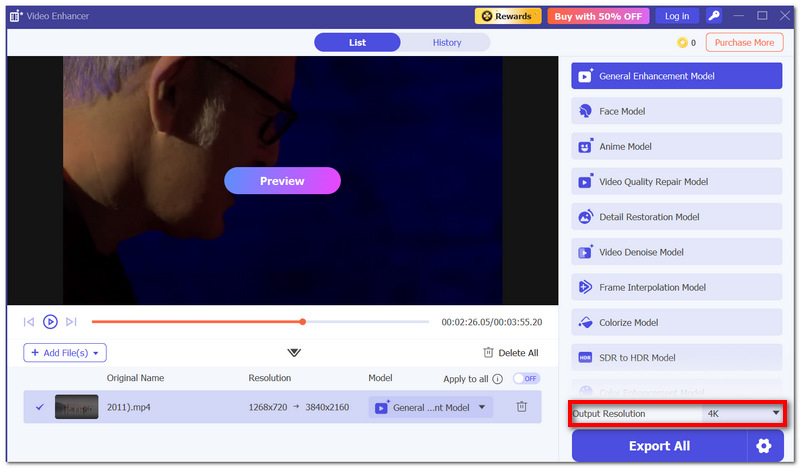
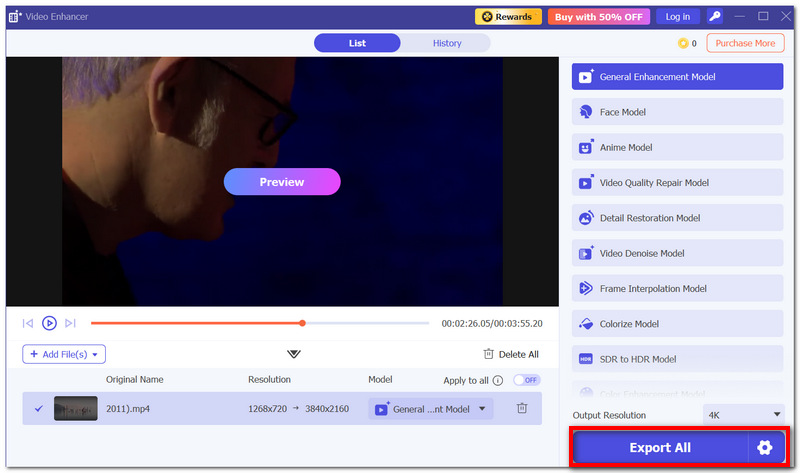
Sometimes, you may feel that the upscaling features of Filmora are a bit limited, in which case an excellent alternative that I personally highly recommend is Aiseesoft Video Converter Ultimate. Based on my experience, it is not just a normal converter as it is also a video enhancer all-in-one, and it also utilizes AI technology to directly upscale videos without undergoing complicated steps.

Downloads
100% Secure. No Ads.
100% Secure. No Ads.
100% Secure. No Ads.
100% Secure. No Ads.
Can I upscale videos in Filmora without exporting?
You've got to export the video if you want to upscale it because the upscaling effect is only done at the time of export. So basically, the rendering of the video is what you'll be doing in order to see the final result of the upscaling.
Can I use Filmora on low-end computers for upscaling?
Running Filmora on low-end computers for upscaling is possible, but the performance will be slower. This is even more so during the export of higher resolutions, such as 4K.
What is the best format to export upscaled videos in Filmora?
When it comes to exporting upscaled videos in Filmora, MP4 (H.264 or H.265) format is the best combo of quality and file size.
Conclusion
Filmora is a user-friendly application with a simple interface that lets beginners and even experts easily enhance the quality of their videos. This tool enables users to obtain their desired video quality effortlessly. However, if you want superb quality, Aiseesoft Video Converter cannot be beat. In general, it is a good option for daily use and will be very helpful with the AI video enhancer Filmora capability.
 Filmora Video Editor Free Download: Create Amazing Video Effect Easily
If you are looking for a video editor, you should have heard about Wondershare Filmora. In this article we will write a complete review about Filmora Video Editor to help users know more about its pros and cons.
 A Full Guide on How to Crop a Video in Wondershare Filmora
How do you crop a specific frame of video using Filmora? Where is the crop and zoom button in Filmora? Learn how to crop videos in Filmora with detailed steps.
 A Full Guide to Remove Filmora Watermark from Your Videos
When you use Filmora9 to edit your video without purchasing its full version, there will be a hideous watermark applied to the video. This post will help you remove the unwanted watermark without buying.
 Leave your comment and join our discussion
Video Converter Ultimate is excellent video converter, editor and enhancer to convert, enhance and edit videos and music in 1000 formats and more.
100% Secure. No Ads.
100% Secure. No Ads.

*Required field
*Please enter a valid email

