
Video Converter Ultimate
 100% Secure. No Ads.
Are you looking for a good HEVC player for H.265 or HDR videos on your desktop?
You may be confused about why an HEVC file won’t play, and then you start to search for a way to play it. HEVC (H.265) is everywhere now. Lots of 4K movies, streaming downloads, and even phone recordings could be saved as HEVC. But the first time many people run into an HEVC file, they get playback issues, such as stuttering, audio with no video, or an error message like “can’t play this file” in your player.
This guide gives you a review of 5 top HEVC players. You can compare their key features and select the one that best suits your needs.

HEVC stands for High Efficiency Video Coding (H.265), the successor to H.264. Compared to H.264, it can deliver similar quality with roughly half the file size. This is a big reason why phones, camcorders, and streaming services adopted it.
The trade-off is higher decoding complexity. HEVC is much pickier about hardware and software than H.264 ever was. For the first time you play an HEVC video on your device, especially with Windows’ built-in player, you are likely to face the “won’t play” scenario.
When you play HEVC files on Windows 11 or 10, you often need a paid extension from the Microsoft Store. However, most people never find that out.
Another common mix-up is confusing the container with the codec. An MKV file might hold HEVC video and FLAC audio. Your system may recognize the MKV wrapper but not the HEVC track inside. In that case, it prompts an error.
HEVC not playing may also be caused by hardware. Many older integrated GPUs and devices lack HEVC hardware decoding entirely. Even if you use a player that supports HEVC, the video may not be played correctly, mainly for high-bitrate 4K footage.
If you don’t want a new HEVC player, or you need the file to open reliably on an old device, converting HEVC to H.264 MP4 is the safer route.
Aiseesoft Video Converter Ultimate is a popular choice that does exactly that. It provides a straightforward way to make the conversion. This HEVC converter handles batches and allows you to freely tweak output quality, resolution, and bitrate. Moreover, the software offers necessary editing and enhancement functions. You can use them to ensure high-quality outputs.
100% Secure. No Ads.
100% Secure. No Ads.
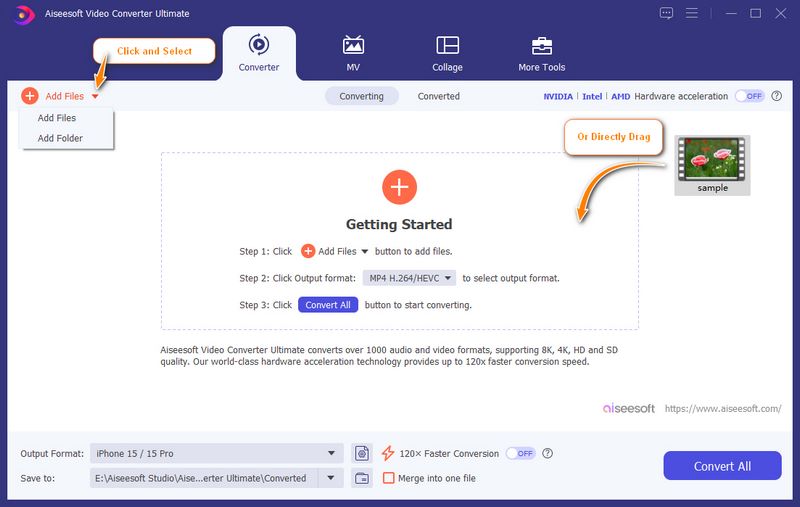
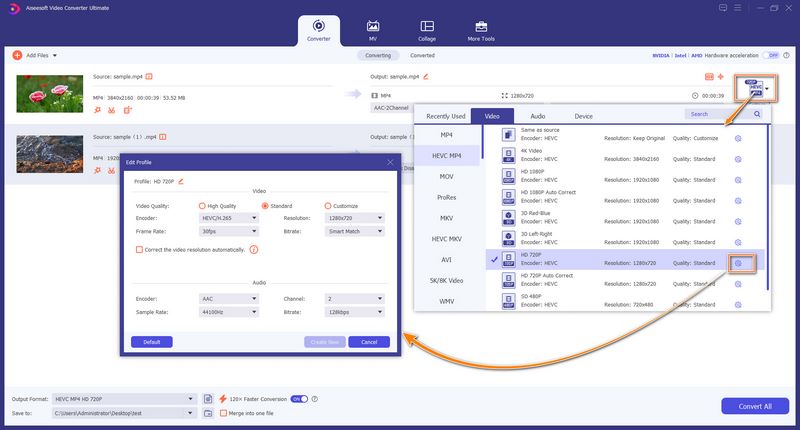
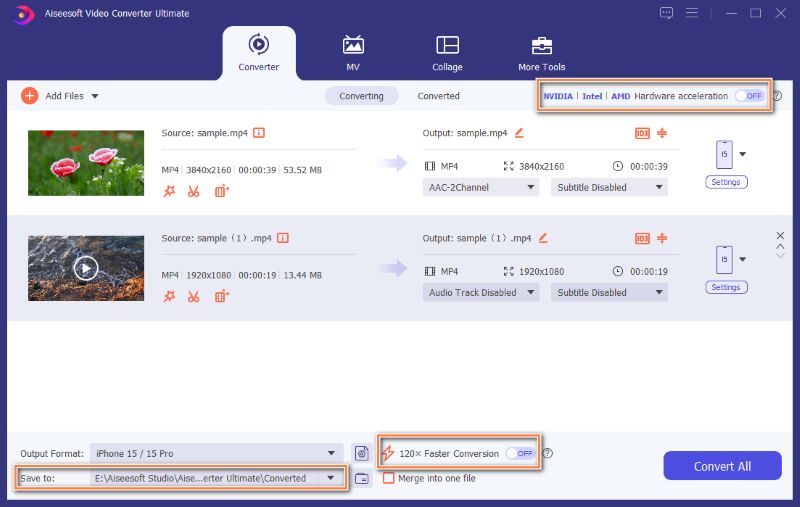
Many third-party media players support smooth HEVC playback. Plenty of HEVC H.265 players out there are free. But they focus on different things and have their own strengths and drawbacks. This section gives you a quick review of 5 strong contenders.
| HEVC Player | Platform | HEVC Hardware Decoding | One-Line Verdict | Who It’s For |
| PotPlayer | Windows | Yes, highly tunable | The most configurable free option on Windows, steeper setup | People willing to spend ten minutes on setup once |
| VLC | Windows, macOS, Linux, and mobile | Yes (depends on version and settings) | The most popular, cross-platform media player | People who don’t want to tinker and deal with all sorts of files |
| MPC-HC | Windows | Yes | Ultra-light, friendly to old PCs | Users who want it to open and play HEVC files on older PCs |
| Aiseesoft Blu-ray Player | Windows / macOS | Yes | Smooth Blu-ray and 4K HEVC playback | Users who also want to play Blu‑ray discs |
| KMPlayer | Windows / macOS / mobile | Built-in decoding, but varies by version | Convenient built-in decoding | People already using it and not looking to switch |
PotPlayer has been a powerful media player for Windows users for years. It can handle all commonly used video and audio formats. As an HEVC player, PotPlayer plays H.265 files smoothly, without any issues. It provides full control over HEVC playback, with hardware decoding and HDR support handled well.

VLC is the most popular choice that can play HEVC and other videos on Windows, macOS, Linux, and phones. When a file won’t open, try VLC first. Moreover, this HEVC player is totally free. When you play H.265 files in VLC, you may need to confirm the hardware acceleration option manually.
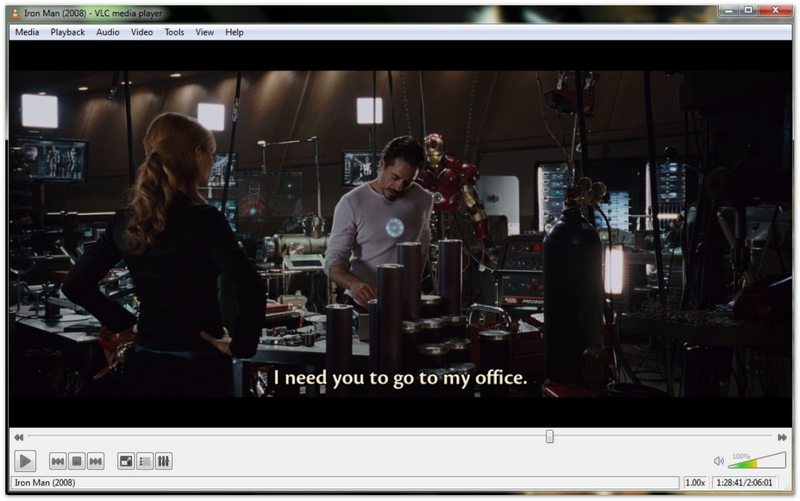
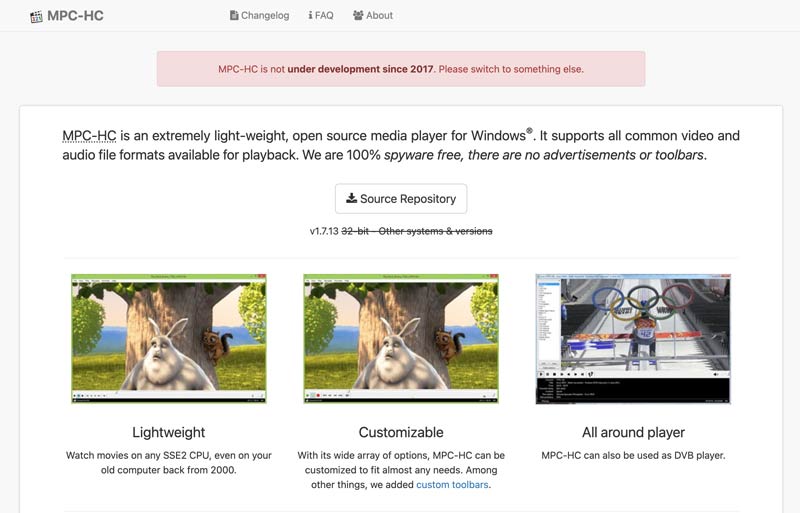
MPC-HC can be your rescue if you want to open HEVC files on an older Windows PC. This “old machine saver” is open-source and lightweight. It can play 1080p HEVC well. However, for new 4K high-bitrate files, MPC-HC may not play them normally, because the player has not been under development since 2017.
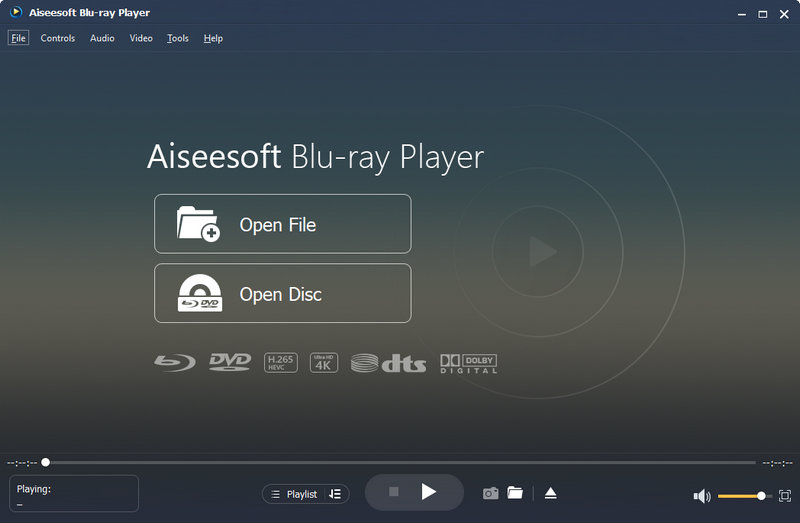
Aiseesoft Blu-ray Player handles HEVC playback nicely on Mac and Windows. It is primarily designed for 4K Blu-ray playback with the best possible viewing experience. This HEVC player also supports DTS-HD Master Audio and Dolby TrueHD.
100% Secure. No Ads.
100% Secure. No Ads.
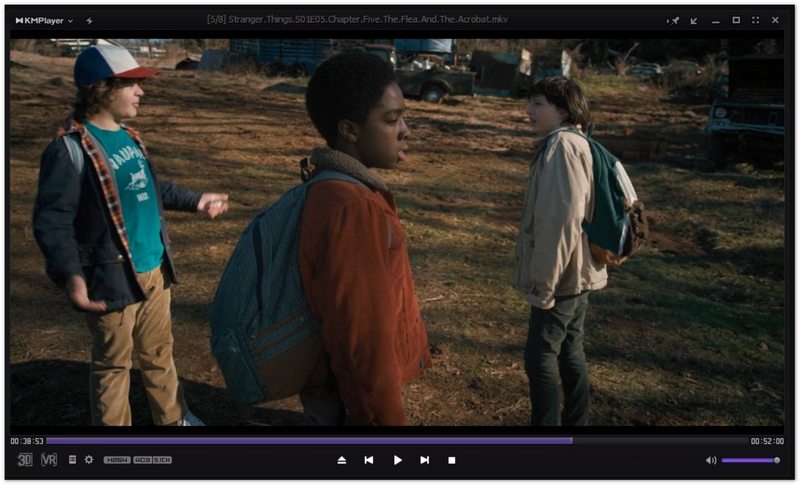
KMPlayer is a free and capable media player with a long history. It has built-in decoding and a wide feature set. When you search for an HEVC player, KMPlayer is often one of the top recommendations. However, the standard version is ad-supported and may have bundled software.
Question 1. Why does my HEVC file have audio but no video?
The HEVC playback issue is usually caused by missing decoders or failed hardware decoding. As mentioned above, the system decodes the audio track but doesn’t properly reconstruct the video track. In that case, your player opens audio normally but has no image. You can try playing it in VLC or PotPlayer and check if the problem still exists.
Question 2. Does Mac support HEVC natively?
Yes, Mac supports HEVC natively. The support is built into macOS itself. You don’t need a third-party player for HEVC files. However, whether you get smooth, hardware-accelerated playback depends on your Mac’s chip and the HEVC file.
Question 3. How can I play HEVC files on Windows 11 for free?
You can play HEVC (H.265) files on Windows 11 for free using a third-party player like VLC. If you want your system’s built-in apps to handle HEVC files natively, try searching for “HEVC Video Extensions from Device Manufacturer” from the Microsoft Store. When you locate the extension, install it for free.
Conclusion
This post gives you a quick review of 5 popular HEVC players. You can select a desired one based on your needs. In most cases, VLC is a top recommendation for most casual users. It can easily handle various video and audio playback jobs. You won’t get any HEVC playback issue.
 Exploring the 5 Best Media Player Classic Alternatives
Is Media Player Classic the same as Windows Media Player? Where can you download Media Player Classic? Check out the 5 best Media Player Classic alternatives.
 A Detailed Guide to Convert H.265 to H.264 without Losing Quality
Do you know how to convert H265 to H264? Discover six lossless H.265 to H.264 converters here and help your films run well on various platforms.
 Convert HEVC to JPG and Extract JPG Images from HEVC Videos
How do you change a HEVC video to a JPG? Is there a free HEVC to JPEG converter? This post shares two simple methods to convert HEVC to JPG with high quality.
 Leave your comment and join our discussion
Convert/Download/Edit SWF
1.1 SWF 1.2 SWF to MP4 1.3 SWF to GIF 1.4 SWF to MOV 1.5 SWF to HTML5 1.6 SWF to AVI 1.7 SWF to WMV 1.8 SWF to 3GP 1.9 SWF to DVD 1.10 SWF Converter Mac 1.11 Edit SWF
Video Converter Ultimate is excellent video converter, editor and enhancer to convert, enhance and edit videos and music in 1000 formats and more.
100% Secure. No Ads.
100% Secure. No Ads.

*Required field
*Please enter a valid email