If you are a music fan, you definitely know the pleasure of curating the perfect iTunes and Apple Music playlists. You can handily connect all the amazing songs you find, categorize them, and then put them into different playlists for different occasions. For instance, you can create dedicated Apple Music playlists for running, sleeping, working, or a party anthem list.
Creating a playlist is easy, but spending all that time organizing your favorite songs is even better when you can share your musical taste with others. Whether you are using iTunes on a Windows PC or the modern Apple Music app, sharing your tracks with family and friends is a fantastic way to connect. This guide will tell you how to share playlists on Apple Music and iTunes.
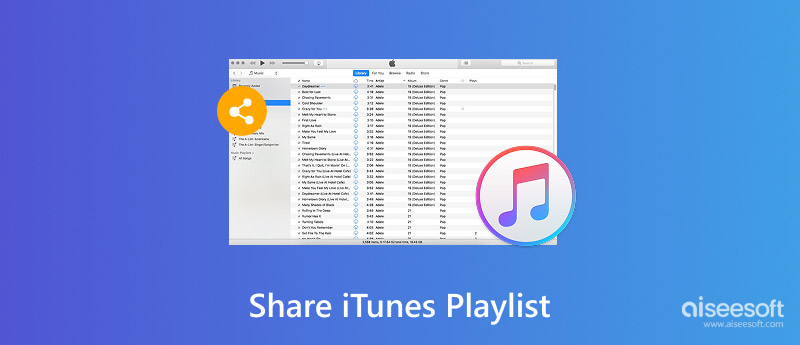
Whether you are using iTunes or the Apple Music app, sharing your playlists is straightforward. Here are several effective ways to do it, depending on the platform you are using.
If you and your friends use the Apple Music app on iOS devices or Macs, sharing your playlists is incredibly simple.
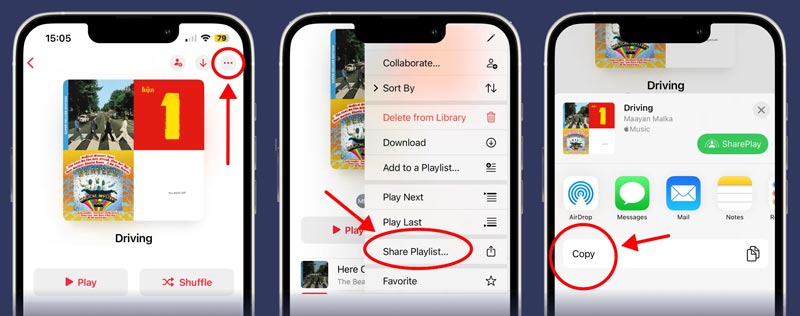
You can simply copy the link directly to send to your friends. Anyone with an active Apple Music subscription can open it and add the playlist to their library.
If your Apple devices run a relatively newer iOS version like iOS 17.3 or later, you can use the Collaborative feature in Apple Music to better share your playlists. This advanced feature allows you and your friends to build and manage the playlist by adding, reordering, and removing songs together.
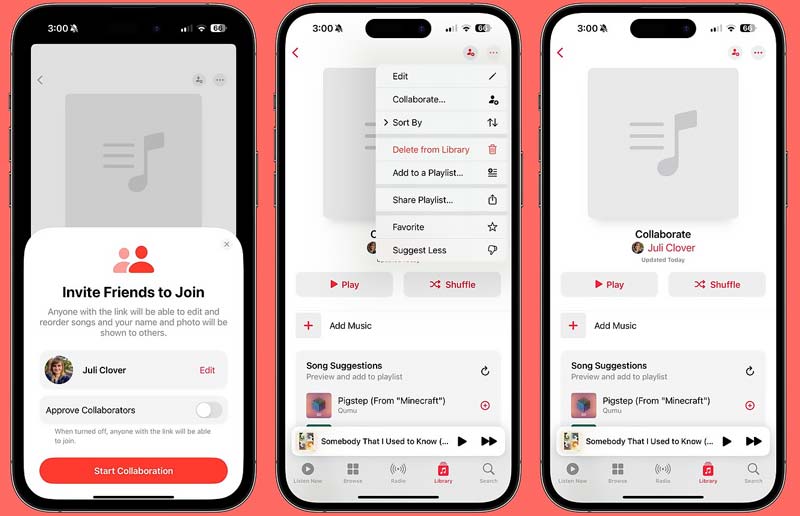
Note that this “Collaborative Playlists” feature is not available in all countries or regions. You should check the Apple Support article about Apple Media Services.
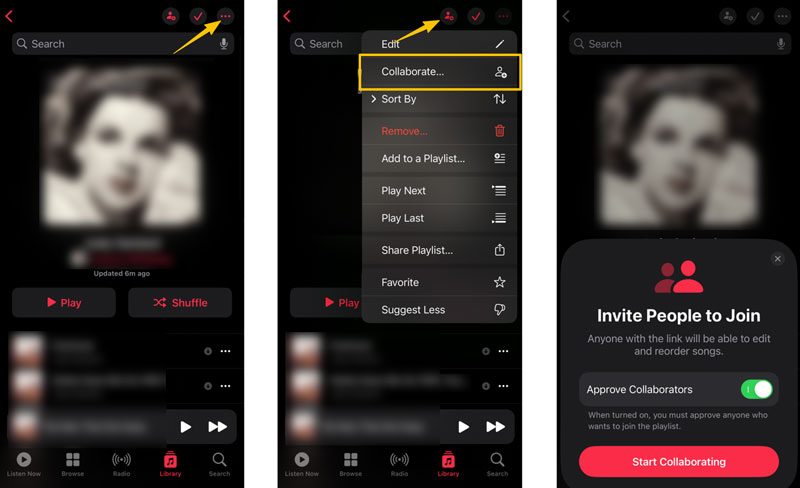
This method only works perfectly if your friend already has the same local audio files on their computer. Otherwise, they may encounter an import error, and you can move to the next part.
As mentioned above, if your playlist contains local songs ripped from a CD or downloaded from other third‑party sources, simply sharing an Apple Music link or an iTunes XML file won’t transfer these local audio files. To share your iTunes playlists along with the actual music tracks, you can use a professional iOS sharing software like Aiseesoft FoneTrans.

Downloads
FoneTrans - Transfer Playlists on iTunes and Apple Music
 100% Secure. No Ads.
100% Secure. No Ads.
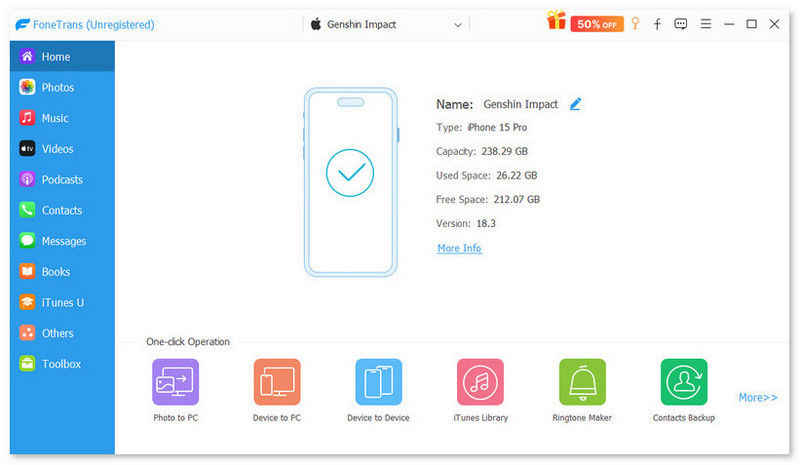
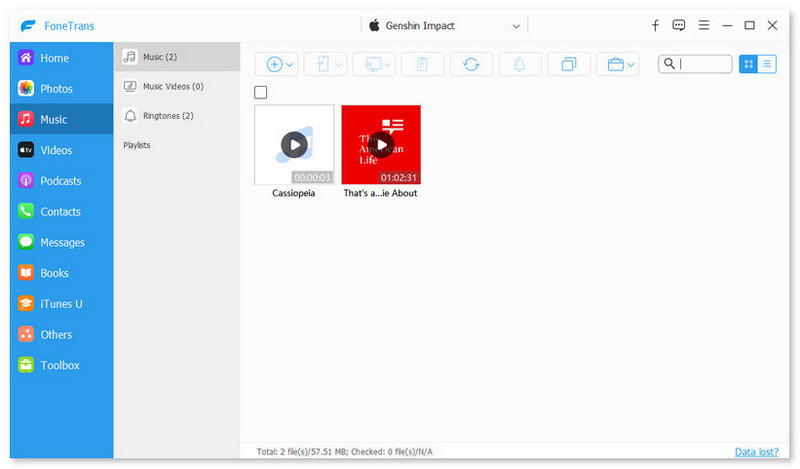
If you want to share your Apple Music and iTunes playlists directly between two iOS devices, simply connect both devices to the computer. Choose the playlist, click “Export to”, and then select the target device.
With this iOS data transfer software, you can not only share your music playlists safely but also manage photos, videos, contacts, and other data across all your devices.
Conclusion
It’s quite a common need to share playlists on Apple Music and iTunes. Sharing your favorite songs is one of the best ways to connect with friends and discover new music. This guide tells how to share your music collections with or without iTunes. Generally, you are suggested to directly build collaborative playlists with friends or family in the Apple Music app. If you want to better manage or transfer your local files, the introduced FoneTrans is a great option.
 What, How and Where Does iTunes Back Up
Does iTunes back up photos? How to back up iPhone to iTunes? Where is iTunes backup location? Find the series answer from this article.
 How to Rebuild iTunes Library
Rebuilding iTunes library comes often because of some accidents. After reading this, you can re-create iTunes library by yourself easily.
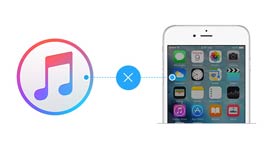 What Should I Do When iTunes Won't Recognize My iPhone
If iTunes on your computer can not recognize your iPhone, read this tutorial and find the solution.
How to Use iTunes
1. iTunes Authorization 2. iTunes Connection 3. iTunes File Sharing 4. iTunes Playlist Sharing 5. iTunes Videos Sharing 6. iTunes to MP3 Conversion
The best iOS Transfer software to manage and transfer iOS files from iPhone/iPad/iPod to your computer or reversely without running iTunes.
100% Secure. No Ads.
100% Secure. No Ads.

*Required field
*Please enter a valid email

