Aiseesoft Screen Recorder
 100% Secure. No Ads.
100% Secure. No Ads.
Are you in a situation where you can’t seem to find the saved recording anywhere? It can be a common issue that you finish a Google Meet session only to wonder where the recording has disappeared to.
In most cases, Google is great at organizing data. However, its file-saving logic for Meet recordings can be confusing. Many users don’t know where Google Meet recordings go. In this guide, we will help you find your recorded meetings. Moreover, a pro-level alternative is introduced to give you total control over your Meet recordings.
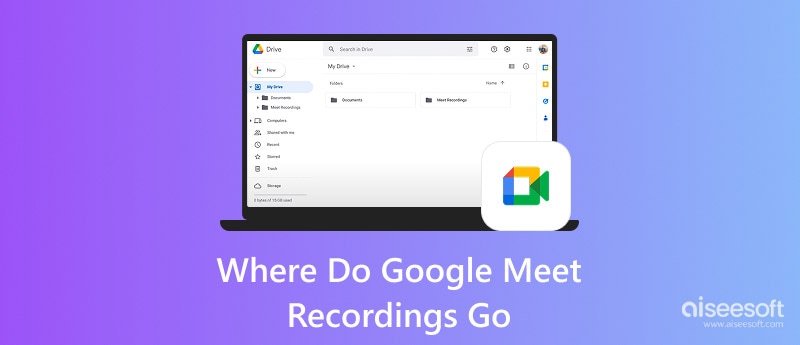
Unlike other platforms, Google Meet does not save your recordings to the local hard drive. That’s why you may fail to find your Meet recordings. Google uses its own workspace ecosystem to store and manage your data. Depending on your role in the meeting, your captured meetings may be saved in three primary locations.
If you are the host of the Google Meet, your recordings will be saved in a dedicated “Meet Recordings” folder. Every recording you initiated will appear there.
To access them, you can open your Google Drive, go to My Drive, and then choose Meet Recordings.
If you just finished a Google Meet session, you may find that the folder is empty. The truth is, Google needs time to process the recording. If your meeting lasts for one hour or longer, it will take about 10 to 15 minutes for the recording file to render. After processing, it will appear in the folder.
Once the Google Meet recording has finished processing and is ready for viewing, Google will immediately send you an email. However, not every participant will get the email. Only the person who started the recording and the Meeting Organizer will receive it in Gmail. The email attaches a direct link to the recording and related information, such as the meeting date, time, and participants.
If you have scheduled the meeting using Google Calendar, the recording file will be part of that event’s historical record. In that case, you can easily find it there.
To access your Google Meet recordings, you can open Google Calendar, find the specific time slot where the meeting occurred, and then click the event. Your recording will be attached to the event details. Everyone who was invited to the meeting will have access to view the recording.
Through the above three paths, you can easily find your Google Meet recordings. However, if you have checked the Drive, your email, and the Calendar, but the recording file is still missing, check the troubleshooting tips below:
1. As mentioned, the Meet recording will always go to the organizer’s Drive. If you are not the organizer or the participant who clicked the “Record” button, and you were only a guest, you might need to ask the host to share the recording file with you.
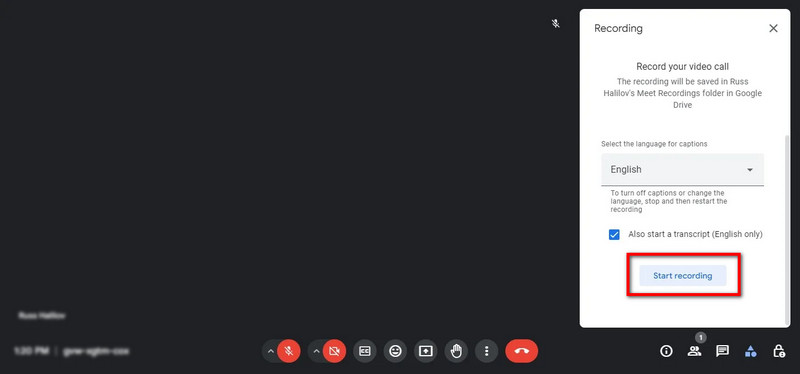
2. If you didn’t get the organizer’s permission and didn’t see the record button at all, you can’t access the recording. That means your Workspace Administrator has disabled recording for your account.
3. Google needs time to process a long or high-definition recording. You cannot directly view the Meet recording file. If you see the Recording icon is active during the meeting, you should wait for the processing.
4. If you are searching for the email to get the recording link and can’t find it, you can try checking the Updates or Promotions tabs in Gmail.
5. Sometimes, the recording missing issue is due to a lack of storage. When the organizer’s Google Drive is full, the recording file may fail to save. I may be stuck in a pending state.
Google Meet provides a native recording way to save the meeting. However, it has its limitations. Not every participant can access the recording file. Moreover, it will notify everyone that they are being recorded. If you prefer to capture the meeting locally to your computer without a notification, turn to the reliable Aiseesoft Screen Recorder.
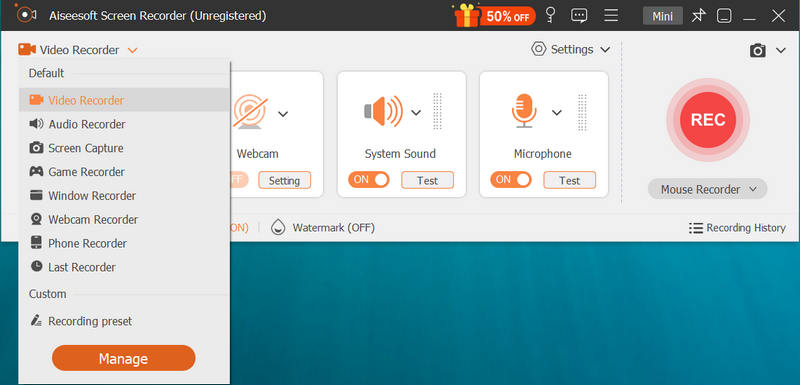
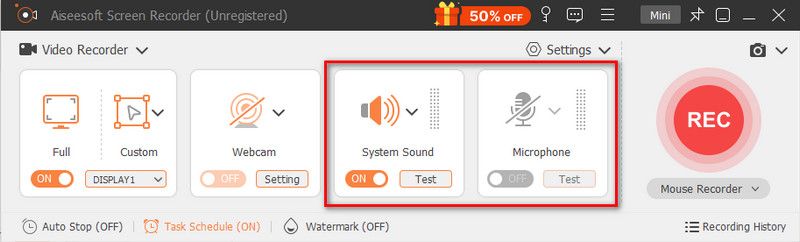
Aiseesoft Screen Recorder allows you to capture anything happening on your computer. It can record Google Meet without permission or any limit. Moreover, this meeting recorder won’t trigger a notification or alert.
It can record high-definition (up to 4K/8K) and long meeting sessions with clear audio. It allows you to freely select the recording area and audio source. During and after the recording, you have options to edit it.
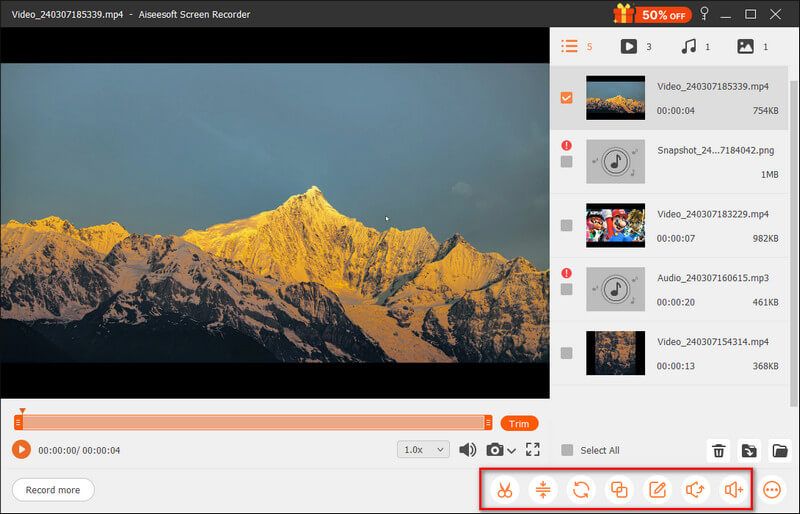
After recording Google Meet, you can directly view, edit, and save it. You don’t need to wait for the processing. It can also export your recorded meetings in a desired format and quality.
100% Secure. No Ads.
100% Secure. No Ads.
Question 1. How long does a Google Meet recording take to process?
A Google Meet recording may take around 10-20 minutes and even several hours to process. The processing time will be decided by the meeting length, resolution, quality, server, and other factors. For a high-resolution and very long recording, you are advised to wait longer for the processing.
Question 2. Will a Google Meet recording expire?
No, a standard Google Meet recording does not expire. As long as they are still in the Meet Recordings folder and you have enough Drive space, they won’t expire.
Question 3. Can I record Google Meet on a mobile device?
For Android users, if you have a qualifying Google Workspace account, you can record directly within the Meet app. However, if you are using an iPhone or if you are an Android user without a paid Workspace account, you can use your phone’s recording feature or a third-party meeting recorder app to capture the meeting.
Conclusion
After reading this guide, you can follow the three primary paths (Drive, email, and Calendar event) to find your Google Meet recordings. In most cases, you can easily locate them in seconds. However, if you prefer a dedicated meeting recorder to save your recordings locally, or if you want a backup that doesn’t depend on Google's servers, try using the recommended Aiseesoft Screen Recorder.
 Where Do Screenshots Go on Windows 11/10/8/7 PC
Here are screenshots saved? Where do you find the screenshots on your computer? This post will show you the location of the screenshots folder on Windows 10/7/8 PC.
 Zoom Call Recording - How to Record a Zoom Video Conferencing
Have the need to record a Zoom online meeting? This post shows you the detailed steps of how to record a Zoom meeting with high quality.
 Change and Personalize Your Google Meet Profile Picture
What is the best profile picture for Google Meet? How do you replace your Google Meet profile photo? Learn how to change your Google Meet profile picture.
 Leave your comment and join our discussion
Aiseesoft Screen Recorder is the best screen recording software to capture any activity like online videos, webcam calls, game on Windows/Mac.
100% Secure. No Ads.
100% Secure. No Ads.

*Required field
*Please enter a valid email

