Contents
“I want to sell my old iPhone 15 and get the new iPhone 17. But there are many important text messages on my iPhone 15. How to back up text messages on an iPhone?”
Text messages on the iPhone contain a lot of important private information. Whether you want to sell your old iPhone 15 or iPhone 14 or simply save your SMS to a PC to avoid data loss, it’s important to know the right way to protect them. If you’re wondering how to back up text messages on an iPhone, there are several reliable solutions available. In this post, we will introduce effective methods to help you back up iPhone text messages to a computer (PC/Mac), iCloud, another iPhone, or even email safely.
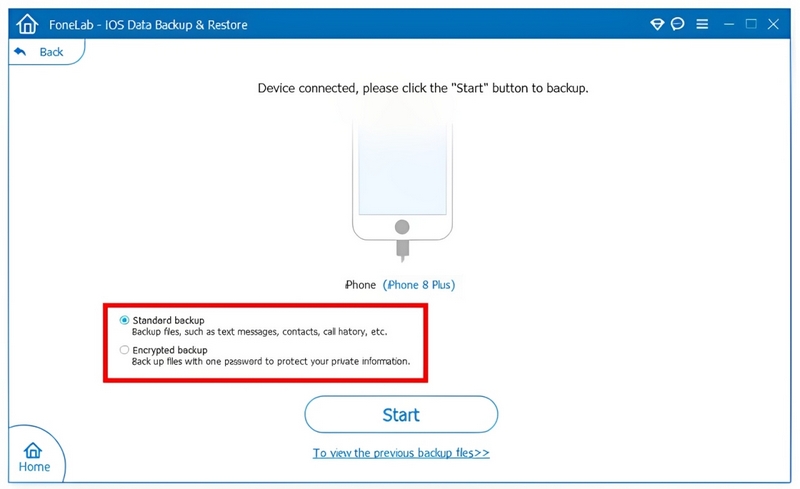
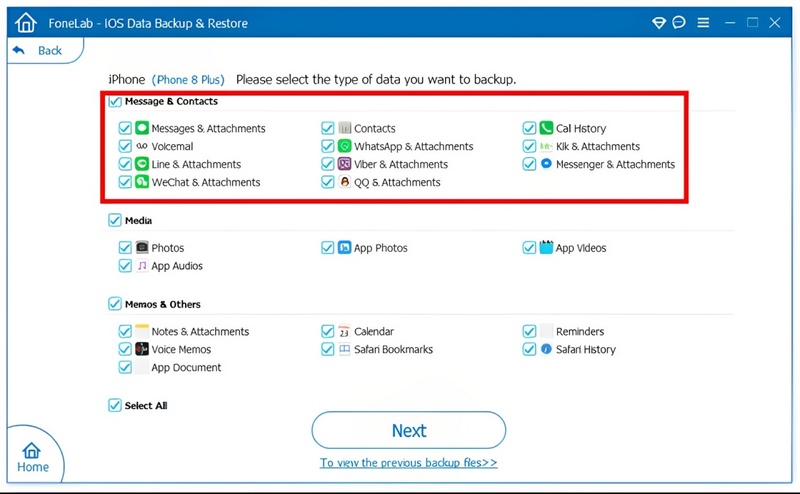
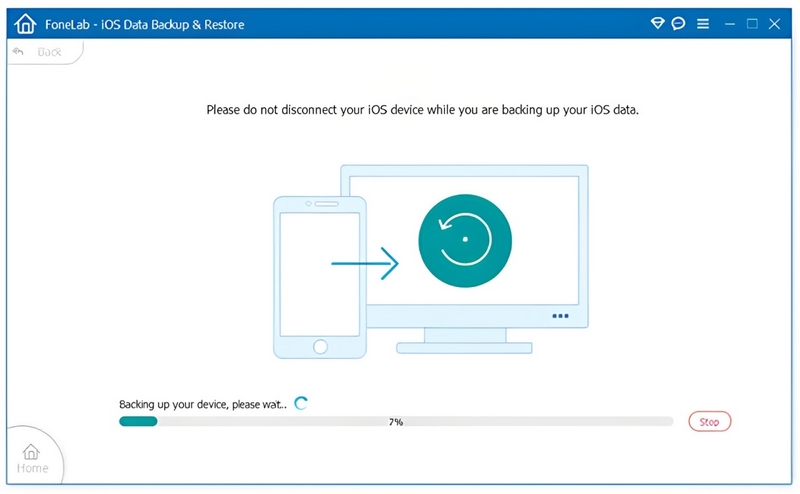
Text messages often carry important discourse, private data, or even great conversations that really touch you and that you wish to preserve. Changing your phone or just having a safety copy of your messages are some reasons that would make backing them up to your PC a good idea. Inquiring how to back up texts on iPhone? Well, Aiseesoft iOS Data Backup & Restore is one of the simple and guaranteed ways to do it. It helps you back up your iPhone data on the PC within a few clicks and even allows you to make encrypted backups to safeguard your personal data.
Downloads
 100% Secure. No Ads.
100% Secure. No Ads.
Does iCloud back up text messages on iPhone? The answer is yes. If you want to backup text messages on your iPhone, iCloud provides a convenient way to store your SMS and iMessage data in the cloud. What you need to do is make sure your iPhone is connected to WLAN.
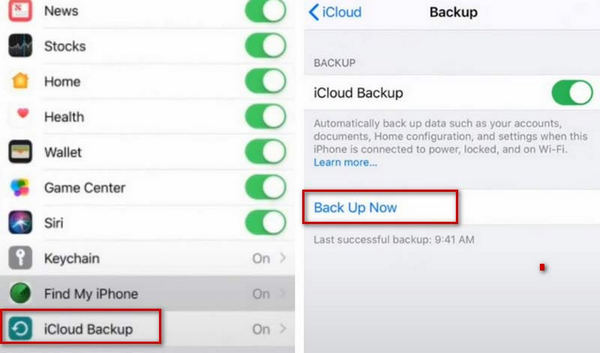
In this way, your text messages on iPhone will be saved to iCloud (free 5GB storage for your iCloud backup data), and you have to find other ways of viewing text messages on iCloud.
Text messages backed up from an iPhone to a computer or iCloud, will be saved in another place. If you switch to a new iPhone and just want to read the text messages from the old iPhone on the new iPhone, you had better back up text messages from one iPhone to another iPhone directly by forwarding.
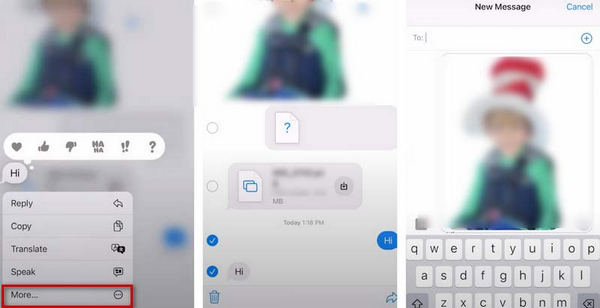
In this method, you need to pay money for the forwarded text messages charged by your carrier.
If you want to transfer text messages from one iPhone to another iPhone frequently, you can refer to the following guide: How to transfer text messages from iPhone to iPhone.
iOS users may notice that the iPhone can also add an email address as the contact information apart from the phone number. So here, you could also export text messages from iPhone to email.
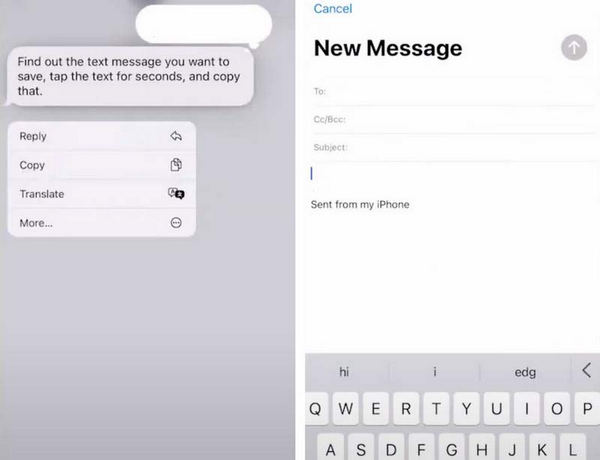
In this way, you need to make sure the email account is associated with an iPhone or iPad with a cellular connection.
Mac is also the creation of Apple, and it is widely used in the world. Backing up iPhone text messages to a Mac is also a good way.
Get more details here to sync text messages from iPhone to Mac: How to Sync Text Messages from iPhone to Mac.
Does the iPhone automatically delete old texts?
Generally, as long as you don't voluntarily delete your messages, they will be kept on your iPhone. But given that your phone's memory is limited, it's a good idea to clean it out regularly. Apart from that, you can also set it so that the system automatically clears the messages now and then.
Where are deleted iPhone messages stored?
When you delete messages on your iPhone, they will be saved in Messages. You can tap Edit in the top-left corner and choose Show Recently Deleted. To view deleted messages on your iPhone, tap Filters > Recently Deleted. But remember, your iPhone can only save deleted messages for you for 30 days.
Is it better to back up the iPhone to a computer or iCloud?
In comparison, iCloud is the optimal choice for backing up iPhone. As long as you set up automatic backup on your iPhone, you will no longer need any extra operation to ensure the data on your phone is safely backed up to the cloud. And by logging into iCloud, you can view and save your backups on any device.
Will iCloud back up everything on the iPhone?
The iCloud backup covers many files, including almost everything on your device. However, files already saved in iCloud, like Contacts, Calendars, Notes, iCloud Photos, iMessages, etc., will not be included in iCloud backups.
Do iPhone backups take up a lot of space?
Yes, iPhone backup files are quite space-consuming. The backups are tedious and include pictures, videos, and other content. As iPhone usage grows, the size of the backup file also expands. So you can clean up the unneeded backup files regularly.
Conclusion
To fix how to back up iPhone text messages smoothly and without loss, we list five methods and introduce their detailed steps, including one of the most practical data recovery and backup tools. Hope our content helps you. You are welcome to leave your opinion and discuss it with us.
 2 Ways to Change Text Message Backgrounds for iPhone and Android
If you want to customize text message backgrounds, you can find 2 ways to achieve the task on iPhone and Android devices in this tutorial.
 AirPlay Icon Not Showing Up? Here Is A Fix
AirPlay not showing up on iPad? You can learn why AirPlay not work and how to fix AirPlay not showing up issue in this post.
 Top 10 Text Message Scheduler Apps for Android Phone and iPhone
Here is a collection of top 10 text message scheduler apps available to iPhone and Android device to help you send text messages (SMS) or MMS according to your schedule.
 Leave your comment and join our discussion
Backup iPhone Data
Backup iPhone Text Messages Backup iPhone Photos Backup iPhone Contacts Backup iPhone Music Backup iPhone WhatsApp Messages Backup iPhone Voice Memos Backup iPhone Data Before Upgrade
Your best choice to back up data from iPhone/iPad/iPod to Windows/Mac and restore from iOS data backup to iOS device/computer safely and efficiently.
100% Secure. No Ads.
100% Secure. No Ads.

*Required field
*Please enter a valid email

