Video Converter Ultimate
 100% Secure. No Ads.
100% Secure. No Ads.
Finally, you have the MOV file you wanted, but you soon discover that the platform or device you want to watch the file on doesn't support it. Rather than finding a complicated solution, you should be able to convert it from MOV to MP4, which should be a lot simpler to share, upload, and use for most applications. If you are used to running command-line commands, you can run an FFmpeg MOV-to-MP4 conversion, and you will have the file done in no time. This guide is mainly written for a person who wants to figure out if FFmpeg is actually a feasible option for the job, and if it's worthwhile to use it for everyday video conversions.
How We Test
We chose to test the conversion to MOV with the same video file for comparison purposes. This allows us to have a fair result when testing the features of the two video converters, such as conversion speed, output quality, file size, and usability. It is essential that we play the converted MP4 file to check that both video and audio were properly rendered.
| Feature | FFmpeg | Aiseesoft Video Converter Ultimate |
| Ease of use | Technical | Very easy |
| MOV to MP4 | Yes | Yes |
| Batch conversion | Yes | Yes |
| Output settings | Highly customizable | Flexible and easy to adjust |
| Video editing | Command-based | Built-in editing tools |
| Interface | Command line | User-friendly GUI |
| Internet required | No | No |
| Best for | Advanced users | Beginners and regular users |
MOV files are a very common film format choice for Apple users. They may, though, turn out to be inconvenient for you if your goal is merely to share your file or upload it via online tools like video sharing platforms or online storage services. This is the case since there are a lot of websites, apps, and devices that do support either the MP4 format directly or convert it easily into it. Besides that, MP4 is a much more commonly accepted type of file format.
This process can help you cut the file size of a video down while retaining its high quality as you tweak the settings during conversion. That being said, if you are struggling with a MOV file that's a particular platform issue, changing the MOV file to an MP4 may be a handy trick that can solve the problem very quickly with very little effort put in.
Thanks to FFmpeg, you can convert your MOV to MP4 right there in the Command Prompt or Terminal. To do that, simply type the corresponding commands. Of course, for anyone who has never used FFmpeg, getting accustomed to the command-line environment can feel somewhat strange. Also, FFmpeg's documentation shows how to convert formats by using almost identical -i input and output-file syntax.
Steps to Convert MOV to MP4 with FFmpeg
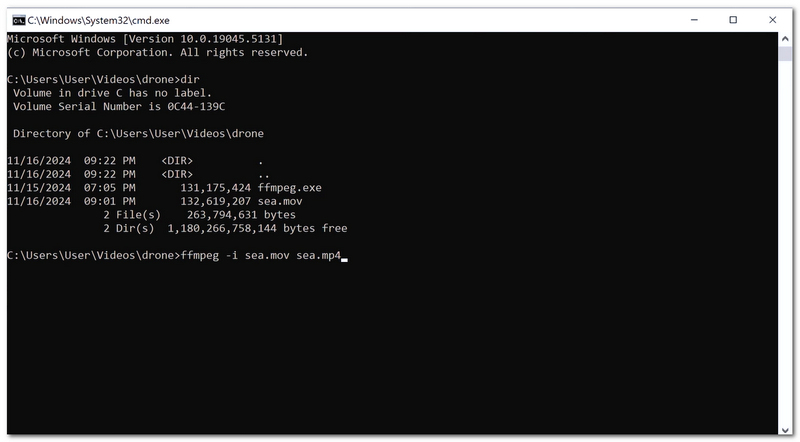
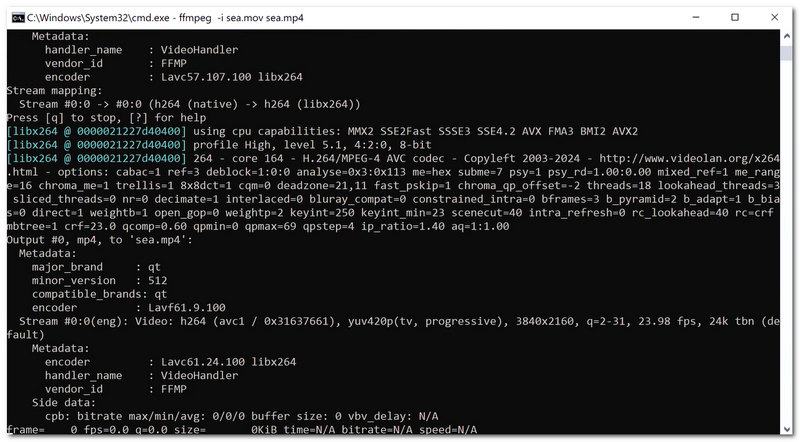
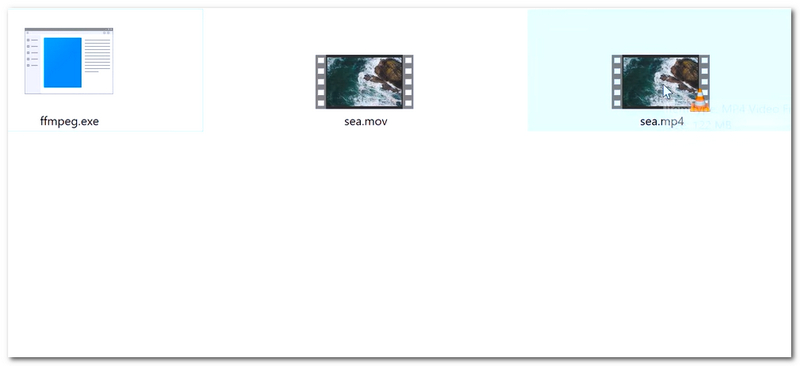
FFmpeg offers not just the simple conversion of a file from one format to another, but also an array of possibilities to tweak the result, such as selecting codecs for video and audio, determining the bitrate, frame rate, etc.
Using FFmpeg can be an excellent method if you are aiming to convert MOV files to MP4 and want much more control. Besides, since it is operated through the command line only, it might not be quite as user-friendly for everyone.
PROS
CONS
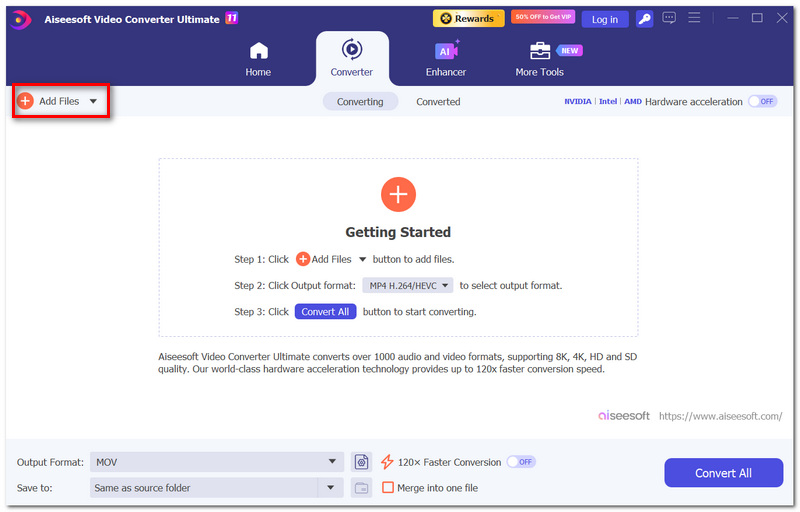
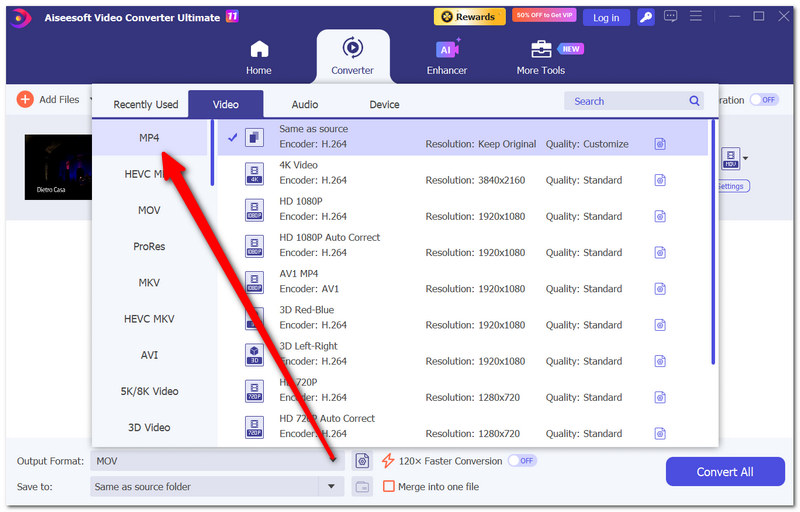
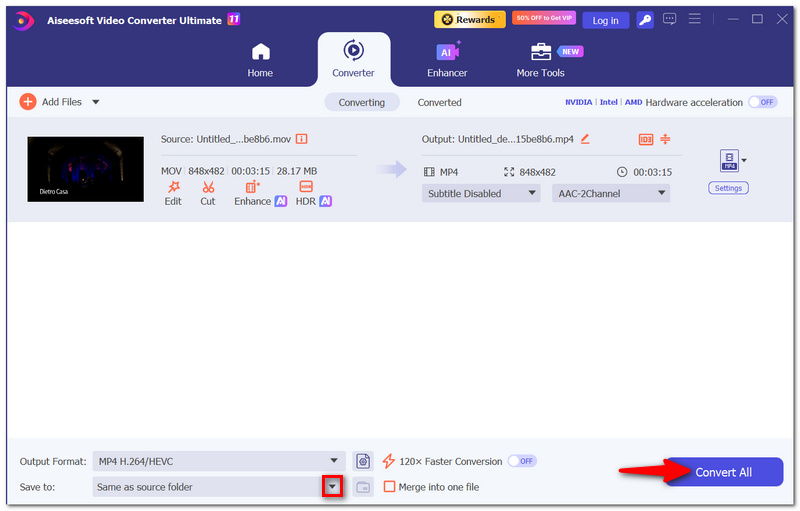
When you're not confident converting a video with FFmpeg, it's a good option to use Aiseesoft Video Converter Ultimate for a user-friendly video converter. It works much like any regular software. You add your file, specify the target format, and just a couple of clicks later you're done!
Another thing to love about Aiseesoft is that, besides changing the format of a file, it offers more advanced video editing capabilities. One can tweak parameters for output, do video editing, work with one or multiple files, or even go through hundreds of supported formats. All of that combined makes it a nice choice for a user who wants to simplify tasks while not compromising quality and variety of features.
100% Secure. No Ads.
100% Secure. No Ads.
How to Convert MOV to MP4 with Aiseesoft Video Converter Ultimate
Why does FFmpeg error out occasionally when the MOV file can be played normally?
A video file that plays perfectly in a media player can still contain a codec or stream that FFmpeg uses to generate an error during conversion. To find out what is wrong, you can check the file details with FFmpeg.
Is it possible to transform a MOV file into an MP4 while keeping the chapters?
That would depend on the structure of the original file and the way chapters are embedded. FFmpeg supports both reading and writing of chapters as part of its metadata. Still, the results may vary from container to container and from one player to another, mostly in the matter of compatibility.
Does FFmpeg have the potential to convert a MOV file without losing its creation date?
That's not a given. A system's file creation or modification dates, instead of an embedded media's metadata, are two separate things, so even if a new file preserves some of its metadata, that MP4 may still get a new date.
Conclusion
After going through the differences between each option, FFmpeg MOV to MP4 seems to be really good when flexibility and detailed management are priorities. But if simplicity and convenience are more what you look for, then Aiseesoft Video Converter Ultimate would be the way to go. The bottom line is that each one comes with different features, so given your needs, you can make a decision.
 How to Use FFMPEG Deinterlace: Filters, Commands, and AI Tools
Fix interlaced videos easily with FFMPEG Deinterlace. Discover the top filters, commands, and AI alternatives for seamless, clear playback.
 5 Best Ways to Convert MP3 to OGG (Online & Desktop Tools)
Looking for an efficient MP3 to OGG converter? Discover 5 fast ways to convert MP3 to OGG on Windows, Mac, and online, with batch conversion and quality tips.
 Effortlessly Convert VRt to SRT - A Simple Subtitle Integration Guide
A hassle-free guide to convert VTT to SRT file with FFmpeg and ways to quickly add SRT file subtitles to a video. Know more information about VTT and SRT here!
 Leave your comment and join our discussion
Convert/Download/Edit SWF
1.1 SWF 1.2 SWF to MP4 1.3 SWF to GIF 1.4 SWF to MOV 1.5 SWF to HTML5 1.6 SWF to AVI 1.7 SWF to WMV 1.8 SWF to 3GP 1.9 SWF to DVD 1.10 SWF Converter Mac 1.11 Edit SWF
Video Converter Ultimate is excellent video converter, editor and enhancer to convert, enhance and edit videos and music in 1000 formats and more.
100% Secure. No Ads.
100% Secure. No Ads.

*Required field
*Please enter a valid email

