iPhone Data Recovery
 100% Secure. No Ads.
100% Secure. No Ads.
A lot of stored iPhone messages are useless for you. It takes quite much persistence to make up your mind to delete iPhone messages, worrying that you may need them one day. The funny thing is, once you delete these iPhone SMS, somehow they become useful and have some information you need. So how to find deleted messages on iPhone? In the following article, there are 4 working ways to recover deleted messages on iPhone
Your deleted iOS message is not destroyed. On iOS 16 and later, Apple added a Recently Deleted folder inside the Messages app. It keeps deleted messages for 30 days. This is the easiest and safest way to recover messages.
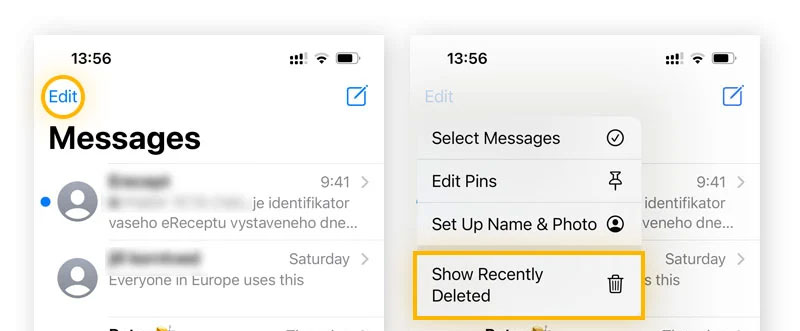
Keep in mind that your messages in the Recently Deleted file only stay 30 days. After that, iOS deletes them automatically. Once removed from here, Apple cannot restore them.
Sometimes deleted messages still appear in Spotlight search for a short time. This happens because:
1. iOS updates its search index in the background
2. There can be a delay between deleting a message and removing it from search
If you’re lucky, you may still see the deleted message. However, using Spotlight to find deleted information usually has a low success rate
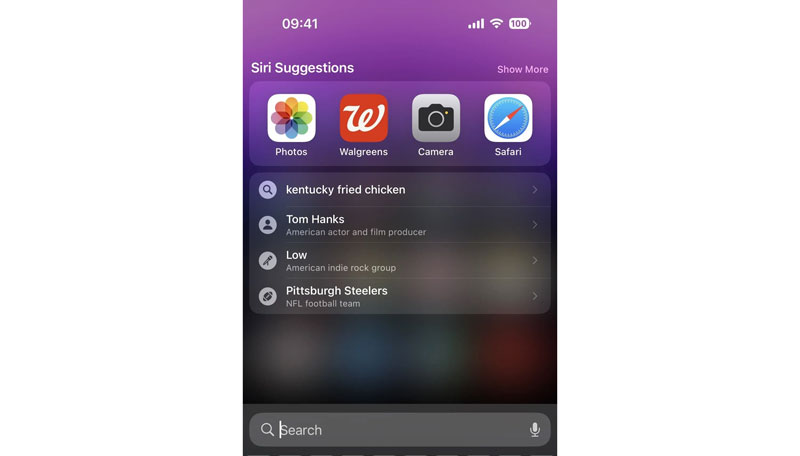
Note: This only works briefly and is not reliable, but it’s worth trying right after deletion.
If your messages were in a backup, you can restore the backup to get them back. This method works well, but it has one big downside:
It replaces your current data and remove all new messages, photos and app data.
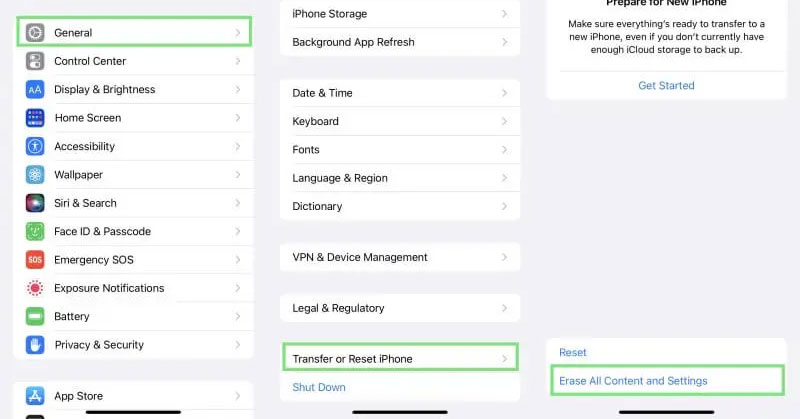
iCloud recovery can be convenient if you do have a backup. But some people want to find all deleted messages on iPhone/iPad without data loss. So, there is another way to check deleted iPhone texts, scan, and view all iPhone text messages, including the deleted ones. Aiseesoft iPhone Data Recovery is an ideal iPhone manager. How to see deleted messages on iPhone? You can follow the simple steps below:
100% Secure. No Ads.
100% Secure. No Ads.
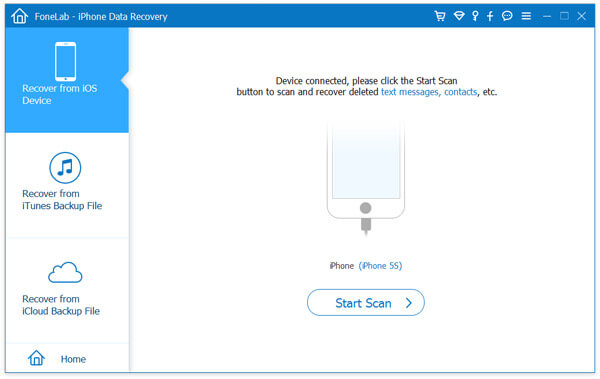
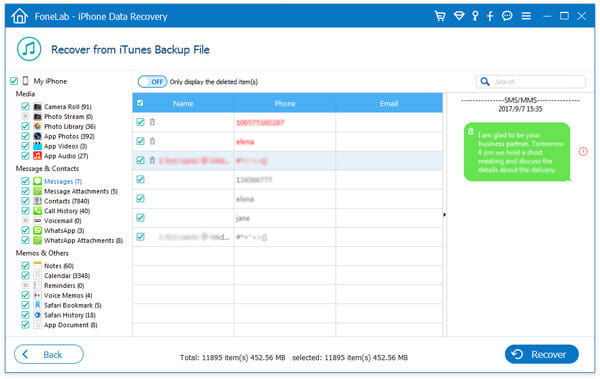
With this iPhone messages manager, you cannot only find deleted iPhone messages, but also see other deleted files such as photos, contacts, memos, etc. Besides, if you want to not just see deleted iPhone text messages, this software supports you in recovering deleted photos, videos, messages, etc. on iPhone.
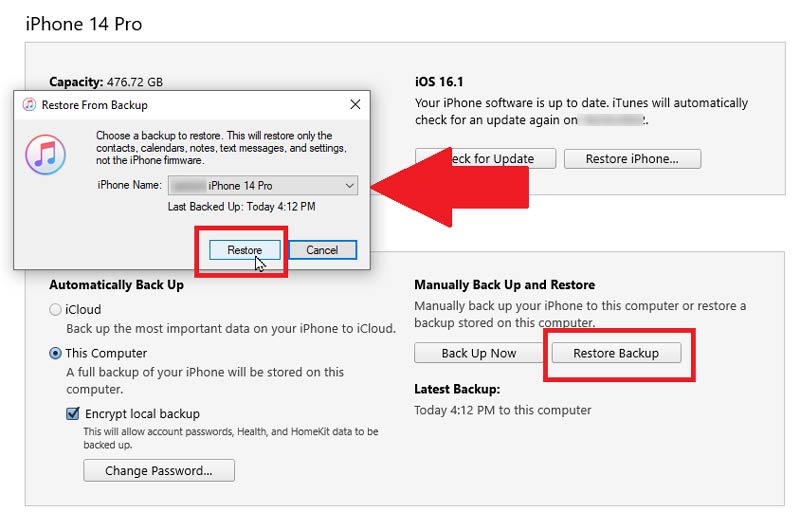
If you have backed up your iPhone on a computer before, you can use iTunes (Windows/macOS Mojave or earlier) or Finder (macOS Catalina 10.15 or later) to find and restore deleted messages on your iPhone. Note: During the recovery period, the iPhone will restart and do not disconnect the USB cable.
Do deleted text messages stay on iPhone?
Yes. The deleted text messages still stay on your iPhone after deletion. It will be marked as deleted by the internal database on iPhone. Besides, the deleted text messages is sent to the network provider.
Can I retrieve permanently deleted text messages without making any backups?
In this case, the official methods have a low success rate. But you can try using third-party data recovery software. There are some specialized iPhone data recovery tools on the market, like Aiseesoft iPhone Data Recovery.
Where are iMessages stored?
iMessages are automatically stored in Apple's backup system iCloud. You can enable iMessages on in Settings > Messages.
Conclusion
In this article, we have sloved the basic question “are iPhone messages really deleted?” and we have offered you simple tricks on how to find deleted messages on iPhone, if you have more questions or suggestions to see iPhone deleted messages, leave your comments down below.
 Two Ways to Print Text Messages out from Your iPhone Freely
This post provides two ways to help you print iPhone text messages freely.
 How to Transfer Text Messages from iPhone to iPhone
Want to move text messages between two iPhones? This step-by-step guide will help you.
 Ways to Search and Back up Text Messages on iPhone X/8/7/6/5/4
This guide will tell you how to search old text messages on iPhone.
 Leave your comment and join our discussion
Find Data
1. Find Deleted Messages on iPhone
2. Find Deleted Apps on iPhone
3. Find Deleted History on iPad
The best iPhone data recovery software ever, allowing users to safely recover lost iPhone/iPad/iPod data from iOS device, iTunes/iCloud backup.
100% Secure. No Ads.
100% Secure. No Ads.

*Required field
*Please enter a valid email


