iPhone Data Recovery
 100% Secure. No Ads.
100% Secure. No Ads.
It is convenient to use voice memos when capturing recordings of a lecture, discussion, interview, etc. However, it is very easy to lose data. Regardless of the reason for data loss – by mistake you pressed "delete", you reformatted the device, or files just disappeared after upgrading your iOS system – all these situations might become really annoying.
The question "Is there any chance to restore a deleted voice memo on iPhone?" arises here. And my answer is yes. Let me show you how to restore voice memos easily, and regardless of having a backup or not.
Before learning the guides, please follow this comparison table to determine which approach fits you best:
| Recovery Method | Selective Recovery Support | Success Rate | Backup Required? | Best For |
| 1. Recently Deleted Folder | Yes | Moderate | No | Accidental deletions within the last 30 days. |
| 2. Aiseesoft FoneLab | Yes | High | No | Users are facing permanent deletions without backup. |
| 3. iCloud Backup | No | Low | No | Users have backed up data to their iCloud. |
| 4. iTunes / Finder Backup | No (Official) | High | Yes | Users who regularly back up their entire device to a computer. |
If you wish to learn whether recovering voice memos from an iPhone is feasible, rest assured. Yes, it definitely is.
The fact of the matter is that when you delete voice memos on an iOS gadget, the files do not vanish from your physical hard disk drive. What happens instead is that the system makes this particular spot free for use for other files.
Whether you are trying to figure out how to recover deleted voice memos on iPhone 6 or looking for the same solutions on iPhone 11, these methods cover every generation of iOS.
Apple includes a native solution within the Voice Memos app that works similarly to the "Trash" on a computer. If you deleted the file recently, it is likely still sitting in this temporary folder.
Steps to follow:
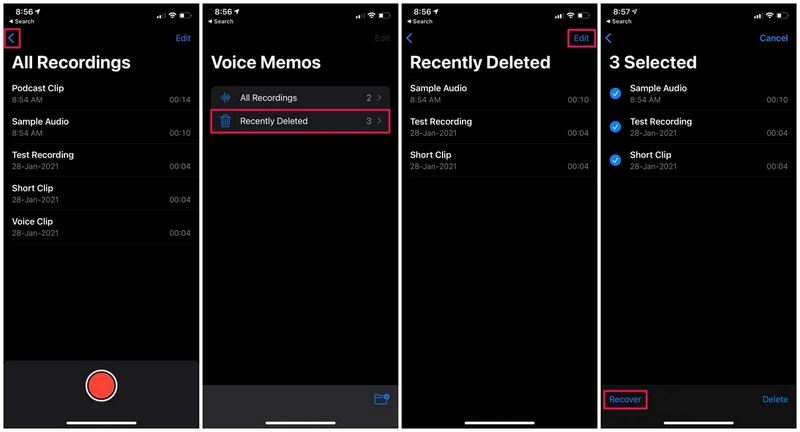
Files in this folder are automatically erased after 30 days. If your folder is empty, try using a professional iPhone data recovery software.
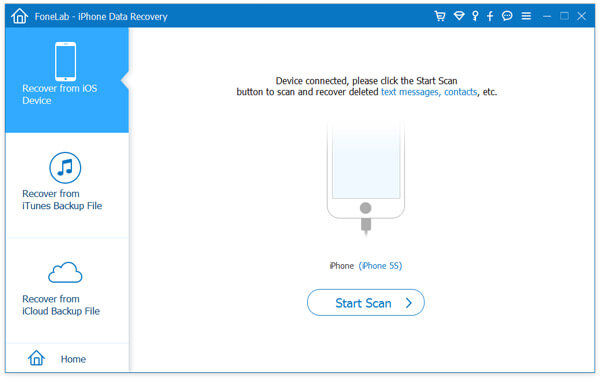
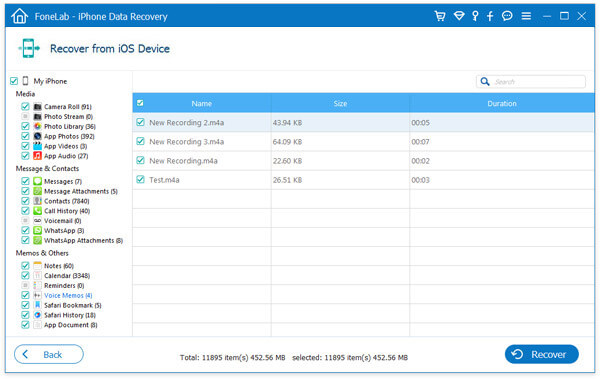
If you don't have a backup and your trash folder is empty, you need a specialized solution for how to recover deleted voice memos on iphone without backup. Aiseesoft FoneLab iPhone Data Recovery is such a tool to safely scan your device's internal storage and extract those hidden, un-overwritten files without damaging your current data.
Steps to follow:
100% Secure. No Ads.
100% Secure. No Ads.
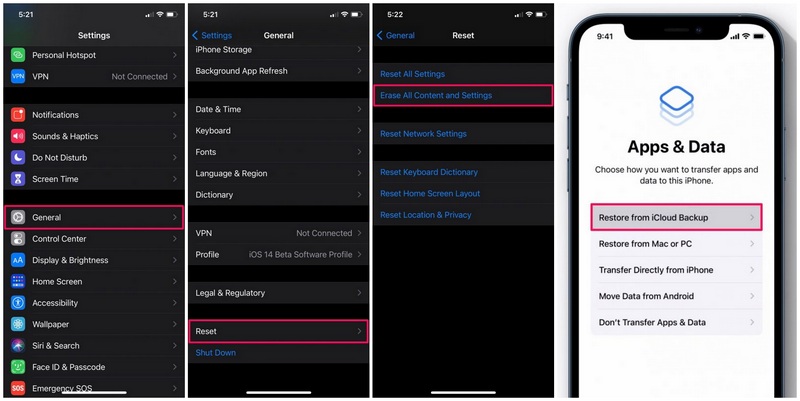
If you regularly back up your device to iCloud, your lost voice notes might be safely stored in the cloud. However, Apple’s official system only allows you to restore an iCloud backup during the initial device setup. This means you will need to completely erase your iPhone or iPad first.
This method will factory reset your device. Any data created between the time of your last backup and now will be lost. Make sure the backup date older than the time you deleted the memos.
Steps to follow:
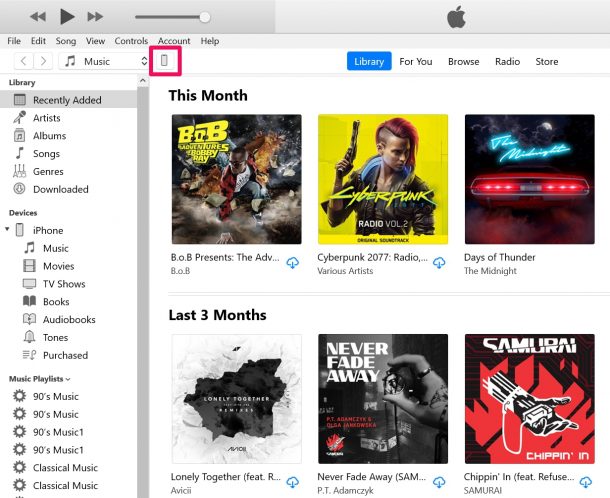
If you’ve backed up your device to a computer via iTunes or Finder, your deleted voice notes are likely stored within those backup files and you can get them in the same way.
Steps to follow:
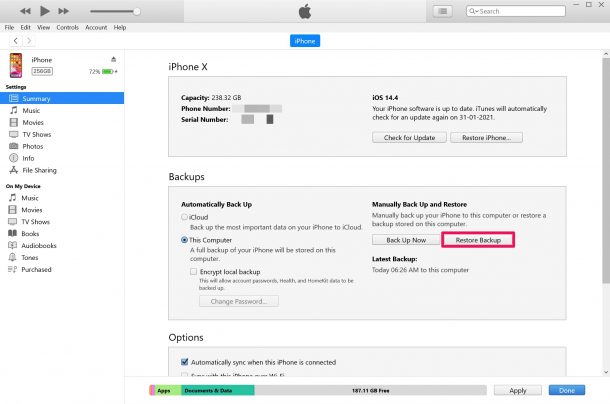
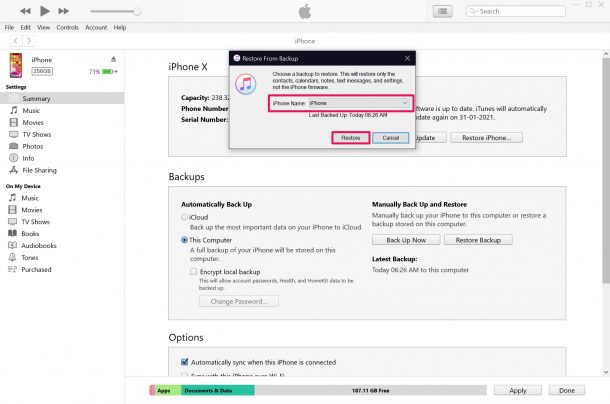
Warning: This official method will overwrite your entire device, replacing your current photos, texts, and app data with the older backup content. If you want to avoid this, you can use Aiseesoft FoneLab's “Recover from iTunes Backup File” feature to safely extract just the voice memos without a full system restore.
100% Secure. No Ads.
100% Secure. No Ads.
Q1: How far back can I recover permanently deleted voice memos?
There is no specific time limit. It depends entirely on how heavily you have used your device since the deletion. If the sector of memory where the audio was saved hasn't been overwritten, it still can be recovered months later.
Q2: Why did my voice memos disappear after an iOS update?
iOS updates can mess up the indexing when iCloud syncing, which makes it look like your voice memos are lost. But chances are that your files are still physically on your phone. A quick restart might be enough to get things back into place.
Q3: Can I transfer recovered voice memos back to my iPhone?
Yes. You can easily send the recovered voice memos back to your device via AirDrop, email, iCloud Drive, or through Finder/iTunes.
Conclusion
If you're trying to make it clear how to recover deleted voice memos on your iPhone, the first thing is to check the Recently Deleted folder. If nothing's there, a solid option is to use a professional desktop recovery tool like Aiseesoft FoneLab—it gives you the best possibility to get your recordings back.
100% Secure. No Ads.
100% Secure. No Ads.
And to protect your important ideas and recordings moving forward, remember to double-check your iCloud backup settings under ‘Settings’ > [Your Name] > ‘iCloud’ and ensure that the toggle for 'Voice Memos’ on your iPhone is always turned on.
 Two Ways to Turn a Voice Memo into Ringtone on iPhone
TCan I have a recording as a ringtones on my iPhone? The answer is yes. Follow this post to turn a voice memo into ringtone on your iPhone.
 How to Transfer Voice Memos from iPhone to Mac
Want to Transfer Voice Memos from iPhone X/8/7/6/5 to Mac? This article show you how to transfer voice memos from iPhone and move them to Mac.
 Retrieve Deleted Voicemail on Your iPhone SE/6/5/4
Retrieving deleted voicemail on iPhone can be very easy after you read this post.
 Leave your comment and join our discussion
Recover Deleted Data from iPhone
Recover Deleted Photos from iPhone Recover Deleted SMS from iPhone Recover Deleted Call Logs from iPhone Recover Deleted Contacts from iPhone Recover Deleted Reminder from iPhone Recover Deleted Notes from iPhone Recover Deleted Calendar from iPhone Recover Deleted Voice Memo from iPhone Recover Deleted Music from iPhone
The best iPhone data recovery software ever, allowing users to safely recover lost iPhone/iPad/iPod data from iOS device, iTunes/iCloud backup.
100% Secure. No Ads.
100% Secure. No Ads.

*Required field
*Please enter a valid email

