
Aiseesoft Screen Recorder
 100% Secure. No Ads.
100% Secure. No Ads.
Nowadays, there are more and more software and tools that can help people to do various operations. Their functions are becoming more and more diverse. This phenomenon has given rise to the problem of people using the latest tools without knowing how to do them. As the most intuitive instructions, tutorial videos are the first choice for most people. They will explain the functions in detail and actually walk through the process. So, how do you make a tutorial video that will actually help the user? We'll answer your questions in detail in this article and recommend the best tools to accompany them. We hope you find our content helpful.
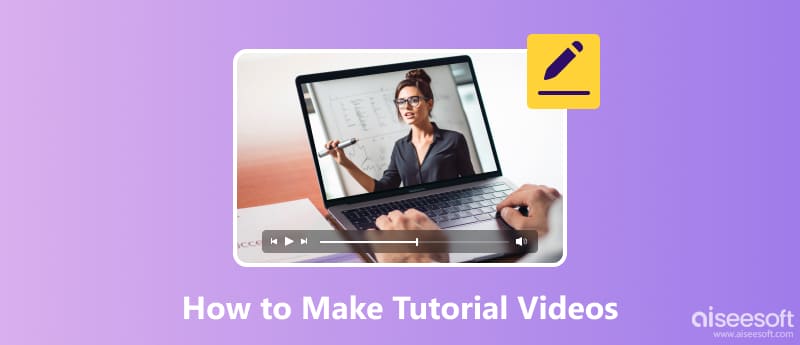
Tutorial videos are a popular form of content that offers step-by-step instructions on how to perform a specific operation or learn a new skill. These videos are typically created to educate and guide viewers through a particular process. The structure of a tutorial video is important as it helps ensure that the information is presented in a clear and well-organized manner. A well-structured tutorial video typically includes an introduction, an overview of the steps or process, step-by-step instructions, tips and tricks, troubleshooting solutions, a recap and conclusion, and a call to action. By following this structure, tutorial videos can effectively teach and engage viewers, helping them learn and apply new skills or knowledge.
Before making a tutorial video, there are several things you should prepare.
Plan your contentDecide what topic or task you want to demonstrate in your tutorial video. Outline the steps you will take and the key points you want to cover.
Prepare an outlinePrepare an outline for your tutorial video. This will ensure that you cover all the necessary information.
Visual aidsPrepare any visual aids or props you will need for your tutorial video. This could include screenshots, diagrams, or physical objects.
EquipmentMake sure you have the necessary equipment for recording your tutorial video. This may include a camera, microphone, tripod, and lighting equipment.
Software and toolsIf your tutorial video involves using specific tools, make sure you have them installed and ready to use.
PracticePractice your tutorial video before recording. This will help you become more comfortable with the content and ensure a smoother recording process.
Editing softwareFamiliarize yourself with video editing software if you plan to edit your tutorial video. This will allow you to make any necessary edits and add any additional elements, such as captions or graphics.
Set and backgroundChoose a suitable location for recording your tutorial video. Make sure the background is clean, and the lighting is good.
By preparing these things beforehand, you can ensure that your tutorial video is well-organized and informative.
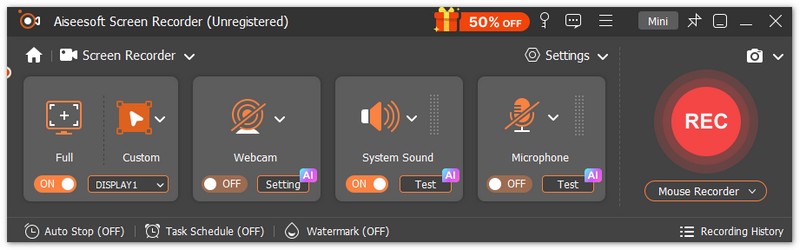
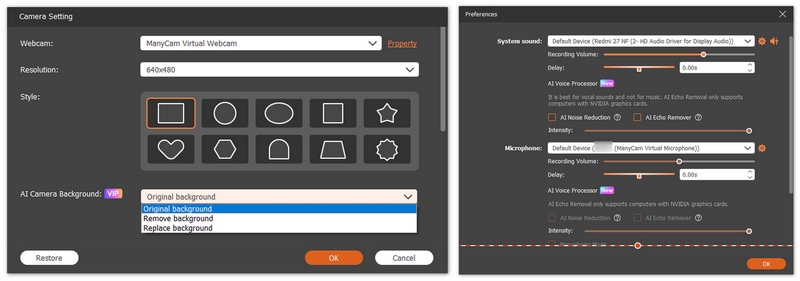
To create a high-quality tutorial, the first step is capturing your screen with precision. A professional tool like Aiseesoft Screen Recorder is essential for this process. It goes beyond basic recording, offering 4K Ultra HD support and AI-powered audio noise reduction to ensure your instructions are crystal clear.
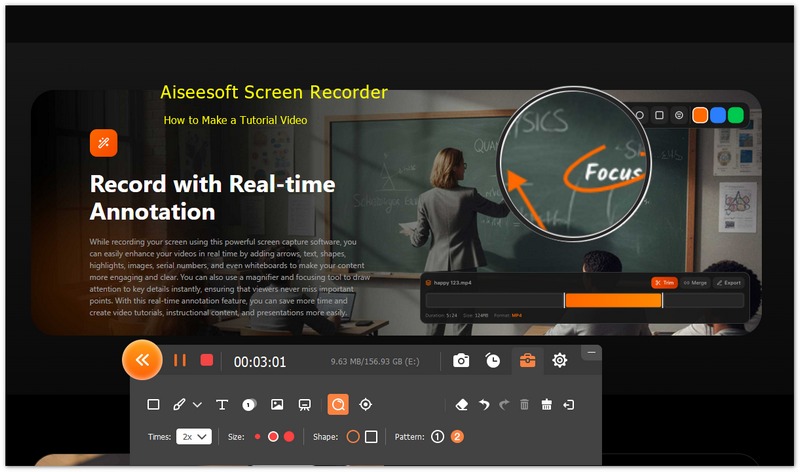
Whether you’re recording a software walkthrough, a fast-paced game, or a business presentation, it gives you the flexibility to capture any window or audio source. With built-in tools for real-time annotation and quick edits, you can highlight key steps instantly, making your instructional videos more engaging and effective.
100% Secure. No Ads.
100% Secure. No Ads.
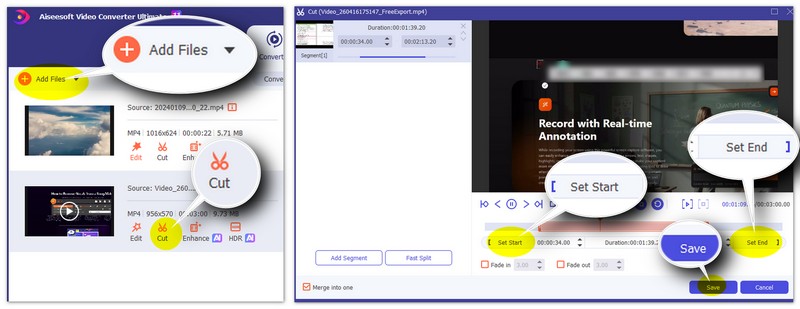
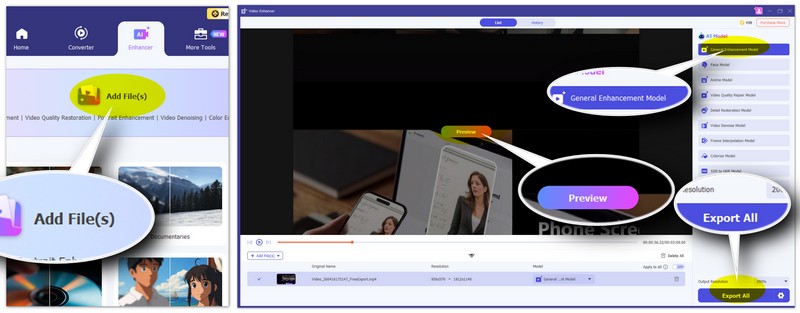
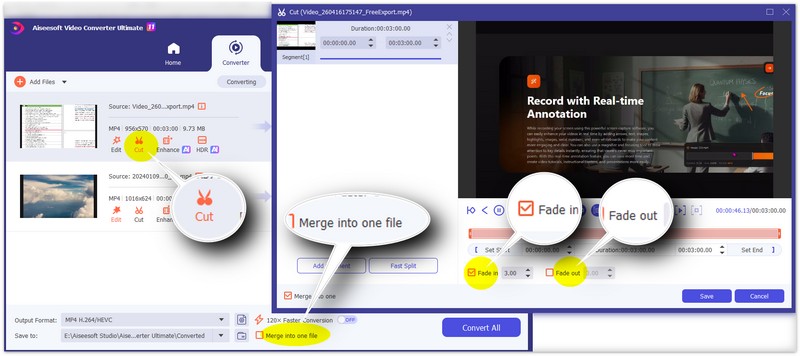
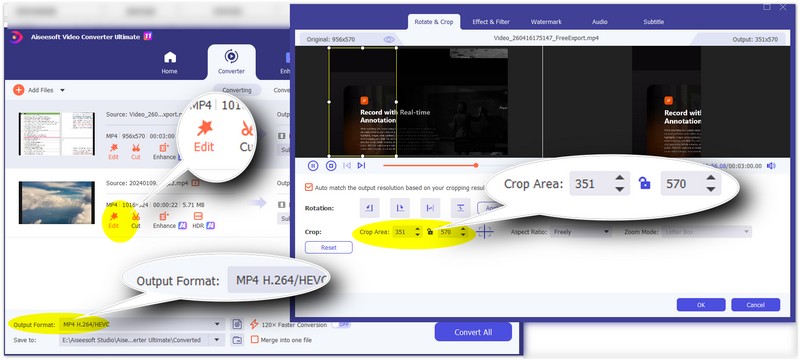
Once you have your raw footage, editing is what turns a basic screen recording into a high-quality guide. You need to remove mistakes, cut unwanted parts, and ensure the audio is crystal clear. For this, Aiseesoft Video Converter Ultimate is a fast and effective tool to refine your content. So, how to Edit Your Tutorial Step-by-Step:
Trim and Cut Mistakes:
Enhance Video Quality with AI:
Merge and Transition:
Adjust for Any Platform:
How do you structure a tutorial video?
First, clearly state the purpose of the video and what viewers can expect to learn. Then, break down the tutorial into clear and concise steps. Demonstrate each step while explaining it in detail. You should also fix common issues or problems that viewers may encounter and provide solutions or troubleshooting tips.
How do you make a tutorial video on an iPhone?
Open the Control Center on your device and tap the screen recording button. Proceed with your tutorial, demonstrating each step while explaining it in detail. After stopping the screen recording, you can edit the video on your iPhone using the built-in Photos app or third-party video editing apps.
How long should a tutorial video be?
The length depends on various factors, such as the complexity of the topic, the depth of information covered, and the attention span of the target audience. However, it is generally recommended to keep training videos concise. A training video should be around 5 to 15 minutes long, as this length is more likely to hold the viewer's attention.
What makes a good tutorial video?
A good tutorial video should be clear, concise, and easy to follow. It should have a well-structured format with a clear introduction, step-by-step instructions, and a conclusion. Visual aids, such as screenshots or screen recordings, can enhance the understanding of the content. It is also helpful to include tips, tricks, and troubleshooting solutions to address common issues.
What are the benefits of a tutorial?
Tutorial videos offer a structured and comprehensive way to learn new skills, concepts, or processes. They break down complex information into manageable steps, making it easier for learners to understand and apply the knowledge.
Conclusion
In this article, we give you a detailed overview of what a tutorial video is and how to make a well-crafted tutorial video. We have recommended two of the best tools to expect to escort you through the production process. You can download them and follow our guide to explore their features. If you have any more questions, feel free to leave a comment and talk to us. We'd love to hear from you.
 Best 10 Photo Video Makers to Make Perfect Photo Videos
If you want to make interesting videos with your own photos, here are the best 10 photo video makers for you to achieve it easily and effortlessly.
 [Updated] How to Create Animated Movie with Cartoon Video Maker
What is the animation maker to create cartoon video? This page will show you the top animated movie maker software online, for PC, app and APK. It is useful.
 Comprehensive Tutorial to Make a TikTok with Multiple Videos
Adding multiple videos on TikTok natively is a fairly straightforward process. Beginners can learn more methods and the concrete process from this single guide.
 Leave your comment and join our discussion
Aiseesoft Screen Recorder is the best screen recording software to capture any activity like online videos, webcam calls, game on Windows/Mac.
100% Secure. No Ads.
100% Secure. No Ads.

*Required field
*Please enter a valid email

