
Video Converter Ultimate
 100% Secure. No Ads.
100% Secure. No Ads.
Sometimes, making a video smooth and visually more appealing means changing the frame rate in such a way that it either matches your artistic vision or the standards of the platform. Using an effective FPS enhancer is a great way to help you with this. By utilizing a proper video FPS converter, it is possible to effortlessly increase or decrease frame rates like 24fps, 30fps, or 60fps without having to be skilled in complicated editing. This tutorial will present some of the top software to help you alter video FPS effectively. By selecting the appropriate tool, you will be able to enhance the sharpness of motion, make the experience of watching more delightful, and get a video of professional quality with hardly any effort.
Before buying a video FPS converter, you'd better understand the meaning of FPS (Frames Per Second). FPS is the number of distinct images that appear within one second of video playtime. Generally, higher FPS results in motion being smoother, while lower FPS tends to deliver a more "film" effect, but during fast motions may appear less fluid.
Below are the most common frame rate standards explained more clearly:
24 FPS – Cinematic Standard
30 FPS – Standard Video Frame Rate
60 FPS – Smooth Motion Playback
120 FPS and Higher – Ultra-Smooth Performance
Understanding these FPS levels will help you choose the right video frame rate before converting or enhancing your videos.
Two primary methods exist for changing the frame rates of videos: the original (standard) way of frame rate conversion and the AI frame interpolation that is done through modern technology. Learning their distinctions is a step in helping you select the suitable technique that will result in a video playback that is both smooth and natural-looking.
Standard Frame Rate Conversion
Standard FPS conversion adjusts the frame rate by duplicating or removing duplicate frames from the video. This is the most basic and widely supported method.
Key characteristics
AI Frame Interpolation
AI frame interpolation uses artificial intelligence algorithms to generate new intermediate frames between existing ones. This creates smoother motion compared to traditional methods.
Key characteristics
Which Method Should You Choose?
If your main concern is to simply change the FPS as quickly as possible while using the least amount of system resources, you should go for the standard conversion option. On the other hand, if you want to make the motion smoother and get video quality like that of a professional, you should choose AI interpolation.
You can choose the best video FPS converter for your particular editing requirements by being aware of these two approaches.
If you want the best FPS converter to improve motion smoothness and convert frame rates intelligently, Aiseesoft Video Converter Ultimate is one of the most recommended tools. It uses an advanced AI interpolation model to generate new frames instead of simply copying existing ones, resulting in clearer motion and more natural playback. This makes it ideal for gaming videos, sports footage, action scenes, and professional video enhancement tasks.

Downloads
100% Secure. No Ads.
100% Secure. No Ads.
Steps to Convert Video FPS with AI Interpolation
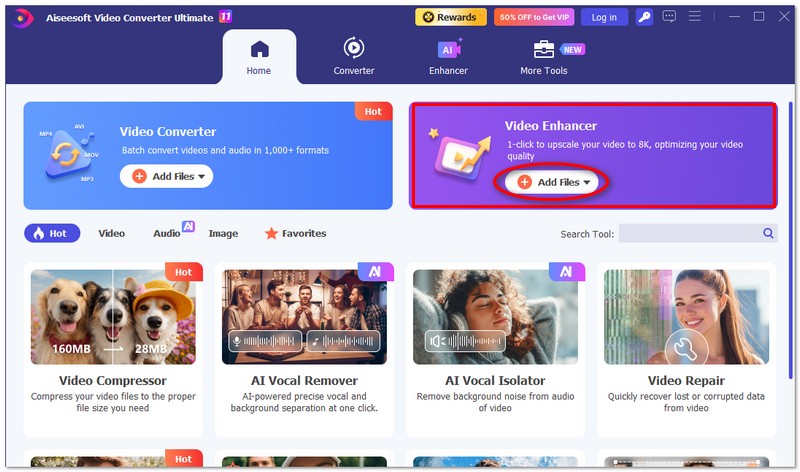
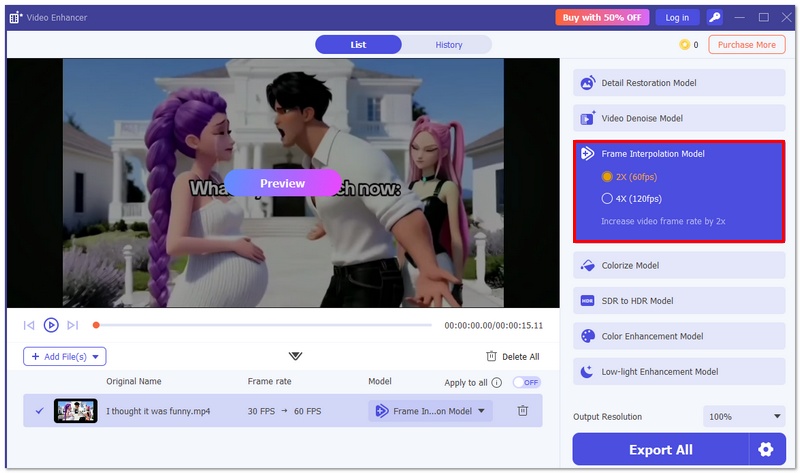
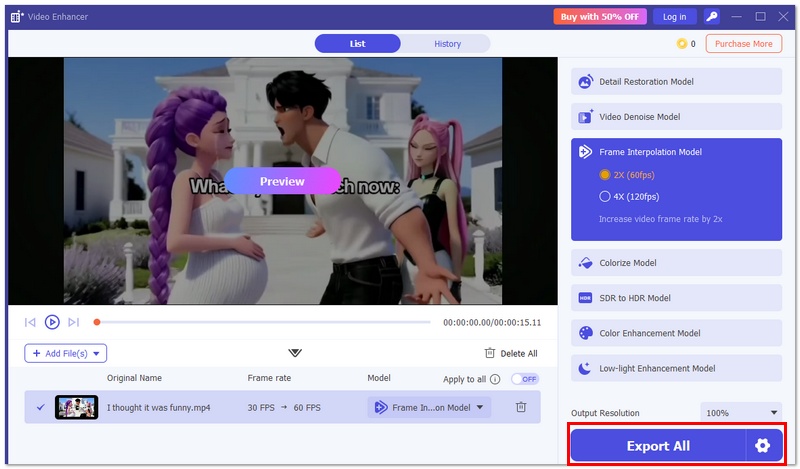
By using AI interpolation technology, this tool helps you achieve professional-level frame rate conversion with minimal quality loss.
If you prefer a quick way to directly change the frame rates of your videos, you can try using some free online video FPS changers. These web-based FPS converters give a convenient way to adjust frame rates with no software installation. Many associated tools are available to help you convert video FPS based on your needs. While they often have limitations, they are enough for basic FPS conversion needs. This part will recommend four popular options for you to choose from.
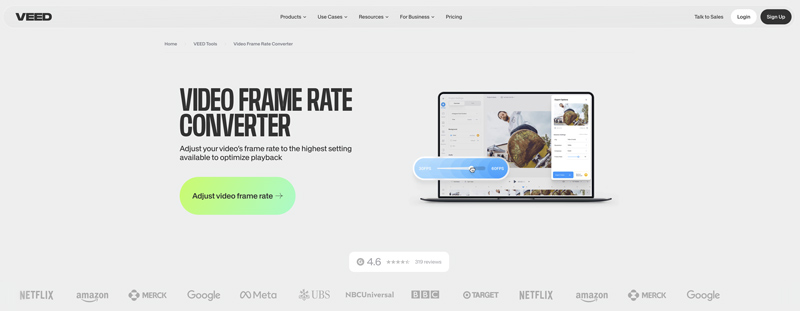
VEED Video Frame Rate Converter is a popular video FPS changer that allows you to adjust your video’s frame rate online. It lets you change the source video frame rate to 16, 24, 30, or 60 FPS to optimize playback. All commonly used video formats are supported. You can simply upload your video, locate the Frames Per Second option on the left, and then select the desired FPS.
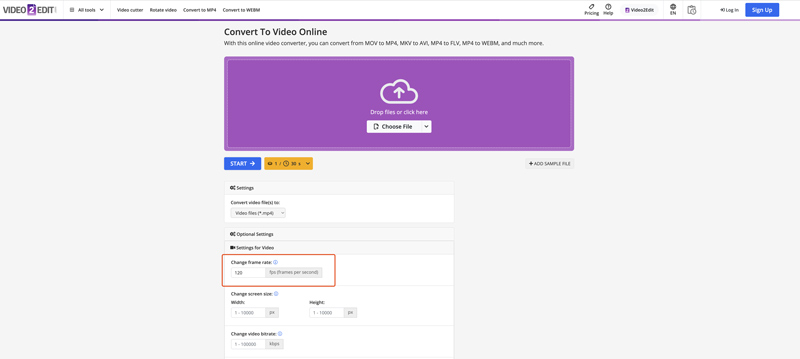
Convert To Video Online is mainly used to make video conversions online. For instance, it lets you easily convert from MOV to MP4, MKV to AVI, MP4 to FLV, and more. It offers various optional settings for you to adjust. It allows you to freely change frame rate between 1 to 120 FPS. As you can see, this online video FPS converter also allows you to customize video bitrate, codec, screen size, and more.
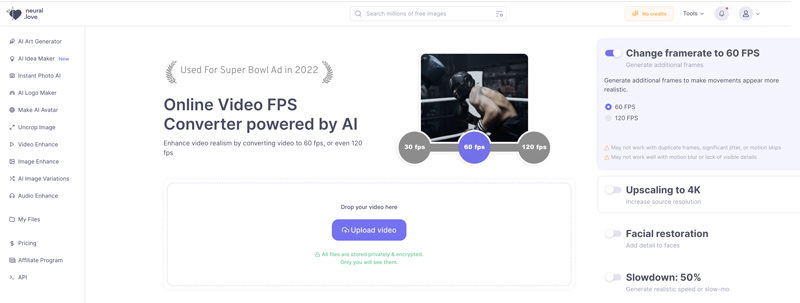
neural.love Online Video FPS Converter is specially designed to change video FPS using AI. It enables you to convert video FPS to 60 fps or 120 fps with enhanced quality. Once your video is uploaded, you can enable Change Framerate and select 60 FPS or 120 FPS. Moreover, this online AI video FPS converter allows you to upscale the resolution to 4K, make facial restoration, and apply a slow-motion effect.
FlexClip Online Video Frame Rate Converter shares a simple way to change the FPS of your video online for better viewing. It lets you easily speed up or slow down your video and convert the original frame rate to 24, 25, 30, 50, or 60 FPS. More than just an online video FPS converter, FlexClip carries various commonly used editing features and effects. For instance, it enables you to cut, crop, or rotate a video, change playback speed, apply filters, and more. After editing, you can click Export to display related options, such as resolution, frame rate, and quality. You can select a suitable FPS from the drop-down list of Frame Rate.

Here is the comparison table of the 5 video FPS converter tools based on features, usability, AI capability, and best use cases.
| Tool | Platform | AI Frame Interpolation | FPS Adjustment Range | Ease of Use | Output Quality | Best For |
| Aiseesoft Video Converter Ultimate | Windows / Mac | ✅ Yes | 24fps → 60fps / 120fps / higher | ⭐⭐⭐⭐⭐ | ⭐⭐⭐⭐⭐ | Professional video enhancement, gaming & sports videos |
| VEED Video Frame Rate Converter | Online | ❌ No | Up to 60fps | ⭐⭐⭐⭐⭐ | ⭐⭐⭐⭐ | Quick online FPS changes for social media videos |
| Convert To Video Online | Online | ❌ No | Basic FPS settings | ⭐⭐⭐⭐ | ⭐⭐⭐ | Simple frame rate conversion without software installation |
| neural.love Online Video FPS Converter | Online | ⚠️ Limited AI processing | Moderate FPS enhancement | ⭐⭐⭐⭐ | ⭐⭐⭐⭐ | AI-assisted online video enhancement |
| FlexClip Video Frame Rate Converter | Online | ❌ No | Standard FPS presets | ⭐⭐⭐⭐⭐ | ⭐⭐⭐⭐ | Beginners creating marketing or presentation videos |
Does converting 30fps to 60fps improve quality?
Changing a 30fps video to a 60fps format won't be an upgrade to the original video quality, but the motion will be smoother and more fluid. Generally, conversion might end up with ghosting problems, but AI frame interpolation is capable of creating extra frames so that the motion is even more natural and the playback is not interrupted by any artifacts. Besides, it is especially useful for sports, gaming, and action scenes.
Does increasing FPS boost the video quality?
Increasing FPS will significantly affect the smoothness of motion. You can make a video smoother by increasing FPS. However, the process won’t improve the overall image quality. However, some AI-powered video smoothers, like the introduced Filmai, will automatically boost the video quality while increasing FPS.
Why does my converted video look “ghosted”?
A “ghosted” video happens when frames are just duplicated during conversion, creating trailing or blurred motion. Using an AI fps converter can generate real intermediate frames to reduce ghosting and make the motion smoother.
Can I convert 24fps to 60fps for gaming?
Yes, you can convert 24fps to 60fps for gaming, but standard conversion may produce choppy or ghosted motion. Using an AI fps converter is recommended, as it generates new intermediate frames to create smoother, more fluid gameplay visuals.
Conclusion
You need to convert video FPS for various purposes. This post offers five great video FPS converter recommendations. Select the desired one to easily change the frame rate of videos.
 SVP Alternatives to Find the Best Frame Rate Conversion Tool
Does SVP work with VLC? What is the best alternative to SmoothVideo Project? Review the frame interpolation capabilities of SVP and get three SVP alternatives.
 Convert Video to 60 FPS: Complete Guide for Smooth Playback
Learn how to convert video to 60 FPS with ease on Windows, Mac, and online. Discover the methods and the best tools for smoother, high-quality playback.
 FlowFrames Video Interpolation Review: Smooth Motion or Not?
Discover whether FlowFrames video interpolation can make videos smoother, how fast it works, its output quality, and smarter alternatives.
 Leave your comment and join our discussion
Video Converter Ultimate is excellent video converter, editor and enhancer to convert, enhance and edit videos and music in 1000 formats and more.
100% Secure. No Ads.
100% Secure. No Ads.

*Required field
*Please enter a valid email

