Video Converter Ultimate
 100% Secure. No Ads.
100% Secure. No Ads.
If you have old mobile videos saved in 3GP format, you may want to extract their audio and save it as a WAV file for editing, archiving, or playback. WAV is widely used in audio production because it can store uncompressed audio, making it suitable for further editing. Fortunately, you can convert 3GP to WAV using desktop software or online tools without complicated steps.
In this guide, we'll introduce several ways to convert 3GP to WAV. You can choose the method that best suits your needs.
| Method | Type | Best For | Ease of Use |
| Aiseesoft Video Converter Ultimate | Desktop Software | High-quality batch conversion, fast processing, and rich settings | Very Easy |
| VLC Media Player | Desktop Software | Basic audio extraction without installing new software | Moderate |
| FreeConvert | Online Tool | Quick, one-off conversions directly in the browser | Easy |
| CloudConvert | Online Tool | Simple online conversions with adjustable audio settings | Easy |
3GP is a multimedia container format developed for mobile devices, particularly older phones and 3G networks. It can contain video, audio, and other media data in a relatively small file size, making it suitable for sharing and storing mobile recordings.
WAV (Waveform Audio File Format) is an audio file format commonly used for recording, editing, and archiving sound. WAV files often contain uncompressed PCM audio, although the format can also support other audio encodings. Uncompressed WAV files generally require more storage space than compressed audio formats such as MP3.
| Feature | 3GP | WAV |
| Media Type | Multimedia container (Video + Audio) | Dedicated Audio format |
| Primary Use | Mobile video recording & fast sharing | Professional audio editing, recording & archiving |
| Audio Quality & Compression | Highly compressed; lower fidelity | Typically uncompressed (PCM); original quality |
| File Size | Compact / Small | Large |
If you frequently convert video or audio files, desktop 3GP converter can be a practical choice. It allows you to work with local files and may provide additional options for output formats, audio settings, and batch conversion.
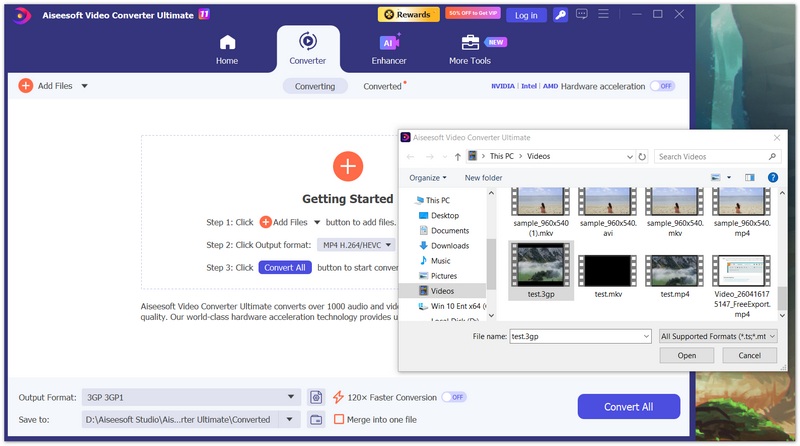
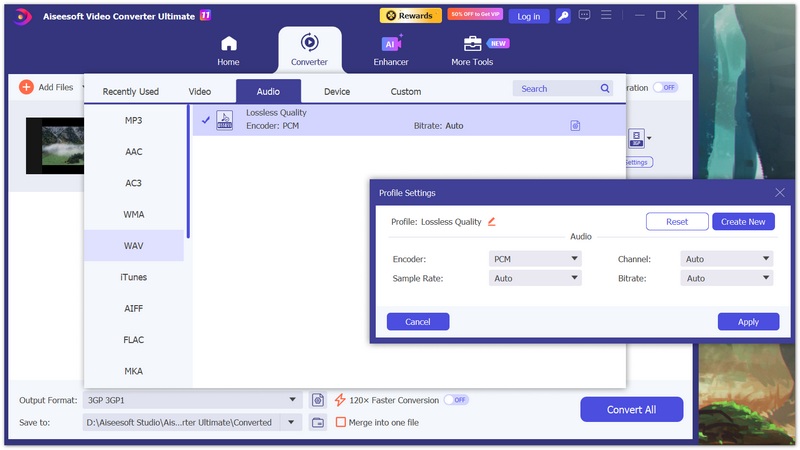
Aiseesoft Video Converter Ultimate is a desktop media conversion tool for Windows and Mac. It supports a range of video and audio formats, making it a convenient option for extracting audio from compatible video files. It also has a built-in vocal isolator from video, therefore, you can use it to both extract or simply convert WAV from 3GP. During the process, you can trim, cut, denoise, and further edit your media file with ease. Now, follow these steps to convert a 3GP video to WAV:
100% Secure. No Ads.
100% Secure. No Ads.
VLC Media Player is a free, open-source multimedia player that can also convert media files. If you already have VLC installed, you can try using it to extract audio from a compatible 3GP video without installing a separate converter. Here're the steps:
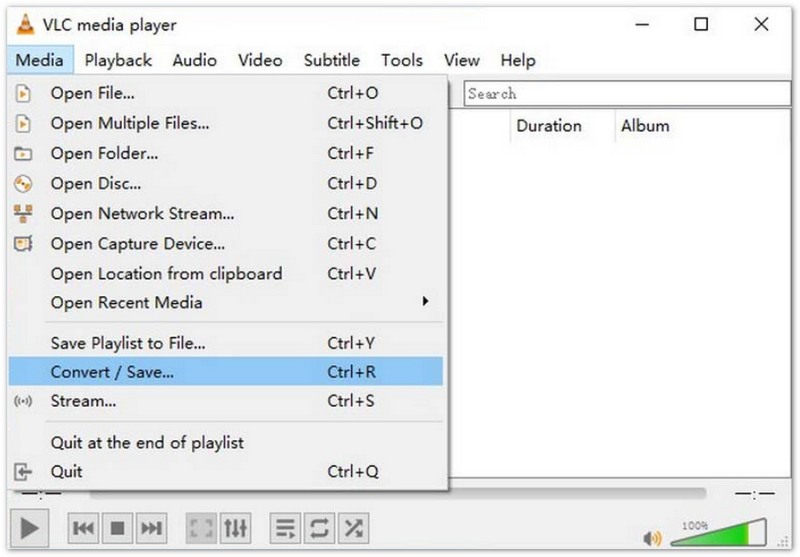
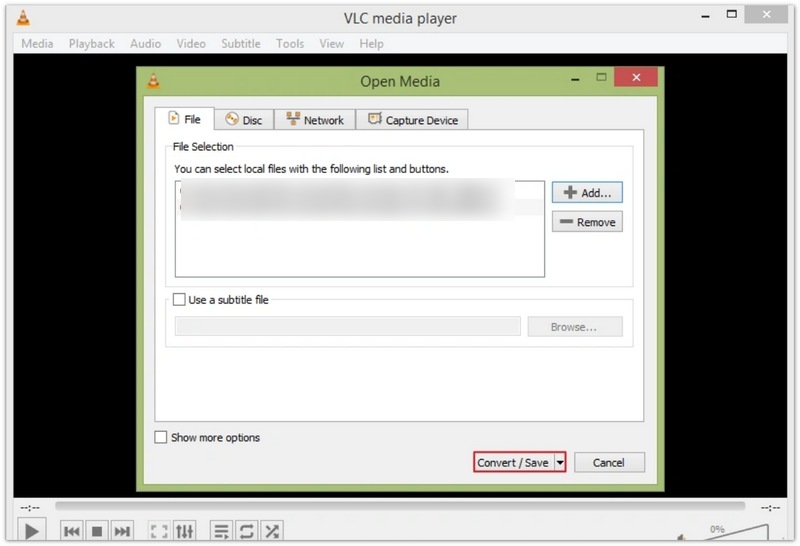
VLC's available profiles and settings can vary by version. If you cannot configure a compatible WAV output, use a dedicated audio converter instead.
Online converters are useful when you only need to convert a few files and do not want to install desktop software. You can usually upload a 3GP file, select WAV as the output format, and download the result after processing. However, free services may impose file-size limits, daily usage limits, or other restrictions. Uploading recordings to a third-party service may also raise privacy concerns, especially if the files contain personal conversations.
FreeConvert is an online file conversion service that supports various media formats. Its browser-based workflow makes it an option for users who want to convert files without installing a desktop program.
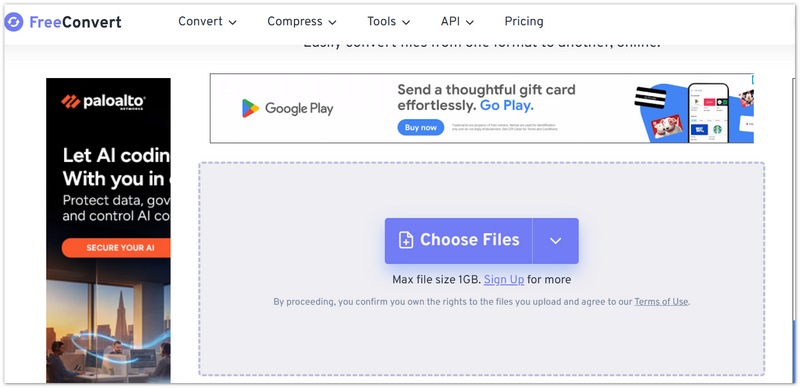
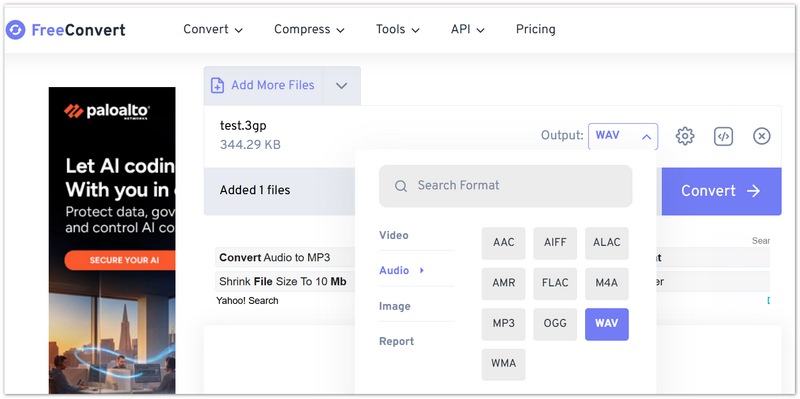
FreeConvert's file-size limits is up to 1GB and its free usage allowances may change, so check the current restrictions before uploading large recordings.
CloudConvert is another online conversion service that supports a variety of file types. It can be useful when you prefer a browser-based workflow and do not need to convert files regularly.
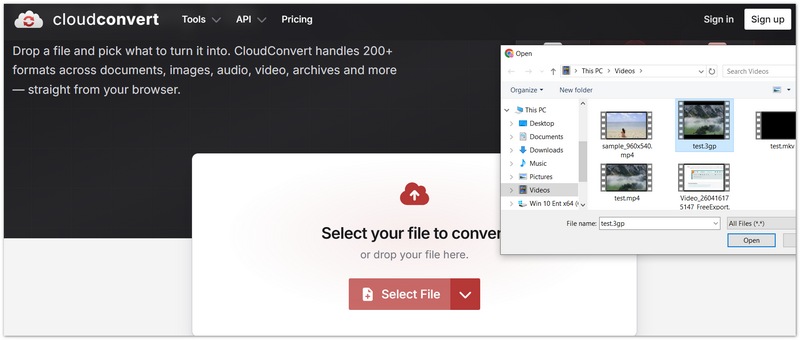
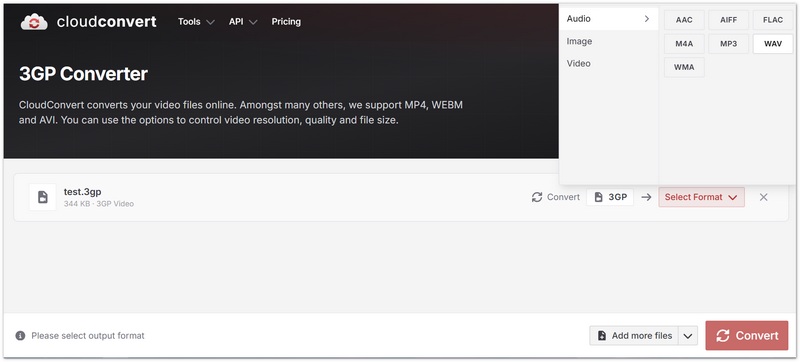
CloudConvert may apply usage or file-size restrictions to free conversions. Check its current terms before processing large files or multiple recordings.
Before converting your files, consider the following tips to help avoid common problems and get the most appropriate output:
1. Check the Original Audio Quality: WAV can store uncompressed audio, but converting a compressed 3GP audio track to WAV does not automatically improve the audio quality. If the source audio is noisy or has already lost information through compression, those limitations will remain after conversion.
2. Choose Appropriate Audio Settings: If your converter offers options for sample rate, bit depth, or channels, choose settings based on how you intend to use the audio. For example, stereo is appropriate when the original recording contains two channels, while mono may be sufficient for a single-channel voice recording. Higher settings do not necessarily improve the quality of an already compressed source and can increase the output file size.
3. Make Sure the Output Format Is Correct: After conversion, check the file extension and open the result in a media player. A file renamed from .mp3 to .wav is not necessarily a valid WAV file. The converter must encode or package the audio in a format compatible with WAV.
4. Consider File Size and Storage Space: Uncompressed WAV files can be significantly larger than compressed audio files. If you are converting long recordings or a large collection of videos, make sure you have enough free storage space. If you only need a small file for casual listening or sharing, converting 3GP to MP3 may be a more practical alternative.
5. Protect Your Privacy When Using Online Tools: Online converters typically require you to upload your files for processing. Avoid uploading confidential recordings or sensitive personal information unless you are comfortable with the service's data-handling practices. For private recordings, local desktop software may be a better option.
6. Choose a Converter Based on Your Needs: For occasional conversions, an online tool may be sufficient. If you regularly process multiple files or need more control over audio output settings, desktop software may offer a more convenient workflow. VLC is worth trying if you already use it, although configuring a compatible WAV output may require additional steps.
Can I Extract Audio from a 3GP Video Without Converting the Video?
Yes. An audio converter can extract the audio track and save it as WAV without producing another video file. Choose an audio-only output format and verify that the conversion settings do not include a video stream. You can also extract audio from video in Aiseesoft Video Converter Ultimate.
Why Can't I Convert My 3GP File to WAV?
Several issues may prevent conversion, including a damaged file, an unsupported codec, an incomplete download, or an incompatible output profile. Try playing the original file first. If it works, update your converter, choose a different output profile, or try another conversion method.
Is WAV Better Than MP3?
Neither format is universally better. WAV is useful for audio editing, production, and archiving when uncompressed audio is desired. MP3 produces smaller files and is often more convenient for sharing and everyday playback. The best choice depends on your intended use and storage requirements.
Conclusion
Converting 3GP to WAV is a straightforward way to extract audio from older mobile videos for editing, archiving, or playback. Aiseesoft Video Converter Ultimate is an option for desktop conversion, VLC may work if you configure the correct audio profile, and FreeConvert and CloudConvert provide browser-based alternatives.
Choose the method that best fits your file size, audio settings, privacy requirements, and conversion frequency. After converting, always check the output file to ensure that the audio is intact and the format is correct.
 2 Ways to Merge 3GP Files with Fast Speed and Unlimited File Size
Read and get 2 easy ways to join multiple 3GP clips together into one. There is no file size limit. No matter how many 3GP files you have, you can merge 3GP video files online and offline with ease.
 Best 3GP Video Player: Play 3GP Videos for Free
There are various 3GP video players in the world. How to pick out an appropriate one is a skilled task. The article lists top 6 free 3GP video players for you.
 How to Convert and import homemade DVD to iMovie
To edit homemade DVD in iMovie simply, first you should convert homemade DVD to iMovie formats including MOV, M4V, etc. Try this best DVD to iMovie Converter.
 Leave your comment and join our discussion
Convert/Download/Edit SWF
1.1 SWF 1.2 SWF to MP4 1.3 SWF to GIF 1.4 SWF to MOV 1.5 SWF to HTML5 1.6 SWF to AVI 1.7 SWF to WMV 1.8 SWF to 3GP 1.9 SWF to DVD 1.10 SWF Converter Mac 1.11 Edit SWF
Video Converter Ultimate is excellent video converter, editor and enhancer to convert, enhance and edit videos and music in 1000 formats and more.
100% Secure. No Ads.
100% Secure. No Ads.

*Required field
*Please enter a valid email

