
Video Converter Ultimate
 100% Secure. No Ads.
100% Secure. No Ads.
If you are searching for AI-based tools that can improve the quality of pictures, you have most likely already found out about Gigapixel AI. The main cause of the misunderstanding is that Gigapixel mainly serves as an image upscaling tool. However, lately, people have become more interested in its video capabilities. This tutorial is a comprehensive resource for everything related to gigapixel upscale video. It touches on the feasibility, mechanics of gigapixel upscaling videos, and a realistic description of what you can get out of it. Besides, I will pit it against other programs, and a superior alternative for true video upscaling will also be revealed, so you, at the end of the day, can opt for the one that best serves your requirements.
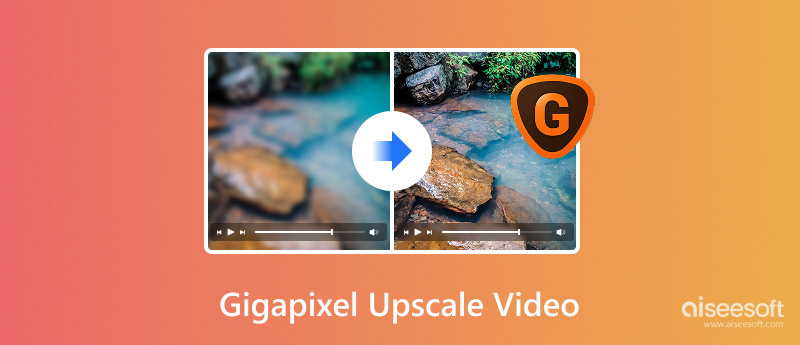
First, let me clarify a couple of things. Topaz Gigapixel AI is designed to effectively enhance pictures, not directly ingest video data. The desktop application cannot continuously ingest entire video footage as professional AI Video Upscaler applications can do. Instead, it has a few workarounds. Firstly, you will need to separate the video. Convert MP4 into JPG frames, then run Gigapixel AI on these frames, and put them back again. Note that not all Gigapixel-based tools online may seem to actually work on videos directly. This is unlike the desktop version, even though it works on frames.
Such a method is commonly known as Gigapixel video upscaling. But the truth is, we should be aware of is that it is not a simple video editing solution available within a single mouse click. Rather, it takes more work and is more time-consuming, unlike real AI video upscaling software that accepts the whole video file as input to generate output.
A last thing to keep in mind is that if you're using the desktop version of Gigapixel AI, then you should know that it doesn't actually process videos. Its effect on them is achieved by analyzing the video one frame at a time as a still image, which makes for a few more steps but good upscaling.
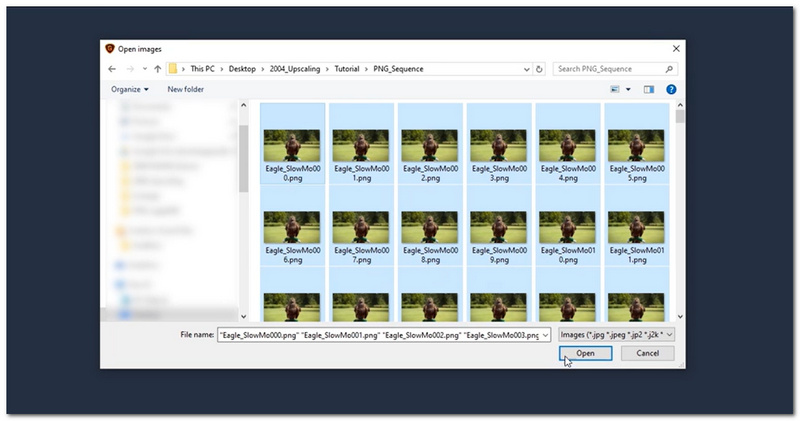
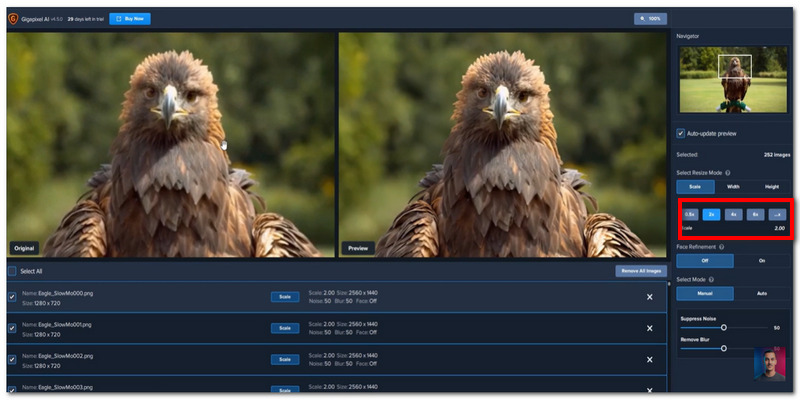
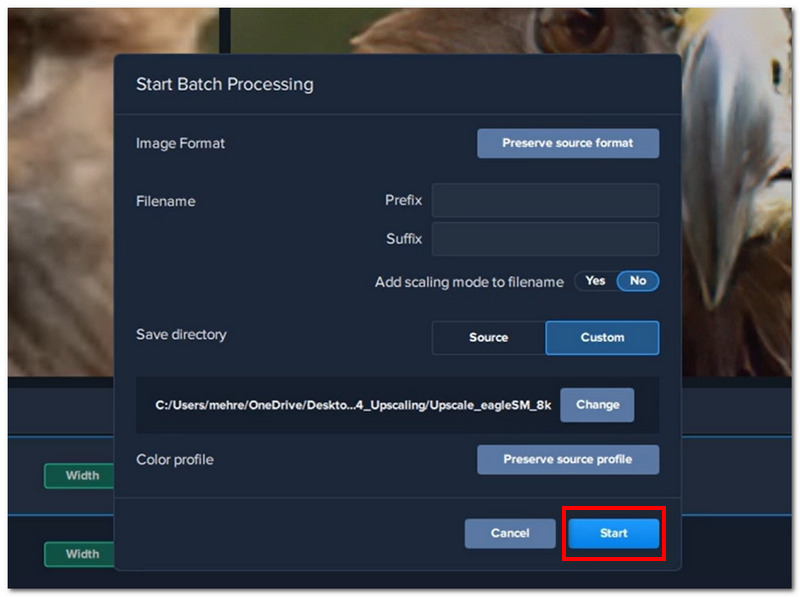
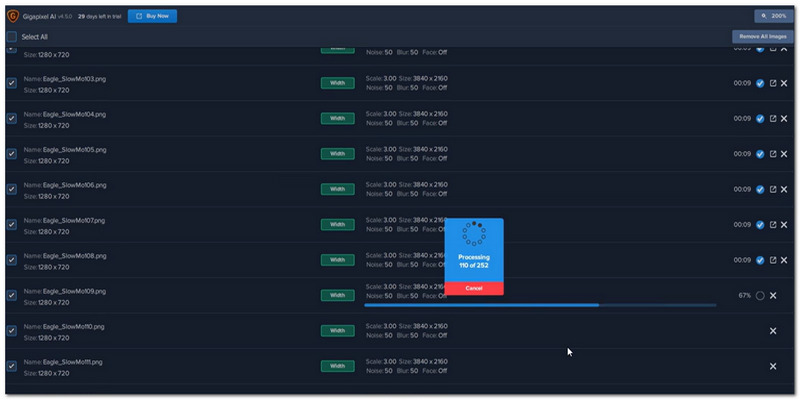
Here is a side-by-side comparison of Topaz Video AI, designed for direct video processing, and Gigapixel AI used for video via frames, to help you understand the differences:
| Category | Gigapixel Video (Frame Method) | Topaz Video AI |
| Software | Gigapixel AI (image-based tool) | Dedicated video upscaling software |
| Processing Method | Frame-by-frame (extract → upscale → rebuild) | Direct video processing (one workflow) |
| Motion Stability | No motion handling (can cause flicker) | Optimized for smooth motion and consistency |
| Rendering Time | Very long (depends on the frame count) | Faster (optimized AI pipeline) |
| Notes | High image quality, but manual and time-consuming | More efficient and accurate for full videos |
If you are looking for the manual control and advanced frame enhancement technique, Gigapixel could still be your choice, but basically, it does not support video. Dedicated tools instead provide you with smoother playback and less hassle for the workflow.
This experiment outlines perfectly the main reason why a lot of people who are googling Topaz Gigapixel video upscale finally become users of the software that is specifically designed for video purposes.
As an alternative that's more practical and a breeze for newcomers, Aiseesoft Video Converter Ultimate is a good choice if you think the Gigapixel frame-by-frame method is too slow for you. I would actually suggest it since it's a direct upscaling of videos, and you won't need to extract frames or reconstruct clips by hand.

Downloads
100% Secure. No Ads.
100% Secure. No Ads.
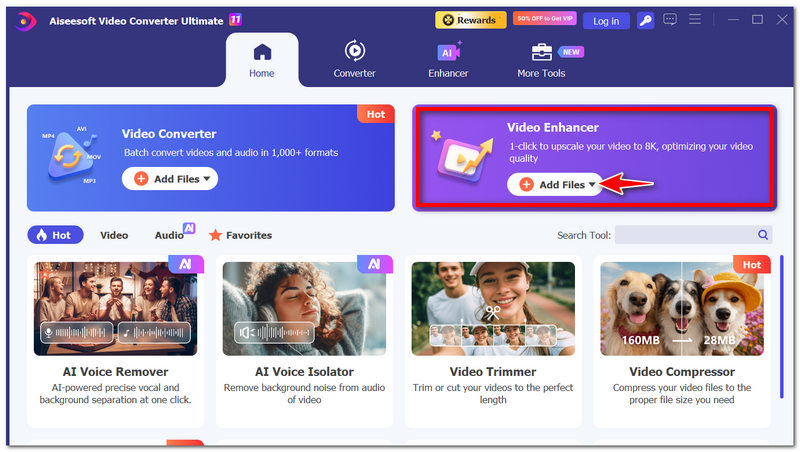
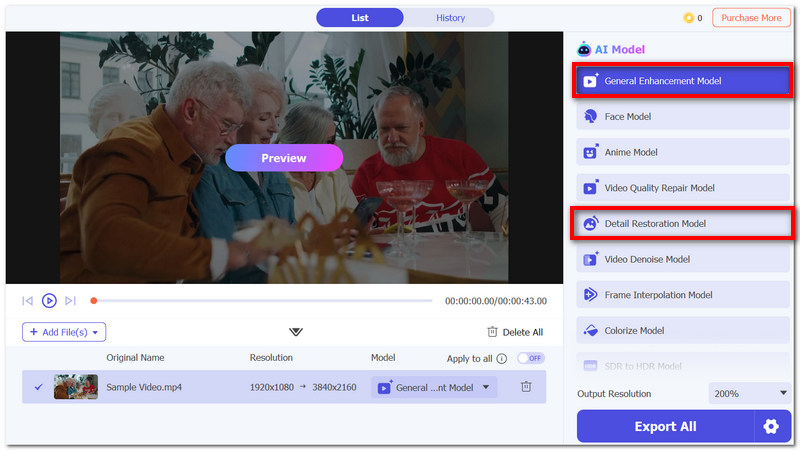
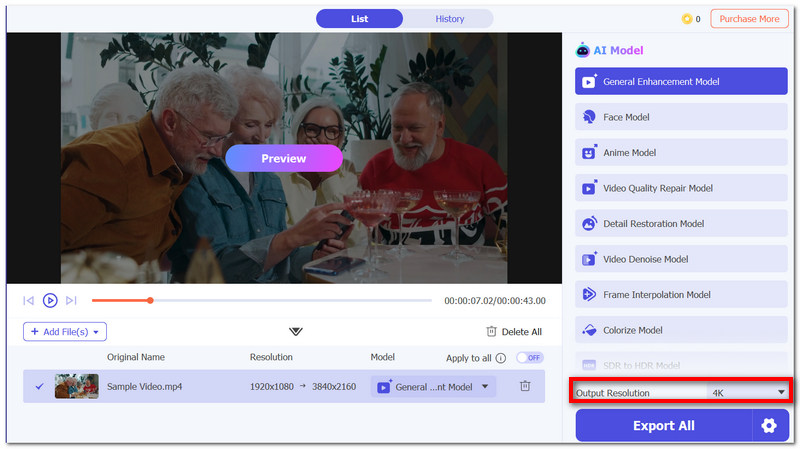
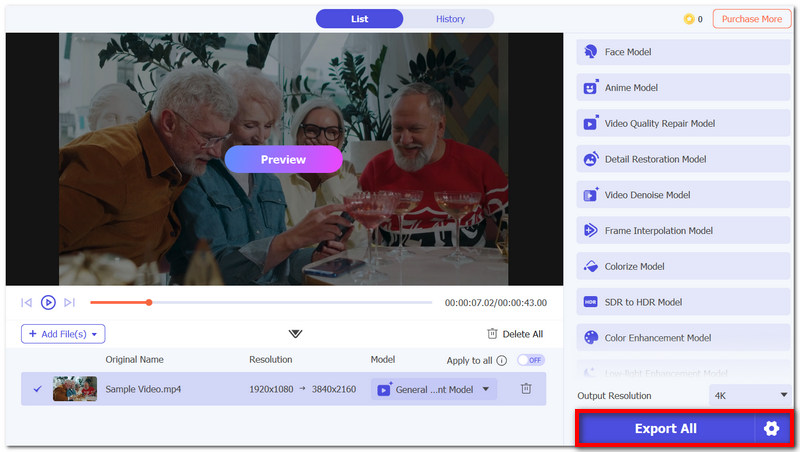
In my experience, this tool is way more user-friendly than Gigapixel's UI, which requires manual intervention. The best thing is that you don't even need other tools or complicated technical steps. It does everything by itself in one place, and at the same time, it produces amazing results.
Can Gigapixel AI improve video quality without increasing resolution?
Not really. Since it is designed for images, the only enhancements it can perform, such as sharpening and noise reduction, will be done through the upscaling of the extracted frames.
Can Gigapixel AI fix blurry videos completely?
It will make the video sharper, but it will not be able to recreate details that were not in the original video.
Can I upscale only a part of a video using Gigapixel?
Yes, if you extract and work on only the selected frames or clips rather than the whole video.
Is there a risk of quality loss after rebuilding the video?
Yes, especially if improper export settings or compression formats are selected during the reassembling.
Can Gigapixel AI fix pixelated faces in videos?
It can improve them slightly, but it cannot fully reconstruct missing facial details.
Conclusion
Gigapixel AI is able to enhance video content quality but it is achieved only by the work of the frame-by-frame method, which requires time and additional labor. If you want to have more control, then it is an excellent option. However, if you want the fastest results, it is the least convenient. Most users choose video upscaling software because it is faster and more convenient.
In general, that is the key message in the discussion of Gigapixel video upscaling.
 Why Is Topaz Photo AI Constantly Crashing and How to Fix It
How much RAM do you need for Topaz Photo AI? Why does Topaz Photo AI keep crashing on my PC? Learn to resolve the Topaz Photo AI constantly crashing issue.
 5 Best Solutions to Repair Videos [Various Platforms]
How to repair videos? In this article, we will teach you how to use the most popular app to fix broken videos across Windows, Mac, online, and Android.
 Guide to Video Recording Software: 8 Best Recorders in 2026
What is the best software for Mac to record a video? Is the OBS video recording software free? Check the full review of the 8 best video recording software.
 Leave your comment and join our discussion
Video Converter Ultimate is excellent video converter, editor and enhancer to convert, enhance and edit videos and music in 1000 formats and more.
100% Secure. No Ads.
100% Secure. No Ads.

*Required field
*Please enter a valid email

