
Best for: Users who want a graphical interface, customizable audio output, and batch media conversion.
Video Converter Ultimate
 100% Secure. No Ads.
100% Secure. No Ads.
MKV (Matroska Video) is a multimedia container that can hold video, audio tracks, subtitles, and metadata in a single file. If you want to listen to a movie soundtrack, concert recording, lecture, or other audio content without keeping the video, converting MKV to MP3 can make the file easier to play on a wide range of devices.
However, not every MKV to MP3 converter offers the same experience. Some desktop applications provide batch conversion and detailed output settings, while free tools focus on basic functionality. Online converters are convenient for occasional tasks, but upload limits, processing times, and privacy considerations may affect your choice.
In this guide, we compare five MKV to MP3 converters and examine their key features, advantages, disadvantages, and ideal use cases to help you find the right tool.
Choosing the right converter depends on how often you convert files, whether you need batch processing, and how much control you want over audio output. The following table summarizes the main differences of the MKV to MP3 converters we picked.
| Converter | Platform | Batch Conversion | Audio Settings | Free Usage | Best For |
| Aiseesoft Video Converter Ultimate | Windows, macOS | Yes | Configurable output settings | Trial; paid license for continued use or additional features | Regular conversion and media processing |
| VLC Media Player | Windows, macOS, Linux | Less convenient | Available through conversion profiles | Free | Occasional offline conversion |
| FFmpeg | Windows, macOS, Linux | Yes, through scripts | Extensive command-line controls | Free | Advanced conversion and automation |
| CloudConvert | Web browser | Depends on current workflow and plan | Available options vary | Limited free usage | Convenient online conversion |
| FreeConvert | Web browser | Depends on current workflow and plan | Available options vary | Limited free usage | Quick online conversion |
Exact format support, output settings, file-size limits, and free allowances may change by software version or subscription plan. Check each provider's current documentation before making a final choice.
Best for: Users who want a graphical interface, customizable audio output, and batch media conversion.
Aiseesoft Video Converter Ultimate is a desktop multimedia conversion application for Windows and macOS. It is designed for users who need to convert video and audio files between different formats without working with command-line instructions.
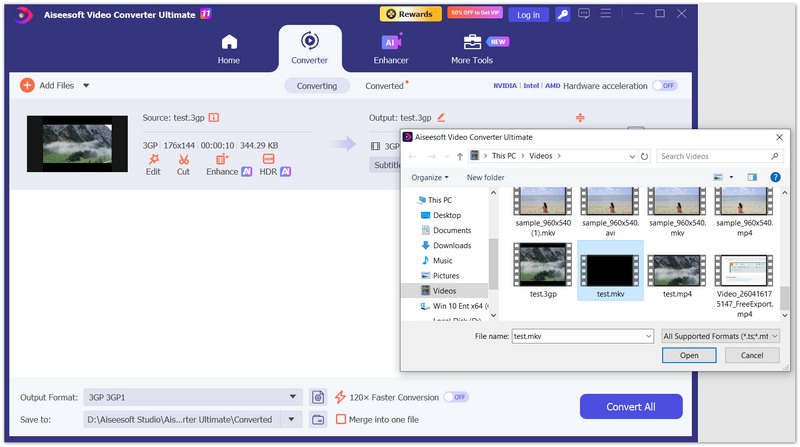
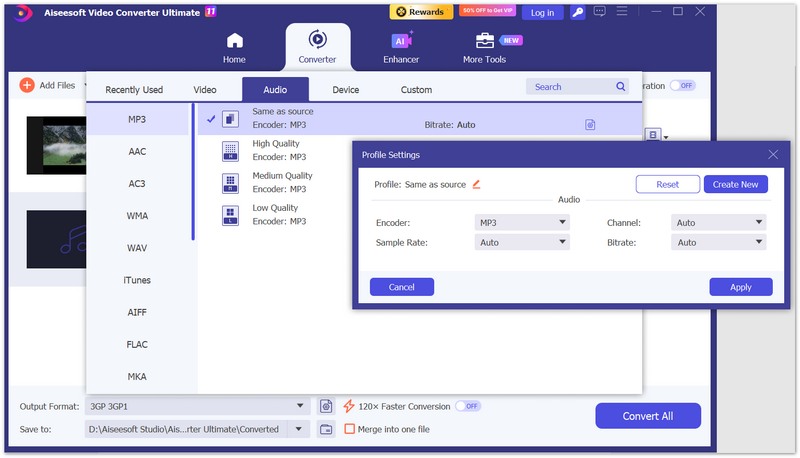
When converting MKV to MP3, you can import your source video, choose MP3 as the output format, adjust available audio parameters, and process the file through a graphical interface. This workflow is convenient if you regularly extract audio from videos or manage multiple media files.
Unlike a basic media player, the software also includes additional media-processing functions, making it an option for users who need more than occasional format conversion.

Downloads
100% Secure. No Ads.
100% Secure. No Ads.
How to Convert MKV to MP3
Best for: Users who want a free, trusted desktop tool for occasional MKV to MP3 conversion without installing extra software.
VLC Media Player is a widely used, free, open-source multimedia MKV player that handles almost any video or audio codec natively. Beyond playback, it includes a robust built-in streaming and conversion engine compatible with major desktop operating systems.
Because many computer users already have VLC installed, its Convert/Save feature offers a handy alternative to downloading specialized conversion software. However, VLC's conversion utility was built as a secondary feature, meaning its interface is less intuitive and requires navigating a few nested menus.
Key Features
How to Turn MKV into MP3
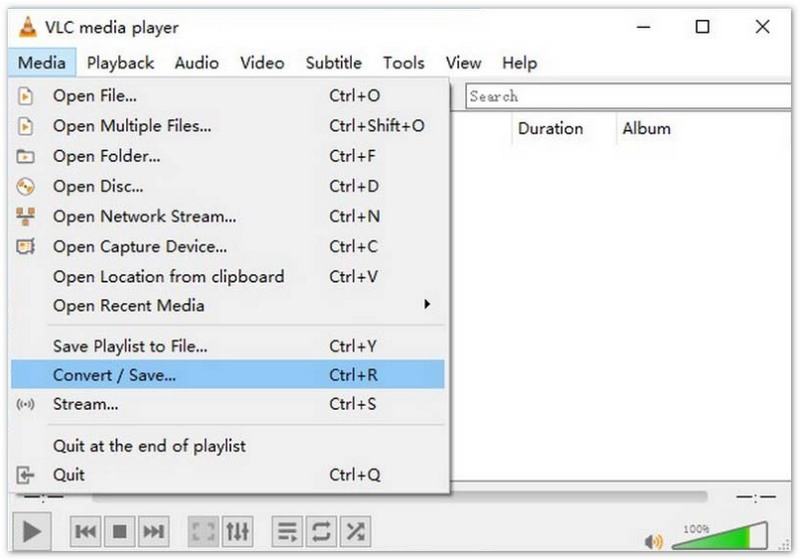
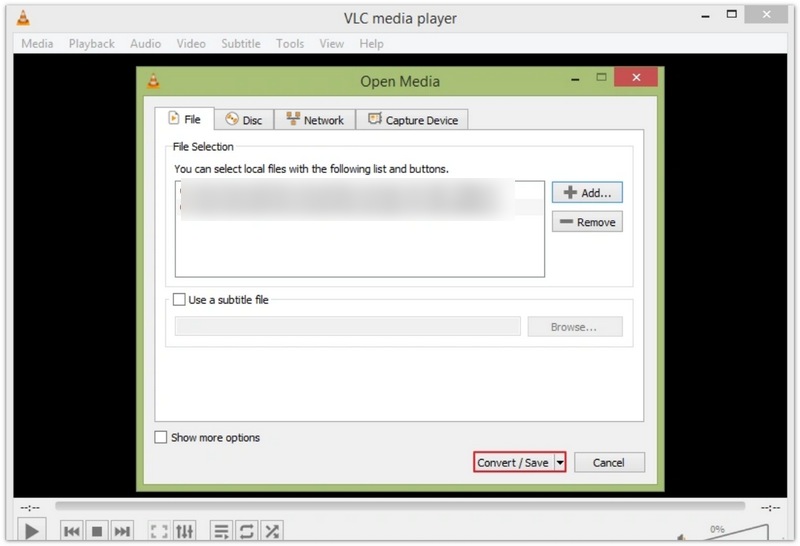
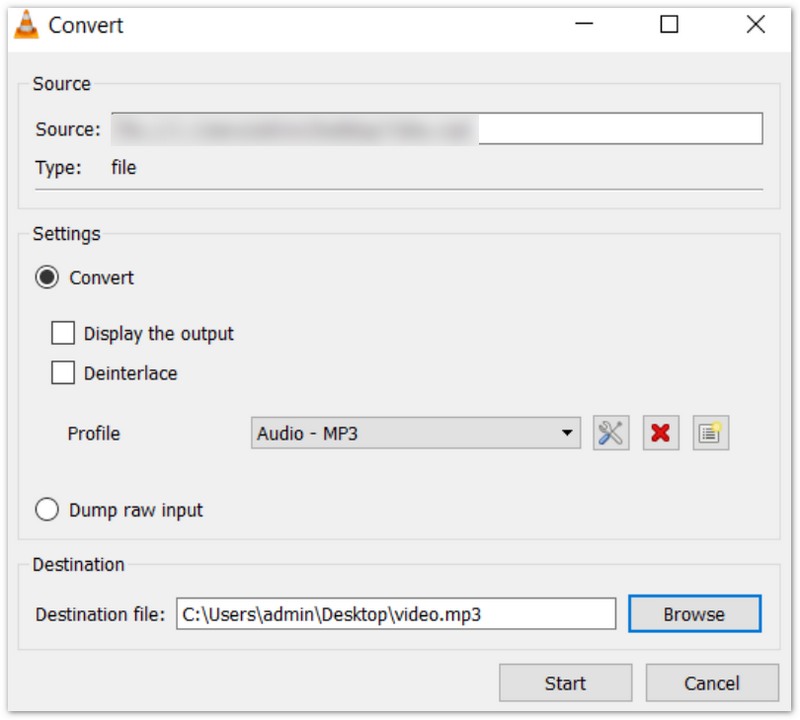
Best for: Advanced users, developers, and power users who need precise audio stream selection, script automation, and ultra-fast processing.
FFmpeg is the industry-standard, free, open-source multimedia framework that powers countless video players and conversion tools behind the scenes. It operates purely via command-line instructions, giving users total control over decoding, encoding, filtering, and stream manipulation.
When converting MKV to MP3, FFmpeg allows you to map specific audio streams, set precise bitrates, or even stream-copy audio without re-encoding if the source MKV already contains an MP3 track. This prevents any generational audio loss and processes files in seconds.
Key Features
Example Command to Change MKV to MP3
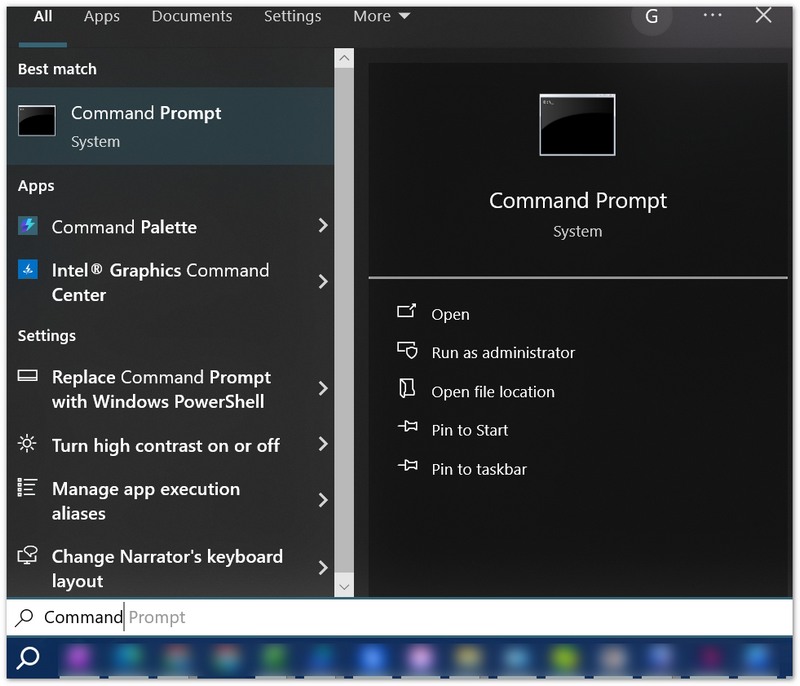
ffmpeg -i input.mkv -map 0:a:0 -vn -c:a libmp3lame -b:a 192k output.mp3
Best for: Users who need a reliable, browser-based conversion tool with clean output customization options without installing software.
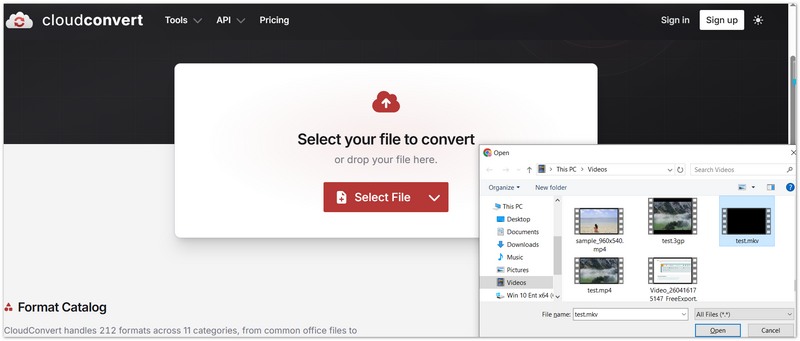
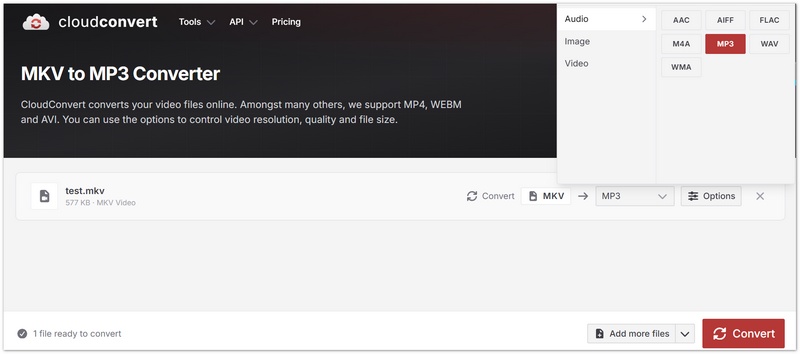
CloudConvert is a premier online file conversion platform supporting hundreds of audio, video, document, and archive formats. It handles MKV to MP3 extraction entirely within the cloud via your web browser.
Because processing happens on remote servers, CloudConvert is ideal if you are using a borrowed computer, a Chromebook, or a machine with strict software installation policies. It also offers advanced options to adjust audio codecs, bitrates, and trim audio lengths before downloading the final file.
Key Features
How to Change MKV to MP3
Best for: Users looking for a straightforward, free web utility to handle occasional online conversions quickly.
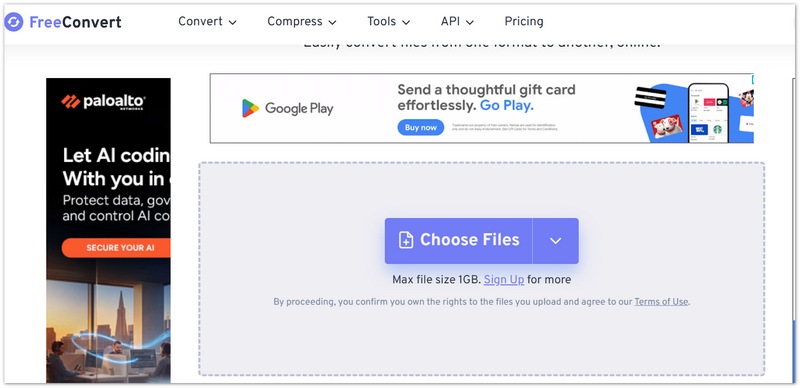
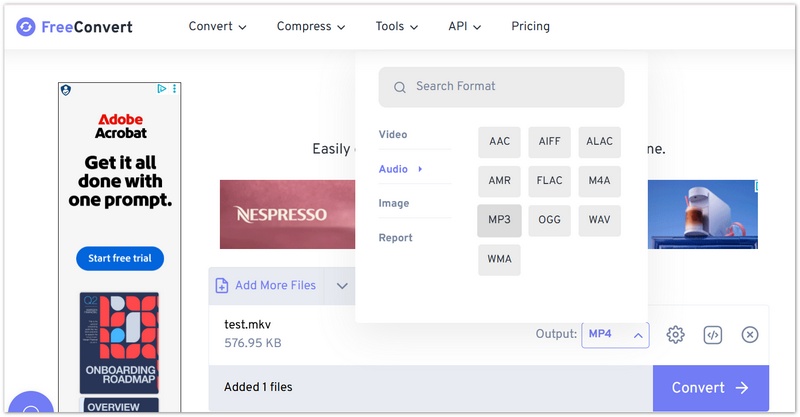
FreeConvert is another popular web-based conversion platform optimized for simplicity. Its dedicated MKV to MP3 tool allows users to drag and drop a video file, click a button, and download the audio track without fuss.
While its interface is simpler than CloudConvert's, FreeConvert still provides advanced options hidden behind an "Advanced Settings" gear icon, letting users tweak audio bitrates, apply fade effects, or cut audio segments.
Key Features
How to Convert MKV to MP3
Can I extract a specific audio track from a multi-track MKV file?
Yes, provided the converter supports audio stream selection. FFmpeg allows you to explicitly map desired track indices (e.g., -map 0:a:1), while graphical desktop converters usually provide a dropdown menu letting you select the desired language or commentary track before converting.
Does converting MKV to MP3 remove the video?
Yes. MP3 is strictly an audio-only container format. Converting an MKV file to MP3 strips out the video track entirely and exports only the audio stream. If you need to keep the video while changing formats, convert to an MP4 container instead.
Which MKV to MP3 converter supports batch conversion?
Aiseesoft Video Converter Ultimate offers a built-in graphical batch queue, and FFmpeg can easily automate large folders of files using simple shell scripts. VLC and online tools require more manual setup for multi-file workflows.
Conclusion
Choosing the best MKV to MP3 converter depends on your file volume, conversion needs, and privacy preferences. For frequent conversions and batch processing, Aiseesoft Video Converter Ultimate offers a convenient desktop solution with customizable output settings. If you need a free MKV to MP3 converter for offline use, VLC Media Player is a practical choice, while FFmpeg is ideal for advanced users who want precise audio track selection and automated conversion. For quick conversions without installing software, CloudConvert and FreeConvert provide convenient online options. Compare their features, audio settings, and free usage limits to find the right tool for your needs and easily convert MKV to MP3.
 How to Quickly Repair MKV Files [Step-by-Step]
Why does my MKV file have no sound? Can I fix the corrupted MKV videos? Learn about the reasons for the corruption and four ways to repair MKV files.
 MKV vs MP4 - Which Format is Better Format for Video Quality
What is the best format for video quality? MP4? Or MKV? This page shows you the difference between MP4 and MKV, and decide which is better quality clearly.
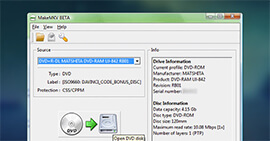 MakeMKV - The Easiest Method to Make MKV from DVD and Blu-ray
MakeMKV tutorial: this article introduces more information about what is MakeMKV and how to make MKV from DVD and Blu-ray by using this wonderful application - MakeMKV.
 Leave your comment and join our discussion
Convert/Download/Edit SWF
1.1 SWF 1.2 SWF to MP4 1.3 SWF to GIF 1.4 SWF to MOV 1.5 SWF to HTML5 1.6 SWF to AVI 1.7 SWF to WMV 1.8 SWF to 3GP 1.9 SWF to DVD 1.10 SWF Converter Mac 1.11 Edit SWF
Video Converter Ultimate is excellent video converter, editor and enhancer to convert, enhance and edit videos and music in 1000 formats and more.
100% Secure. No Ads.
100% Secure. No Ads.

*Required field
*Please enter a valid email
