Video Converter Ultimate
 100% Secure. No Ads.
If you only need the audio track in a video, such as an interview, a lecture, or background music, you should convert it. When you need a lossless format, FLAC is usually the first one that comes to mind. However, converting MP4 to FLAC comes with a few realities that are worth understanding before you pick a tool.
Is it necessary or meaningful to output FLAC?
This post shares 3 different methods to extract audio from MP4 and save it as FLAC. You can learn several main reasons to choose FLAC instead of MP3 and get 3 converter tools.
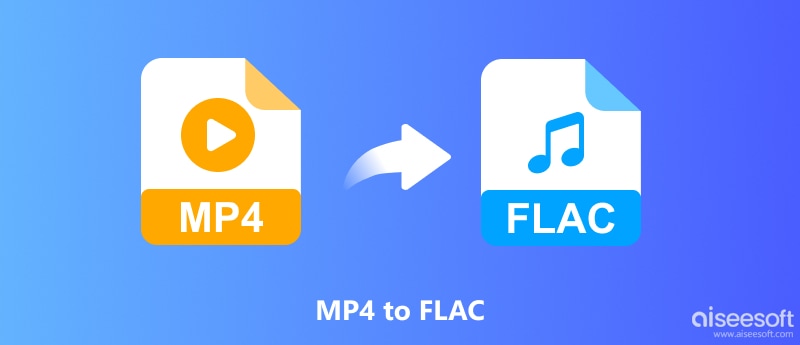
Most MP4 files carry compressed AAC or MP3 audio, which is already lossy. The reality is that FLAC is a lossless container, but it cannot restore the missing data in MP4 and improve quality that was never there.
MP3 is a lossy format. When you convert audio to MP3, the encoder permanently removes frequencies and details it predicts. Considering that the audio inside your MP4 is already compressed, converting it through another lossy encode is a second round of data loss.
Converting that audio to FLAC preserves exactly what is inside the video - no more, no less. The conversion does not introduce any additional degradation. If you plan to edit the audio or simply keep a clean copy of the soundtrack, FLAC is the right choice.
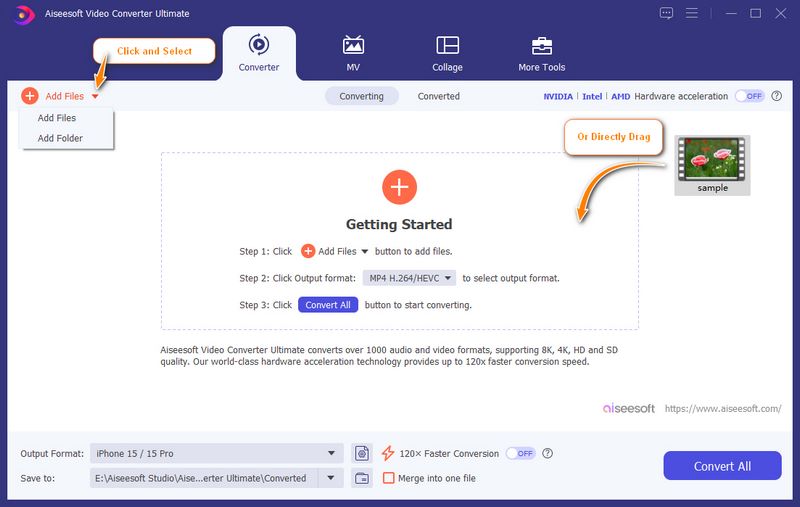
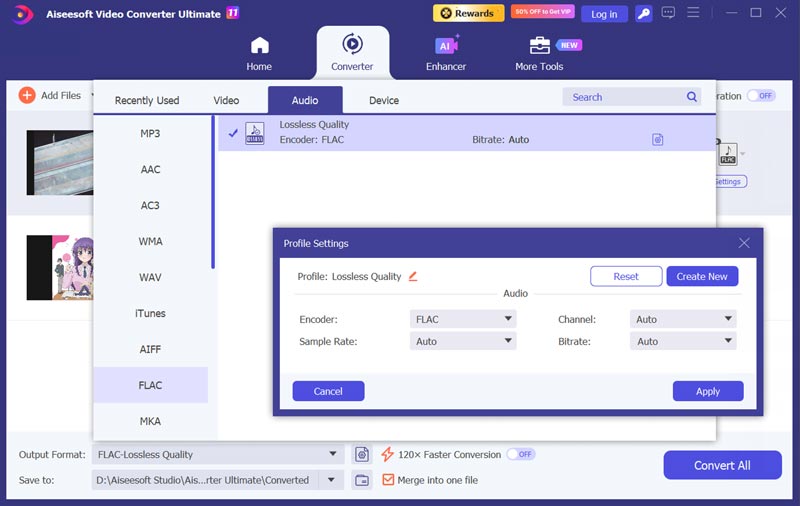
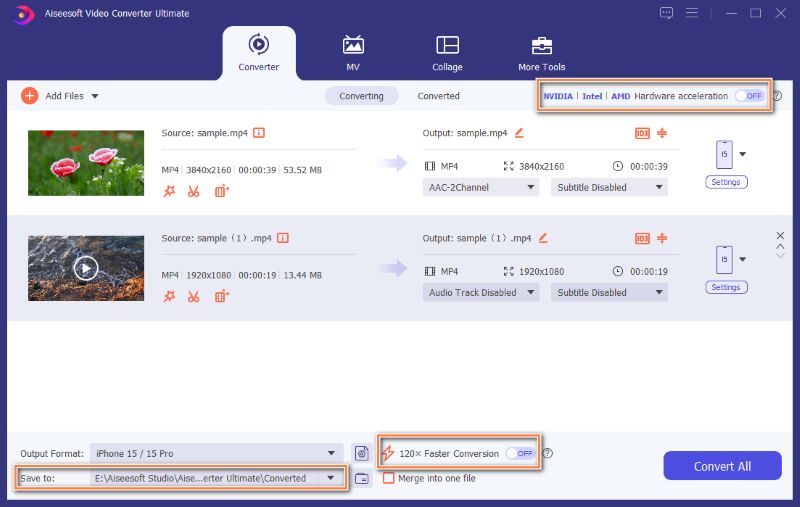
If you want a dedicated video-to-audio converting tool that handles the job without fuss, Aiseesoft Video Converter Ultimate is a straightforward option. It is specially designed to convert video or audio files without losing quality. It offers a simple way to extract audio from any video and export it to your desired format. This MP4 to FLAC converter lets you freely customize output audio parameters like encoder, channel, sample rate, and bitrate.
100% Secure. No Ads.
100% Secure. No Ads.
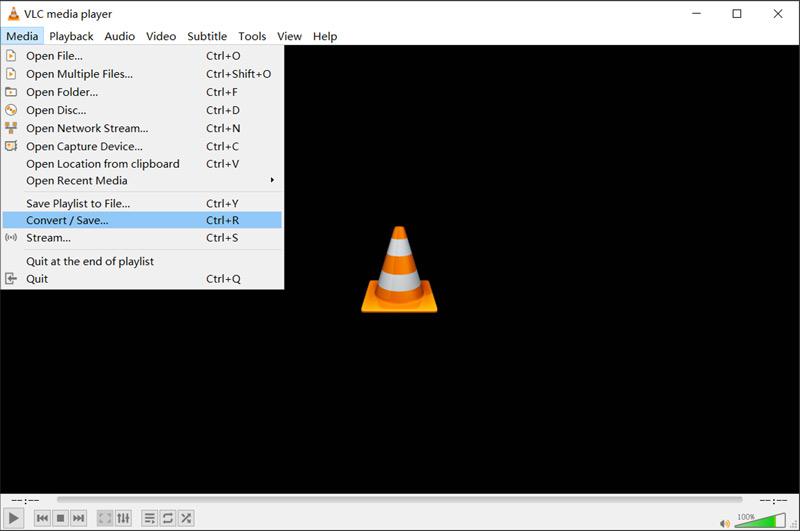
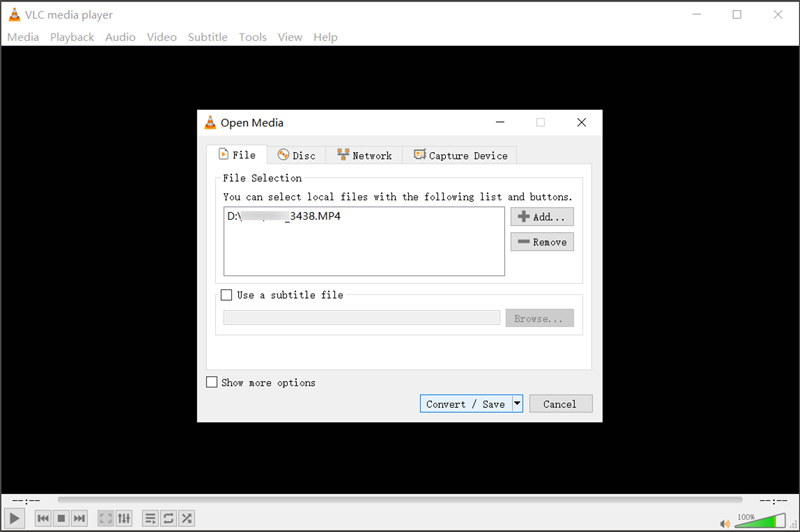
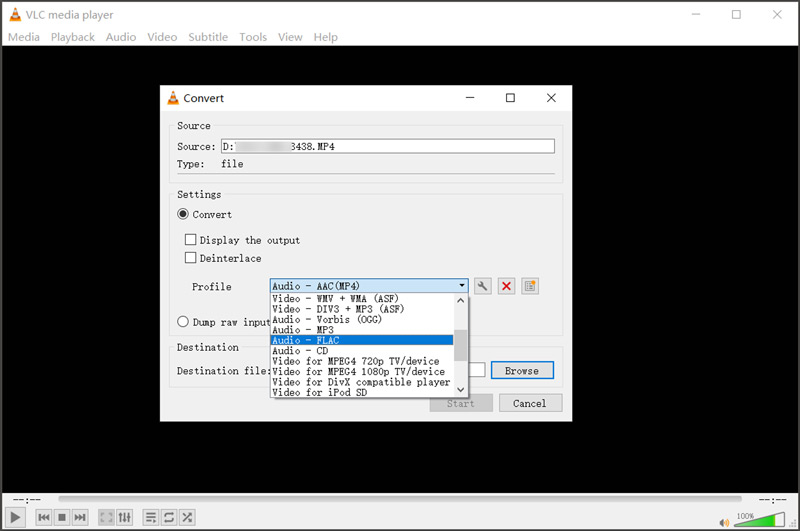
If you already have VLC installed on your computer, you can use its Convert/Save to convert MP4 to FLAC. Note that VLC is not a dedicated video converter. It only offers a basic conversion feature.
If you don’t want to install any third-party converter and only have several small video clips to convert, turn to a browser-based tool. These online converters remove the install step entirely. You can easily upload your MP4 video, select FLAC as the output, and download the result. Popular options include CloudConvert, Clideo, Convertio, FreeConvert, and ZAMZAR.
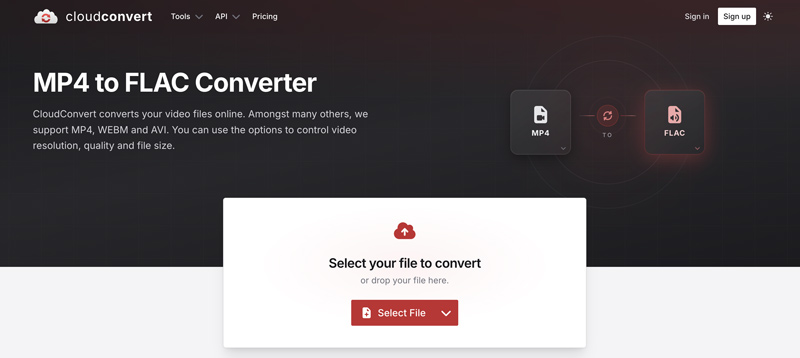
Free online converters come with several limits. You are often not allowed to upload a large file of over 1GB. What’s more, the upload and processing speed depends on your connection, file size, specific plan, and even hardware. Compared to a dedicated conversion tool, it provides fewer customization options and advanced features.
Question 1. Does converting MP4 to FLAC improve sound quality?
No. FLAC preserves the audio that is already in the MP4. If the MP4 contains compressed AAC audio, the FLAC file will sound the same. It will just be larger and lossless relative to that source. The lost data or details won’t be restored.
Question 2. Can I convert an MP3 inside an MP4 to FLAC and get better quality?
No. If the source is already an MP3, the FLAC will be a large file that sounds identical to that MP3. Even though there are some AI-powered audio enhancers that claim to deliver lossless sound quality, they actually don’t restore missing data. Instead, these tools will apply sound effects to make audio appear “better sounding”.
Question 3. Is FLAC compatible with my phone?
Yes. FLAC is widely supported by modern Android phones and most desktop players. However, for iPhones and some older computers, they may not play FLAC natively. Apple’s built-in Music app does not support FLAC. A third-party FLAC player app can easily solve that.
Conclusion
You can learn three different methods to convert MP4 to FLAC in this guide. The conversion is less about upgrading sound and more about keeping what’s already there without compression. That means if your MP4 carries AAC or MP3 audio, the output FLAC copy will sound the same. Select a preferred converter that fits your habits. If you often need to handle video and audio conversions, try using the Aiseesoft converter. For several clips to convert, navigate to an online tool. If you already have VLC, you can also use it to extract audio from your MP4.
 FLAC vs. WAV and Choosing the Right Audio Format for You
Is FLAC better than WAV in quality? Can I convert FLAC to WAV with high quality? This post compares WAV with FLAC and helps to choose the right audio format.
 How to Improve Audio Quality on Windows and Mac [Solved]
Want to improve audio quality? Learn how to improve video audio quality with sound quality improver in this post.
 [5 Tools] How to Convert MOV to WMV Without Quality Loss
MOV is not supported on other devices except Mac. Converting MOV to WMV will allow you to share videos easily with Windows OS. Here is the full tutorial.
 Leave your comment and join our discussion
Convert/Download/Edit SWF
1.1 SWF 1.2 SWF to MP4 1.3 SWF to GIF 1.4 SWF to MOV 1.5 SWF to HTML5 1.6 SWF to AVI 1.7 SWF to WMV 1.8 SWF to 3GP 1.9 SWF to DVD 1.10 SWF Converter Mac 1.11 Edit SWF
Video Converter Ultimate is excellent video converter, editor and enhancer to convert, enhance and edit videos and music in 1000 formats and more.
100% Secure. No Ads.
100% Secure. No Ads.

*Required field
*Please enter a valid email