
Best for: Beginners and most casual users who want a straightforward solution for brightening videos and correcting various issues.
Video Converter Ultimate
 100% Secure. No Ads.
100% Secure. No Ads.
Is it possible to brighten up a really dark video?
It’s quite common to get underexposed videos, especially when capturing meaningful moments with a phone. The dark footage can be a frustratingly common problem. This often happens due to poor lighting or incorrect camera settings. How can you change the contrast and brightness of a video?
Fortunately, there are still ways to rescue your precious videos. Many modern video editors and dedicated video upscalers can help you improve the brightness, contrast, and overall visibility of your footage. This guide shares four helpful tools to make a dark video brighter and produce a desired look.
This section will walk you through four methods for brightening a dark video. You can compare them and select either a professional tool or a dedicated AI upscaler to correct exposure issues.
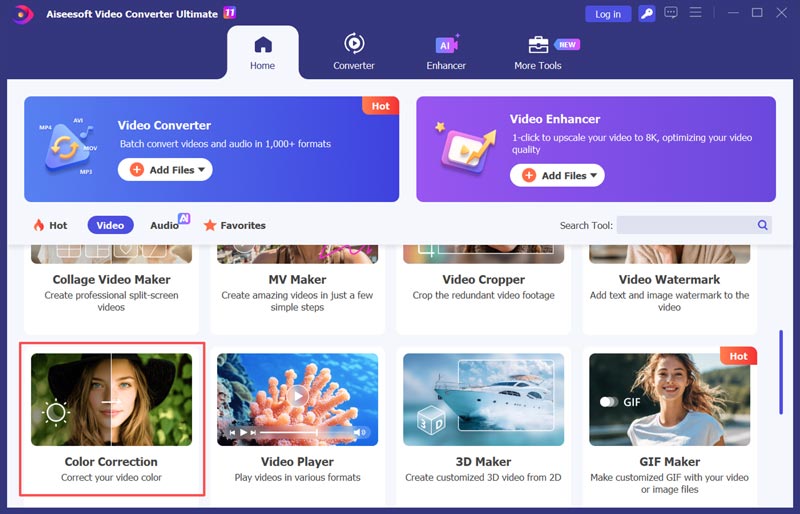
Best for: Beginners and most casual users who want a straightforward solution for brightening videos and correcting various issues.
Score:4.8/5
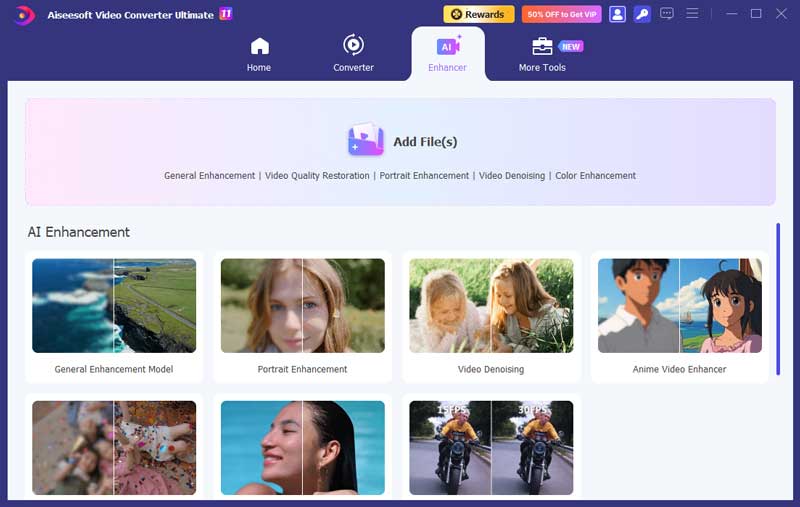
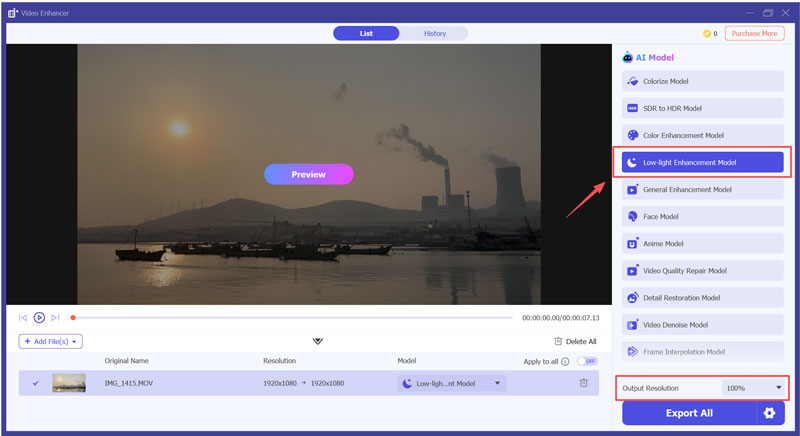
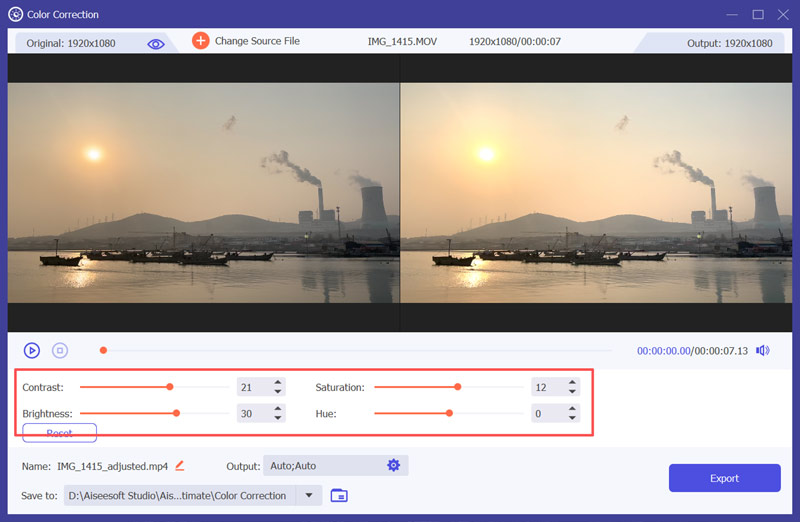
Aiseesoft Video Converter Ultimate is primarily known for its video converting and editing capabilities. It also has a built-in AI Enhancer with multiple advanced enhancement models, including an individual Low-light Enhancement Model. The AI tool is ideal for quick fixes, such as brightening, contrast adjustment, color correction, noise removal, and more.
Platform: Windows, macOS
Price: Paid software with a free trial version
100% Secure. No Ads.
100% Secure. No Ads.
Best for: Professionals and serious editors who have already worked within the Adobe ecosystem.
Score:4.5/5
Adobe Premiere Pro is a powerful video editor that features the industry-standard Lumetri Color panel. This integrated tool provides professional-grade color correction and grading workflows. You can directly access it on the editing timeline.
Platform: Windows, macOS
Price: Paid (Adobe Creative Cloud Subscription)

You may also need: How to Enhance Video in Premiere Pro
Best for: Professionals who want the best possible quality results and maximum control. Ideal for complex lighting fixes.
Score:4.5/5
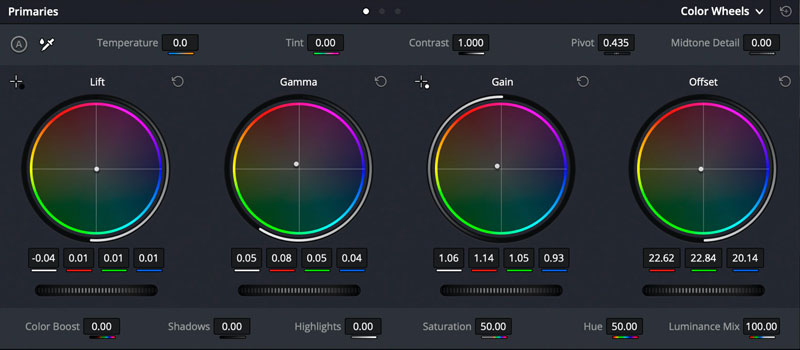
DaVinci Resolve is a professional-grade editor known for its most advanced color grading solution. It has a free version that includes nearly all the color correction tools needed to brighten videos.
Platform: Windows, macOS, Linux
Price: Free, Paid DaVinci Resolve Studio
Best for: Social media creators and general users who want to directly edit and brighten videos on their phone.
Score:4.2/5
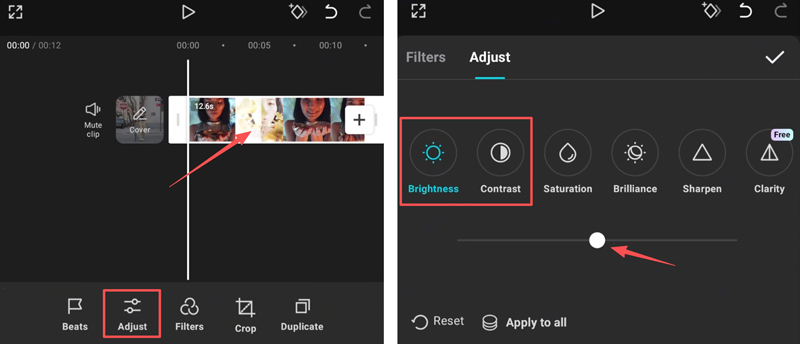
CapCut (by ByteDance) is incredibly popular because it is the default editor app for TikTok and offers robust editing tools for free. It provides straightforward sliders for exposure and brightness.
Platform: iOS, Android, Windows, macOS
Price: Free (with optional, advanced paid features)
Sometimes, after brightening a dark video, you may see more pronounced visual noise or grain. Why does this happen? Truth is, your operation of dragging the exposure or brightness sliders does not just brighten the light; it also amplifies digital artifacts or fluctuations. There are some tips for you to minimize grain when making a dark video brighter.
1. Instead of using the “Exposure” slider, try using the “Shadows” slider to gently brighten the dark parts of the image. This protects the brighter parts from becoming overexposed and efficiently avoids noise.
2. Some professional editors and enhancers have a related “Noise Reduction” function. You can select a desired tool to smooth out the grain.
3. When you change contrast and brightness of a video, do not overdo it. Avoid pushing the brightness too far.
Question 1. How to make a dark video brighter on an iPhone?
When you need to edit a captured video on your iPhone, you can do it directly in the native Photos app. Find the dark video and open it in your Photos app. Tap Edit and then choose the Adjust option. Slide the Exposure bar to the right to increase the overall light levels. You can also adjust Shadows and Contrast to brighten the video. Besides the built-in editor, you can use some third-party apps like CapCut or VN Video Editor.
Question 2. Can I brighten a really dark video online?
Yes, many online video editors can help you make a dark video brighter. Popular options include Clideo, Kapwing, CapCut, Fotor Video Brightener, VEED, and Flixier Video Brightness Editor.
Question 3. How to brighten a dark video in iMovie?
Create a project in iMovie and add the dark video you want to brighten. Put the clip onto the timeline and choose it. Locate the Color Correction icon above the preview window. Click it to display several sliders. You can then brighten the footage by dragging these sliders.
Conclusion
This post tells four efficient methods to make a dark video brighter. While video editing, you often need to brighten it by adjusting exposure and contrast. This is a common and essential skill. You can select your desired editor, like Aiseesoft, Premiere Pro, or CapCut, to make your video brighter and clearer.
 Color Correction in iMovie and AI Alternative to Fix Colors
Can I do color correction in iMovie on a Mac? How to fix exposure in iMovie? Does iMovie have a color correction tool? Learn how to do color correction in iMovie.
 7 Popular Video Denoiser to Use to Remove Video Noises [Newly]
Video denoiser is a popular feature that you can use on most video editors. But not all have the most effective way to denoise video. That is why we created this article.
 Learn to Reduce Noise and Denoise Videos in Premiere Pro
Does Premiere Pro have a DeNoise function? How do you remove noise from a grainy video in Premiere? Check the guide on how to denoise videos in Premiere Pro.
Video Converter Ultimate is excellent video converter, editor and enhancer to convert, enhance and edit videos and music in 1000 formats and more.
100% Secure. No Ads.
100% Secure. No Ads.

*Required field
*Please enter a valid email
