Aiseesoft Screen Recorder
 100% Secure. No Ads.
100% Secure. No Ads.
Want to know how to record iPhone screen? Whether you want to capture gameplay, save video calls, create tutorials, record app demonstrations, or share iPhone problems, you can easily record your screen using built-in features or professional screen recording tools.
Since iOS 11, Apple has provided a built-in Screen Recording feature, allowing users to record iPhone screen directly without installing additional apps. However, if you need higher-quality recordings, computer screen mirroring, advanced audio settings, or editing features, an iPhone screen recorder on your computer can provide more options.
In this guide, we will show you practical ways to record iPhone screen with or without a computer.
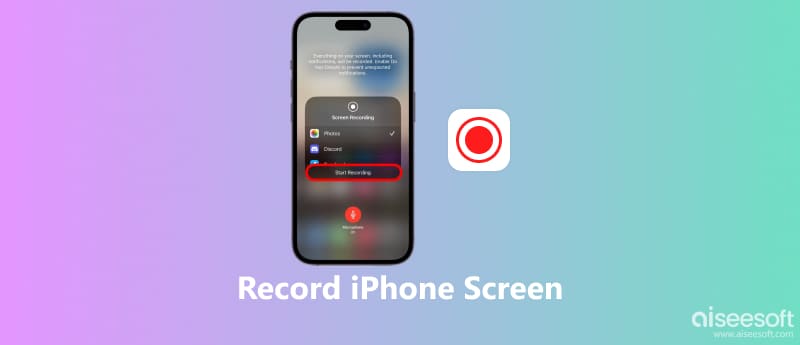
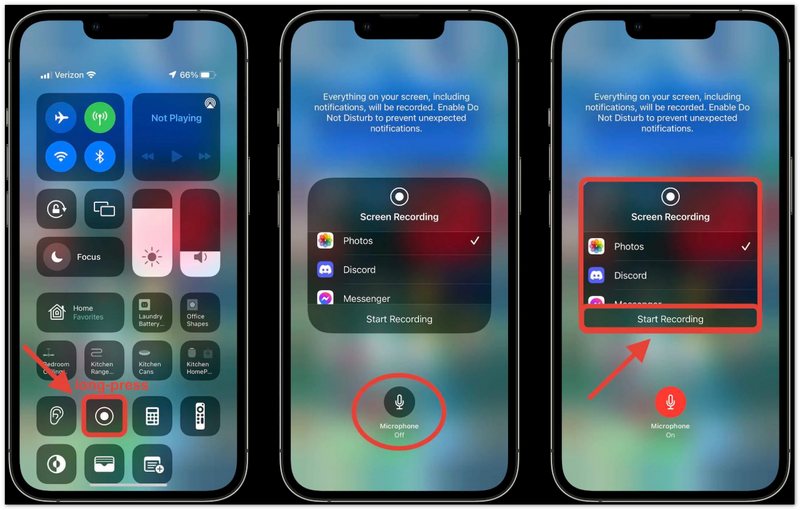
The easiest way to record iPhone screen is by using Apple's built‑in Screen Recording feature. It allows you to capture screen activity, including apps, games, tutorials, and other content. This feature works on iPhone models running iOS 11 or later.
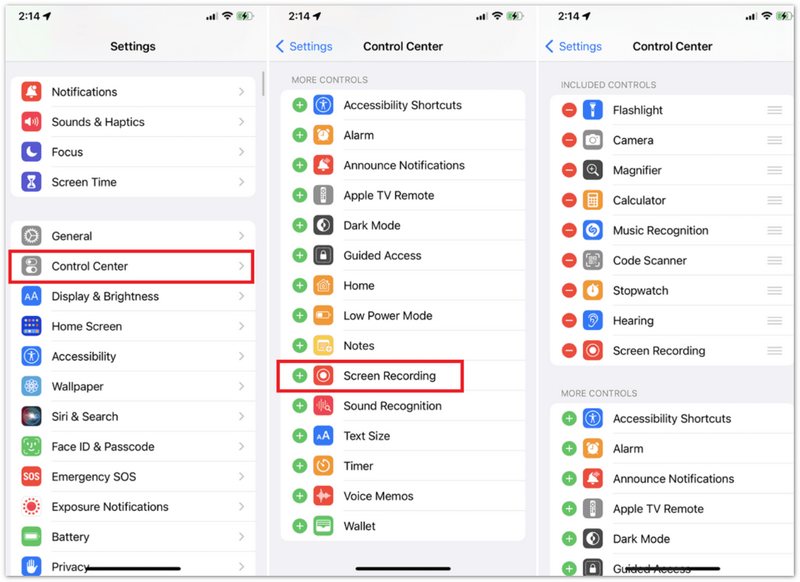
If you don't see the Screen Recording option in Control Center, follow these steps:
Not every app allows screen recording. Some apps, especially streaming video services, may block screen recording because of copyright protection. When this happens, the recorded video may show a black screen or fail to capture the content.
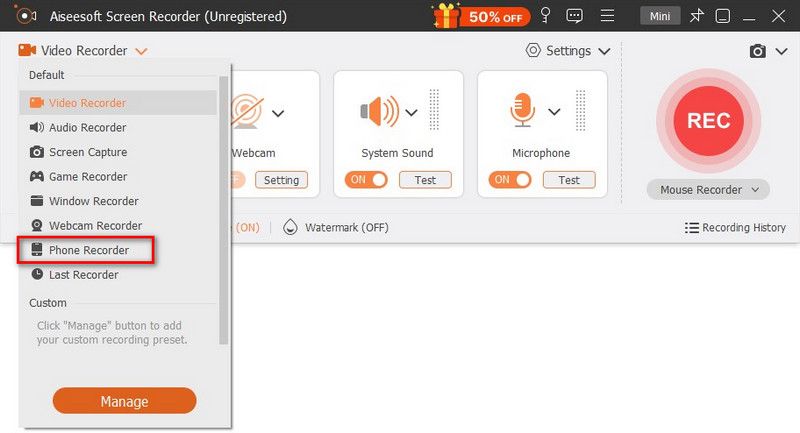
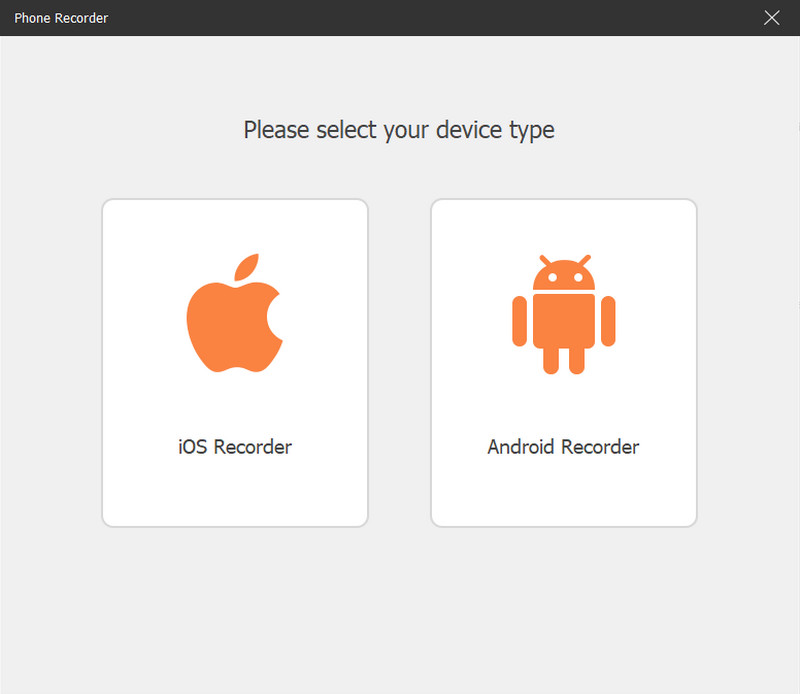
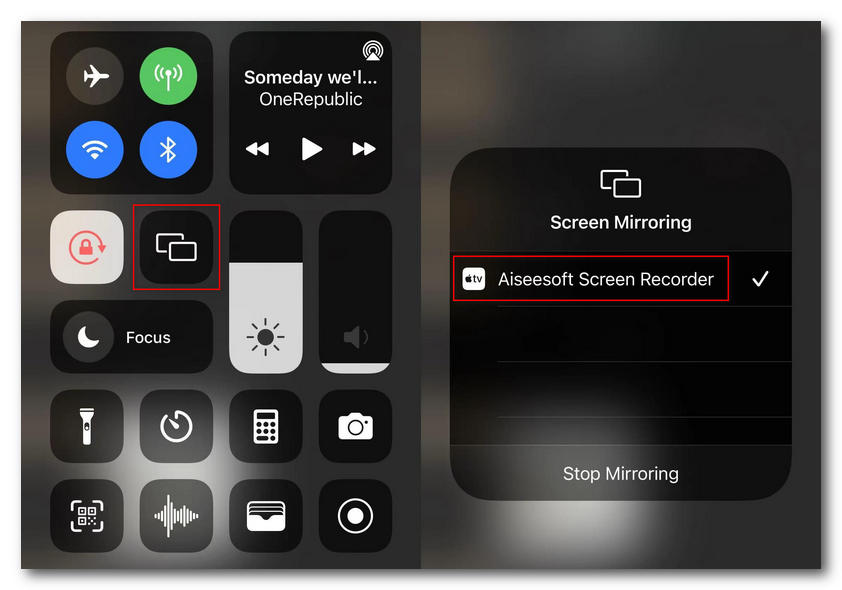
If you want to record iPhone screen on a computer, Aiseesoft Screen Recorder provides a more flexible solution. Compared with the built‑in iPhone recorder, it allows you to mirror your iPhone screen to a larger display and capture videos with better control over recording settings. It supports high‑quality recording and lets you preview, manage, and edit your recordings after capture. Powered by advanced AI technology, it allows you to record the iPhone screen with audio denoising and other AI features.
100% Secure. No Ads.
100% Secure. No Ads.
If you are using a Mac, QuickTime Player is another convenient way to record your iPhone screen. As Apple's built-in media player, QuickTime Player can also work as a simple screen recorder when your iPhone is connected to a Mac with a USB cable. This method is especially useful when you want to record iPhone gameplay, app tutorials, or other activities on a larger computer screen.
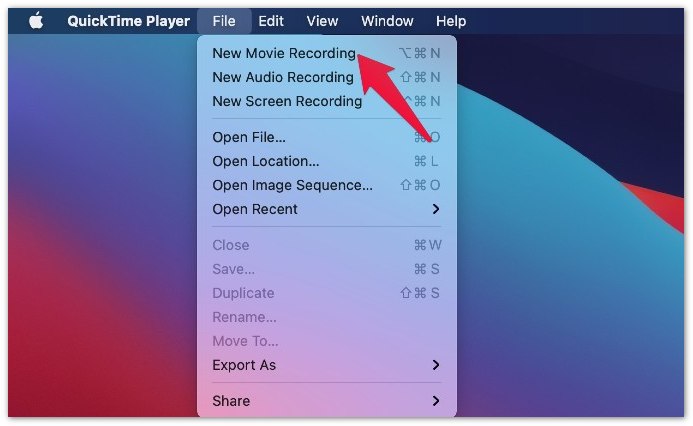
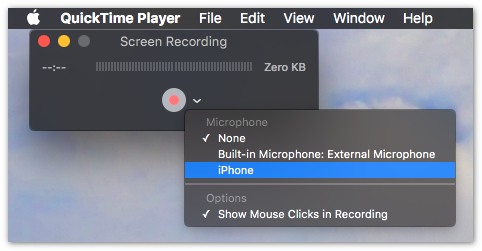
QuickTime Player is free and simple, but provides limited editing features. If you need more advanced recording options, such as adding annotations, editing videos, or recording your iPhone wirelessly, a professional screen recorder like Aiseesoft Screen Recorder may be more suitable.
100% Secure. No Ads.
100% Secure. No Ads.
Why is my iPhone screen recording not working?
There are several possible reasons iPhone screen recording is not working: 1) Screen Recording is not added to "Control Center"; 2) Your iPhone storage is full; 3) Some apps block screen recording due to copyright or privacy protection; 4) Your iPhone system needs to be updated. You can check your settings, free up storage space, or restart your iPhone to fix common screen recording problems.
Can I record a FaceTime call on iPhone?
Can I record a FaceTime call on iPhone? Yes, you can use the built-in Screen Recording feature to capture FaceTime calls. However, some audio may not be recorded due to Apple's privacy policies. Before recording any call, make sure you have permission from all participants.
Where are iPhone screen recordings saved?
By default, iPhone screen recordings are saved in the ‘Photos’ app. You can open ‘Photos’ > ‘Albums’ > ‘Screen Recordings’ to find your recorded videos. From there, you can edit, share, or transfer them to another device.
Conclusion
There are several ways to record iPhone screen depending on your needs. The built‑in Screen Recording feature is the easiest option for quick captures, while tools like Aiseesoft Screen Recorder provide more advanced features for on a computer.
100% Secure. No Ads.
100% Secure. No Ads.
Whether you want to record gameplay, tutorials, videos, or app demonstrations, choose the method that works best for you and start capturing your iPhone screen easily.
 Why Does My iPhone Keep Locking Itself and How to Fix It
Why does my iPhone 14 Pro Max keep locking itself while I’m using it? Why does my iPhone 11 lock for no reason? Fix the iPhone that keeps locking itself.
 Turn Your iPhone Screen into Black and White (Grayscale)? Yes or No
You can learn how to enable and disable grayscale mode on an iPhone step by step. Well, it is just a piece of cake to make your iPhone black and white. Just read and follow.
 iPhone Scrolling on Its Own? 7 Easy Fixes for Ghost Touch
Why does my iPhone 11 keep scrolling up on its own? How to stop ghost scrolling? Learn the main causes of the iPhone ghost touch issue and get 7 tips to fix it.
 Leave your comment and join our discussion
Screenshot Tips
Screenshot in Windows Media Player Screenshot Entire Webpage Screenshot Part of Screen Screen Record instagram Story Where are Steam Screenshots Saved Screenshot a Video Screenshot Alcatel Take a Screenshot on Lenovo Take Screenshot on HP Take a Screenshot in Minecraft Take a Screenshot of Google Chrome Use Snagit Scrolling Capture to Take Full-Page Screenshot Take Screenshots Surface Pro Screenshot on HTC Screenshot on Firefox Crop a Screenshot on Mac Crop Screenshots on Windows
Aiseesoft Screen Recorder is the best screen recording software to capture any activity like online videos, webcam calls, game on Windows/Mac.
100% Secure. No Ads.
100% Secure. No Ads.

*Required field
*Please enter a valid email

