iPhone Data Recovery
 100% Secure. No Ads.
100% Secure. No Ads.
The Mail app supports multiple mail services, including iCloud, Gmail, Outlook, Yahoo, and others. Many iPad users use it for business communication and daily task management.
Are you facing the situation where you have opened the Mail app on your iPad only to find that some important emails have mysteriously vanished? Or you accidentally deleted useful emails while organizing your inbox? Whatever the reason, when you lose valuable emails, the urgent thing is how to recover deleted emails on an iPad safely. This guide explains where your deleted emails may go and shares five effective methods to get them back.
When you delete an email, your iPad won’t erase it from the server or its internal memory immediately. Instead, the deleted email will be moved to a Trash or Bin folder.
Deleted emails stay in the Trash/Bin folder for a grace period. Most major email providers, such as iCloud Mail, Gmail, Outlook, and Yahoo, will keep them for 30 days. However, once that expires or you manually empty the Trash folder, these emails will be permanently removed to free up storage space.
This section tells five helpful methods to recover your deleted iPad emails. You can select a suitable recovery way based on your specific condition.
When you mistakenly delete an important email or notice some valuable emails are lost, you should first check the Trash or Bin folder within the iPad’s Mail app. This is the most straightforward way to recover deleted emails. As mentioned, your deleted emails will be easily recovered within 30 days.
If you have emptied the Trash/Bin folder manually or the retention period has expired, the deleted emails are removed from the server. At that point, you need third-party iOS recovery software like Aiseesoft FoneLab to rescue them. It uses advanced deep-scan features to analyze your iPad data and recover deleted, lost, or hidden app data, attachments, and other files. You can start a free trial to search for your deleted emails on an iPad.
100% Secure. No Ads.
100% Secure. No Ads.
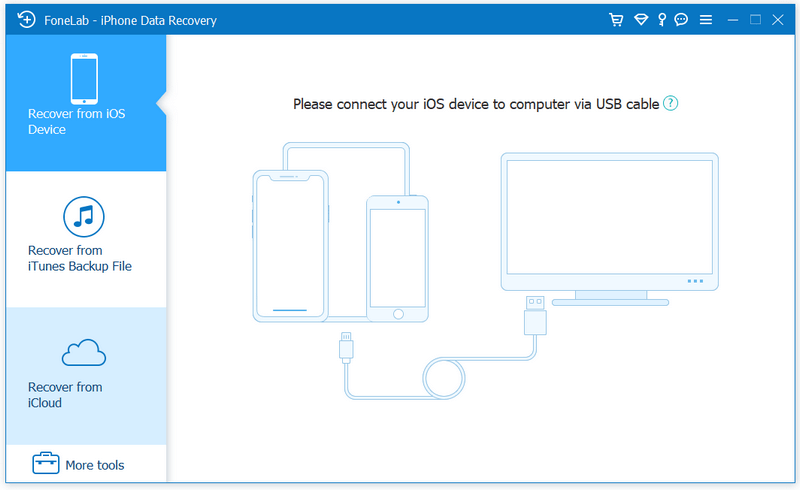
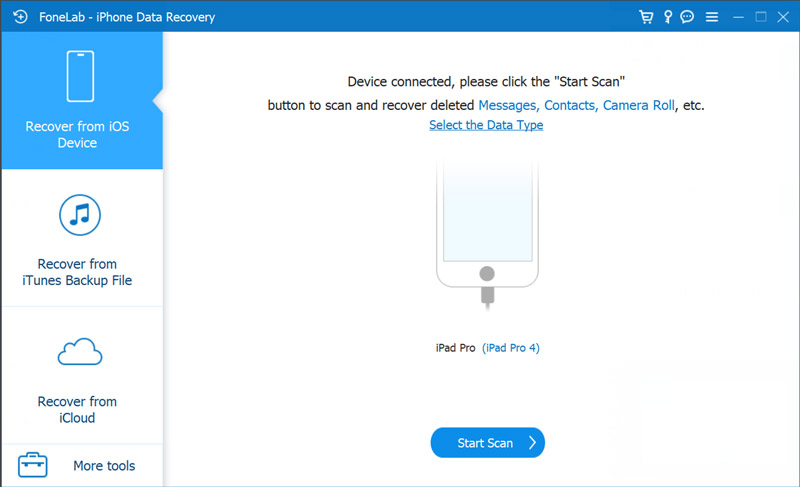
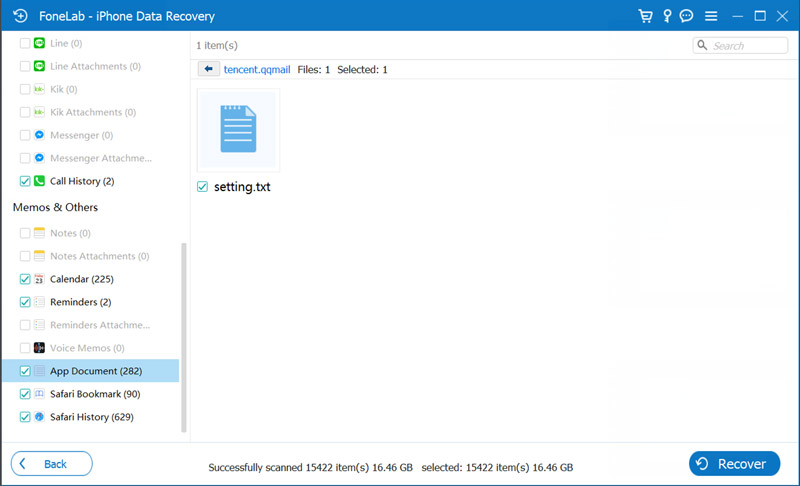
As you can see, FoneLab also allows you to recover other commonly used iOS files, such as photos, videos, call history, reminders, app data, and more.
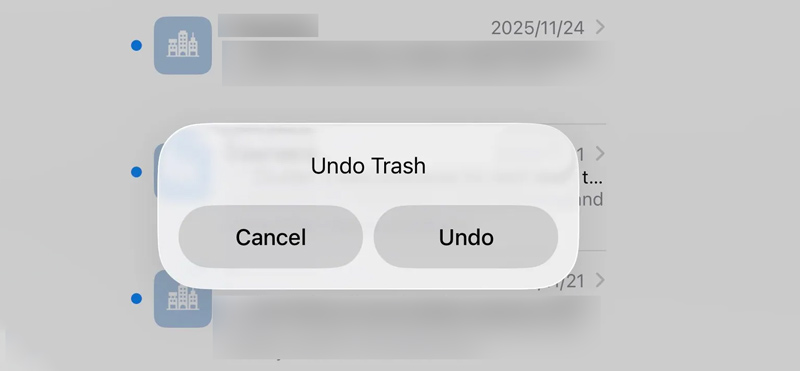
The Mail app on your iPad has built-in gesture controls to undo recent mistakes. When you accidentally delete an email, you can use it to undo the deletion action. This method only works if you perform it immediately after deleting.
When you notice the mistaken deletion, shake your iPad firmly side to side once or twice. You will see a pop-up dialog box appear on the screen saying Undo Trash. Tap Undo to recover the deleted email.
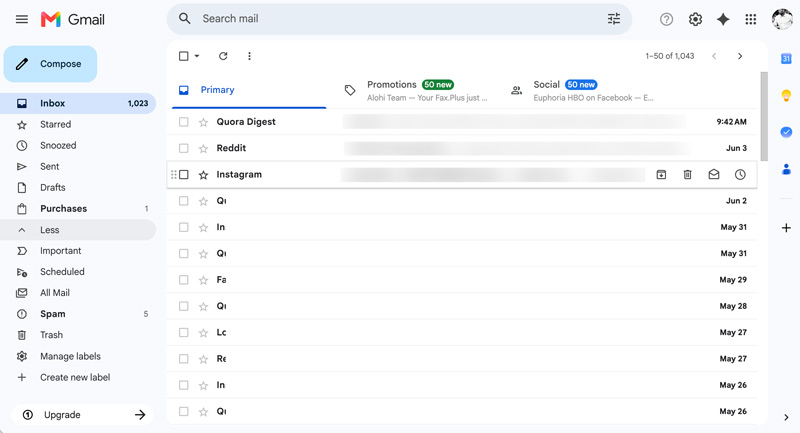
Sometimes, your iPad’s Mail app may have synchronization issues and fail to load your emails properly. Some important emails have vanished from the app. You can try signing in to your email account through its web service. For instance, you can open Chrome, sign in to your Gmail account, and search for your lost emails there.
In some cases, your email is not deleted. The email lost or missing issue is due to network interruptions or app glitches. You can try re-syncing the account to force your iPad to download a fresh directory of your inbox from the email server.
To do that, you can go to Settings on your iPad, scroll down to choose Apps > Mail, tap Mail Accounts, then select the target email account.
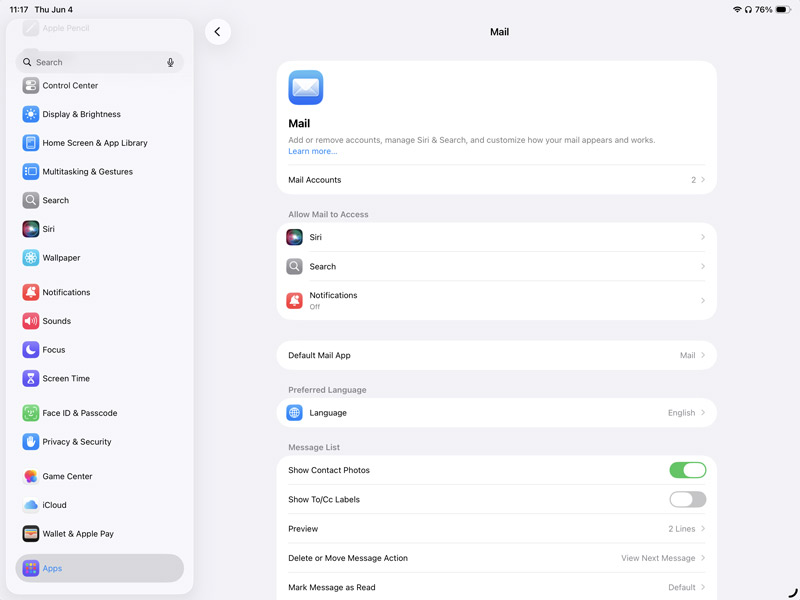
You can see a toggle switch next to Mail. Toggle it to the OFF position, then toggle it back to the ON position. You can also remove the account and then re-add it. Open the Mail app on your iPad and check if vanished emails reappear.
You may also like:
Can I recover permanently deleted emails that have been emptied from the Trash or Bin folder?
In most cases, you still have a big chance to recover these permanently deleted emails. If you have manually emptied the Trash folder or the emails were deleted 30 days ago, use the recommended Aiseesoft FoneLab to search for them from your iPad’s internal storage.
Will iCloud back up emails on my iPad?
No, iCloud will not back up your emails on an iPad, iPhone, or Mac. Whether you use Mail, Gmail, or Outlook, the emails you receive and send will not be backed up by iCloud. These email files are saved on their host company’s servers. The Mail app on your iPad only acts as a viewing window.
How can I add a Gmail account to the Mail app on an iPad?
You cannot add your Gmail account directly to the Mail app. Instead, you can open the Settings app, choose Apps > Mail > Mail Accounts, and then select Add Account. Tap Google and follow the prompts to enter your email address and password. After that, you will see several toggles for Mail, Contacts, Calendars, and Notes. Ensure Mail is enabled and tap Save.
Conclusion
For different reasons, you may lose some important emails on your iPad. Fortunately, there are several ways to get them back easily. You can follow the five methods in this guide to recover deleted emails on an iPad. Check the Trash folder inside the Mail app first. If the email messages have been cleared from the server, a dedicated recovery tool like Aiseesoft FoneLab offers you more chances to rescue them.
 Learn 5 Proven Ways to Recover Deleted Emails from Gmail
How can I recover a permanently deleted email from Gmail? How do you recall deleted emails in Gmail? Learn to retrieve your deleted and lost emails from Gmail.
 [4 Solutions] Cannot Get Mail – The Connection to The Server Failed
Get the message “Cannot Get Mail – The Connection to the Server Failed” on iPhone? Read this post to get the 4 solutions to fix the issue on iPhone/iPad/iPod touch.
 Fix Mail Error: iPhone/iPad That Won't Download Emails
What will you do when iPhone/iPad won't download email, only displaying 'This message has not been downloaded from the server'? You can check this article and find solutions.
 Leave your comment and join our discussion
The best iPhone data recovery software ever, allowing users to safely recover lost iPhone/iPad/iPod data from iOS device, iTunes/iCloud backup.
100% Secure. No Ads.
100% Secure. No Ads.

*Required field
*Please enter a valid email

