At some point, most Android users want to root their phone — to remove pre-installed apps, gain deeper control, or run apps that need superuser access. But many people would rather not plug into a computer at all. This guide covers the no-PC rooting methods that still make sense, where they work, and where they don't.
Rooting is the most important part of the beginning to get more privileged control of your Android device. However, before rooting your Android phone, you should learn more about the benefits and disadvantages of rooting Android.
Benefits:
Customize your Android device freely and flash a custom ROM and Kernel. Rooting Android will give you more privileged control of your phone. You remove the applications or files pre-installed by the manufacturer, and install the latest Android OS and fantastic apps.
Risks:
The manufacturers disallow you to root your Android. If you choose to root your Android, your device will lose the warranty. A failed root attempt may brick your phone. Moreover, your Android may be unable to update.
Best for: Latest Android version, better for tiny-tech skilled users.
Magisk is an Android rooting software working on Android 17 of most phone brands like Samsung, Pixel, etc. Generally, you need a PC to assist you rooting your android, if your phone have already unlocked the bootloader and had TWRP Recovery installed, you can also root your Android without PC.
Before You Start:
Make sure your phone's Bootloader is unlocked, you already have TWRP Recovery installed, and your original boot.img is saved on your phone.
Best for: Old Android versions from Android 1.5 to 5.0 including Samsung, Google, HTC, Sony and else.
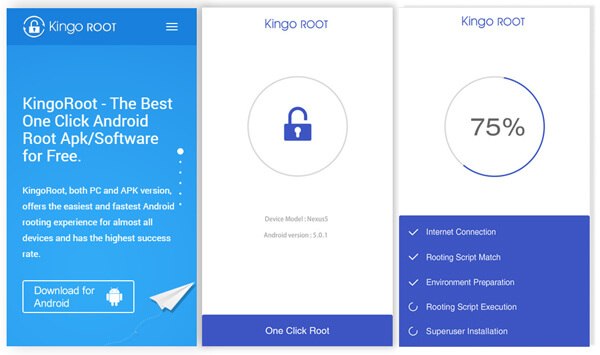
Kingo Root is one of the most famous Android Rooting software, it offers both desktop and android version. You can download this app from the website and root your Android with one click.
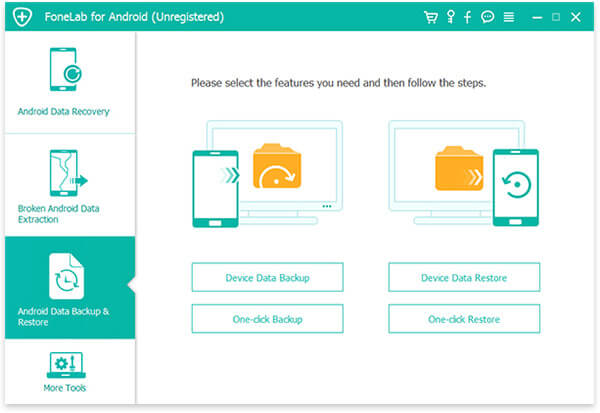
A complete Android rooting may delete everything on your phone. If you have important photos, videos and files, you had better back up your Android before rooting. Here, you can try Android Data Backup and Restore. It provides a simple way to back up and restore all types of files on your Android device. You are allowed to preview data in detail before restoring data from backup. Moreover, you can selectively backup and restore Android data without hassle on PC and Mac.
Can you root an Android without wiping it?
No, you will need to unlock bootloader to root your Android phone and this will wipe all your data. Therefore, it’s better to backup your Android before rooting.
Can I unroot my phone after rooting?
Yes. You can unroot your Android device after rooting it.
Conclusion
This article introduces 2 working methods to root your Android without PC. If you have already unlocked the bootloader with recovery option, you can use Magisk to install the root patch with your phone. For older android, the one step rooting App works perfectly. Make sure you have backed up your data with Aiseesoft Android Data Backup and Restore before you start.
 Best Rooting Tools to Root HTC One M8
Want to jailbreak your HTC One M8/M7? You can learn how to root HTC One M8 in this post.
 How to Root Nexus 7/6/5 with Nexus Root Toolkit
How to root Nexus 7/6/5? What is Nexus Root Toolkit? This article is going to show you how to root Nexus with Nexus Root Toolkit.
 How to Root Samsung Galaxy Phone
How to root my Samsung Galaxy to get more permission? This post will show you how to select the rooting software to root your Samsung Galaxy.
 Leave your comment and join our discussion
How to Root Android
Root Android with Kingo Root Root Android with King Root Root Android with One Click Root Root Android with PingPong Root Root Android with iRoot Root Android with Root Genius Root Android without PC
Provides a simple way to back up and restore all types of files like contacts, messages, call logs, gallery, videos, audio, etc. on your Android device safely and selectively.
 100% Secure. No Ads.
100% Secure. No Ads.

*Required field
*Please enter a valid email

