
Video Converter Ultimate
 100% Secure. No Ads.
100% Secure. No Ads.
Contents
How do I separate audio from a video in iMovie?
iMovie is the default video editor for Apple users. When you need to split audio from a video on your Mac, you may wonder if the pre-installed software can help you do that. The short answer is yes, you absolutely can. iMovie offers basic features to deal with daily editing and conversion needs. It can split the audio track from your video and export it independently.
This guide tells how to extract audio from video in iMovie. Whether you want to make the audio extraction on a Mac, iPhone, or iPad, you can follow the related method. We also explore advanced tips for exporting just the audio. Moreover, a powerful alternative is introduced in case you want more control or higher quality.
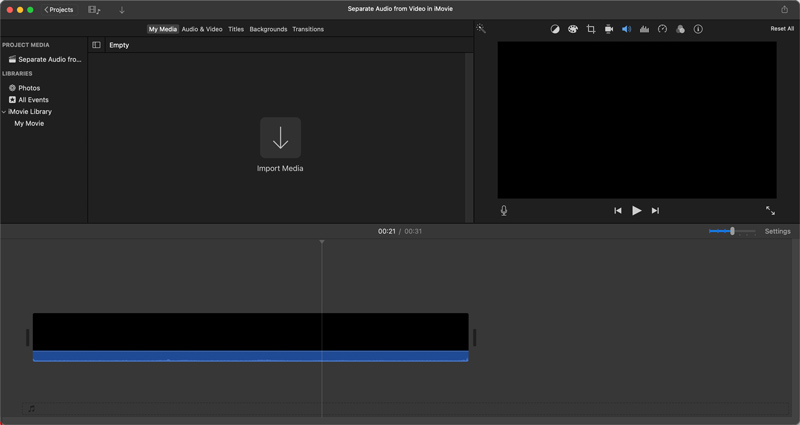
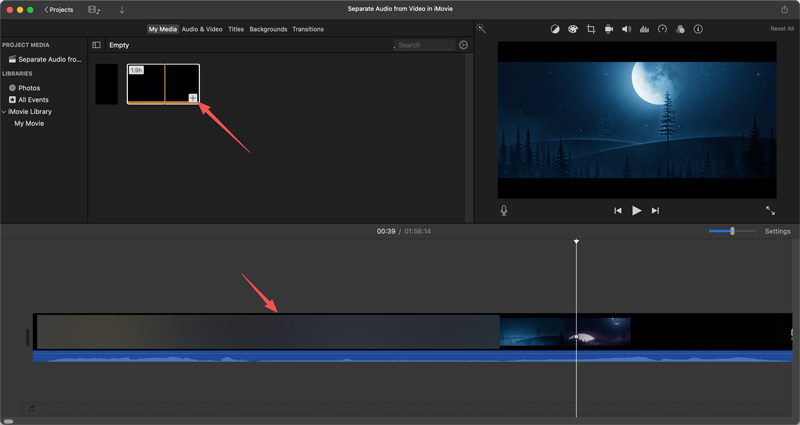
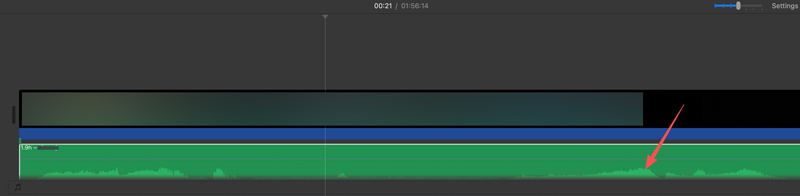
iMovie does not have a single “Separate Audio” option to directly extract audio from the entire project. However, when a video file is loaded to its timeline, the audio track can be easily isolated. iMovie is pre-installed on any Mac as a video editor. You can directly launch it and then detach audio from a video clip.
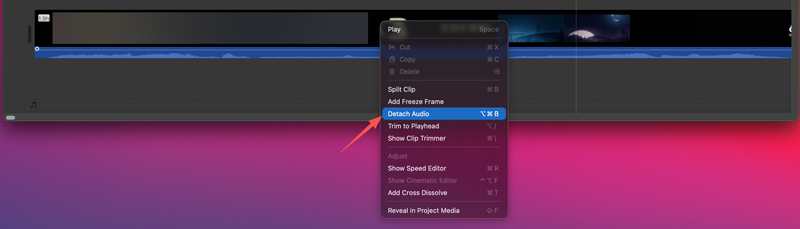
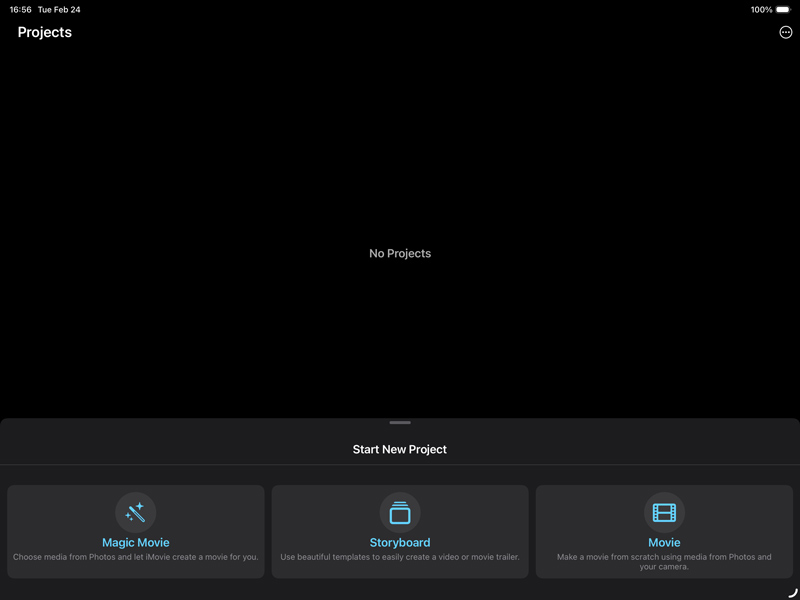
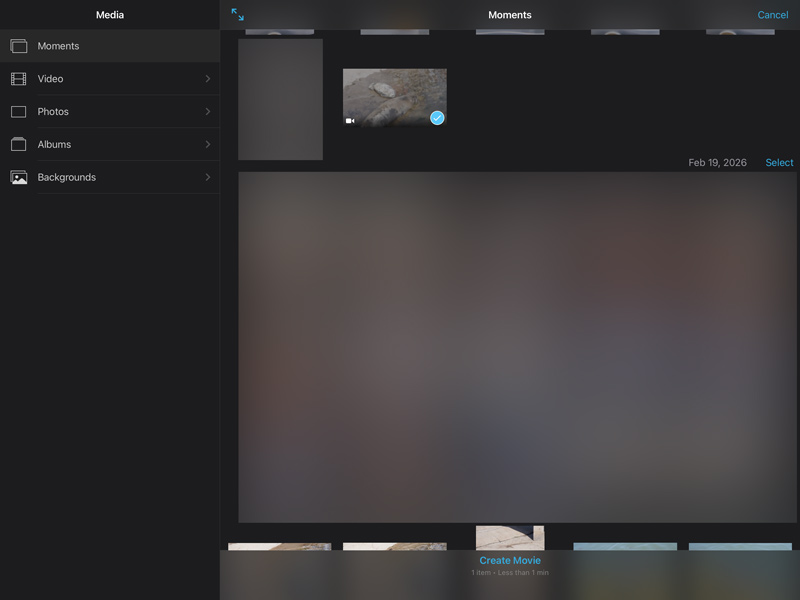
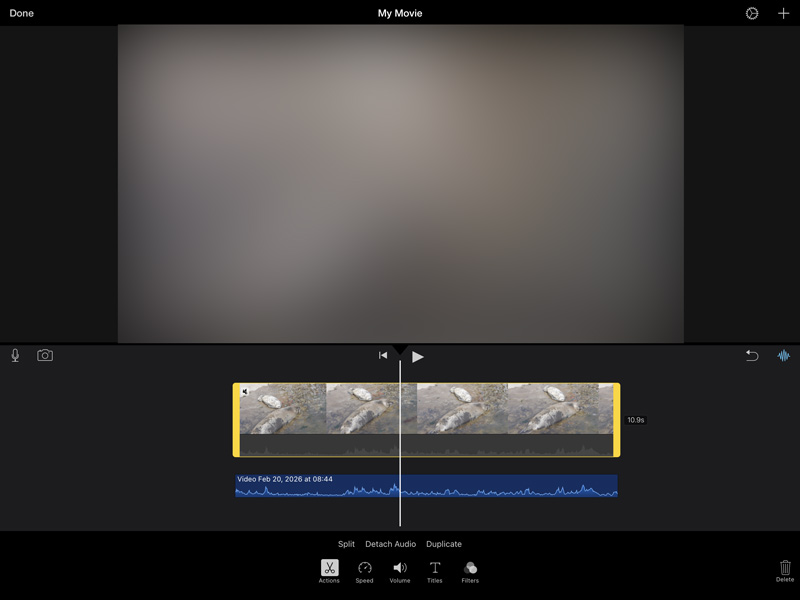
The mobile app of iMovie also has a specific Detach Audio function. When you need to separate audio from a video stored or recorded on your mobile device, you can simply tap the button.
In many cases, you only need the audio and want to save the sound from a video. Luckily, iMovie has an Audio Only option for you to export the whole project to audio.
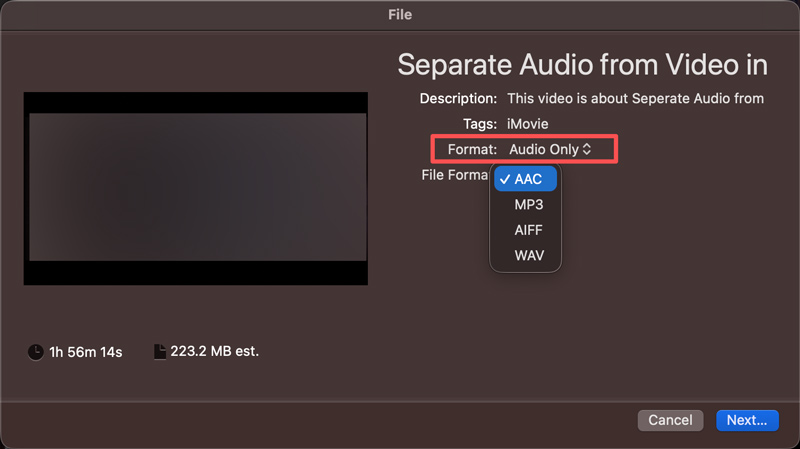
This “Audio Only” feature is currently limited to the desktop software. You cannot extract audio from a video on your iPhone or iPad using iMovie. What’s more, iMovie does not allow you to export audio to some specific formats, such as FLAC or WAV.
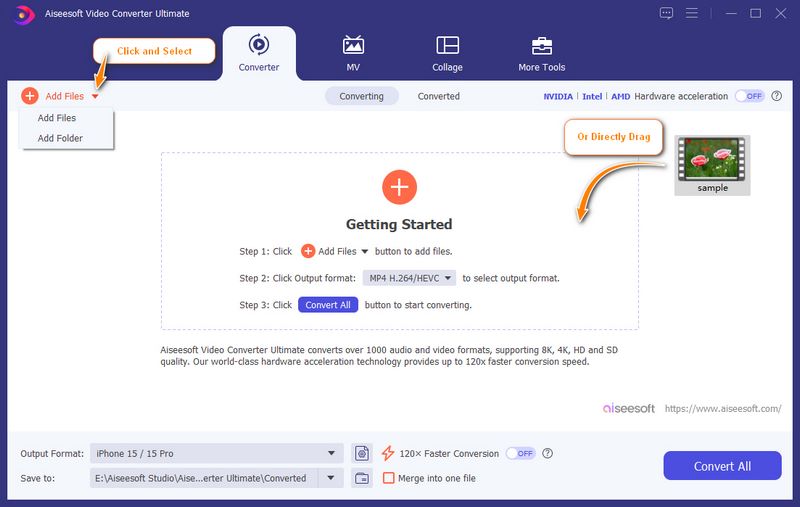
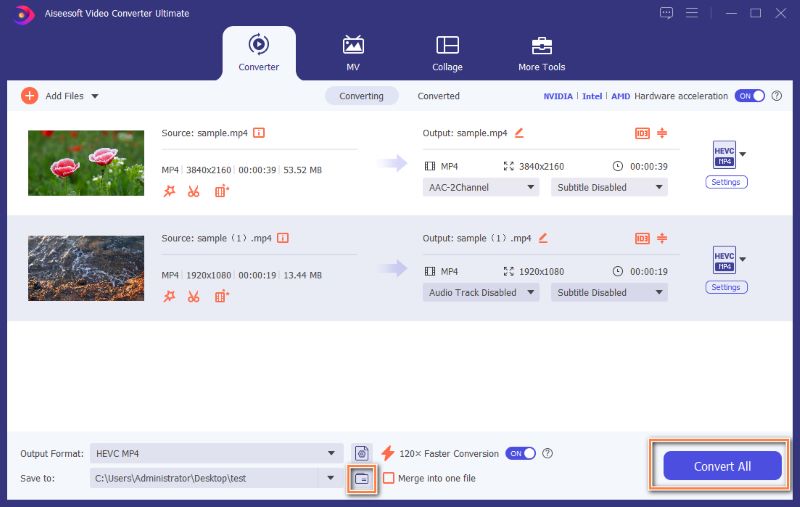
iMovie is a default video editor for Apple users to handle daily edits and conversions. If you are a Windows user or are unhappy with its performance, and are looking for a great iMovie alternative for separating audio from videos, you can turn to the powerful Aiseesoft Video Converter Ultimate. It is not just a video/audio converter; it can be a feature-rich toolbox with multiple editing and enhancement tools, including a built-in AI-powered vocal isolator.
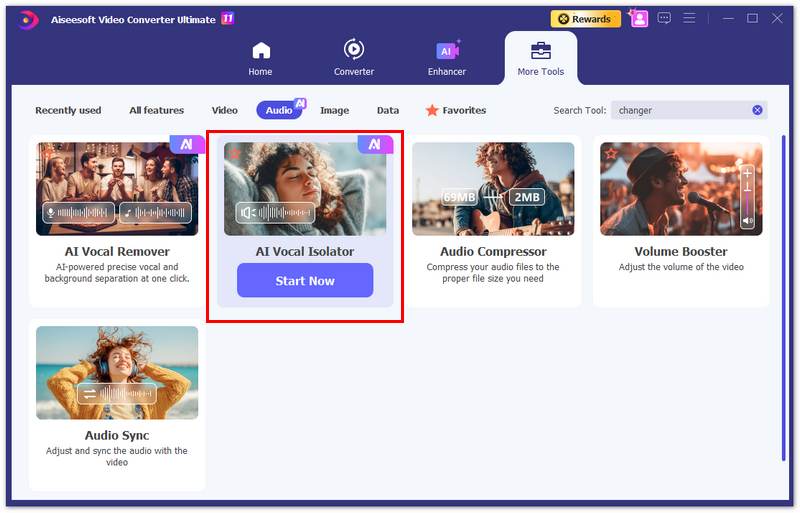
Direct Way to Separate Audio from Video: Offers a one-click way to isolate and extract audio from a video clip.
AI Audio Separation: The built-in AI audio isolator can intelligently analyze audio and extract vocals, even from complex background noises.
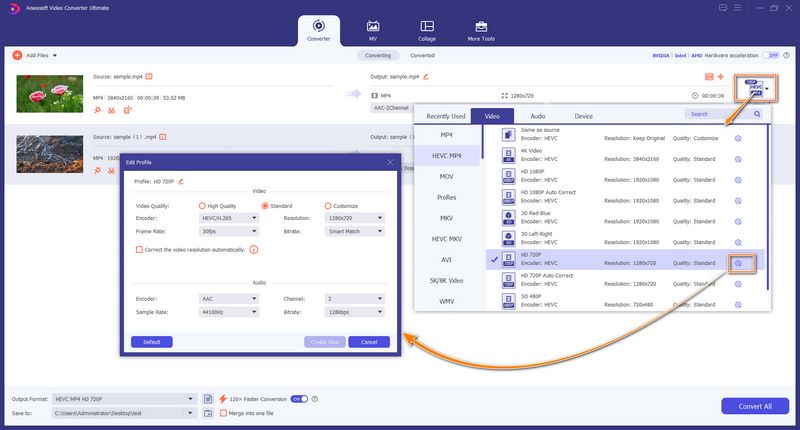
High-Quality and Versatile Output: Supports extracting audio and converting it to any lossless/lossy formats with high quality.
All-in-One Editor and Enhancer: Beyond audio extraction and conversion, this iMovie alternative can edit videos and enhance the overall video quality.
100% Secure. No Ads.
100% Secure. No Ads.
Question 1. Is there an iMovie version for Windows?
No, there is no official version of iMovie for Windows users. It is developed exclusively by Apple for its own ecosystem. You can only use iMovie on macOS, iOS, and iPadOS devices. Or, try these iMovie for Windows alternatives.
Question 2. Why can’t I detach audio in iMovie?
It can be frustrating when you are not allowed to detach audio in iMovie. There could be several common reasons for that. First, you should put the clip onto the project timeline for editing. Click on it to display the Detach Audio option. If the source video has no audio track or its audio is in an incompatible format, iMovie won’t have any audio to detach; the feature will remain grayed out. Sometimes, the problem is caused by a software glitch or wrong settings.
Question 3. How do I mute only a segment of a video using iMovie?
Yes, you can mute only a part of a video with iMovie. When you are editing on your Mac, you can select the exact section of the video clip you want to mute, and then lower the volume to 0%.
Conclusion
iMovie provides a free and effective way to separate audio from video for Apple users. It can easily handle various basic editing needs on macOS, iOS, and iPadOS devices. The Detach Audio feature ensures a quick, straightforward solution to split audio from a video. Moreover, its Audio Only export is particularly handy for quickly extracting audio from a video clip. However, if you need to edit audio on Windows or want more advanced functions, turning to a specialized tool like Aiseesoft Video Converter Ultimate is recommended.
 Best 10 Video Sound Editors for Windows/Mac/iPhone/Android Devices
Read and get your best video sound editor for Windows, Mac, iPhone, and Android. You can choose any tool to edit the audio track of your video on a desktop or mobile device with ease.
 A Step-by-Step Guide to Export Audio Only in Clipchamp
Can we export audio only in Clipchamp? This article has all the information you want to know. A step-by-step guide and the best assistant will be offered.
 3 Feasible and Easy Ways to Edit Vertical Videos on iMovie
How to edit vertical video in iMovie? Here is a full guide to explore all the essential steps in making a nice-looking vertical video on your iPhone and Mac.
About AMV
1.1 Best AMV Maker Apps 1.2 How to Make AMV on Computer 1.3 How to Make AMV on iPhone/iPad 1.4 How to use Windows Movie Maker 1.5 AMV - What Is AMV 1.6 Best AMV Editor Apps 1.7 Top 5 AMV Converters
Video Converter Ultimate is excellent video converter, editor and enhancer to convert, enhance and edit videos and music in 1000 formats and more.
100% Secure. No Ads.
100% Secure. No Ads.

*Required field
*Please enter a valid email

