Video Converter Ultimate
 100% Secure. No Ads.
What is the best way to convert MKV to MP4 without losing quality?
For compatibility and other purposes, you need to turn your MKV files into MP4. If you prefer a free, open-source transcoder, HandBrake remains a top recommendation for the conversion. It is available on Windows, macOS, and Linux without a watermark or premium tier. HandBrake MKV to MP4 converter is stable and trusted by millions.
Can HandBrake convert MKV to MP4?
Yes, it is often the first name that pops up when you search for a free, reliable converter. However, HandBrake behaves very differently depending on whether you remux or transcode. The first section gives you an overview of remuxing vs. transcoding in HandBrake.
Remuxing usually refers to copying the exact same video and audio streams from one container into another. All the image or sound data won’t be touched. In that case, the final quality will be the same as the source. Moreover, the process takes seconds because nothing is being re-encoded.
However, HandBrake is known as a video transcoder. For MKV to MP4 and other conversions, it does not remux. Instead, it decodes your video and audio.
Transcoding re-encodes every frame using a different codec profile, resolution, or bitrate. The software runs them through an encoder and creates a brand-new file from scratch. HandBrake will perform a full re-encode for every MKV-to-MP4 conversion. This means you will definitely lose some quality no matter what settings you pick. What’s more, the process will take longer than a simple repackage.
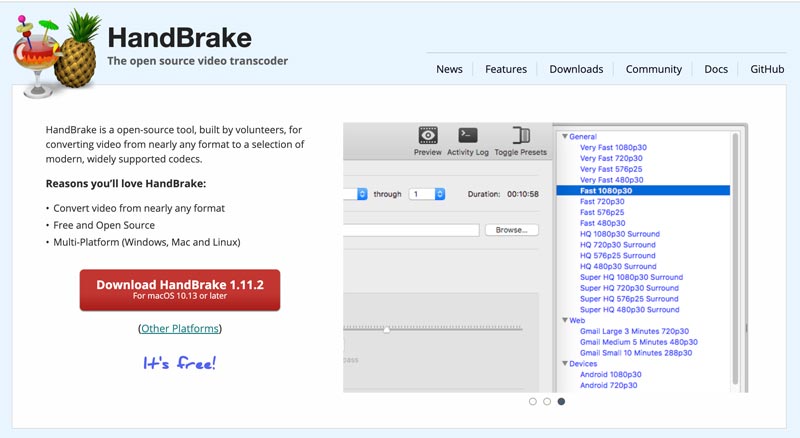
When you decide to convert MKV to MP4 using HandBrake, download the latest version of the program from the official website first. Install it on your computer and set it up.
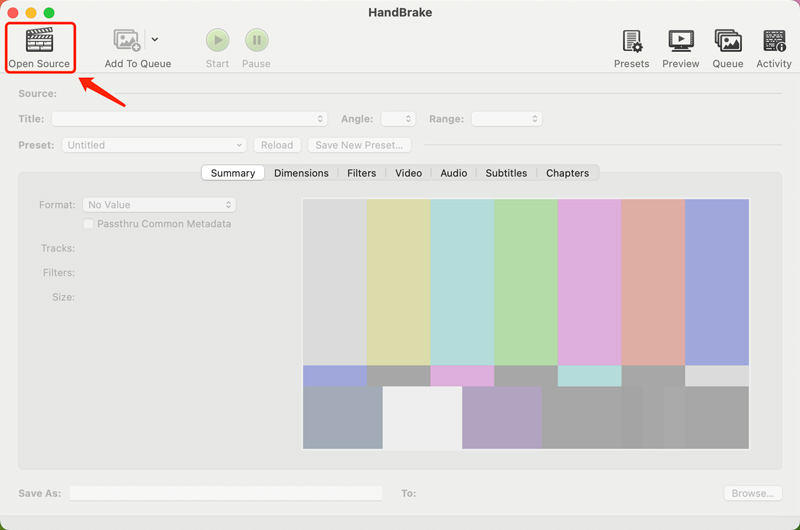
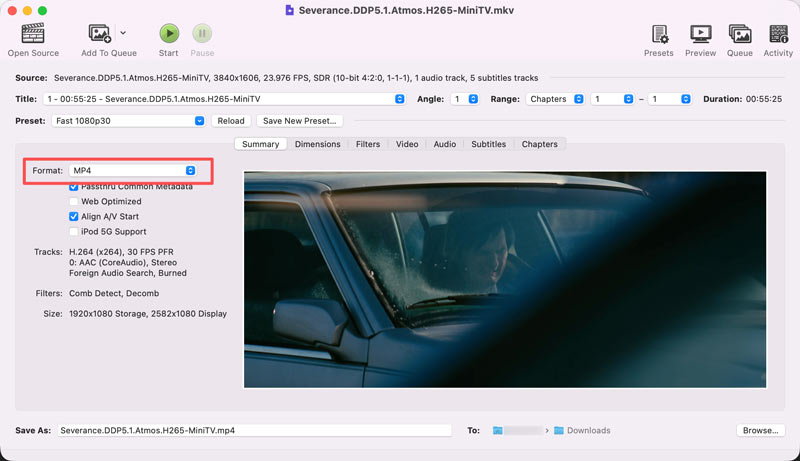
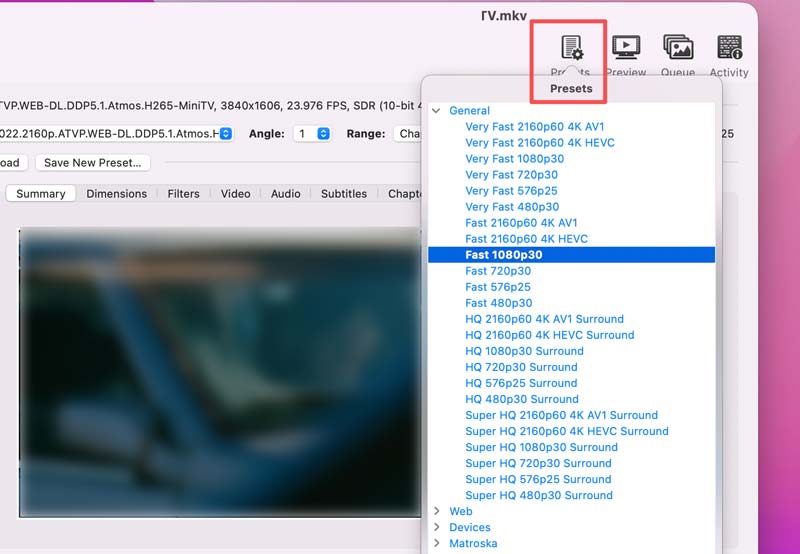
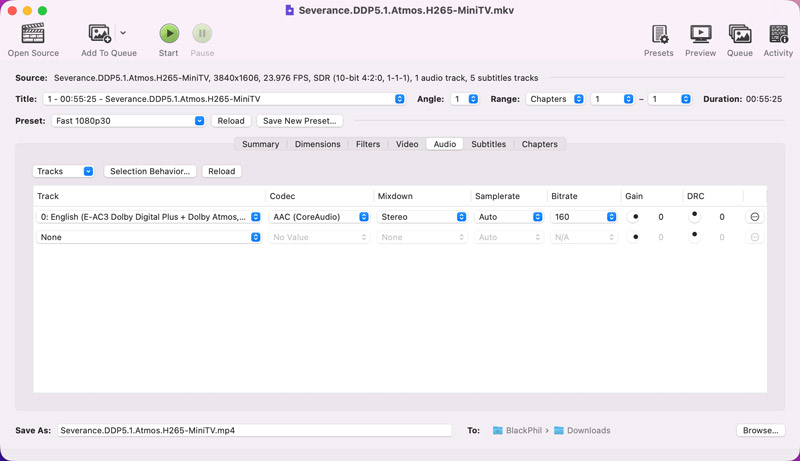
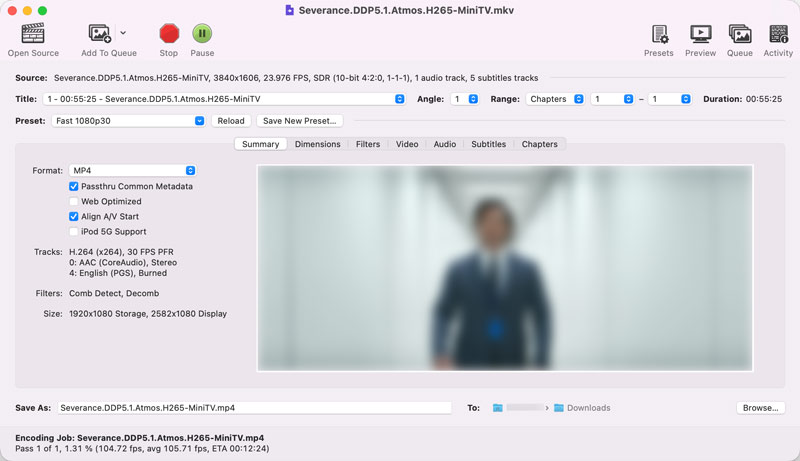
HandBrake’s biggest limitation is the one we just covered: no lossless remuxing.
If your only goal is to make an MKV playable on a device that rejects the MKV container, HandBrake still forces a full re-encode. The process will waste time and quality.
Beyond that, HandBrake doesn’t support batch conversion. You are only allowed to import and handle one file, not simultaneously.
Moreover, the software lacks some even basic editing functions. For instance, it doesn’t offer a direct way to merge several clips. HandBrake only outputs to MKV, MP4, or WebM. If you need MOV, FLV, or AVI, it won’t be suitable for you.
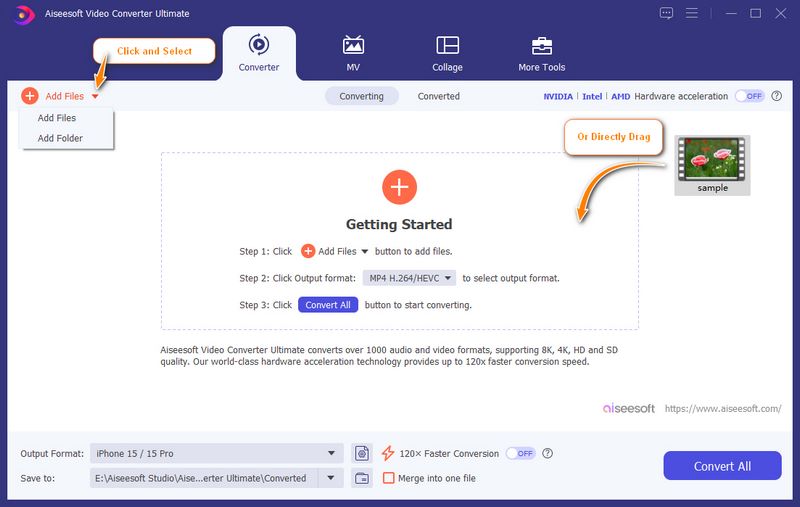
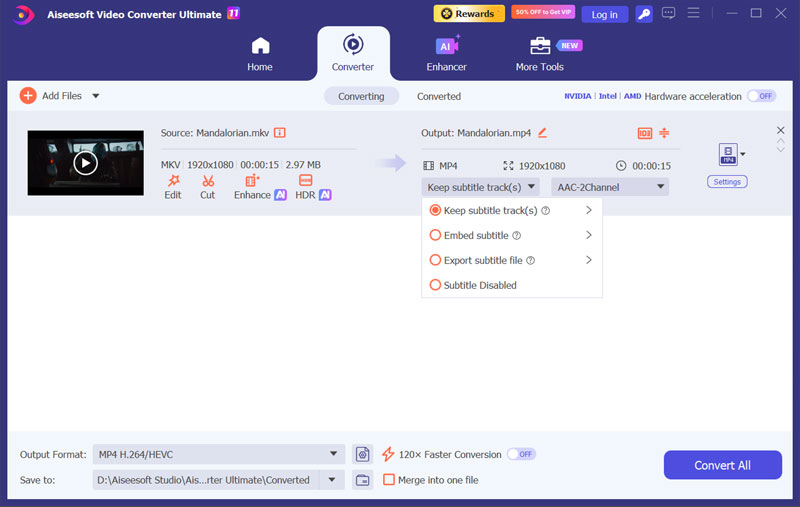
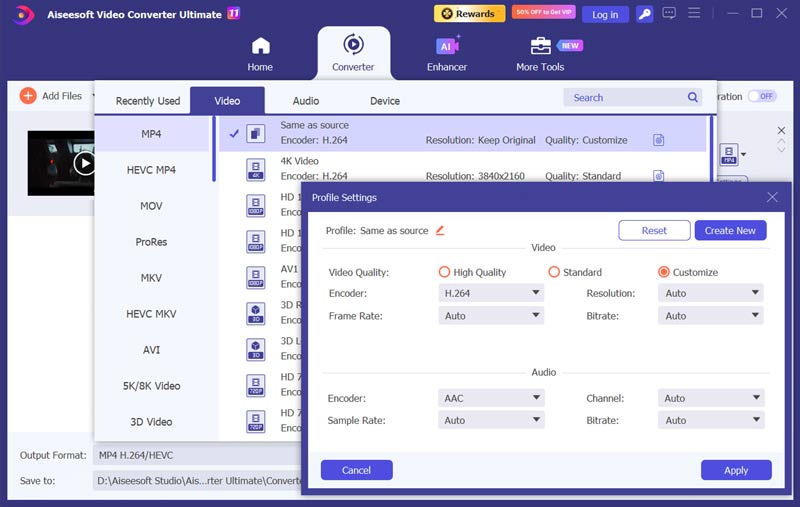
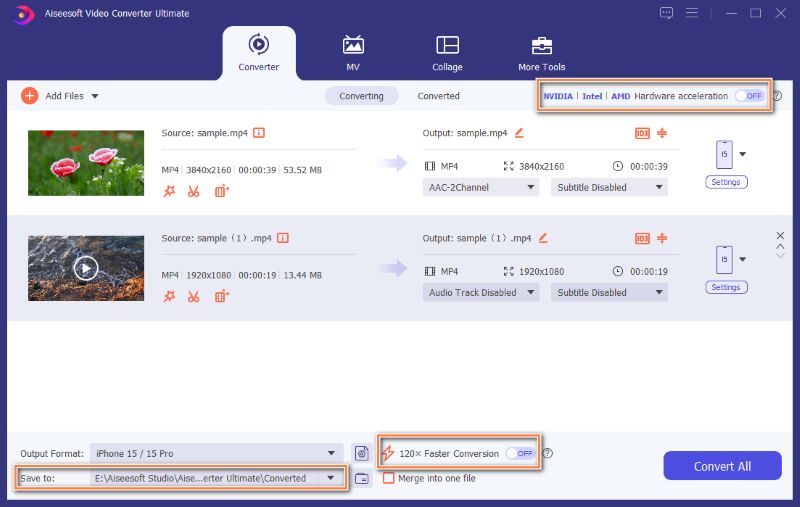
Aiseesoft Video Converter Ultimate is an all-in-one converter that prioritizes speed, batch processing, and lossless output options. If you are unhappy with HandBrake’s performance, give this great alternative a try. The biggest upgrade is true batch conversion. It also supports advanced hardware acceleration across NVIDIA, Intel, and AMD GPUs.
More importantly, the software offers a lossless conversion mode that converts MKV to MP4 without re-encoding. It supports over 1,000 input and output formats, so you’re not locked into MKV and MP4 alone.
100% Secure. No Ads.
100% Secure. No Ads.
Question 1. Can HandBrake convert MKV to MP4 without losing quality?
No. HandBrake always re-encodes the video stream, so there is always some quality loss. For a true zero-loss conversion, you need a tool like Video Converter Ultimate that supports remuxing.
Question 2. What is better, MakeMKV or HandBrake?
MakeMKV and HandBrake are built for different jobs. MakeMKV is mainly designed to read a DVD or Blu-ray disc. It can copy the video, audio, subtitles, and chapters from a disc to an MKV file. HandBrake is a video transcoder. Its job is to re-encode an existing video file into a new format. It is used to make a video smaller or more compatible.
Question 3. Is HandBrake safe to use?
Yes, HandBrake is a reputable transcoder that is considered safe to use. The application itself is clean, open-source, and free of malware. However, you should download it from the official source.
Conclusion
MKV can pack multiple audio tracks and subtitles, but MP4 is the format that can be supported by most devices. HandBrake is a genuinely capable free transcoder. You are advised to download the software and try converting MKV to MP4 in HandBrake, checking if you are satisfied with its performance.
 100% Working Methods to Combine MP4 Files with HandBrake
Can you combine MP4 video files with HandBrake? This article will answer this question in detail and tell you the best ways to join your videos quickly.
 Ultimate Guide to Converting MP4 to MOV with 7 Methods
Can I convert MP4 to MOV in iMovie? Is there a free video converter to transform MP4 to MOV? Learn 7 effective methods to turn MP4 into MOV on Mac and Windows.
 How to Upscale Video in HandBrake (1080p to 4K) & Best AI Settings
Learn how to upscale video resolution in HandBrake with our step-by-step guide. Discover the best RF settings and why AI upscaling (VidHex) offers superior 4K quality.
 Leave your comment and join our discussion
Convert/Download/Edit SWF
1.1 SWF 1.2 SWF to MP4 1.3 SWF to GIF 1.4 SWF to MOV 1.5 SWF to HTML5 1.6 SWF to AVI 1.7 SWF to WMV 1.8 SWF to 3GP 1.9 SWF to DVD 1.10 SWF Converter Mac 1.11 Edit SWF
Video Converter Ultimate is excellent video converter, editor and enhancer to convert, enhance and edit videos and music in 1000 formats and more.
100% Secure. No Ads.
100% Secure. No Ads.

*Required field
*Please enter a valid email