
Aiseesoft Blu-ray Player
 100% Secure. No Ads.
If you’ve ever downloaded high-definition movies or TV episodes from the internet, you likely have files ending in “.mkv”.
In most cases, these MKV videos play smoothly and deliver a good viewing experience. However, sometimes, you may get video but no sound, or get sound but no picture. Sometimes, your device or player fails to play MKV files or shows errors. You may then feel confused about MKV and wonder what it actually means.
This guide explains what MKV is, its advantages and disadvantages, and easy ways to play or convert MKV videos.

MKV stands for Matroska Video. It is a multimedia container format, meaning it is a box that holds different streams together, such as video, audio, subtitles, chapters, attachments, and metadata.
The format was born in December 2002. EBML gave the format plenty of room to grow. New codecs and features could be added later without redesigning it from scratch.
In 2010, WebM was announced as a format based on the Matroska container. In 2014, Microsoft confirmed that Windows 10 would natively support Matroska and HEVC. After that, it became one of the most popular “video formats”.
The container itself doesn’t determine picture quality. The codecs inside it do. You can put H.264, H.265, VP9, or AV1 video into an MKV, and you can pair it with AAC, FLAC, DTS, Dolby TrueHD, or almost anything else.
MKV has been around for years and remains a popular choice for storing movies and TV shows.
The biggest advantage of MKV is flexibility. An MKV file can contain multiple audio tracks and multiple subtitle tracks. For instance, it lets you switch between the original English audio, a Japanese dub, and a director’s commentary without separate files. You can also switch subtitles directly between simplified Chinese, traditional Chinese, English, Spanish, and German.
If you’re collecting Blu-ray rips, foreign films, or TV series with multiple language options, MKV is often the best choice. It also supports a wide range of codecs.
Another big advantage of MKV is resilience. For example, MP4 files may become completely unusable if the index gets corrupted. MKV is different. If part of the file is damaged, you may still be able to recover and play much of it. This is quite useful for large files that took hours to download.
The main downside is compatibility. Many smart TVs, game consoles, default phone players, and browsers don’t natively play MKV. You often need a third-party player like VLC to handle it.
Another disadvantage is its large file size. The truth is, if you put the same video and audio streams into an MKV and an MP4, the sizes will be nearly identical.
However, MKV files often store multiple audio tracks, subtitles, lossless audio, and high-bitrate video. That’s why they are always larger.
The good news is that working with MKV files is not particularly difficult. With the right media player, you can open an MKV file just like any other video. Actually, like MP4, MKV should be supported by almost every modern device or player, even though it is sometimes less familiar to everyday users.
The easiest answer for most people is VLC media player. It’s free, open source, and it plays MKV without any issue. You don’t need to install a codec pack or configure anything.
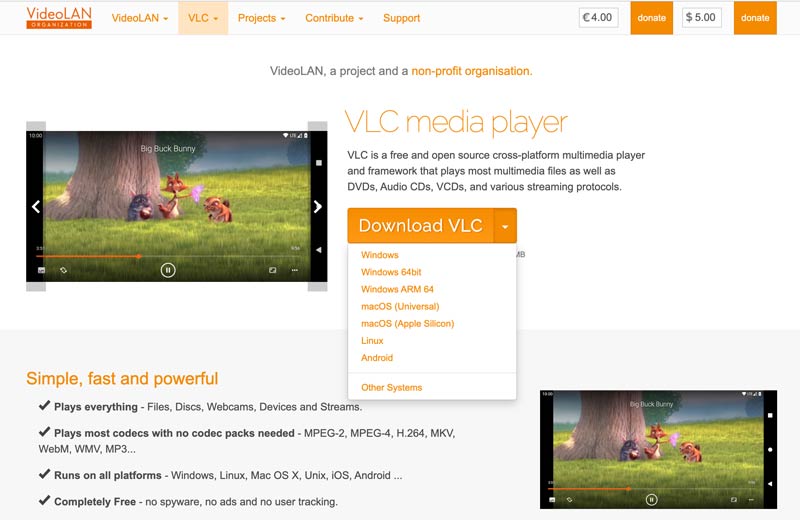
Just load the file, and VLC will do the rest. You get full control over MKV playback, such as switching audio tracks, loading external subtitles, adjusting sync, and using hardware acceleration. If your MKV file won't play in VLC, turn off hardware-accelerated decoding in the Preferences menu or update the player.

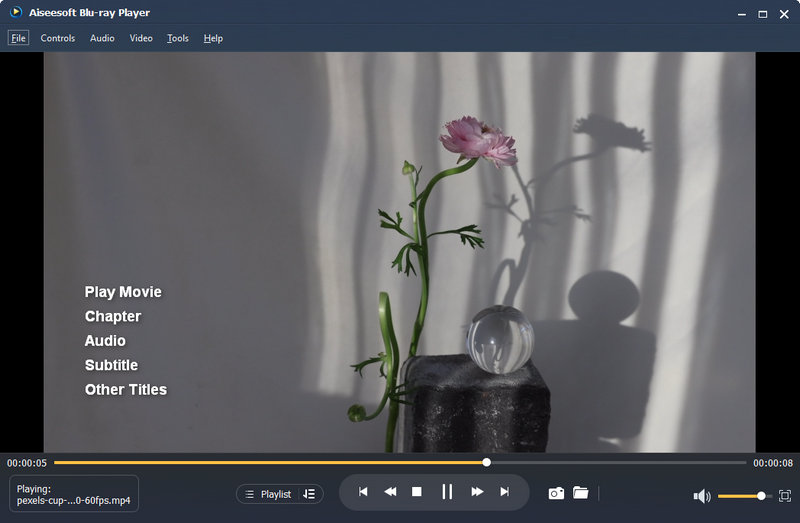
If you want something more specialized, Aiseesoft Blu-ray Player is worth a look. It handles MKV, but it also plays Blu-ray discs, DVDs, and ISO files. It supports 4K and even 8K playback and includes advanced color and video decoding features. If you have a library of disc images and high-bitrate MKV files, it can be a better fit than a general-purpose player.
100% Secure. No Ads.
100% Secure. No Ads.
If your device simply refuses to play MKV, converting to MP4 is the most reliable fix. But here’s the important part: there are two very different ways to do it.
The first is remuxing. This means you take the video and audio streams out of the MKV and put them into an MP4 container without re-encoding them. The quality stays exactly the same. The catch is that MP4 doesn’t support every codec. H.264 video and AAC audio are safe. DTS audio is not, so you’d need to convert the audio to AAC or AC3.
The second method is transcoding. This means you decode the video and audio and re-encode them into a format MP4 supports. It’s slower, and there’s a small quality loss, but it gives you the widest compatibility. You can try a reputable MKV to MP4 converter, Video Converter Ultimate, which offers a free version for basic conversions.
100% Secure. No Ads.
100% Secure. No Ads.

Question 1. Is MKV better than MP4?
Neither format is automatically better in every situation. MKV is very flexible and is especially useful when you need multiple audio tracks, subtitles, chapters, or other information. MP4, on the other hand, is widely supported by consumer devices and software. The better choice depends on what you plan to do with the video.
Question 2. Can I just rename .mkv to .mp4?
No. Renaming changes the file extension, not the internal structure. Most players will still detect it as MKV and either fail or behave strangely.
Question 3. Does converting MKV to MP4 reduce quality?
It can, but it does not have to. If the MKV to MP4 conversion involves re-encoding the video, some quality may be lost depending on the settings. If compatible streams can simply be remuxed into an MP4 container, the video itself does not need to be re-encoded.
Question 4. Can I play MKV without converting it?
In many cases, yes. If your computer or device has a compatible media player, you don't need to convert the file just to play it. VLC, for example, supports Matroska files directly.
Conclusion
MKV is not a video format in the way most people think. It’s a container. Once you understand that, a lot of the weirdness around MKV starts to make sense. MKV can hold high-quality video, multiple audio tracks, subtitles, chapters, and metadata in one file. This makes it particularly useful for movies and personal media collections. When compatibility becomes an issue, a player such as VLC or Aiseesoft Blu-ray Player can usually handle the file directly. If a particular device still refuses to play it, converting MKV to MP4 is a practical alternative.
 6 Best 4K Video Players for Windows and Mac
What is the best 4K media player for Windows? Or do you need one for a Mac computer? Check the list of the 6 best 4K players for smooth playback.
 How to Quickly Repair MKV Files [Step-by-Step]
Why does my MKV file have no sound? Can I fix the corrupted MKV videos? Learn about the reasons for the corruption and four ways to repair MKV files.
 The Comprehensive Review for the Best MKV Player for Mac
MKV Player for Mac is a must because Mac doesn’t support MKV natively. If unsure which to get, read this review to learn the best ones with high-quality playback.
 Leave your comment and join our discussion

Blu-ray Player is a powerful player that can play Blu-ray disc, Blu-ray folder, DVD disc/folder/ISO file, acting as common media player for any HD/SD video files.
100% Secure. No Ads.
100% Secure. No Ads.

*Required field
*Please enter a valid email