Video Converter Ultimate
 100% Secure. No Ads.
Converting M4A to MOV can be a common need, especially in Apple’s ecosystem.
In certain cases, you need to turn a pure audio file into a video-ready container. For instance, many websites and social platforms (YouTube, TikTok, Instagram, etc.) are built around video files. Even if you only need audio, your upload should be a video. When you have an M4A audio file like a voice memo, a podcast, or a track exported from a music project, you can convert it to MOV for wider compatibility.
This guide shares three simple methods to convert M4A to MOV in minutes. You can use dedicated desktop conversion software, the built-in iMovie on Mac, or a free online converter.
M4A is essentially an audio-only MP4 container. It is the default format for iTunes purchases and Apple voice recordings. MOV is Apple’s QuickTime container that can be accepted by most social platforms and websites. Converting M4A to MOV can easily solve the upload incompatibility.
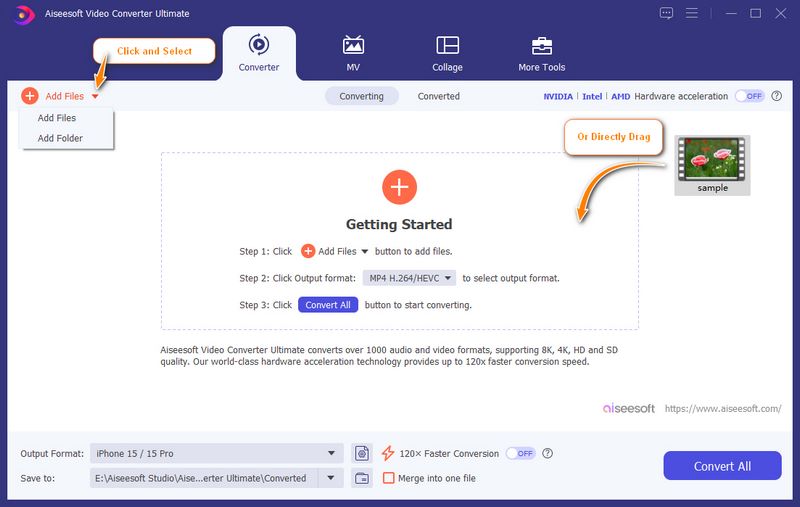
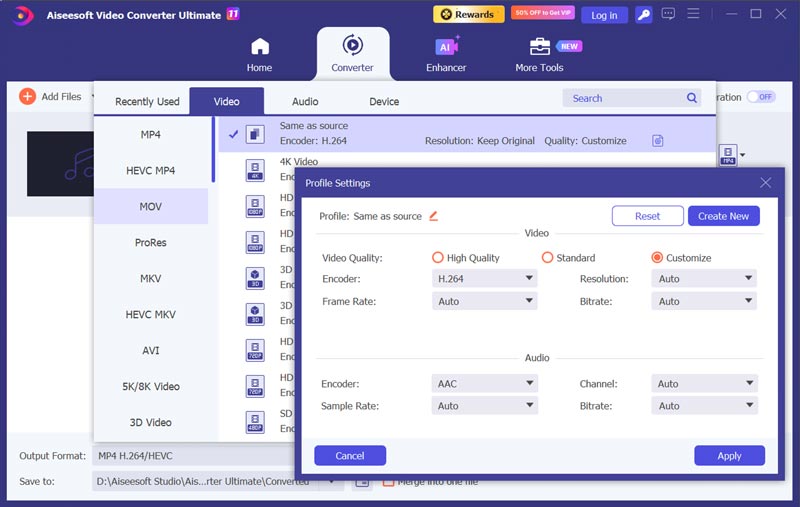
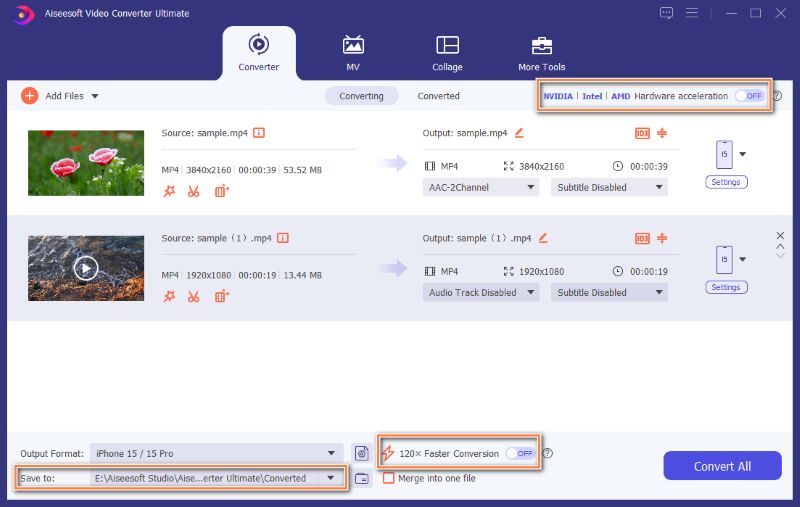
If you need to handle multiple M4A files, want to edit audio, or prefer full control over the conversion, a dedicated converter like Aiseesoft Video Converter Ultimate is recommended. It supports MOV as an output format and lets you adjust audio parameters, such as encoder, channel, sample rate, bitrate, and more. Besides, the software provides various audio/video editing and enhancement (AI-powered) functions.
100% Secure. No Ads.
100% Secure. No Ads.
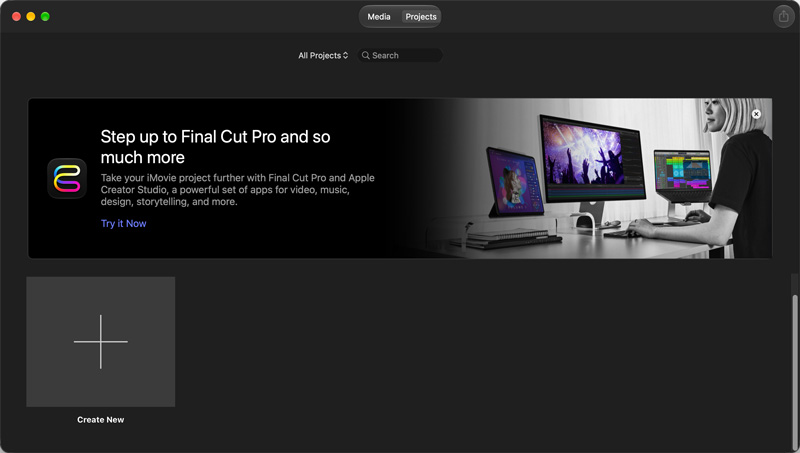
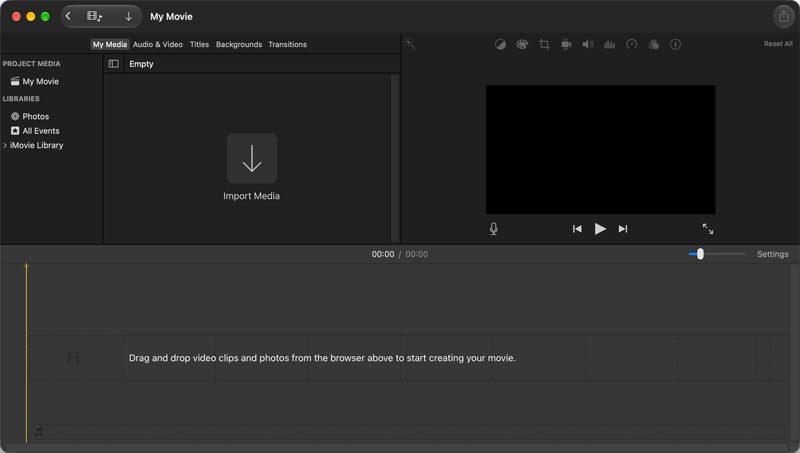
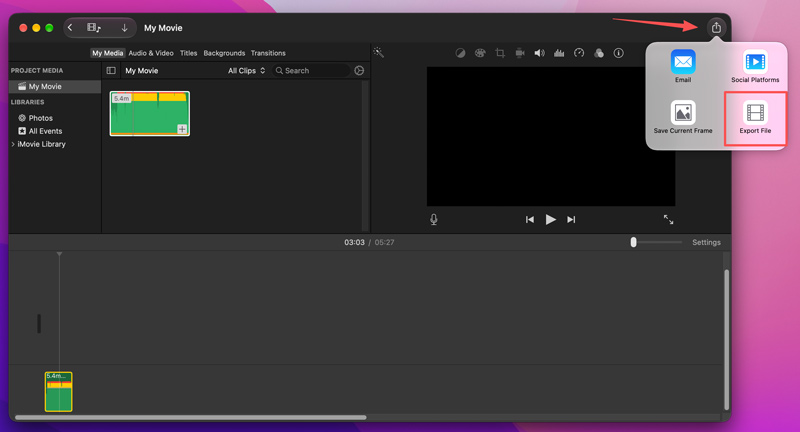
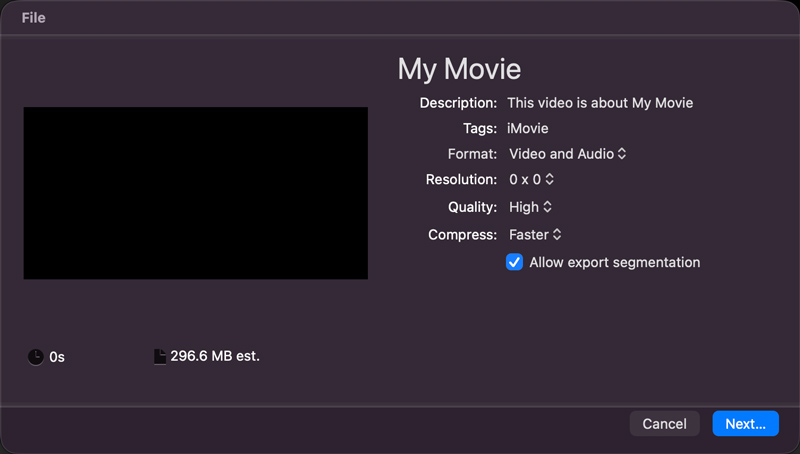
iMovie is preinstalled on most Macs, and it imports M4A natively. If you don’t want to install any third-party converter, you can load your M4A audio file in iMovie and then export it as MOV. iMovie can easily write audio into a MOV file.
If you only have one or several M4A files to convert, a browser-based converter is often the best choice. FreeConvert is a popular tool that can help you convert M4A to MOV online for free. Like other online converters, the free tier is not unlimited. The maximum file size is limited to 1 GB, and advanced functions require a Pro plan. This is usually enough for M4A to MOV conversions.
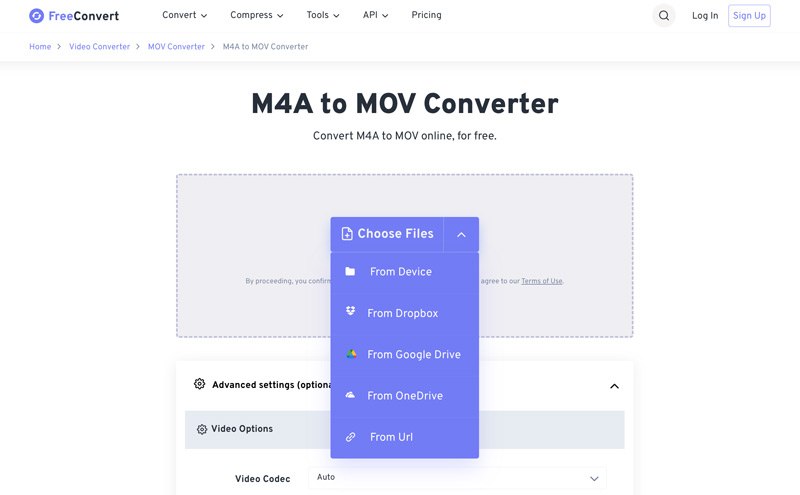
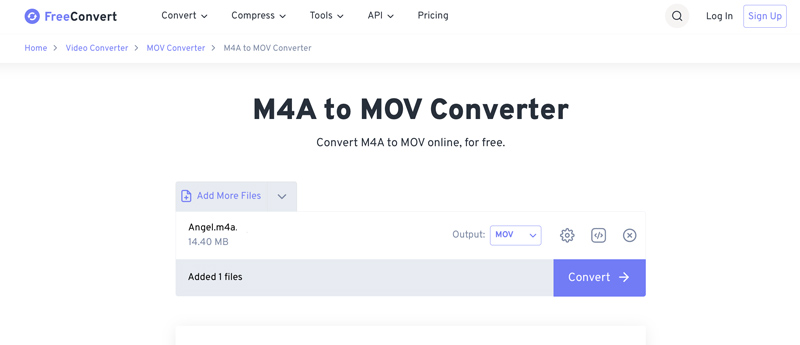
Once converted, you need to manually download the converted file. All your converted results will be automatically deleted after 8 hours. Online converters can be an ideal choice if you are handling small files. However, the upload, conversion, and download process will take more time to finish.
Question 1. Why does my MOV file get rejected as “not a video”?
Certain media players, devices, and systems will check for the presence of an MOV video, not just the container extension. If your converted MOV contains only audio, it may fail those checks. You can try adding a silent video track to resolve this.
Question 2. Does converting M4A to MOV reduce sound quality?
In most cases, the M4A to MOV conversion won’t cause audio quality loss. M4A contains AAC audio, and MOV can carry AAC. Most converters will copy and preserve the original audio.
Question 3. Can I convert M4A to MOV on a phone using CloudConvert?
CloudConvert works in a mobile browser so that it can be a direct option on iOS or Android for audio and video conversions. However, CloudConvert doesn’t support the M4A to MOV conversion, either on mobile devices or computers. This online converter only allows you to convert M4A to another audio format.
Conclusion
This guide tells you three methods to convert M4A to MOV. This audio-to-video conversion is a packaging problem, not an audio problem. If you want desktop control and batch handling, start with Aiseesoft. If you are using a Mac and want to convert audio with the built-in tool, choose iMovie. Reach for FreeConvert when you need a quick online conversion without installing anything.
 How to Convert M4A to MP3 Losslessly with 5 Tools [Solved]
The detailed guide will tell you how to convert M4A to MP3 online and on a computer. You can follow the 5 methods to make your M4A to MP3 conversion here.
 Ultimate Guide to Converting MP4 to MOV with 7 Methods
Can I convert MP4 to MOV in iMovie? Is there a free video converter to transform MP4 to MOV? Learn 7 effective methods to turn MP4 into MOV on Mac and Windows.
 WAV to M4A - 5 Efficient Methods to Convert Audio Files
Convert WAV to M4A audio files and play your music while saving more space. Discover the steps and tools you need in this post.
 Leave your comment and join our discussion
Convert/Download/Edit SWF
1.1 SWF 1.2 SWF to MP4 1.3 SWF to GIF 1.4 SWF to MOV 1.5 SWF to HTML5 1.6 SWF to AVI 1.7 SWF to WMV 1.8 SWF to 3GP 1.9 SWF to DVD 1.10 SWF Converter Mac 1.11 Edit SWF
Video Converter Ultimate is excellent video converter, editor and enhancer to convert, enhance and edit videos and music in 1000 formats and more.
100% Secure. No Ads.
100% Secure. No Ads.

*Required field
*Please enter a valid email