Video Converter Ultimate
 100% Secure. No Ads.
100% Secure. No Ads.
If you have ever recorded a video with an iPhone or edited a video on a Mac, you may have come across a file with the .mov extension. But what is a MOV file, and how is it different from MP4?
A MOV file is a multimedia container format originally developed by Apple for QuickTime. It can store video, audio, subtitles, timecode, and other media data in a single file. MOV files are widely used for video recording, professional video editing, and high-quality media production.
In this guide, you will learn what a MOV file is, how MOV works, its advantages and disadvantages, how to open MOV files on different devices, and how to convert MOV to MP4 and other formats.

MOV is a multimedia container format developed by Apple and originally designed for QuickTime Player. The format uses the .mov file extension and can contain multiple media tracks, such as video, audio, subtitles, and metadata.
A MOV file is a container, not a video codec. This means that the actual video and audio inside a MOV file can be encoded using different codecs. Common codecs found in MOV files include H.264, HEVC (H.265), ProRes, and AAC.
MOV is particularly common in the Apple ecosystem, including iPhone, iPad, and Mac devices. It is also widely supported by professional video editing applications.
MOV files use a QuickTime-based container structure that organizes media data into separate components or "atoms" (also commonly referred to as boxes). Key characteristics include:
Because MOV is a container format, two MOV files can have very different file sizes, quality levels, and compatibility depending on the codecs used inside them.
MOV is commonly used when video quality, editing flexibility, or compatibility with Apple software is important.
Pros
Cons
MOV and MP4 are both multimedia container formats, and they can use some of the same video and audio codecs. The main difference is their design and typical use.
Here is the refined comparison table in plain English:
Detailed Comparison: MOV vs. MP4
| Comparison Aspect | MOV (QuickTime Format) | MP4 (MPEG-4 Part 14) | Bottom Line & Recommendation |
| Primary Purpose | Designed by Apple for high-quality video capture, editing, and Mac ecosystems. | Designed for universal playback, web streaming, and file sharing across all devices. | Use MOV for editing; use MP4 for final distribution. |
| Compression & File Size | Retains maximum video data and high bitrates, resulting in much larger file sizes. | Efficiently compresses data to deliver good quality at significantly smaller file sizes. | MP4 saves much more storage space and internet bandwidth. |
| Video Quality | Supports uncompressed or low-loss codecs (like Apple ProRes) for editing and color grading. | Delivers great visual quality for everyday viewing, but loses some raw data for editing. | Choose MOV for professional color grading; choose MP4 for standard viewing. |
| Compatibility | Native on macOS/iOS. Often requires third-party players (like VLC) on Windows or Android. | Plays natively on virtually all smartphones, PCs, smart TVs, browsers, and media players. | Choose MP4 if sending files to other people or non-Apple devices. |
| Editing Performance | Less CPU/GPU stress during editing because codecs (like ProRes) require less real-time decoding. | Highly compressed files (H.264/H.265) force your system to work harder when editing. | Edit with MOV for smooth playback; export as MP4 when finished. |
| Alpha Channel (Transparency) | Supported: Can export videos with transparent backgrounds (e.g., lower thirds, animated logos, overlays). | Not Supported: Automatically fills transparent areas with solid black or white backgrounds. | Use MOV if you need transparent overlays or motion graphics. |
| Social Media & Web Uploads | Slower to upload due to file size; some platforms may re-encode or reject it. | The standard recommended format for YouTube, TikTok, Instagram, and web browsers. | Always export to MP4 for social media uploads. |
While MOV is the default native video format for Apple's ecosystem, playing it on non-Apple platforms often requires third-party software due to missing codecs.
macOS & iOS: MOV files open natively using QuickTime Player, the Photos app, or the Files app with zero extra configuration.
Windows & Android: Default players (like Windows Media Player) frequently fail to play MOV files due to unsupported codecs (e.g., ProRes or HEVC). To open MOV on these platforms without conversion, use universal media players like VLC Media Player or KMPlayer.
Note: If an MOV file still won't play even in VLC, the file is either corrupted or encrypted—converting MOV to a standard MP4 (H.264 + AAC) is the most reliable workaround.
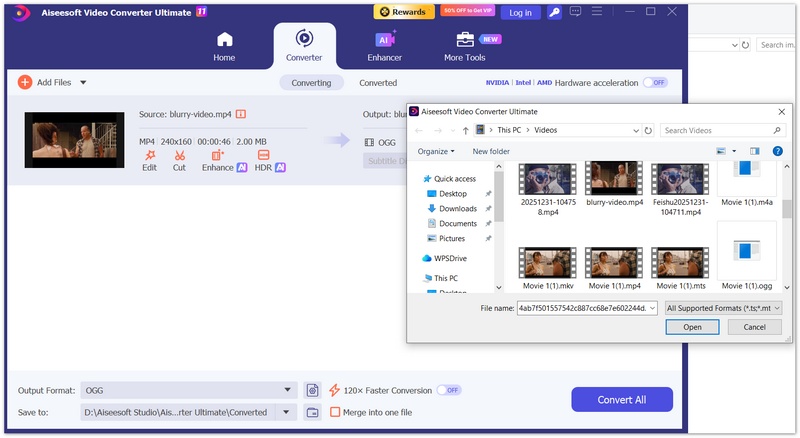
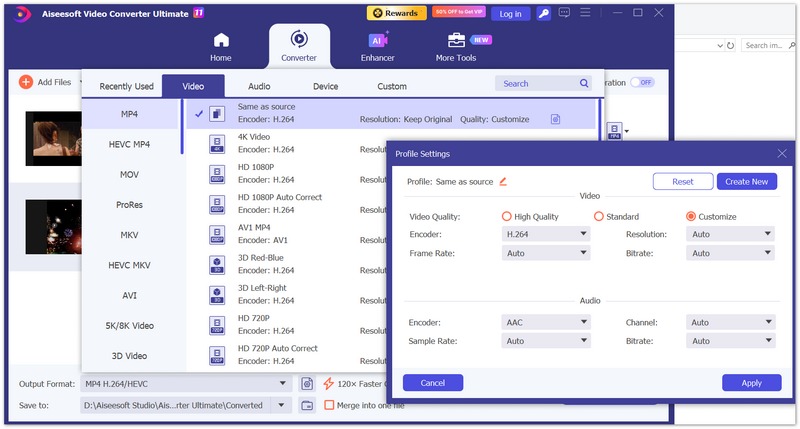
Aiseesoft Video Converter Ultimate is a desktop video converter for Windows and Mac. It can convert MOV to MP4 and other common video formats while allowing you to customize output settings. In addition to basic conversion, it also enables you to trim, compress, enhance, colorize, and further edit your MOV files easily with a clear GUI.See more features of Aiseesoft Video Converter Ultimate:
Downloads
Aiseesoft Video Converter Ultimate
100% Secure. No Ads.
100% Secure. No Ads.
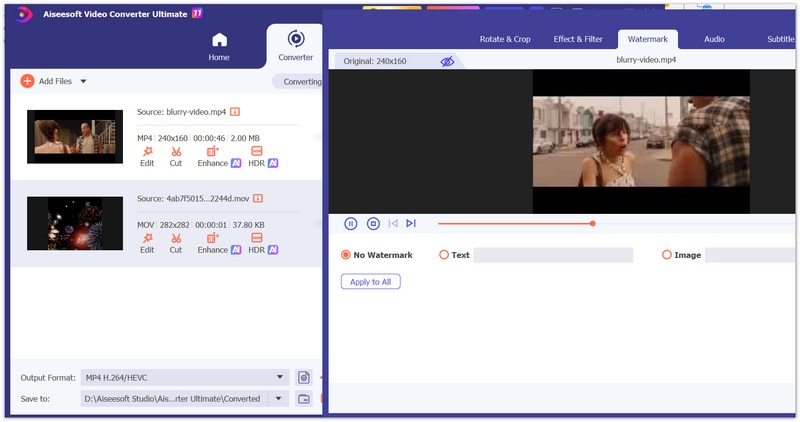
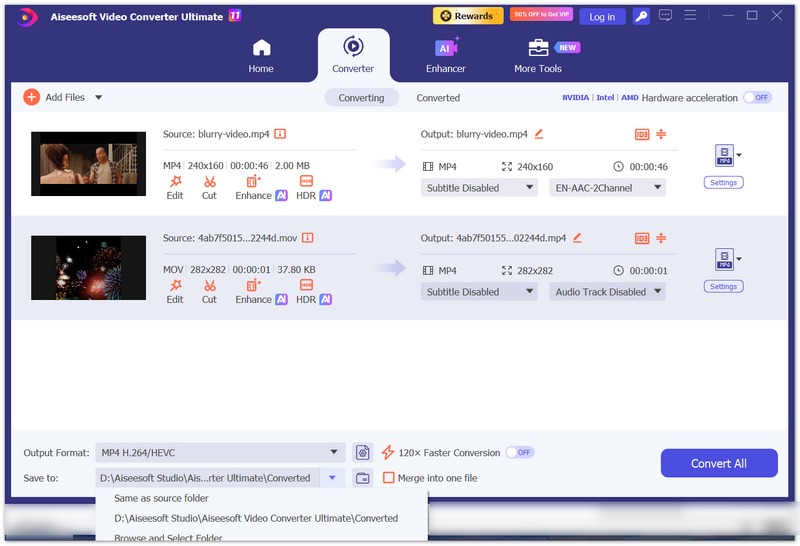
If a MOV file won't open, won't play audio, or shows a black screen, several factors may be responsible.
The MOV File Uses an Unsupported Codec: A .mov file can contain different codecs. Your media player may support MOV but not the specific codec used in the file. To fix it, you can try VLC Media Player or convert the MOV file to MP4 using a compatible codec such as H.264.
The MOV File Is Corrupted: If the file was interrupted while recording, transferring, or downloading, the MOV file may become damaged. Try opening the file with another media player. If it still fails, you may need a video repair tool to repair MOV or another copy of the original file.
MOV Has No Sound: A MOV video may play normally while producing no audio if its audio codec is unsupported or the audio track is damaged. To address this, you can try another media player and check whether the file contains an audio track. Converting the MOV file to MP4 with a compatible audio codec such as AAC may also resolve compatibility issues.
MOV Won't Play on Windows 11: Windows may not natively support every codec that can be stored in a MOV container. You can try VLC Media Player first. If you need to use the file in a specific Windows application, converting it to a widely supported MP4 format can be another option.
The MOV File Is Too Large: High-resolution MOV videos, particularly those recorded or encoded with high-quality codecs, can take up a lot of storage space. You can compress the MOV file using Aiseesoft Free Video Compressor Online or convert it to MP4 with a more efficient codec and suitable bitrate.
Is MOV the Same as QuickTime??
MOV is closely associated with Apple's QuickTime File Format, but QuickTime can also refer to Apple's multimedia software and technology. A .mov file is a media container based on the QuickTime File Format..
What Is the Difference Between MOV and AVI?
MOV and AVI are both multimedia container formats, but they were developed for different ecosystems and have different structures and typical use cases. MOV is closely associated with Apple's QuickTime ecosystem, while AVI was developed by Microsoft. Both containers can support different codecs.
Can I Send a MOV File Through Email?
You can attach a MOV file to email if it meets the email provider's attachment size limit. Large MOV files may exceed the limit, so you may need to compress the video or upload it to cloud storage and share a link instead.
Conclusion
MOV is a versatile multimedia container format originally developed by Apple for QuickTime. It can store high-quality video, audio, subtitles, metadata, and multiple media tracks, making it useful for Apple devices and professional video-editing workflows.
However, MOV compatibility depends not only on the .mov extension but also on the codecs used inside the file. If a MOV video will not play on Windows, Android, or another device, you can try VLC Media Player or convert MOV to MP4 for broader compatibility.
 Top 11 MOV Editor – Edit MOV Files on Windows and Mac
Select the best MOV editor in the top 11 MOV editor list to edit your MOV files on Windows and Mac computer easily.
 Top 5 MOV Recorders for Windows 10/8/7/XP/Vista and Mac OS
This is a top list of 5 best MOV recorder software to capture your screen on PC and Mac, and save it as QuickTime MOV file.
 MOV Player for Android to Play MOV Files on Android
Can't play QuickTime MOV on Android? You can learn how to convert MOV to MP4/WMV/AVI/MPEG/MP3 for playing MOV content on Android phone/tablet in this post.
 Leave your comment and join our discussion
Convert/Edit MOV
MOV MOV to MP4 MOV to WMV MOV to GIF MOV to AVI MOV to MPEG MOV to VOB MOV to 3GP MOV to SWF MOV to MP3 MOV to MP4 Mac MOV Editor Rotate MOV
Video Converter Ultimate is excellent video converter, editor and enhancer to convert, enhance and edit videos and music in 1000 formats and more.
100% Secure. No Ads.
100% Secure. No Ads.

*Required field
*Please enter a valid email

