
Aiseesoft Screen Recorder
 100% Secure. No Ads.
100% Secure. No Ads.
For different reasons, you need to capture your phone calls to preserve some important information. Are you struggling to record a phone call on Android?
Whether you are a long-term Android user or just switched from iOS to Android, you may wonder if you can directly record phone calls on Android, or if Android has a built-in call recorder to do that.
Considering your need, this guide shares five proven methods to record your Android phone calls, including built-in dialers, VoIP apps, and professional PC software. You can choose either the built-in settings or a reliable third-party app to save your calls.
There are multiple ways to capture phone conversations on Android. If you prefer to start with built-in settings to record your phone calls, try using the dialer recording.
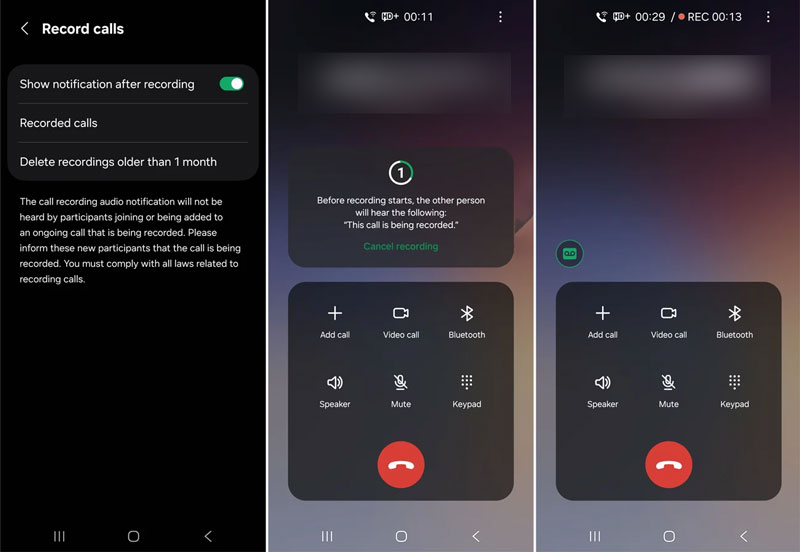
Note that not all Android devices come with the recording function. This feature is highly dependent on your phone manufacturer and your region. You should ensure that the local laws in your area/country permit phone call recording.
If your phone doesn’t support the built-in call recording, Dialpad offers a reliable alternative. It is a popular cloud-based VoIP business communication platform that provides call recording features.
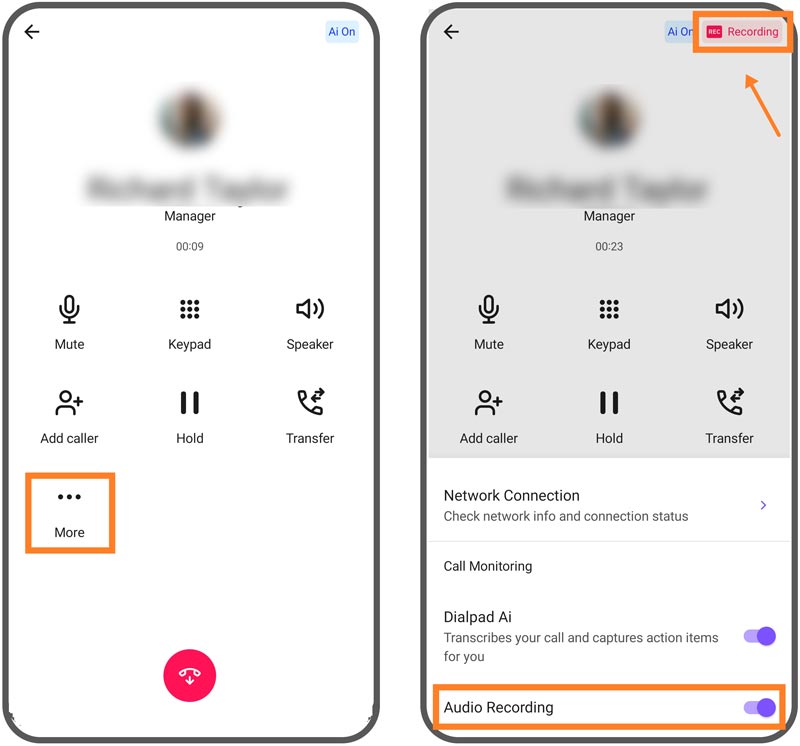
Note that, when you record a phone call on Android using this method, the caller will get a notification message saying that the recording has started.
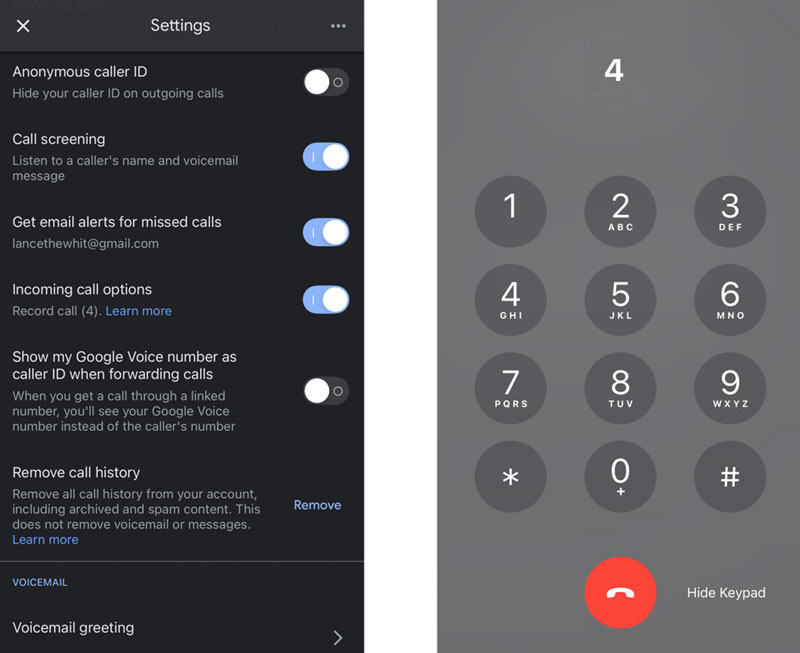
If you need a free solution to record incoming calls, Google Voice is an ideal choice. It offers a reliable way to capture daily conversations. But you should know that free accounts cannot record outbound calls.
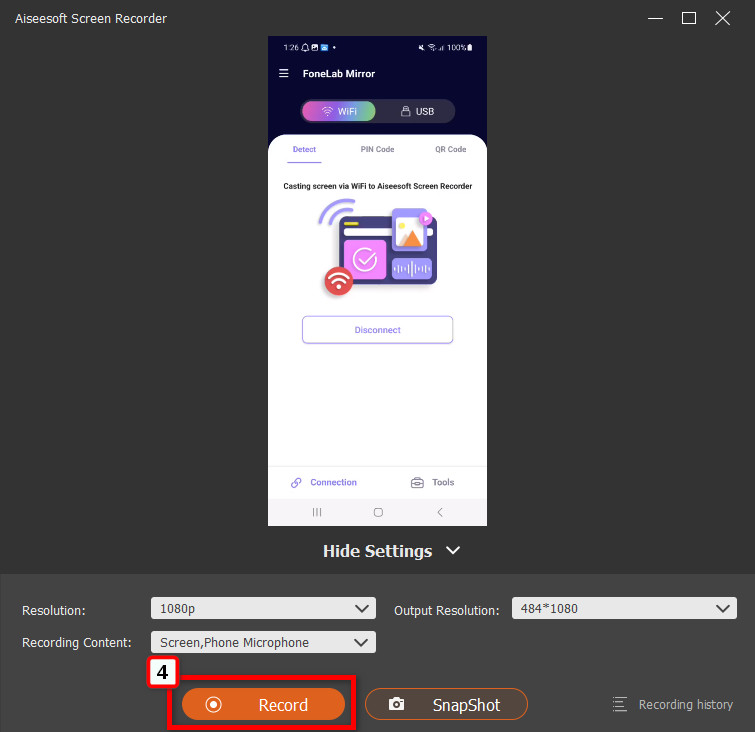
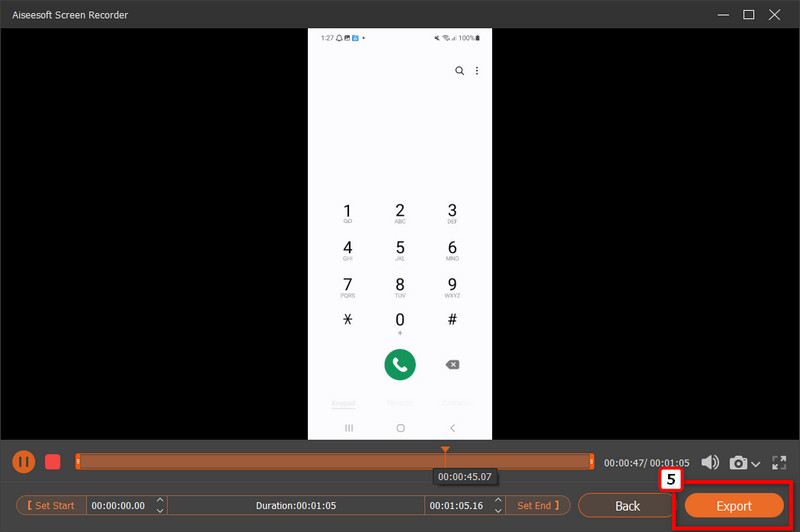
In most cases, you prefer to record phone calls on Android without notifying others. In addition, recording calls directly on your mobile phone can be too restrictive. If you need a solid way to capture your Android phone calls, try using Aiseesoft Screen Recorder to get total control.
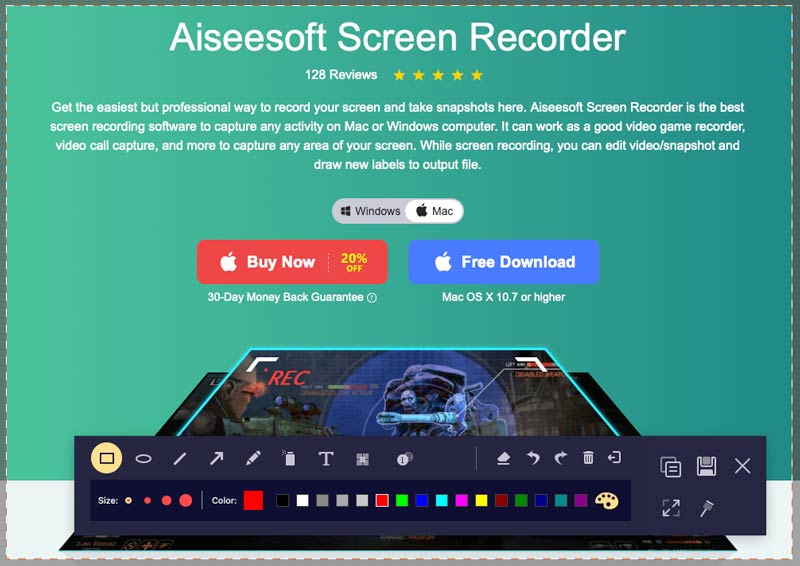
The software enables you to capture phone activities, including video and audio phone calls, from your computer. It has a dedicated Phone Recorder mode for you to do that. Besides, it is heavily utilized for high-definition screens, gaming, and webcam capturing tasks.
100% Secure. No Ads.
100% Secure. No Ads.
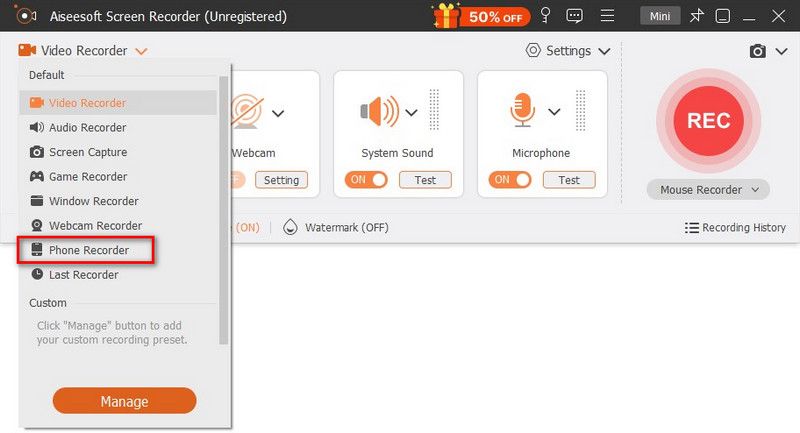
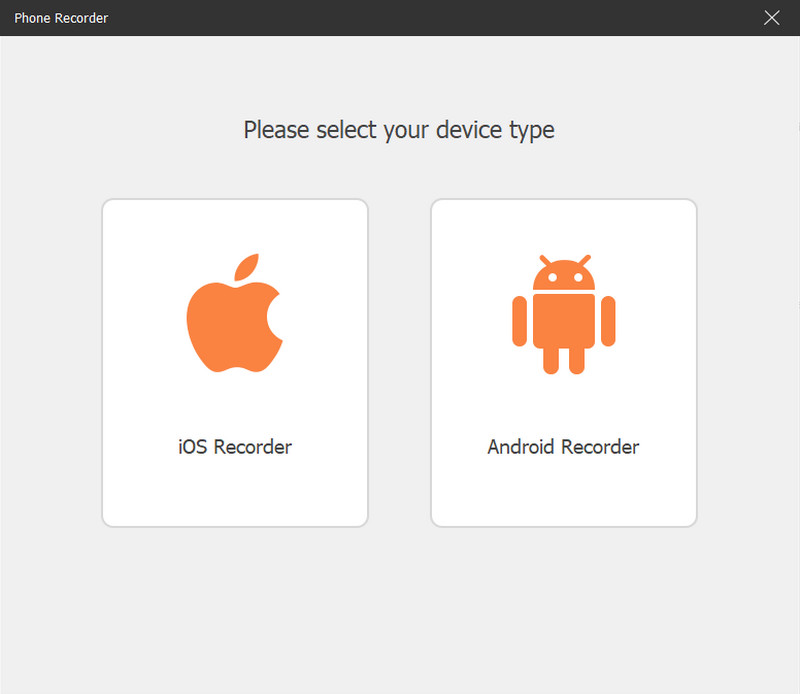
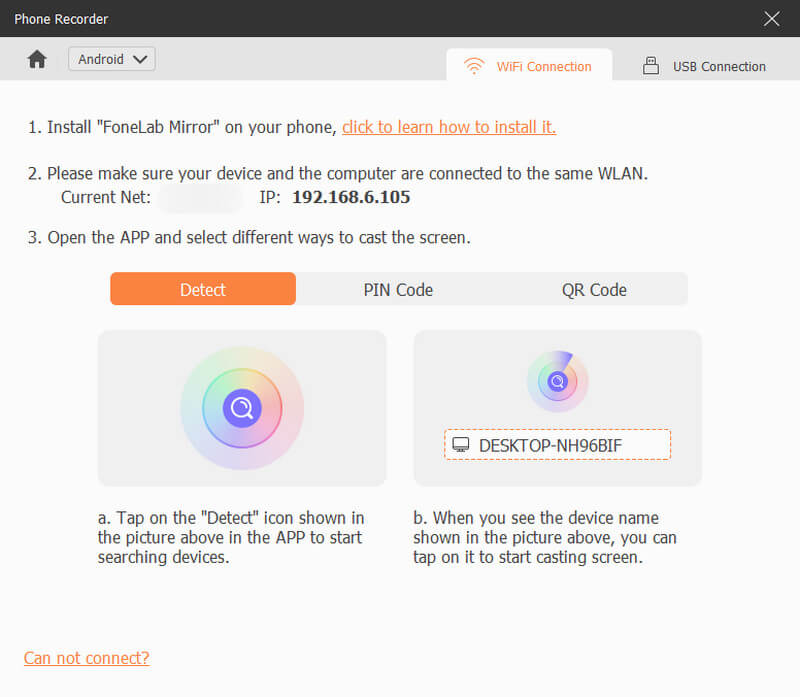
If you only need to capture the main content of a call and don’t mind the sound quality, you can turn to an external recording device.
When you want to record a phone call and have a secondary recording device at hand, you can use it to capture with ease. You can use either a phone, a digital voice recorder, or another device that has an audio recording function. Put the phone near the secondary device and start the recording.
Question 1. Why do some apps only record one side of the conversation?
If you used a third-party call recorder app to capture your phone calls and found that it failed to record voices from both sides, you are not alone. The issue is mainly related to privacy and security reasons. There are restrictions set by Google for blocking third-party apps from accessing the call audio. Many apps can only use your phone’s physical microphone to record both sides of the conversation.
Question 2. What is the best app to record phone calls on Android?
You should select the best phone call recorder based on your needs. Start with the built-in recording feature if your device supports it. If you only need to capture incoming calls, Google Voice is the perfect option. If you need to record all your phone calls without limits, try using the Aiseesoft software.
Question 3. Is it legal to record a phone call on Android?
Whether your call recording action is legal or not depends entirely on your location. In most cases, you are allowed to record a call as long as you are a part of the conversation. However, several states only allow the recording when everyone on the line is informed and agrees to be recorded.
Conclusion
Whether you need to save important business content, capture a daily conversation with family, or do so for other reasons, you can select a desired way from above to record a phone call on Android. If your phone has the native dialer feature enabled, you can directly capture phone calls. This is the most convenient way for call recording. For business users who often need to record calls, Dialpad and Aiseesoft offer reliable solutions.
 10 Best Audio Recorders for PC, Mac & Online
Looking for the best audio recorder in 2026? Check our top 10 review of the best audio recording software, such as Aiseesoft, Audacity, and Adobe.
 8 Samsung Voice Recorders You Can Use to Record Calls and Voice Easily
How to record a phone call on Samsung? You can use the built-in feature on Samsung to record calls, but there are apps that you can use for recording.
 How to Record Voice on Google Slides [2025 New Post]
What is Google Slides? How to record your voice on Google Slides? Is there any simple way to add your voice, music, or narration to Google Slides? This post will tell you a method to record voice on Google Slides with ease.
 Leave your comment and join our discussion
Audio Recorder
Cinch Audio Recorder Mitel Call Recorder Record Discord Audio and Calls 5 Proven Ways to Record Your Phone Calls on Android
Aiseesoft Screen Recorder is the best screen recording software to capture any activity like online videos, webcam calls, game on Windows/Mac.
100% Secure. No Ads.
100% Secure. No Ads.

*Required field
*Please enter a valid email

