iPhone Data Recovery
 100% Secure. No Ads.
100% Secure. No Ads.
Are you searching for a reliable way to recover deleted messages on an iPad?
Whether you use your iPad mini/Pro for daily communication with family and friends or for managing business tasks, many important messages are stored on the device. Losing those iMessages or SMS text messages can be a disaster. Fortunately, there are still ways to rescue them. Most deleted iPad messages are not gone forever. This guide shares four efficient methods for recovering your lost messages.
First, it should be clear that you can recover deleted messages on an iPad in most cases, especially for the recently deleted ones.
The final possibility or success rate depends on how long ago the iPad messages were deleted and whether you have a suitable backup.
If you need to restore deleted iMessages, SMS text messages, or other messages on your iPad, pay attention to the following four methods in this section. Use the method that best suits your specific situation.
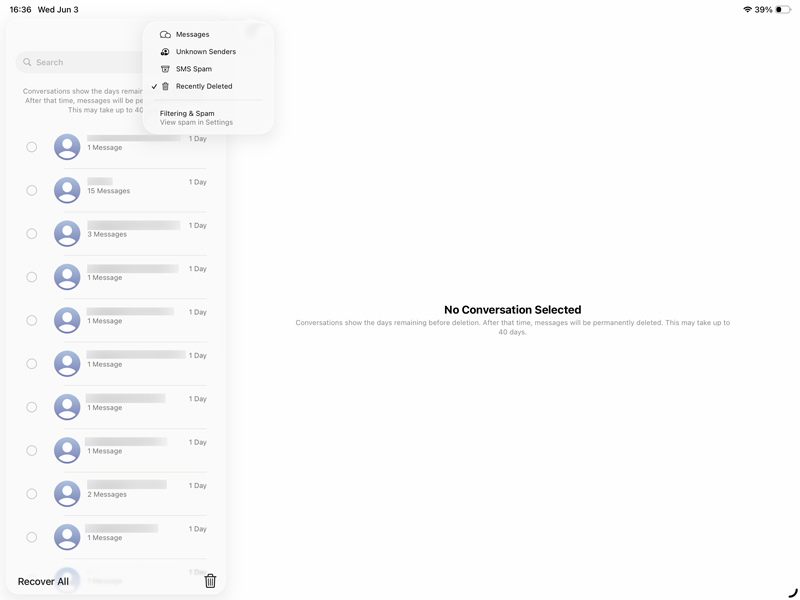
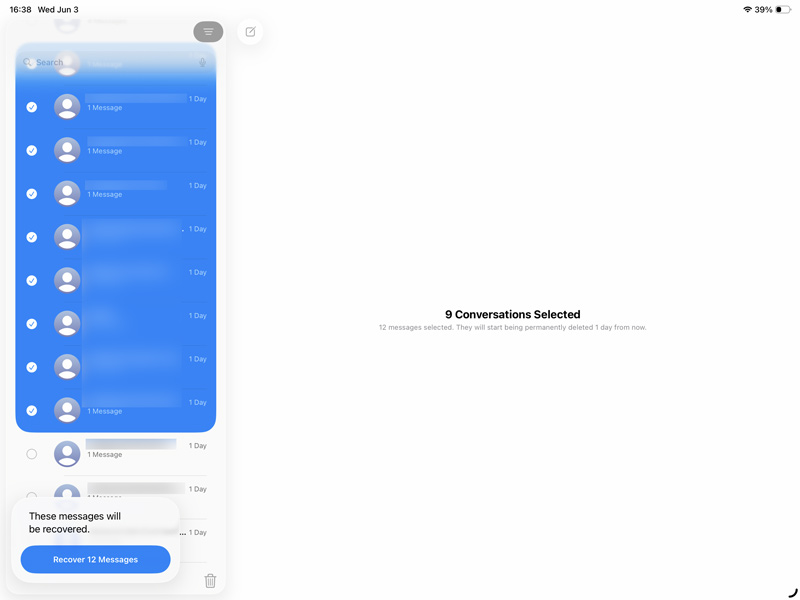
If your iPad runs iPadOS 16.1 or later, you can recover deleted conversations in the Messages app. This method allows you to retrieve the necessary messages without restoring an entire backup.
If you can’t find lost messages from the Recently Deleted folder and you don’t have a recent backup to restore them, third-party recovery software is your best option. Aiseesoft FoneLab is a professional recovery tool designed specifically for retrieving all types of data from iOS devices. It lets you recover deleted messages directly from your iPad, an iTunes/Finder backup, or an iCloud backup. Compared with its competitors, it often achieves a higher success rate for iPad message recovery.
100% Secure. No Ads.
100% Secure. No Ads.
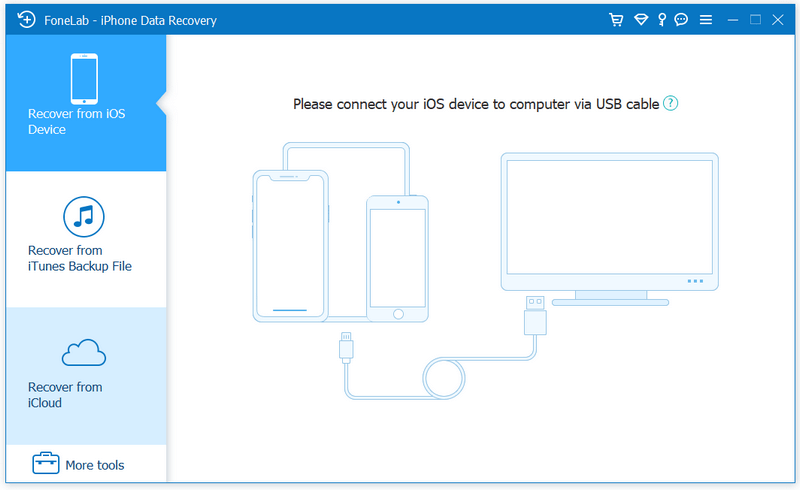
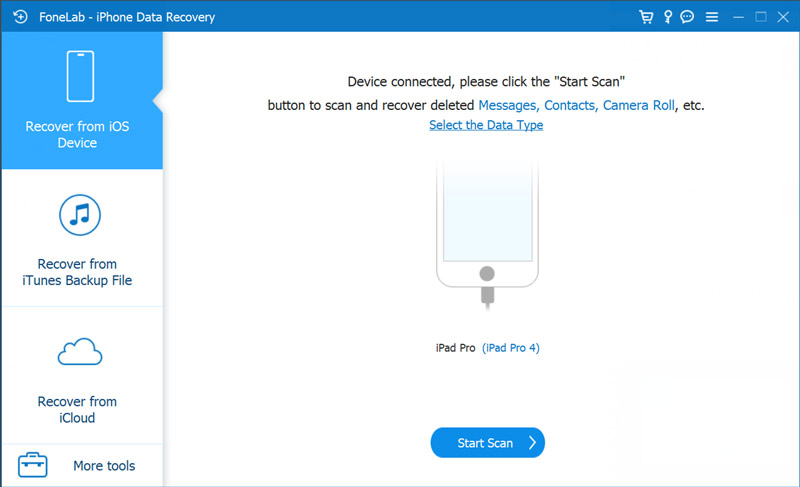
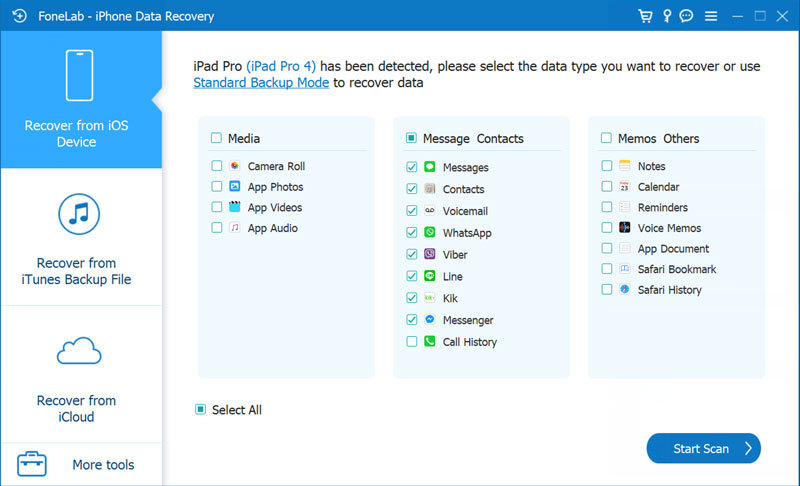
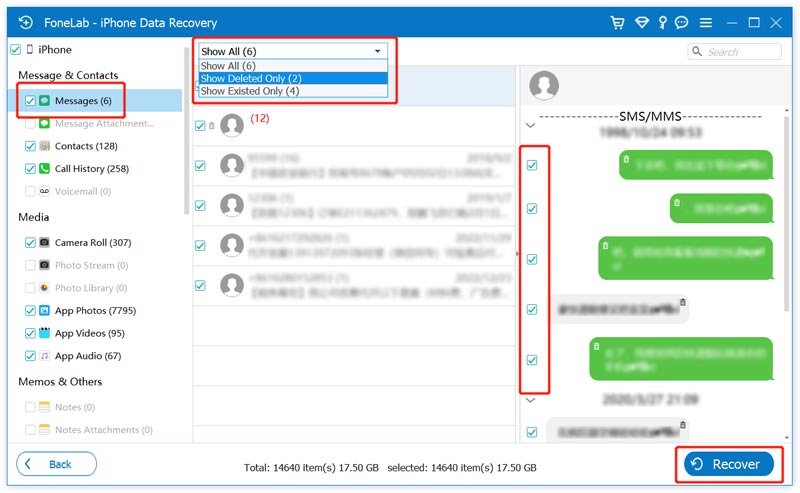
If you only want to restore lost messages from your iPad, you can select Messages under the Message Contacts tab. That will deliver a super-fast scanning speed.
If you have set iCloud to back up your messages, all the conversations will be automatically synced across all your Apple devices. When you mistakenly delete one or several valuable messages on an iPad, you can try searching for them on another iPad, iPhone, or Mac. Even though deleting a message on your iPad sends a signal to delete it from iCloud, the sync process may still be delayed. In that case, you can restore the deleted messages.
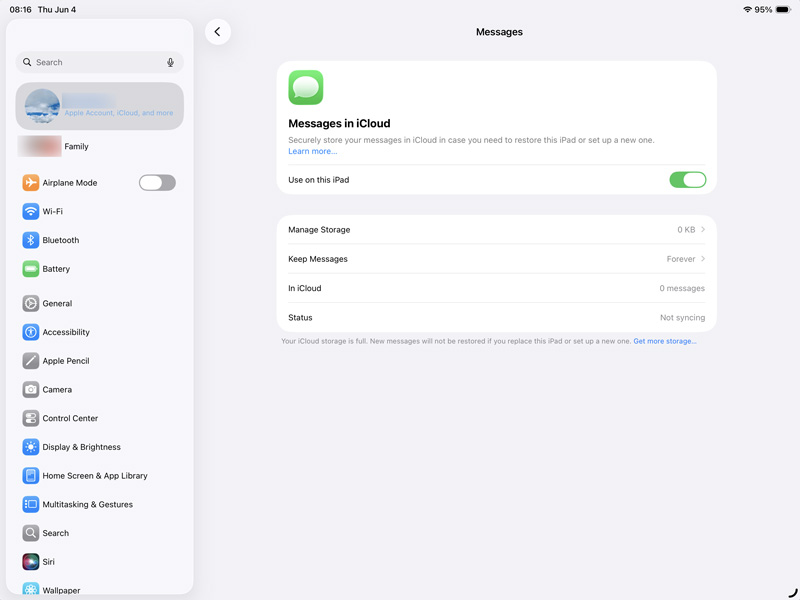
If you have a right backup created before the messages were deleted, you can restore your iPad from that backup. This method will erase all newly created data on your iPad.
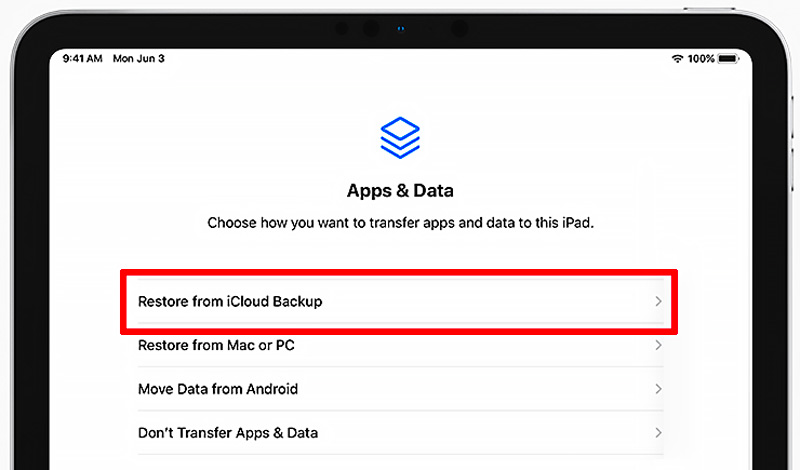
To restore your iPad from an iCloud backup, you need to factory reset the device. When you reach the Apps & Data screen, choose Restore from iCloud Backup. Sign in to your Apple account and pick the relevant iCloud backup from the list.
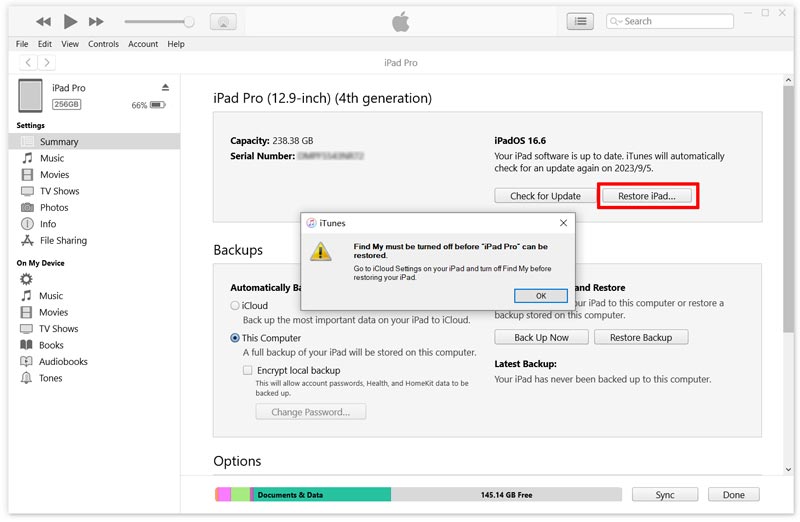
If you need to restore from an iTunes or Finder backup, connect your iPad to the computer that contains your backup. Launch iTunes or Finder, then follow the steps to restore the backup.
Will restoring from an iCloud backup delete my current messages?
Yes. Restoring your iPad or iPhone from a backup will replace all the existing data with the backup version. All new messages sent or received after the backup will be lost.
How to turn on Messages in iCloud?
To ensure your messages are backed up to iCloud, go to Settings, tap your account name, choose iCloud, and enable Messages.
Is Aiseesoft FoneLab safe to use?
Yes, Aiseesoft FoneLab is a reliable iOS data recovery program developed by a reputable software company. Ensure you download FoneLab from the official website to avoid malware. You can start a free trial to test its recovery capabilities before purchasing.
Conclusion
This guide shares four proven methods to easily recover deleted messages on an iPad. If you accidentally deleted some important messages, you can search for them in the “Recently Deleted” folder. If you don’t want to restore your iPad from a full backup file, a dedicated iPad data recovery tool like Aiseesoft FoneLab is a better choice. You should regularly back up your iPad to iCloud or to a computer to prevent valuable files from being lost for various reasons.
 Backup iPad to iCloud, MacBook, iTunes, and External Drive
Can you backup your iPad to an external hard drive? Can I backup my iPad without iCloud? Learn to backup iPad to iCloud, MacBook, iTunes, or external drive.
 How to Recover Deleted Photos on Any Devices [2025 Tutorial]
This post is the most comprehensive guide on how to recover deleted photos on iPhone, Android, PC, Mac, and cloud services. Learn to retrieve your lost pics!
 iPad Screen Repair Services: Fast & Reliable Expert’s Solution
Whenever you need iPad screen repair tips, this article is all you need. Here, we covered and solved the issues you likely encounter on your iPad screen today.
 Leave your comment and join our discussion
The best iPhone data recovery software ever, allowing users to safely recover lost iPhone/iPad/iPod data from iOS device, iTunes/iCloud backup.
100% Secure. No Ads.
100% Secure. No Ads.

*Required field
*Please enter a valid email

