WhatsApp has become an essential part of our daily communication. While the daily usage of this social app, countless precious conversations, photos, and videos are collected in it.
Transferring WhatsApp data from iPhone to PC is a common need, whether you want to free up storage space on your iPhone, create a backup of important chats, or for other reasons. This guide covers five effective methods for exporting your iPhone WhatsApp chats and attachments to a Windows computer.
The first section shares two official ways to transfer WhatsApp data from your iPhone to a PC. You can start with backup solutions to transfer your iPhone WhatsApp conversations to a PC.
iCloud is the default tool for Apple devices to back up all types of files. You can turn on WhatsApp in iCloud to ensure all your chats and attached data are saved to linked devices.
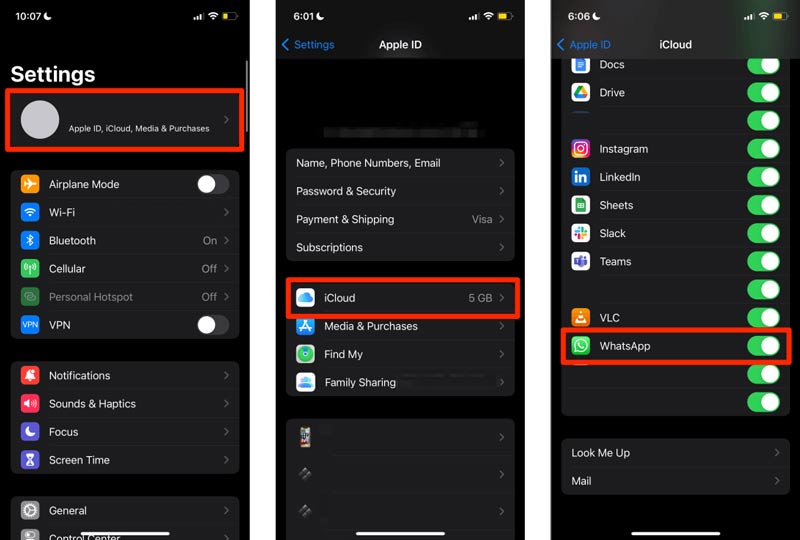
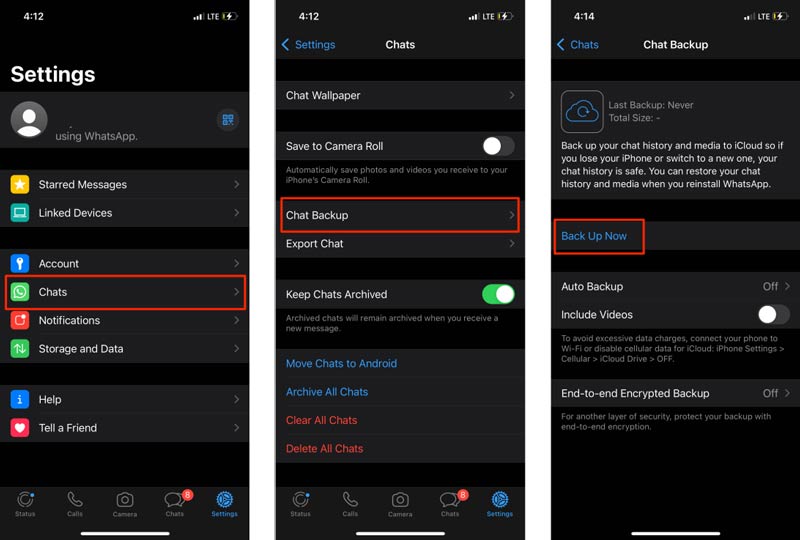
Make sure you are connected to Wi‑Fi and that iCloud has enough storage space. Generally, a typical WhatsApp backup with years of media can easily consume 5 GB or more.
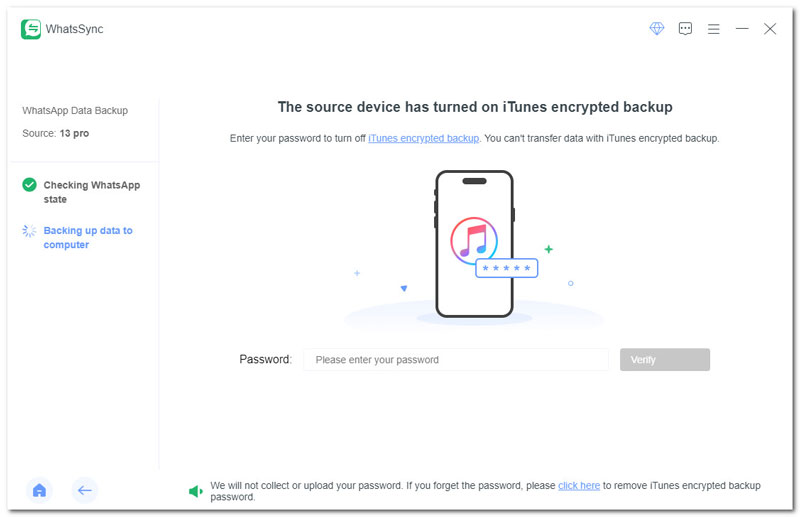
If you prefer a local backup on your computer that contains your iPhone WhatsApp chats, you can choose to create a complete backup using iTunes (on Windows) or Finder (on macOS). A full iPhone backup includes WhatsApp data.
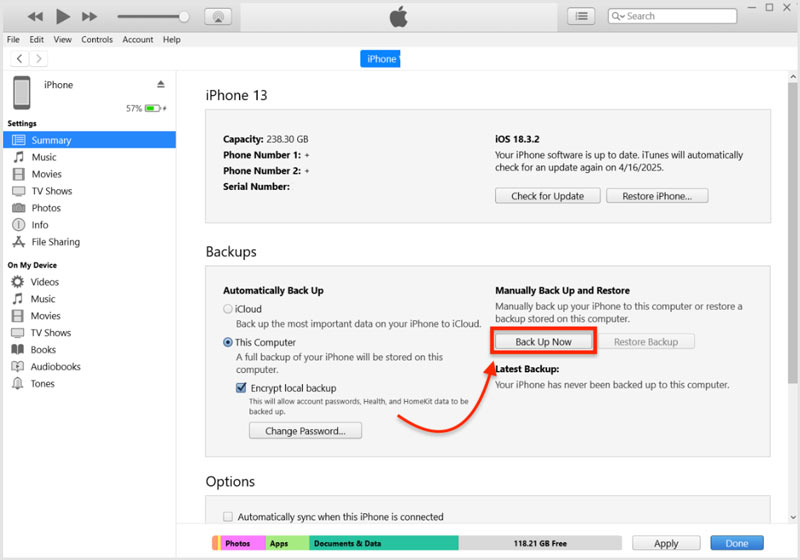
The above two methods allow you to transfer WhatsApp data to a PC as a backup. The created backup file is mainly used for restoration. You are not allowed to check the details directly. If you are unsatisfied with them, move on to the next two methods.
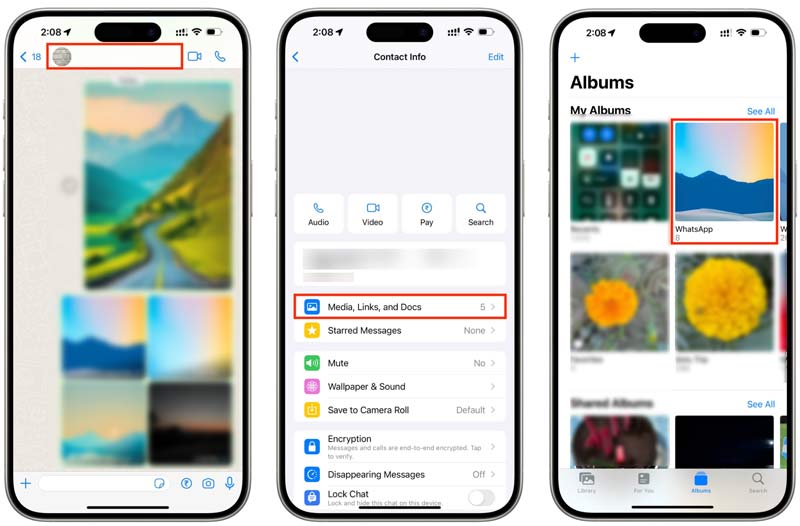
If you only want to transfer WhatsApp photos and videos, you can save them to your camera roll and then access them on your PC.
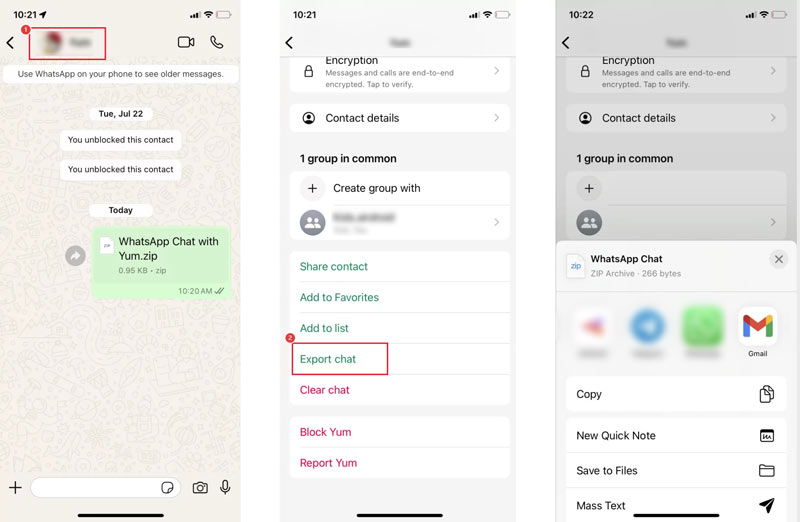
WhatsApp includes a built‑in export feature that sends a chat as a text file, with or without media. It is ideal for preserving an important conversation.
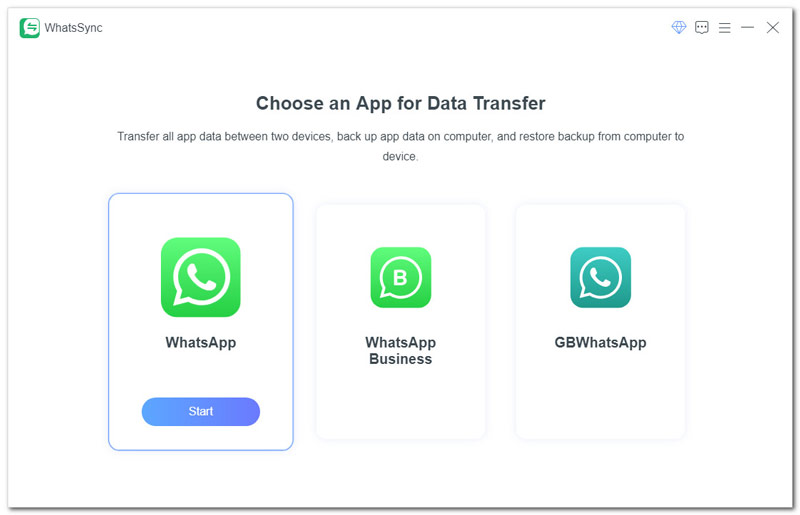
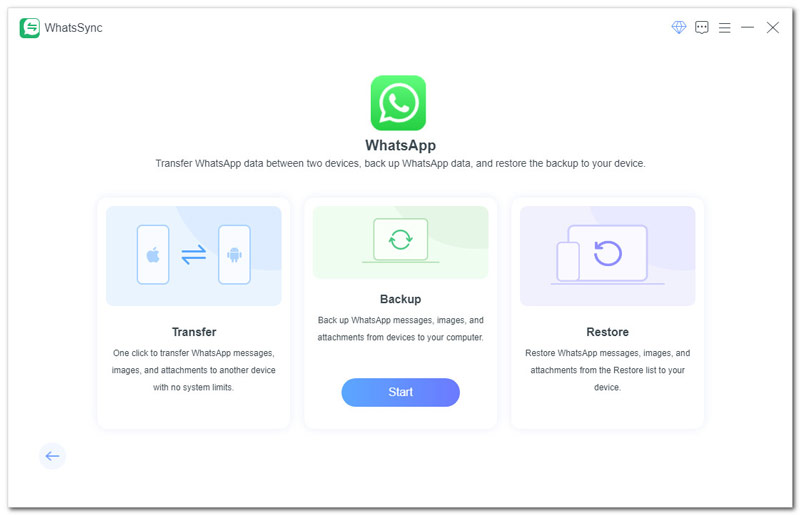
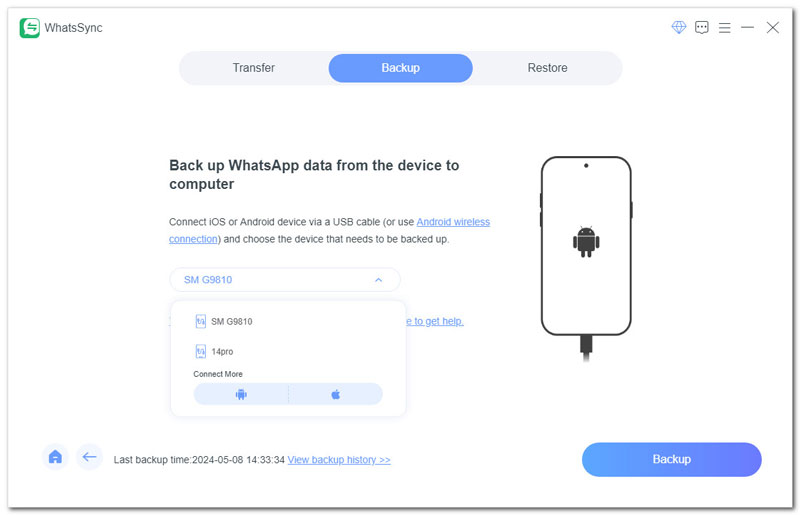
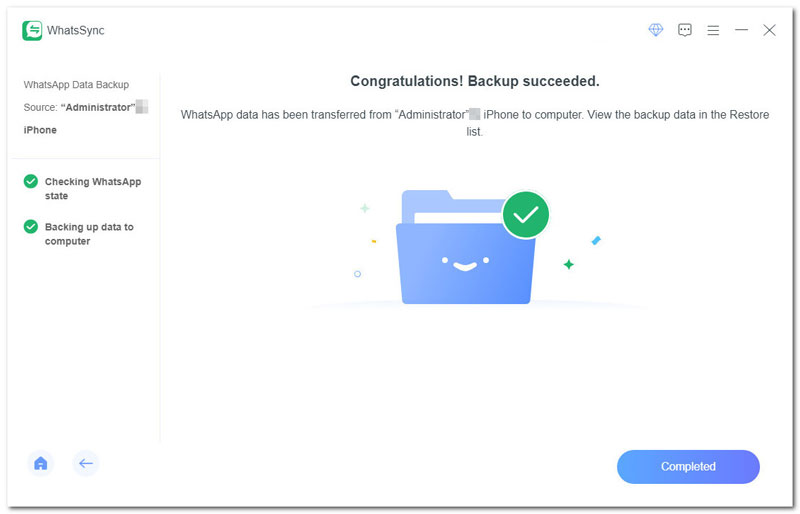
If you prefer a dedicated WhatsApp data transfer to copy all your conversations directly from an iPhone to a Windows PC, try Aiseesoft WhatsSync.
WhatsSync is a famous WhatsApp data transfer tool that allows you to back up and transfer WhatsApp chats, photos, videos, voice notes, documents, and more from an iPhone to a PC (Windows or Mac).
 100% Secure. No Ads.
Does an iPhone backup on my PC include WhatsApp?
Yes. A local iTunes (or Finder) backup of your iPhone often includes all of your WhatsApp data. As mentioned, you should check “Encrypt local backup” to ensure WhatsApp chats are backed up. After that, the backup will capture your entire WhatsApp data, including all chat histories and messages, related media files like photos, videos, and GIFs, video notes, audio messages, and other attachments.
Can I export an entire chat history from WhatsApp?
Yes, you can easily export an entire chat history from WhatsApp. Open the target chat, tap More options, choose More, and then Export chat. You can choose either “Without media” or “Include media” based on your needs. After that, select a desired method to export chat history.
Does exporting a chat delete it from WhatsApp?
No. None of the five methods above will delete your WhatsApp chats. When you export a chat from the app, it only creates a copy of the conversation. The original conversation will remain intact in WhatsApp.
Conclusion
You can learn five methods to transfer WhatsApp data from an iPhone to a PC. Select your preferred method to copy your valuable chats to your computer. For occasional export of a single conversation, email is enough. If you need a complete archive of all WhatsApp files, a third‑party transfer like WhatsSync is often the best choice.
 Use WhatsApp Without Phone Number
Want to enjoy WhatsApp without using your phone number? Just check this guide to get easy solutions.
 Add Contacts to WhatsApp
How do you add new contacts on WhatsApp? Read this tutorial and learn simple steps to add WhatsApp contacts on your device.
 WhatsApp Contact Sync
Confused about syncing contacts for WhatsApp? Discover reliable ways to sync your phone contacts with WhatsApp quickly!
 Leave your comment and join our discussion
Voice Recorder
Voice Recorder and Editor Top 10 Voice Recorder Apps Available to Computers Running Mac Top 10 Voice Recorders Free to Download for Windows 10/8/7/XP/Vista Best Google Voice Recorders iPhone Voice Recorder Top 10 HD Audio Recorders Worth You to Own for Your Computer
Aiseesoft Screen Recorder is the best screen recording software to capture any activity like online videos, webcam calls, game on Windows/Mac.
100% Secure. No Ads.
100% Secure. No Ads.

*Required field
*Please enter a valid email

