Video Converter Ultimate
 100% Secure. No Ads.
If you captured some MTS files with your Sony or Panasonic camcorder, you may find that they don’t always play nice with your software. In some cases, what you actually need from those recordings isn’t the video at all. For instance, you need the audio track from your recorded interview, speech, or ambient sound.
That’s where MTS to MP3 conversion comes in. This article explains the main reasons why you might want to make the conversion and tells you how to do it with two converters.
MTS (MPEG Transport Stream) is a container format built for camcorders. This compressed high-definition video format is widely used in AVCHD camcorders and Blu-ray discs. The audio inside is often encoded as AC-3 (Dolby Digital) or uncompressed PCM. This is mainly designed for the original footage. However, it can be overkill if all you want is the sound.
MP3, on the other hand, is the most universally supported audio format. When you need an audio format, it will be the first option that comes to mind. Converting MTS to MP3 ensures the audio track can be easily supported by your phone, player, computer, or car stereo.
MTS often requires the right player or codec pack to open. MP3 works everywhere. You can convert MTS to MP3 for compatibility, as long as you only need the audio track.
The MTS to MP3 conversion can also help shrink file size dramatically. A one-hour AVCHD Full HD recording can be up to 8 GB, while an MP3 of the same duration might be 100-200 MB.
Considering that your MTS recordings may come with large file sizes, you are advised to use a desktop converter. Online tools are mainly designed for small clips. If you often convert large videos, want to control output settings, or need advanced editing features, try using a dedicated conversion tool like Aiseesoft Video Converter Ultimate.
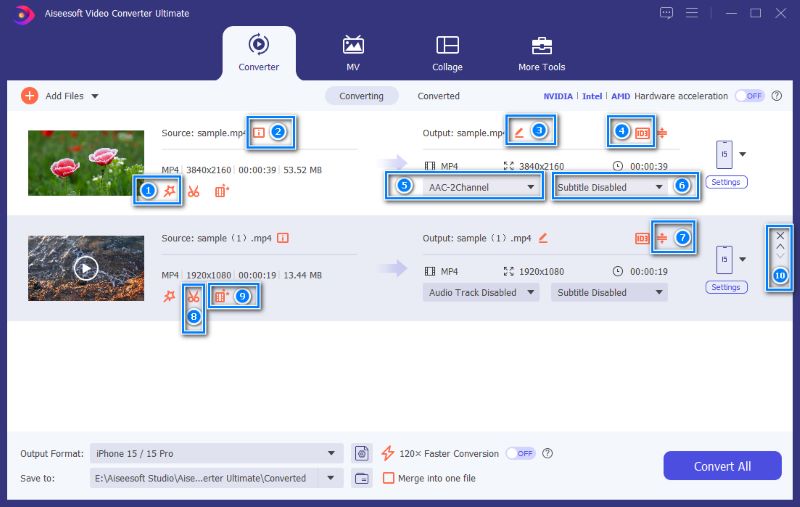
This MTS to MP3 converter is mainly used for the AVCHD camcorder audience and supports batch conversion.
100% Secure. No Ads.
100% Secure. No Ads.
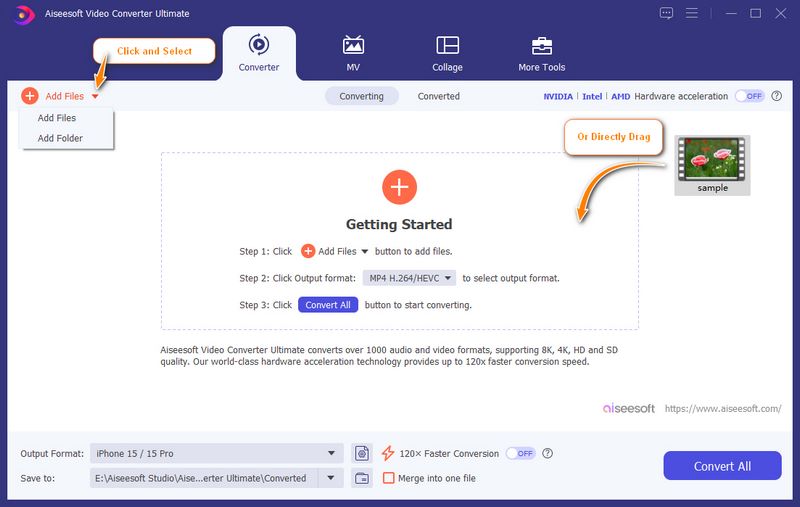
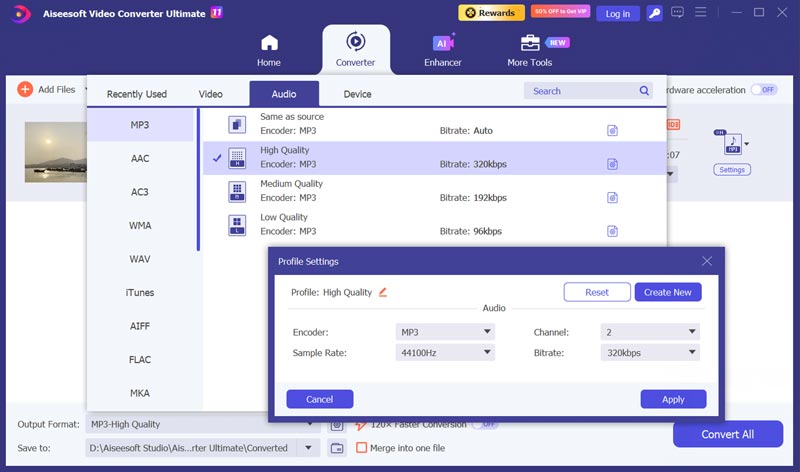
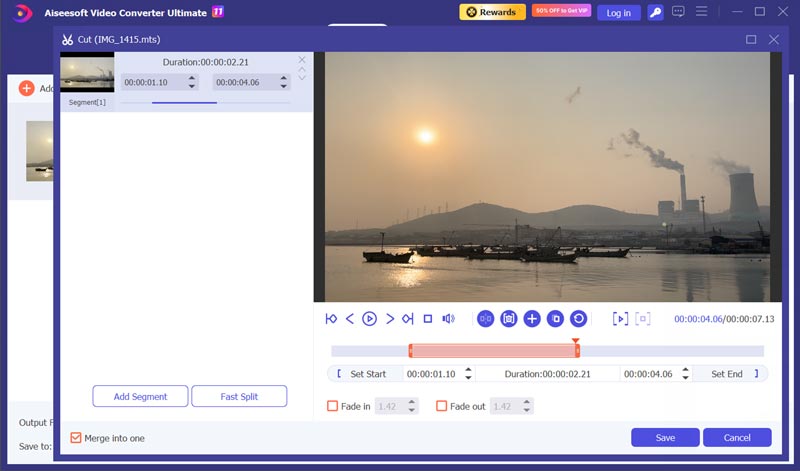
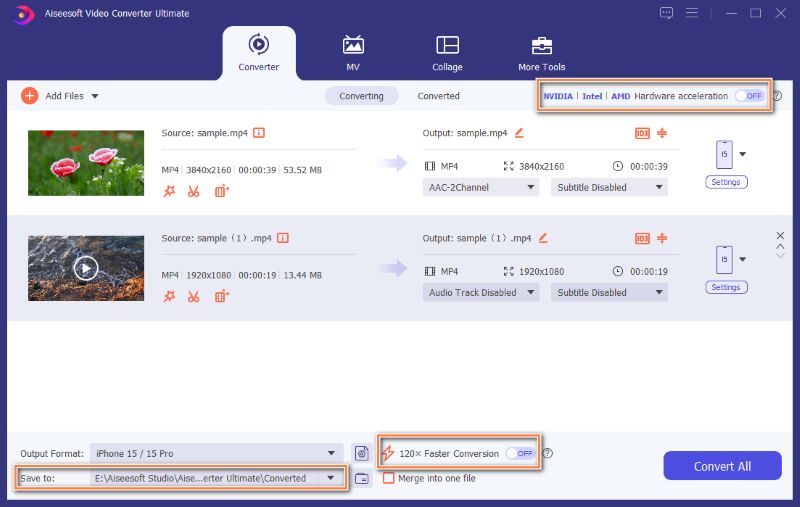
Beyond MP3, Aiseesoft Video Converter Ultimate can also output AAC, FLAC, WAV, and other audio formats. Moreover, it lets you convert MTS to MP4 without losing quality.
If you only need to convert one MTS clip and it isn’t bigger than 1 GB, you can use a free online converter. Popular options include FreeConvert, CloudConvert, ZAMZAR, and Convertio. The trade-offs are usually file size, features, and output limits. This section takes ZAMZAR as an example.
Convertio is a reputable online file conversion platform that lets you convert files between over 300 different formats. It can convert videos, audio, documents, and images directly in your browser. Convertio offers a dedicated MTS to MP3 Converter page. This makes it a convenient option if you want to avoid downloading a desktop application.
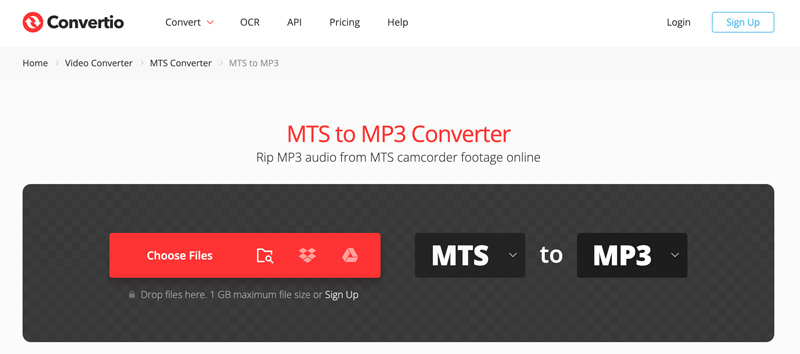
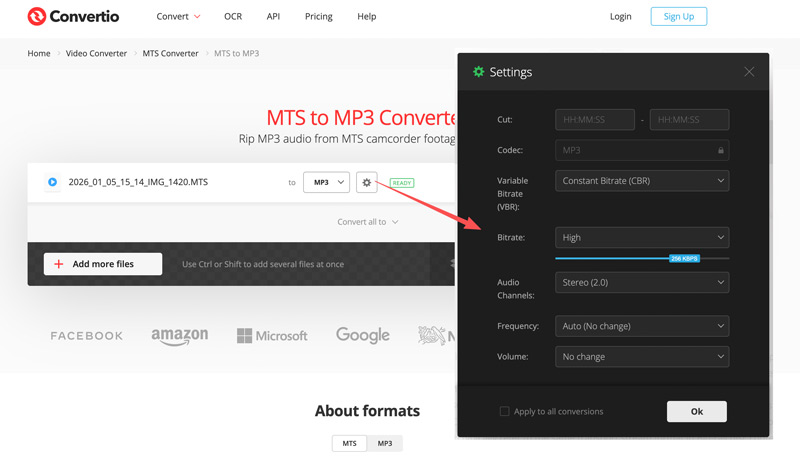
Navigate to the Convertio MTS to MP3 Converter page in your browser and upload your video. It allows you to upload a file of less than 1 GB. The target format is set to MP3 by default. Click the Settings button if you need to customize output audio options. After that, click the Convert button.
Question 1. What bitrate should I choose for the MTS to MP3 conversion?
In most cases, you can keep the source bitrate while converting MTS to MP3. That means you don’t need to manually change it. However, if you want to fine-tune, 256-320 kbps is a good choice for music or the content you plan to listen to critically. For spoken content and general use, 192 kbps is a sensible default.
Question 2. Can I convert a whole folder of MTS files at once?
Yes, all you need is a converter like Aiseesoft that supports batch conversion. Some free online converters can also process several files at a time; they often require a paid plan.
Question 3. Is it safe to use online MTS to MP3 converters?
You should use a reputable conversion tool like CloudConvert, FreeConvert, or Convertio. They will automatically erase your uploads and converted results within 24 hours. However, you should not upload sensitive or very personal files to an online converter, even if it promises deletion afterward.
Conclusion
Whether you want to turn your AVCHD camcorder footage into MP3 or MP4, you can rely on the two converters above. Converting MTS to MP3 is quite useful if you’re after the audio, such as a conversation, an interview, or a speech worth keeping. If you convert often, handle large recordings, or need to directly edit before the conversion, Aiseesoft Video Converter Ultimate is your tool. However, if it’s a one-off short clip, try using a free online converter like CloudConvert or Convertio.
 Top 3 Ways to Convert AVCHD MTS/M2TS to WMV
This is the guide about how to convert AVCHD video to WMV format with AVCHD to WMV Converter. Free download AVCHD video converter to convert AVCHD to WMV.
 Ultimate Guide to Converting MP4 to MOV with 7 Methods
Can I convert MP4 to MOV in iMovie? Is there a free video converter to transform MP4 to MOV? Learn 7 effective methods to turn MP4 into MOV on Mac and Windows.
 5 Easy Ways to Convert MTS Files to MP4 on Windows 10 or Mac
If you do not know how to convert MTS files to MP4 and other formats, you can read this complete guide to find your result.
 Leave your comment and join our discussion
Convert/Download/Edit SWF
1.1 SWF 1.2 SWF to MP4 1.3 SWF to GIF 1.4 SWF to MOV 1.5 SWF to HTML5 1.6 SWF to AVI 1.7 SWF to WMV 1.8 SWF to 3GP 1.9 SWF to DVD 1.10 SWF Converter Mac 1.11 Edit SWF
Video Converter Ultimate is excellent video converter, editor and enhancer to convert, enhance and edit videos and music in 1000 formats and more.
100% Secure. No Ads.
100% Secure. No Ads.

*Required field
*Please enter a valid email