WhatsApp is among the most popular apps for communicating with friends and customers. Many users like you have taken on the responsibility of backing up WhatsApp chats to keep significant messages and media files protected. After all, it makes it much easier to do so when you have to restore old messages to a new phone or retrieve chat conversations you may have deleted by accident. You may have found some guidelines from WhatsApp's official sources. However, you may be confused by the simple introductions. With that in mind, here's a detailed guide with visual images to WhatsApp backup and restore on iPhone and Android. Let's dive right into it.
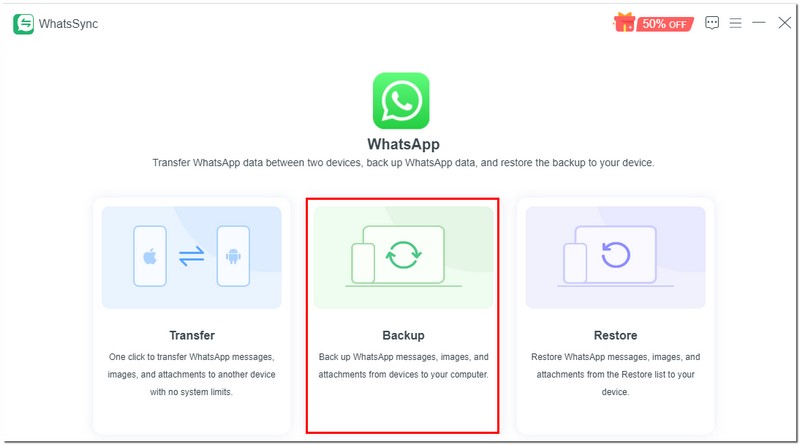
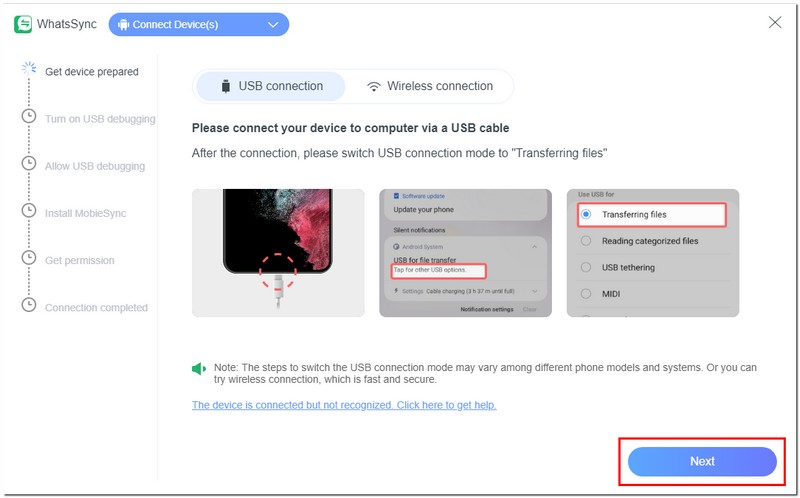
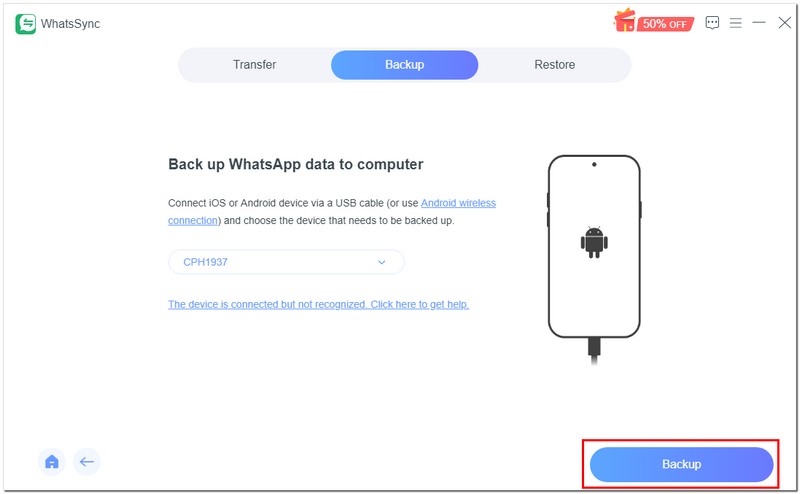
WhatsSync is your one-stop solution to backup and restore WhatsApp data with no loss. Your messages, chats, photos, and stickers will remain intact after transferring. When backing up, you can choose the destination, which can be different devices (Android, iOS, or a computer). Furthermore, WhatsSync also offers restore features, making it easier to recover your WhatsApp files, which is perfect for users searching for WhatsApp how to backup and restore in a simple and reliable way.

Downloads
 100% Secure. No Ads.
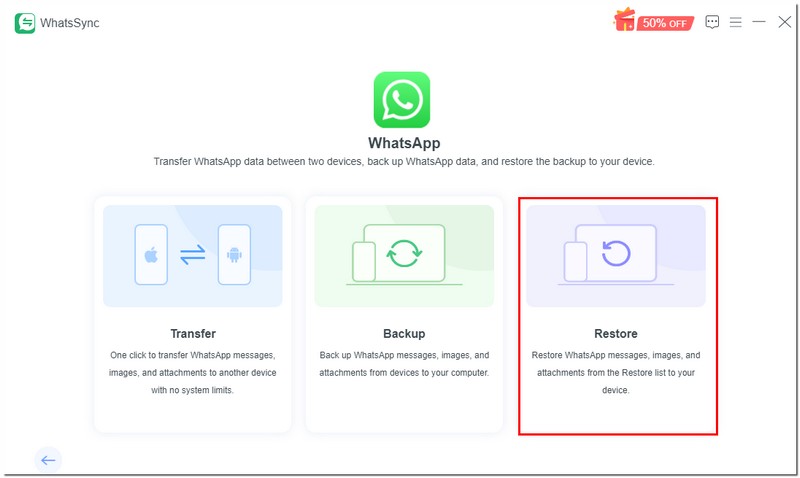
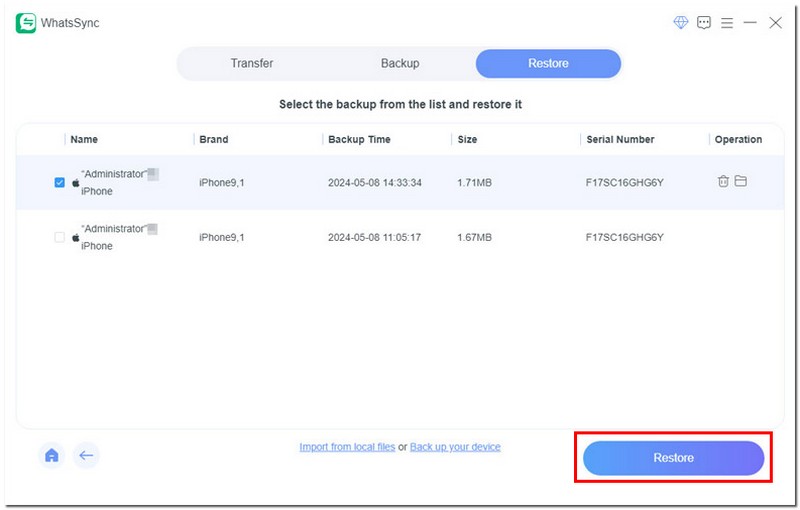
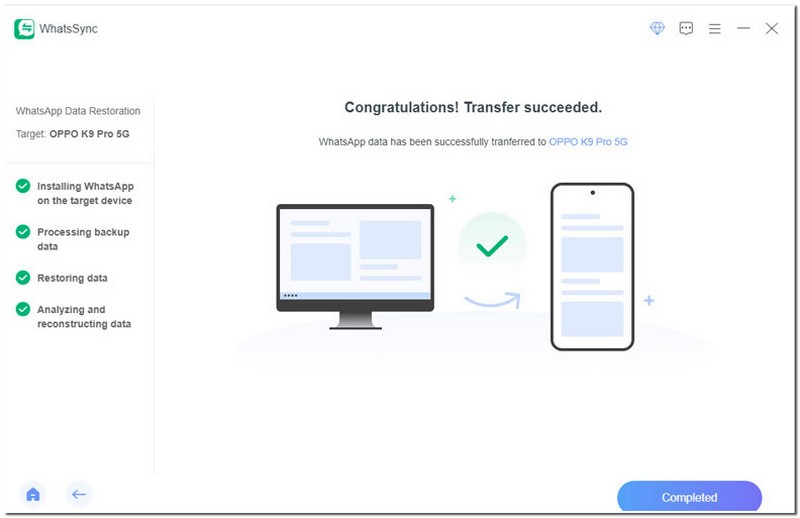
Certainly, WhatsApp also lets you back up messages and media, and iCloud is the official recommended tool for iPhone users. iCloud is a universal feature for backing up and restoring iPhone data. It runs the gamut, including WhatsApp message backups, making it a convenient way to backup and restore WhatsApp iPhone chats and attachments.
Backup WhatsApp Messages on iPhone
Open the WhatsApp application on your iPhone and tap “Settings” at the bottom-right corner. Then hit “Chats”. Next, tap “Chat Backup”.
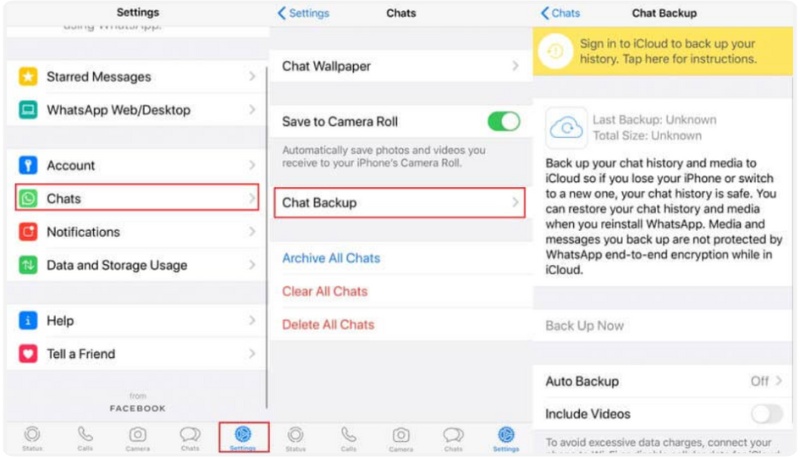
A notification will appear here requesting that you enable WhatsApp backup under iCloud Drive. Open Settings on your iPhone, tap iCloud, then select iCloud Drive, and turn it on. Scroll down to toggle on WhatsApp.
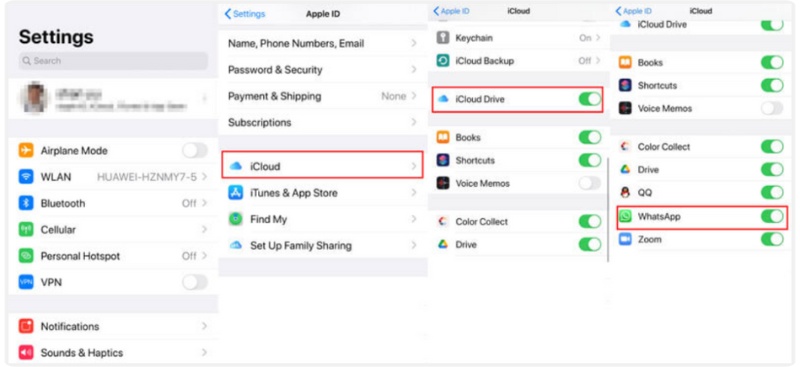
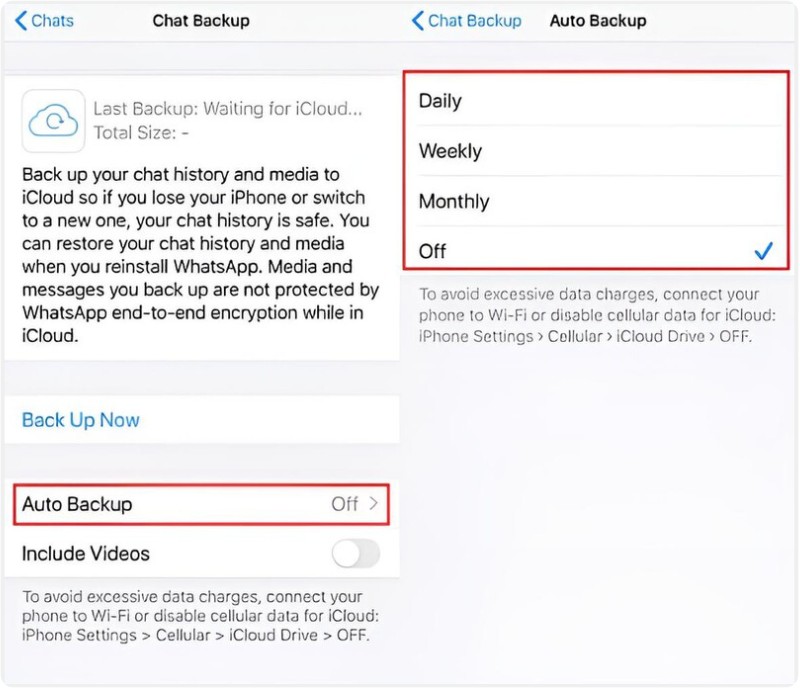
Once the settings are enabled, return to WhatsApp, and you will see the “Back Up Now” option. Just hit it. Then it will start syncing WhatsApp messages to iCloud. By enabling “Auto Backup”, you can also schedule automatic backups to occur daily, weekly, or monthly.
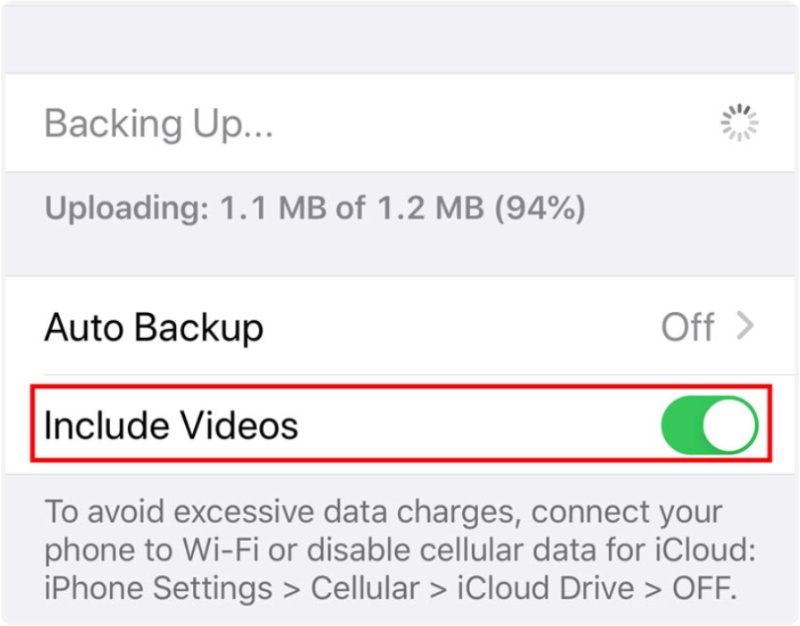
To upload WhatsApp videos to iCloud, simply enable “Include Videos” under Auto Backup. Once the backup process is complete, you can view the last backup date, size, and video information on the screen.
Restore WhatsApp data to iPhone via iCloud
To restore WhatsApp data to an iPhone, you should
Next, log in to your WhatsApp account, and you will see a message asking if you would like to restore your WhatsApp chat history from iCloud. Click on "Restore" or "Restore Chat History," and the process will begin to access your WhatsApp backup from iCloud.
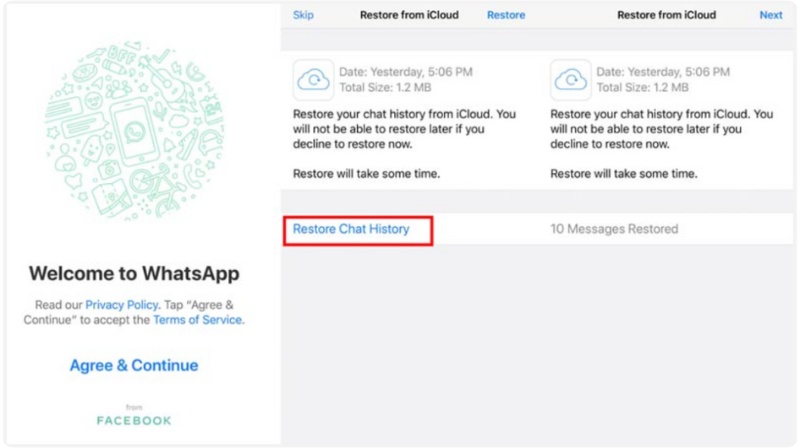
You won't be able to restore the backup later, though, if you skip it. After that, simply follow the on-screen instructions to edit your WhatsApp Profile and use WhatsApp again.
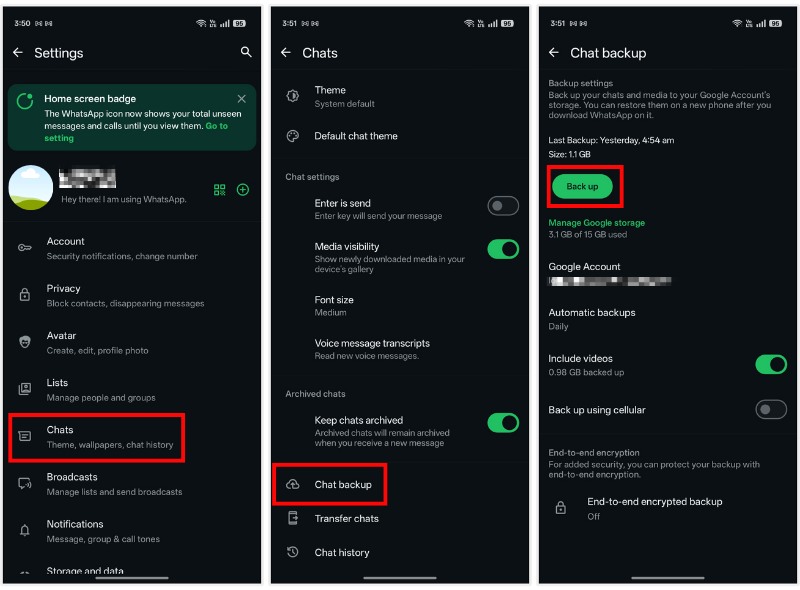
Google Drive is the backup and restore solution for WhatsApp on Android. This makes it an easy and reliable way to backup and restore WhatsApp Android chats and media files.
You will need the following to use Google Drive to back up WhatsApp data:
Here's how to get started:
Backup WhatsApp from Android to Google Drive
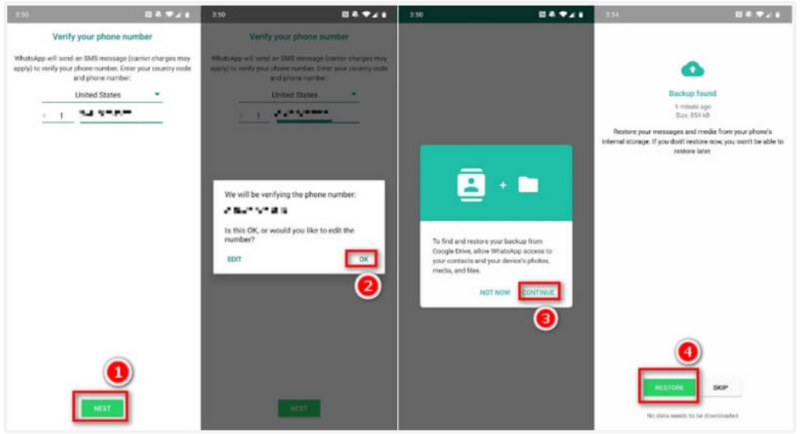
Restore WhatsApp from Google Drive to Android
To restore a WhatsApp backup from Google Drive, you must use the same phone number and Google account that were used to create the backup.
Where is WhatsApp backup stored?
If your backup WhatsApp chat history on Android, it will be stored in Google Drive. For iPhone users, WhatsApp message backup will be saved in iCloud. If you use WhatsApp Transfer for iOS, it will be stored on a local computer or other removable drives.
How do I open WhatsApp backup?
Both iCloud and Google Drive only stores the backup on the cloud as a library file, but you cannot open them directly. To access WhatsApp backup on iCloud, you need an iCloud extractor. To open WhatsApp backup on this PC, WhatsApp Transfer for iOS can restore them to the PC for viewing.
How to restore deleted WhatsApp messages without backup?
Without backup, you need a third-party WhatsApp recovery tool to retrieve the deleted WhatsApp messages. Read this post to get WhatsApp recovery here.
Conclusion
Many important messages and media files are stored in your WhatsApp chats. Backing up WhatsApp is a great way to safeguard your data in case you inadvertently delete chats or purchase a new phone. This post shares three ways to back up and restore WhatsApp data, covering iCloud, Google Drive, and WhatsApp Transfer for iOS, making it easy to understand WhatsApp how to backup and restore successfully. Which way is your favorite one? Is uninstalling WhatsApp a good way to resolve the issue? Let me know by leaving your comments below.
 How to Delete WhatsApp Account on iPhone
Don't want to use WhatsApp account? Here's the updated and complete guide to help you permanently delete WhatsApp account from iPhone.
 How to Hide/Check Last Seen on WhatsApp
This article tells you everything you need to know about the last seen feature in WhatsApp, including how to hide and track the time that your friends have last seen on WhatsApp even if it is hidden.
 How to Add Contacts to WhatsApp on iOS and Android Smartphone
How to add contacts to WhatsApp on your mobile device? This article will show you the methods to add contacts to WhatsApp on iPhone and Android mobile phone.
 Leave your comment and join our discussion
Data Backup & Restore
1. SMS Backup & Restore 2. Contacts Backup & Restore 3. App Backup & Restore 4. WhatsApp Backup & Restore
An efficient WhatsApp transfer tool that quickly backs up and syncs all WhatsApp chats, video/audio, files, stickers, and more across iOS/Android devices and online cloud services.
100% Secure. No Ads.

*Required field
*Please enter a valid email

