Contents
Want to know how to clear cache on iPhone and free up storage space? In this article, we’ll show you 6 effective ways to remove cache from your iPhone. Even though iPhones are known for being user-friendly and fast, over time, they can slow down. This happens because apps create caches, cookies, and temporary files that accumulate, taking up storage and draining battery life. To improve your iPhone’s performance and battery life, it’s important to regularly clear the iPhone cache. Keep reading to find the method that works best for you and get your device running smoothly again.
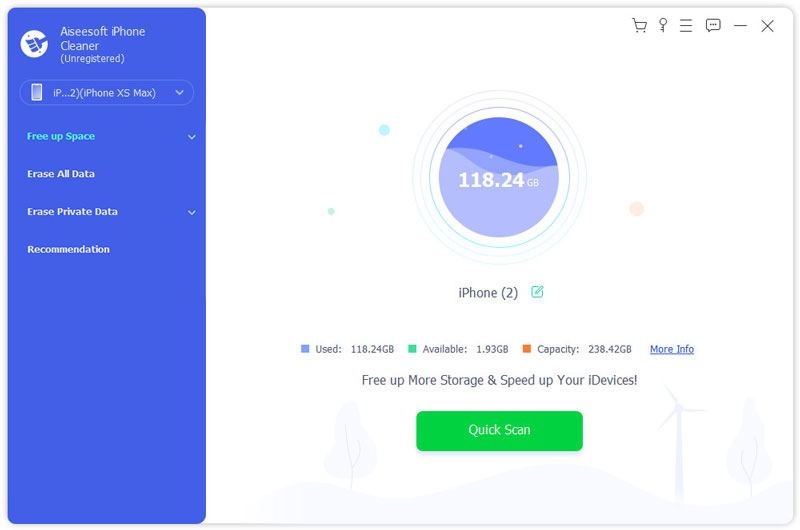
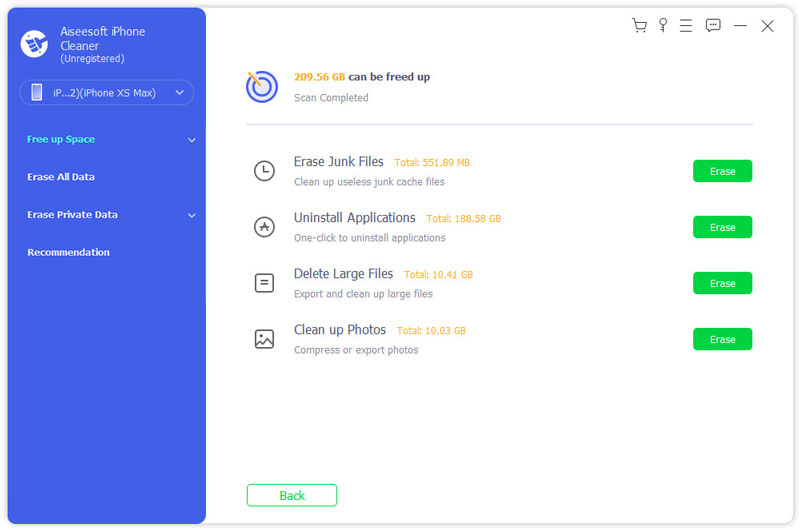
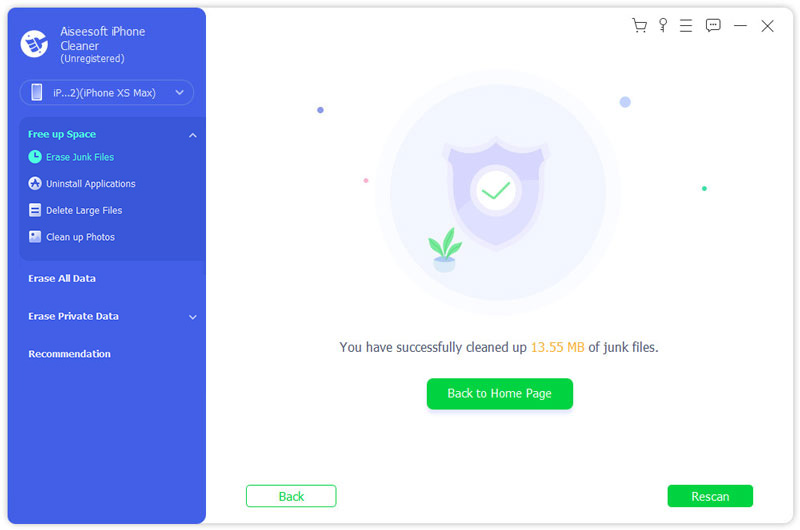
The quickest and simplest way to remove all cached and browsing history from your iPhone is by performing a full data wipe. This method is very effective at completely erasing any evidence, such that even the most advanced data recovery programs will not be able to restore your info. If you want to know how to clear cache and cookies on an iPhone completely and safely, you’ll need a reliable iPhone eraser. Aiseesoft iPhone Cleaner is available here. Your iPhone is completely erased and returned to its original form. You’ll get the smoothest experience, just like when you first got your device.
Downloads
 100% Secure. No Ads.
100% Secure. No Ads.
Before you use this program, please backup your iPhone first.
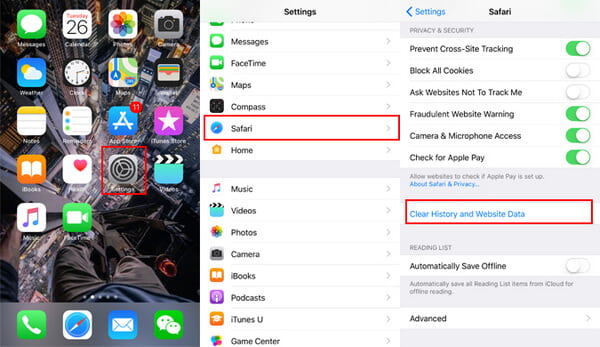
As the default web browser on Apple devices, Safari is one of the most commonly used apps, so it has the most cached memory compared with other apps. To clear Safari cache on iPhone, you can follow the steps below.
In this way, the Safari history and cache disappear from your eyes only, and others could easily recover the Safari history with the iPhone data recovery software.
If you use Google Chrome on your iPhone, cached data like images, cookies, and browsing history can pile up, slowing down the app and taking up storage. To improve performance and free up space, you can clear the browser cache on your iPhone directly in Chrome.
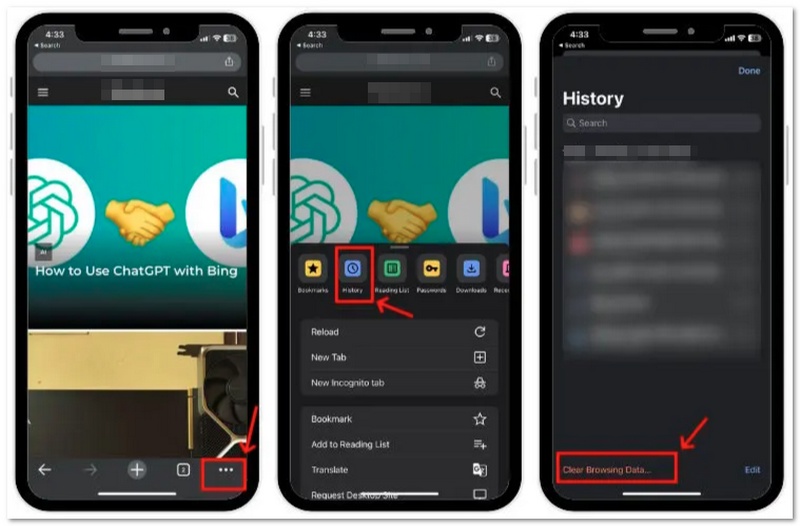
After completing these steps, Chrome will remove the cached files, cookies, and history, helping your browser run faster and freeing up storage on your iPhone.
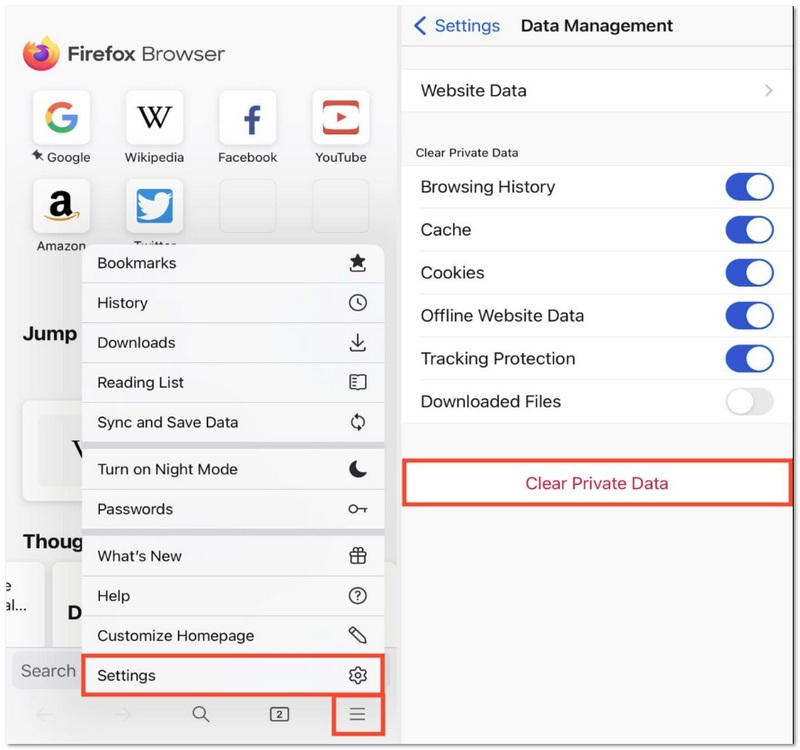
Are you using Firefox on your iPhone? If that is the case, caches cookies and site data can pile up, which can cause performance slowdown and take up storage. Deleting these files regularly can make your browser run faster and also keep your privacy safe.
Generally, there are two ways of getting rid of the cache and cookies left by other apps. If you are asking how to clear app cache on iPhone, the simplest way is to either locate the clear cache and data option inside a few apps, or to use the Usage option in Settings to uninstall the app completely along with its cached data.
Many third-party apps installed on iPhone are designed with built-in cache-clearing options, which makes it easy to remove junk files. Take Facebook as an example. Follow the steps below to remove the app cache.
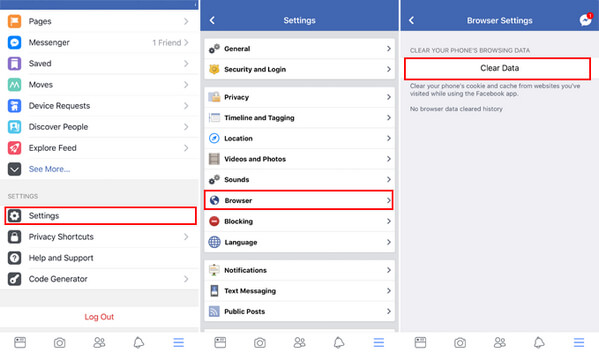
Following a similar method, you can clear the cache from other apps, as long as they provide such options. For other apps that don't have the option, you can choose to offload or uninstall the app in Settings to clear the app cache completely.
To help you better manage applications and clear app cache on iPhone, Apple has provided the updated iPhone Storage settings (previously called Storage & iCloud Usage) in iOS 18/17/16/15/14/13. You can follow the steps below:
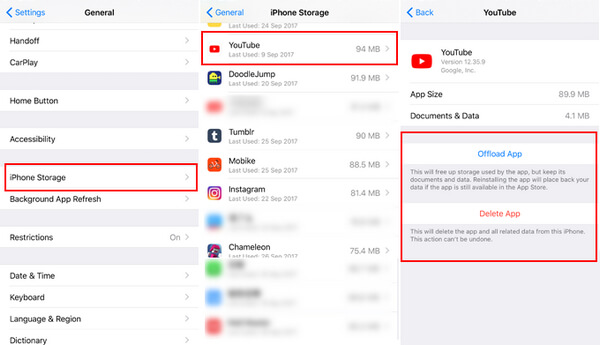
After you reinstall the app, you'll find that all the cache in this app is cleared out. But as you can see, both methods above are quite inefficient. If you want to clear the cache on all iPhone apps, you might need an all-in-one solution.
Apart from the cache you can check on your iPhone, there are caches that are not visible to your eye, and the system cache, RAM cache is.
Cleaning your iPhone's RAM cache can free up space and speed up your device efficiently.
For iPhone 7 and older devices:
Hold down the Sleep/Wake button > When Slide to Power off appears, release the Sleep/Wake Button > Hold down your Home button.
After a few seconds, your screen will flash blank and then return to the Home screen, which means you've cleared your iPhone's RAM cache.
For iPhone 8/X/11/12/13:
Then your iPhone RAM cache has been cleared.
What is the cache on the iPhone?
Cache on an iPhone is a term used to describe temporary data stored by applications and web browsers to aid quicker loading of the content. The files may consist of pictures, scripts, cookies, and other regularly used data.
Is it good to clear the cache on my iPhone?
Indeed, wiping your iPhone's cache will assist in liberating storage space, enhancing the performance of your phone, and decreasing the instances of app slowdowns or crashes. As you use apps and browsers, a lot of cached files will accumulate over time, potentially occupying space that isn't really necessary. If you delete them from time to time, it could be one of the reasons why your iPhone is able to operate in a smoother and more efficient way.
Do I need to clear the cache on my iPhone?
Over time, your iPhone will get clogged up with useless files from Safari and other apps. All these files will slow down your iPhone. That's why you need to clear your iPhone's cache from time to time.
Conclusion
One of the best ways to maintain an iPhone is by regularly clearing the cache. In this way, storage will be freed up, performance enhanced, and the iPhone will be kept in good running order. The present article has discussed various ways, such as using cleaner software, removing browser data, uninstalling and reinstalling apps, and performing a RAM refresh operation. Now, if you are asking yourself how to clear app cache on iPhone, it's the simple procedures outlined here that will enable you to handle cached files and keep your device running at its best.
 3 Quick Ways to Clear App and System Cache on Android
How to clear cache on your Android phone to speed up it? This page collects 3 ways to help you delete app/system/browsing cache on Samsung, LG, HTC, etc. running on Pie, Oreo, Nougat, etc.
 How Do I Wipe My iPhone- 5 Different Steps Before Selling Your iPhone
How to clean an iPhone in five effective ways? See this post for more tips to completely wipe off personal data on an old device.
 3 Ways to Clear Junk System Data on iPhone to Free up Space
System junk files take up a large size on iPhone? Get the best solutions here to clear system data, including unvisitable other storage to slim your iPhone and iPad.
 Leave your comment and join our discussion
Clear Cache
Clear Cache Android Clear App Cache on iPhone Clear Cache on iPad Clear Safari Cache on iPad Clear Cache on Mac Clear iPhone Cache Clear DNS Cache on Mac
iPhone Cleaner can clean up useless data on your device selectively. You can also use it to wipe your private data and keep your iPhone/iPad/iPod Touch fast and safe.
100% Secure. No Ads.
100% Secure. No Ads.

*Required field
*Please enter a valid email

